Introduction
Large tech firms such as Google and Facebook operate with monorepos, but many organizations build business software across several project- or product-specific repositories. The recently launched Nx Polygraph addresses this reality by offering a view of inter-repo dependencies and enforcing shared policies.
This piece gives an overview of Polygraph and demonstrates how to implement a conformance rule that mandates a particular Angular version across multiple repos. This kind of check becomes critical in Micro Frontend setups where keeping a single version simplifies things.
Many thanks to Juri Strumpflohner, Sr. Director of Developer Experience at Nx, for reviewing this article.
What Polygraph Offers
Nx Polygraph ships with the enterprise edition of Nx Cloud, the commercial layer atop the open-source Nx workspace tool. Polygraph has three primary functions, all reachable straight from the Nx Cloud Dashboard:
- Workspace Graph: Displays dependency links between repositories
- Conformance: Lets you define and monitor cross-repo rules, flagging any deviations
- Custom Workflows: Handles batch jobs that fetch data for the graph or verify repos against conformance rules
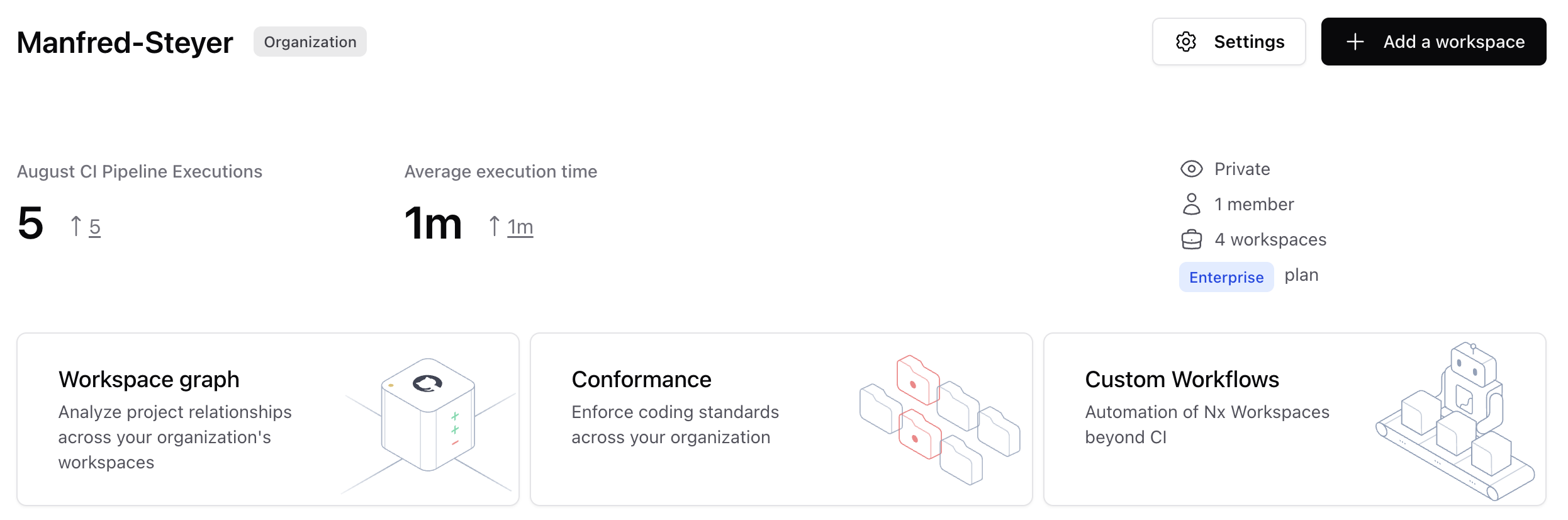
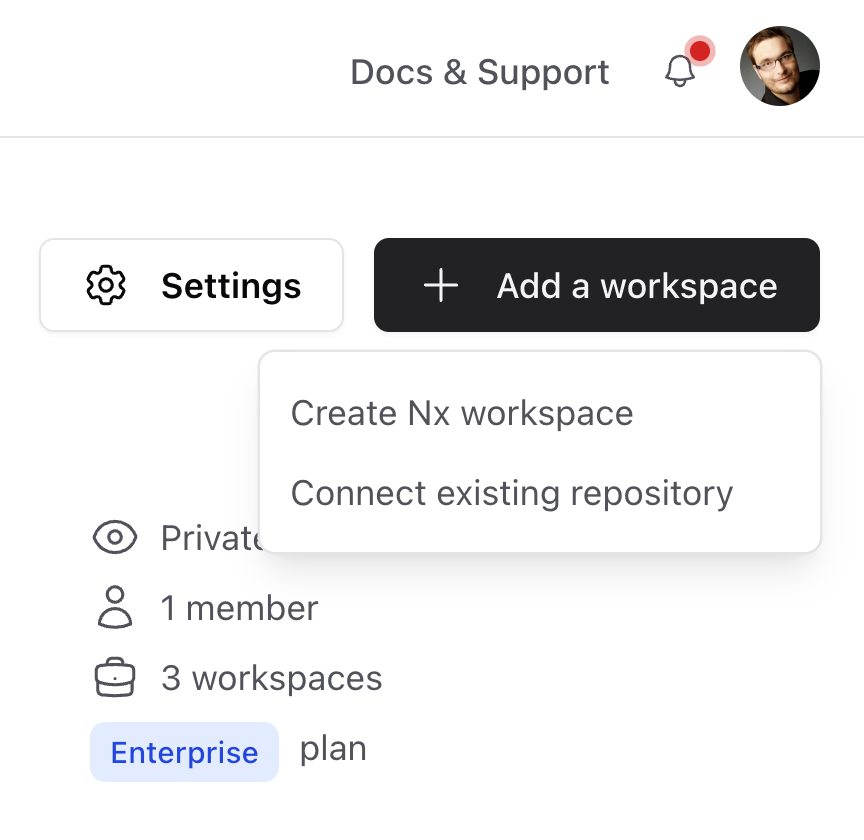
Connecting an Nx workspace to Nx Cloud is done with this command:
npx nx connectAs an alternative,
- you can choose Nx Cloud during
create-nx-workspacesetup - visit https://cloud.nx.app/get-started/ to create or link a workspace
A CI build script can also be scaffolded:
npx nx g ci-workflowAfter that, the workspace must be committed to version control (e.g., GitHub) and then attached to your organization through the Nx Cloud Portal:
Exploring the Workspace Graph
The Workspace Graph illustrates the connections among repositories. You can zoom into any linked repo to inspect its apps, libraries, and their dependencies. Cross-repo dependencies typically appear as npm packages published from one repo and consumed by another.
Take this scenario: project-a and project-b live in separate repos, yet project-b relies on the calc library from project-a via an npm registry:
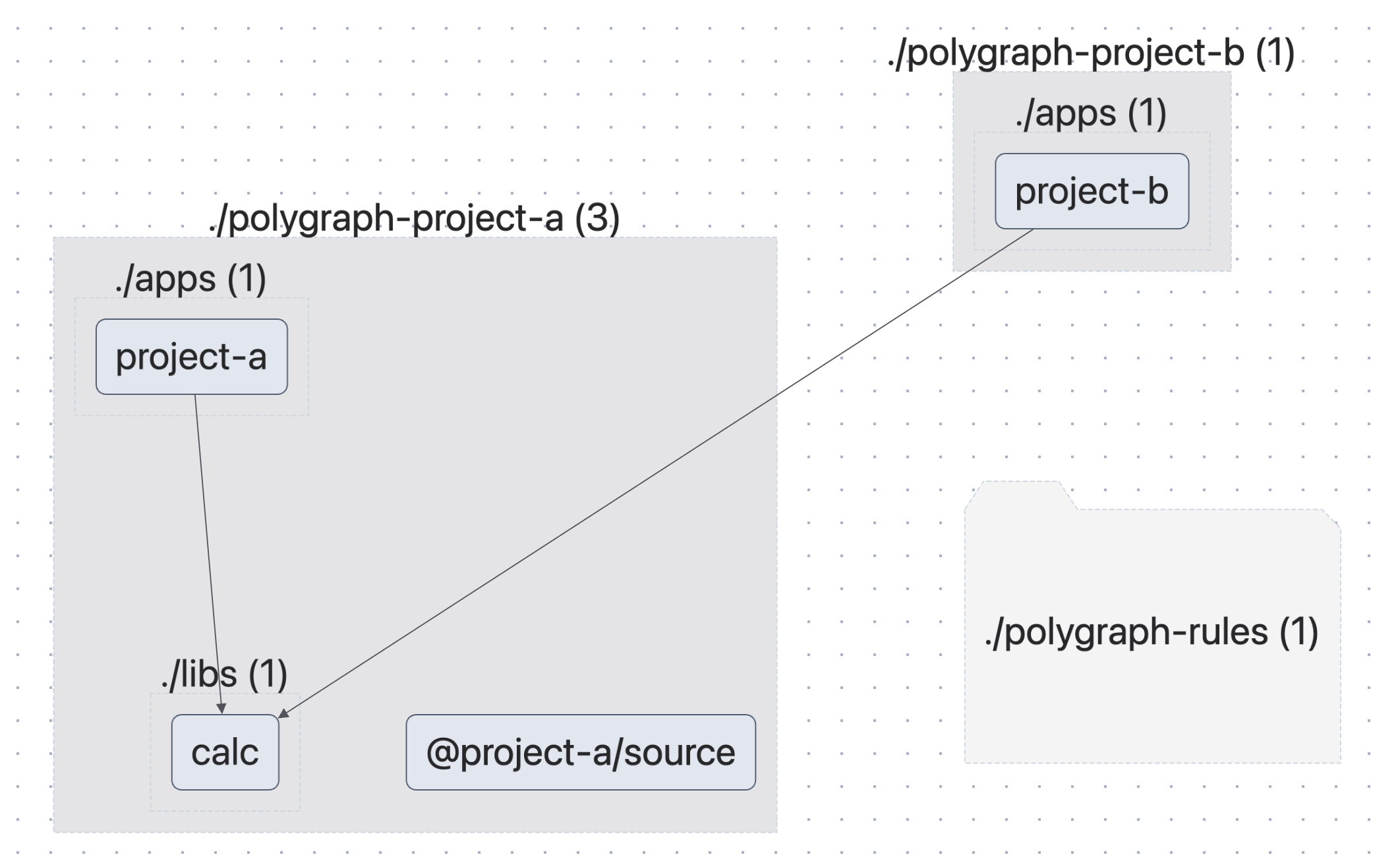
Nx pulls this data for the Workspace Graph whenever Nx commands (like nx build or nx run-many) fire within a CI build script, ensuring your dependency picture stays current even across boundaries.
Conformance in Action
The Conformance Dashboard shows whether linked repos satisfy the rules you have set. In the screenshot below, three rules apply to four projects within my demo org, and the first rule is violated by project-b:
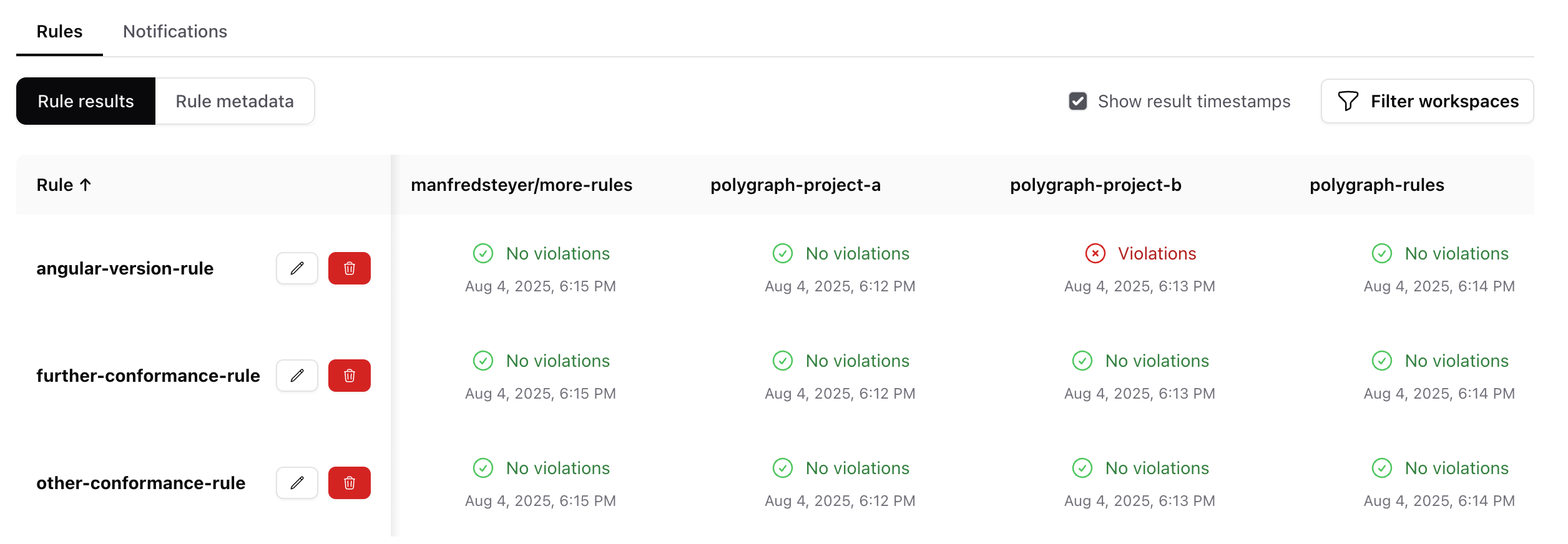
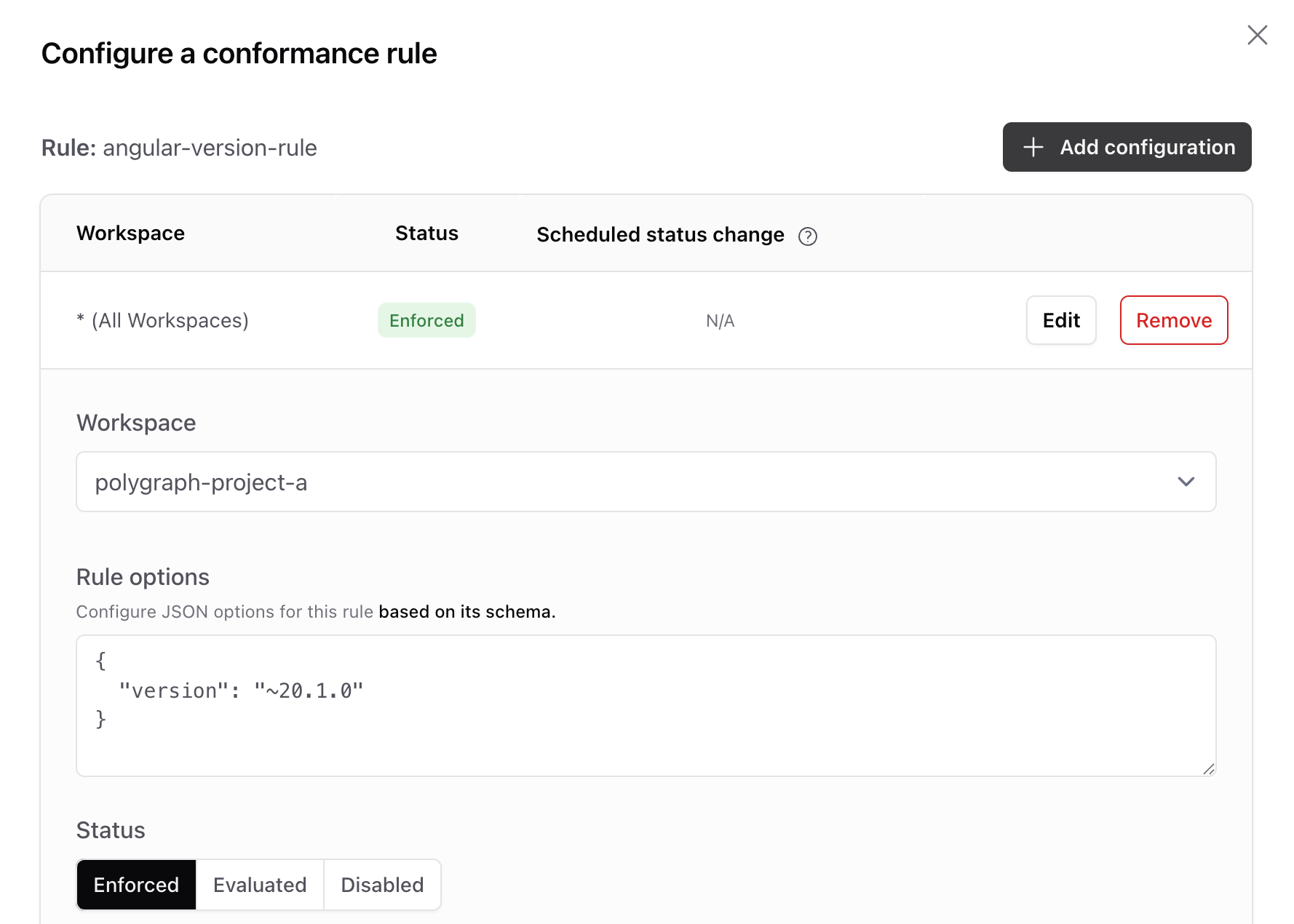
The "Notifications" section lets you assign email addresses per project for alerts when rules break. Each conformance rule runs against all or specific projects and carries its own config. For instance, the angular-version-rule, which I will code later, expects the target Angular version through its config and compares entries in package.json accordingly:
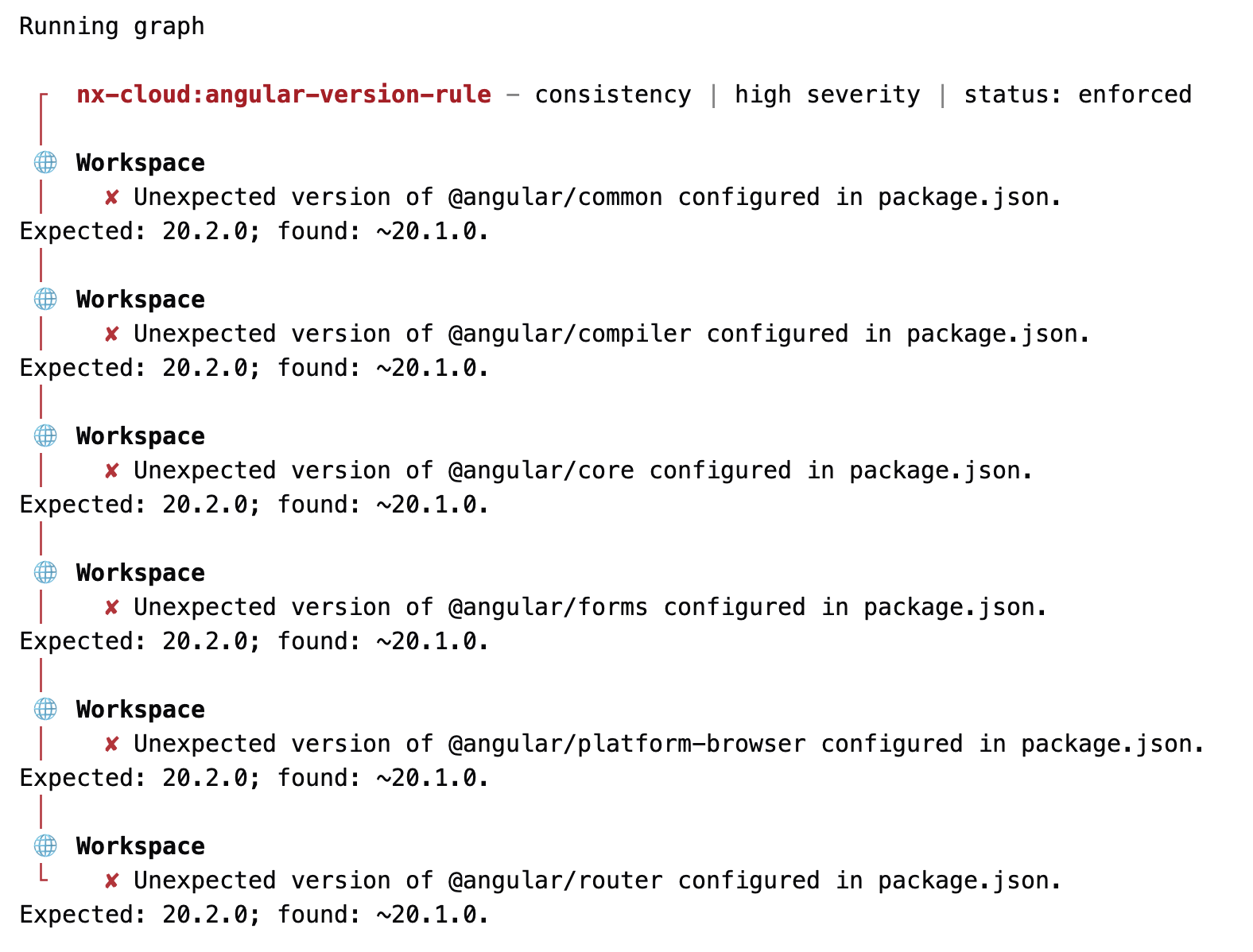
When needed, Nx Cloud provides deeper insights for failed rules:
For Nx Cloud to evaluate rules on the relevant projects, a custom workflow must be in place— this is handled via the dashboard screens.
Deeper Dive: Angular Architecture Workshop (Remote, Interactive, Advanced)
Sharpen your skills for enterprise-grade Angular development with our Angular Architecture workshop!

English Version | German Version
Building a Conformance Rule
Nx gives you broad flexibility for conformance rules—they are just JavaScript objects with metadata plus an implementation method. That method reads specific files from the repo under review, inspects them, and returns a list of any violations found.
This command scaffolds an Nx project dedicated to conformance rules:
npx create-nx-workspace more-rules --preset=@nx/conformanceThat project includes a starter rule to model your own after. The rule itself has a schema.json that outlines its configuration via a JSON schema, plus an index.ts.
For the angular-version-rule, schema.json sets a single version property, typed as string:
{
  "$schema": "http://json-schema.org/schema",
  "$id": "angular-version-rule",
  "title": "options for example conformance-rule rule checking for a specific Angular version",
  "type": "object",
  "properties": {
    "version": {
      "type": "string"
    }
  },
  "required": ["version"],
  "additionalProperties": false
}
To use the config in code, you add a matching type:
export type AngularVersionConformanceOptions = {
  version: string;
};
I wrote it manually here. In bigger setups, generating types is preferable— tools like json-schema-to-typescript handle that well.
Then index.ts exports the rule as the default export. Using createConformanceRule, it registers metadata including name, category, and description.
import { createConformanceRule, ConformanceViolation } from '@nx/conformance';

[…]

export default createConformanceRule({
  name: 'angular-version-rule',
  category: 'consistency',
  description: 'An example conformance rule checking for a specific Angular version',
  implementation: async (context) => {

    const options = context.ruleOptions as AngularVersionConformanceOptions;
    const version = options.version;
    const violations: ConformanceViolation[] = [];
    const packagePath = path.join(workspaceRoot, 'package.json');

    try {
      const versionViolations = checkVersions(packagePath, version);
      violations.push(...versionViolations);
    }
    catch(e) {
      violations.push({
        workspaceViolation: true,
        message: `Error reading package.json: ${e}`,
      });
    }

    return {
      severity: 'high',
      details: {
        violations,
      },
    };
  },
});
The name field must be unique to avoid conflicts during deployment. Inside the implementation, the rule grabs ruleOptions from the context object Nx delivers. After casting to AngularVersionConformanceOptions, it reads the configured version and hands off to checkVersions. That helper cycles through all packages in the dependencies node, verifying that any starting with @angular/ match the required version:
export type PackageJson = {
  dependencies: Record<string, string>
};

function checkVersions(packagePath: string, version: string) {
  const packageInfo = readJsonFile(packagePath) as PackageJson;
  const deps = packageInfo.dependencies;

  const versionViolations: ConformanceViolation[] = [];

  for (const dep of Object.keys(deps)) {
    if (dep.startsWith('@angular/') && deps[dep] !== version) {
      versionViolations.push({
        workspaceViolation: true,
        message: `Unexpected version of ${dep} configured in package.json.
Expected: ${version}; found: ${deps[dep]}.`,
      });
    }
  }
  return versionViolations;
}
This example is simplified. A production-ready rule would also validate devDependencies such as @angular/build, plus other packages that couple with Angular core deps but have their own version schemes— think Nx itself or component libraries.
Testing a Conformance Rule
To try the rule locally, you register it in your workspace's nx.json:
{
  […],
  "conformance": {
    "rules": [
      {
        "rule": "./packages/conformance-rules/src/angular-version-rule",
        "options": {
          "version": "20.1.0"
        }
      }
    ]
  }
}
The rule key points to the folder that holds index.ts, while options carries the config defined by the schema.
Then, to run all registered rules in the current project, you fire:
npx nx conformance checkDeploying a Conformance Rule
For the rule to be usable in Nx Cloud for your projects, you must deploy it. That requires a Personal Access Token within the rules repo, which you generate from the user profile area in Nx Cloud:
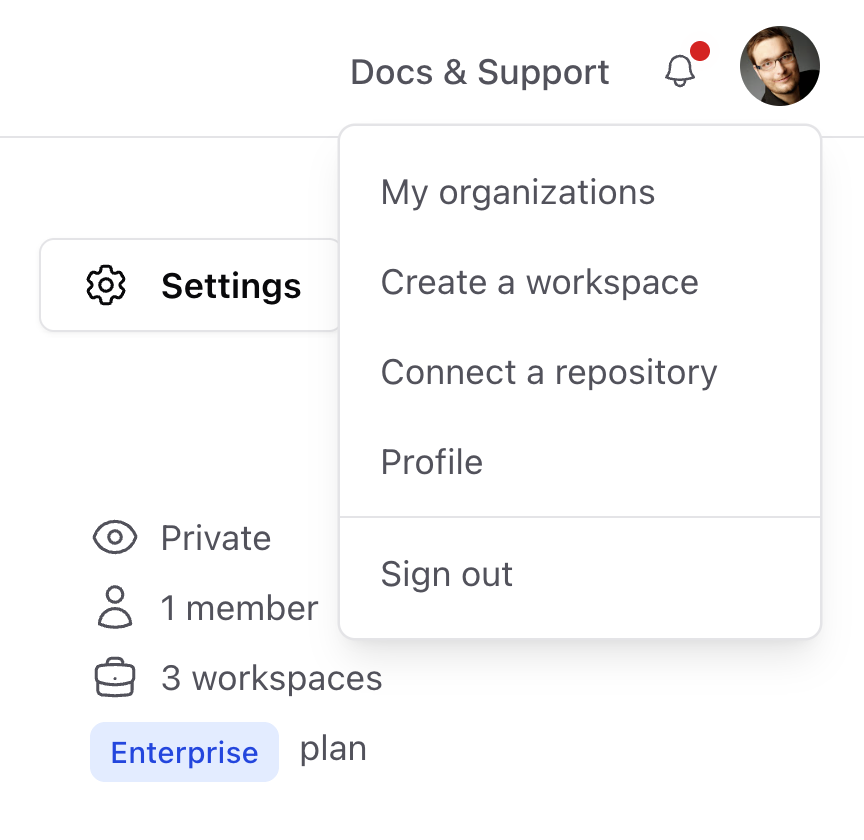
Once you have the token, configure it for the current project with:
npx nx-cloud configure --personal-access-token NzQ2MD...Then deploy the rule using:
npx nx publish-conformance-rules --project conformance-rulesFor any connected project in Nx Cloud where the rule should apply, run:
npx nx-cloud conformance checkAfter deployment, the rule shows up in Nx Cloud and can be assigned to various projects. To have it executed on a schedule and keep the Conformance Dashboard accurate, you still need to set up a custom workflow as noted earlier.
Closing Thoughts
Nx Polygraph brings clarity to sprawling, distributed repo ecosystems— particularly in Micro Frontend architectures where teams standardize on one stack. Conformance rules keep everyone aligned and offer visibility.
Defining custom rules and shipping them through Nx Cloud paves the way for cross-team quality enforcement. What was once a tangled, inconsistent set of repositories becomes a controlled, streamlined set of workspaces.