
What Makes Service Workers So Powerful?
Service workers open up capabilities that were once reserved for native applications. At their core, they are JavaScript files that run in the background of your browser, sitting between your application and the network. When your app makes an HTTP request, the service worker intercepts it and determines the best course of action — perhaps serving a previously cached copy of the resource, or forwarding the request to the network.
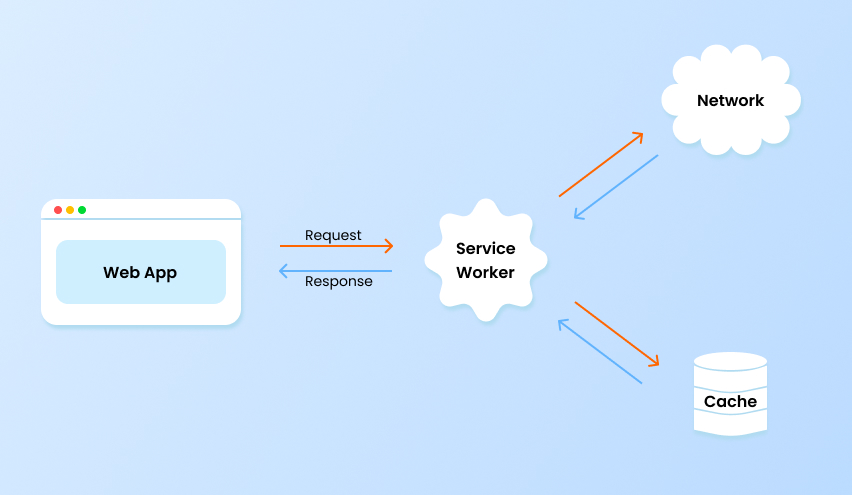
What sets service workers apart from regular scripts is their lifecycle. They operate independently of your web page, persisting in the browser even after you navigate away or shut down your device. On your next visit to the application, the service worker remains registered and ready to serve cached resources, which translates to faster load times and a seamless offline experience.
A Real-World Scenario
Picture this: you've created a flashcard application to sharpen your JavaScript skills. Everything works flawlessly — until you take a trip to a remote mountain cabin where the internet connection leaves much to be desired. Pages load slowly, images are broken, and the whole experience falls apart.
The silver lining? A service worker can rescue your application from this predicament and ensure it functions smoothly regardless of network conditions.
Integrating a Service Worker into Your Angular Project
To get started, execute the following command in your Angular project:
ng add @angular/pwaThis single command accomplishes several tasks:
- Generates
ngsw-config.json— the central configuration file that dictates what should be cached and the caching strategy to employ. - Registers the service worker in your primary module and updates
angular.jsonwith the relevant configuration details. - Adds default icons and a
manifest.webmanifestfile — both essential for transforming your app into a PWA — along with a corresponding link inindex.html.
Once that's done, it's time to build the application:
ng buildFor testing service worker and PWA functionality, building the app is the recommended approach rather than using:
ng serve --configuration productionThe development server, particularly ng serve in Angular 19+, can introduce unexpected quirks when testing PWA features. A production build served via a static HTTP server provides a far more accurate representation of real-world behavior. The npm package http-server works perfectly for this purpose. Start it with:
npx http-server -p 8080 -c-1 dist/<project-name>/browserThen head to your browser and visit:
http://127.0.0.1:8080
Your application should be running now, with an active service worker. Look for the indicator icon that confirms the service worker has been successfully registered:
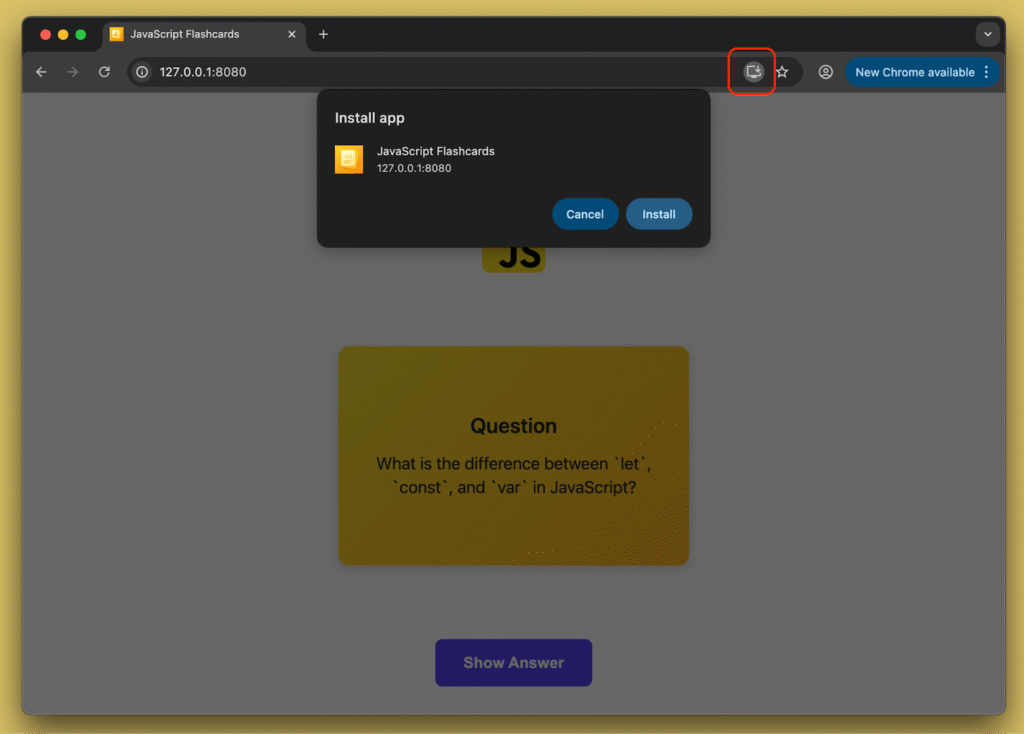
The installation prompt also appears, allowing you to install the app directly onto your computer:

Handling Version Updates
Here's a common puzzle: you change the application's title, rebuild, refresh the page — yet the old title persists. Why does this happen?
Angular creates a file named ngsw.json during the build process, which manages all caching operations. This file contains unique hashes for every asset in your application:
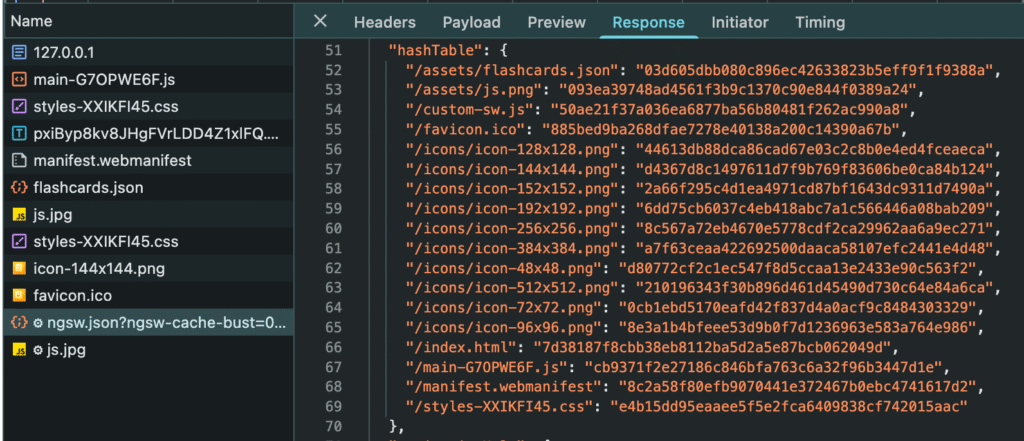
When the application loads, the service worker compares the hashes of the currently served files against those saved from the previous build. If they differ, the new version is downloaded in the background. However, it won't take effect immediately — switching to the new version requires a fresh reload of the page.
So, how do you notify users that they're on an outdated version?
Angular provides the SwUpdate service precisely for this purpose. It exposes methods and properties that enable you to:
- Verify whether the service worker is active.
- Trigger manual update checks.
- Activate an update (although manual activation is typically discouraged).
The service also offers an observable that emits various update-related events:
- VersionDetectedEvent
- NoNewVersionDetectedEvent
- VersionReadyEvent
- VersionInstallationFailedEvent
- VersionFailedEvent
By subscribing to these events, you can present a popup suggesting that the user reload to access the latest version of the app.
// app.component.ts
private swUpdate = inject(SwUpdate);

  constructor() {
    this.swUpdate.versionUpdates
      .pipe(
        filter((evt): evt is VersionReadyEvent => evt.type === 'VERSION_READY'),
        tap(() => this.showUpdatePopup.set(true)),
        takeUntilDestroyed()
      )
      .subscribe();
  }

  onConfirmUpdate(): void {
    window.location.reload();
  }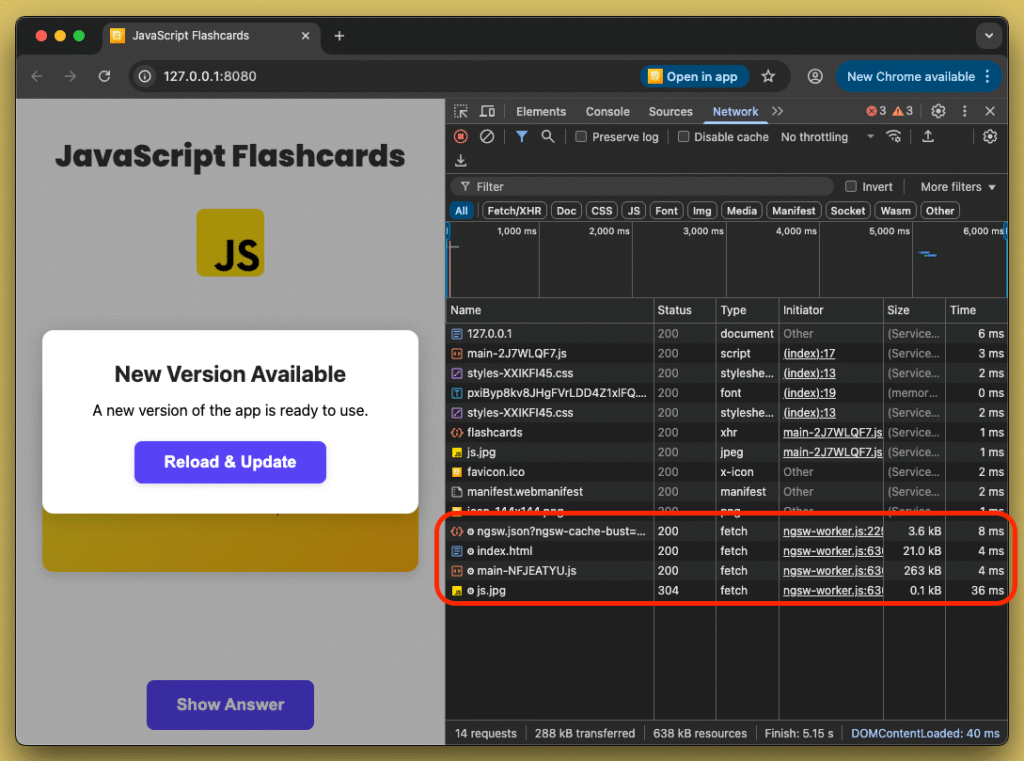
Upon rebuilding and revisiting the page, ngsw.json was fetched anew. The service worker noticed the updated hashes, downloaded the fresh build quietly in the background, and then displayed the popup letting the user know an updated version was ready.
Caching Assets for Offline Access
Service workers are designed to keep your application functional when there's no internet connectivity. To test this, I disabled the network through browser dev tools. The outcome? Mostly working, but not entirely. The app itself loaded, but the flashcards.json data and the JPG image from an external source were inaccessible. The same applied to fonts loaded from Google Fonts.
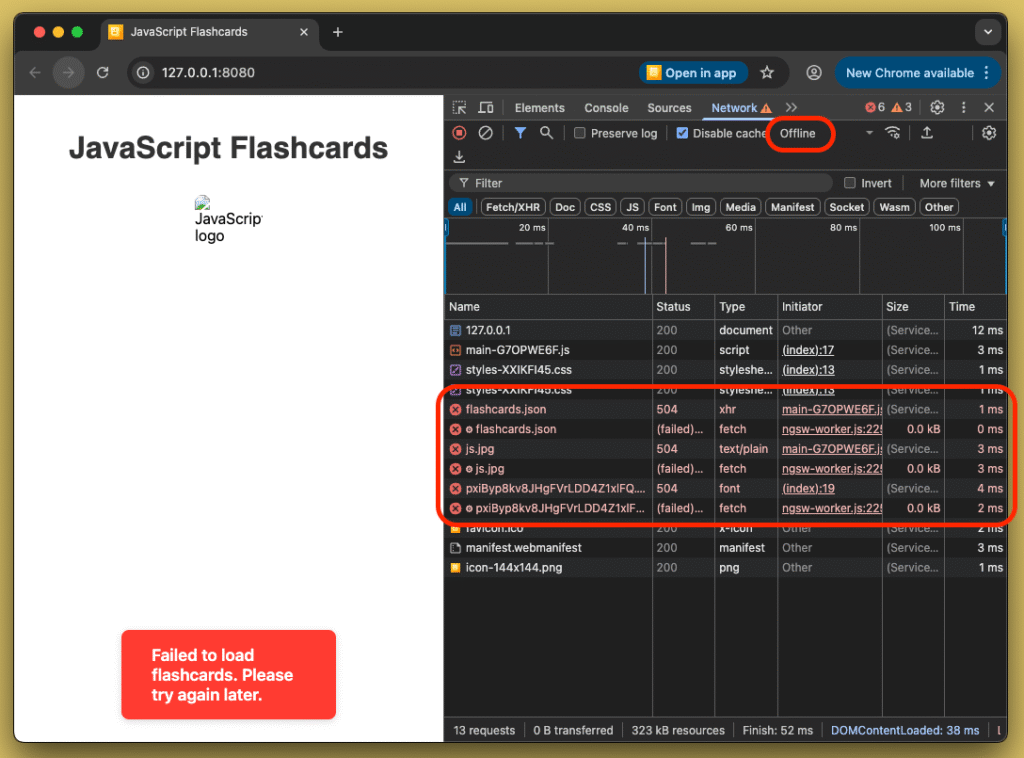
Let's examine the configuration to understand what's going wrong. Open the ngsw-config.json file that the Angular CLI created.
// ngsw-config.json
{
  "$schema": "./node_modules/@angular/service-worker/config/schema.json",
  "index": "/index/",
  "assetGroups": [
    {
      "name": "app",
      "installMode": "prefetch",
      "resources": {
        "files": [
          "/favicon.ico",
          "/index.csr.html",
          "/index/",
          "/manifest.webmanifest",
          "/*.css",
          "/*.js"
        ]
      }
    },
    {
      "name": "assets",
      "installMode": "lazy",
      "updateMode": "prefetch",
      "resources": {
        "files": [
          "/**/*.(svg|cur|jpg|jpeg|png|apng|webp|avif|gif|otf|ttf|woff|woff2)"
        ]
      }
    }
  ]
}
The key property we're looking at is assetGroups — an array of groups that determines which assets to cache and under what strategy.
Each group needs a name, and the caching behavior is shaped by two important configuration options: installMode and updateMode.
installMode
- prefetch: the service worker fetches every listed resource as soon as the version is cached. This is the default behavior.
- lazy: resources are fetched and cached only when the application explicitly requests them. If a resource is never requested, it won't be cached.
updateMode
- prefetch: modified resources are re-downloaded and cached without delay.
- lazy: changed resources are treated like new requests and cached as soon as the app asks for them.
Another critical component is the resources property, which specifies the assets for caching through two sub-sections:
- files: patterns that match files present in your project directory.
- urls: patterns for runtime URLs that need caching, based on their HTTP response headers.
Armed with this understanding, you can set up caching rules for flashcards.json, the remote image, and Google Fonts. For flashcards.json, you'd simply add a corresponding pattern under the files section. For external domain assets, you can specify the domain along with file extensions or just the domain itself. I lean towards using specific extensions — it gives you finer-grained control.
Take this font URL as an example:
https://fonts.gstatic.com/s/poppins/v24/pxiByp8kv8JHgFVrLDD4Z1xlFQ.woff2
The corresponding pattern would be:
https://fonts.gstatic.com/**/*.woff2
// ngsw-config.json
{
      ...
      "resources": {
        "files": [
          "/**/flashcards.json",
          "/**/*.(svg|cur|jpg|jpeg|png|apng|webp|avif|gif|otf|ttf|woff|woff2)"
        ],
        "urls": [
          "https://pwa-backend-mockup.vercel.app/**/*.jpg",
          "https://fonts.gstatic.com/**/*.woff2"
        ]
      }
      ...
}
Rebuild the app and revisit http://127.0.0.1:8080/.
Once the page has loaded and the new caching rules are applied, disconnect from the network and see what happens:
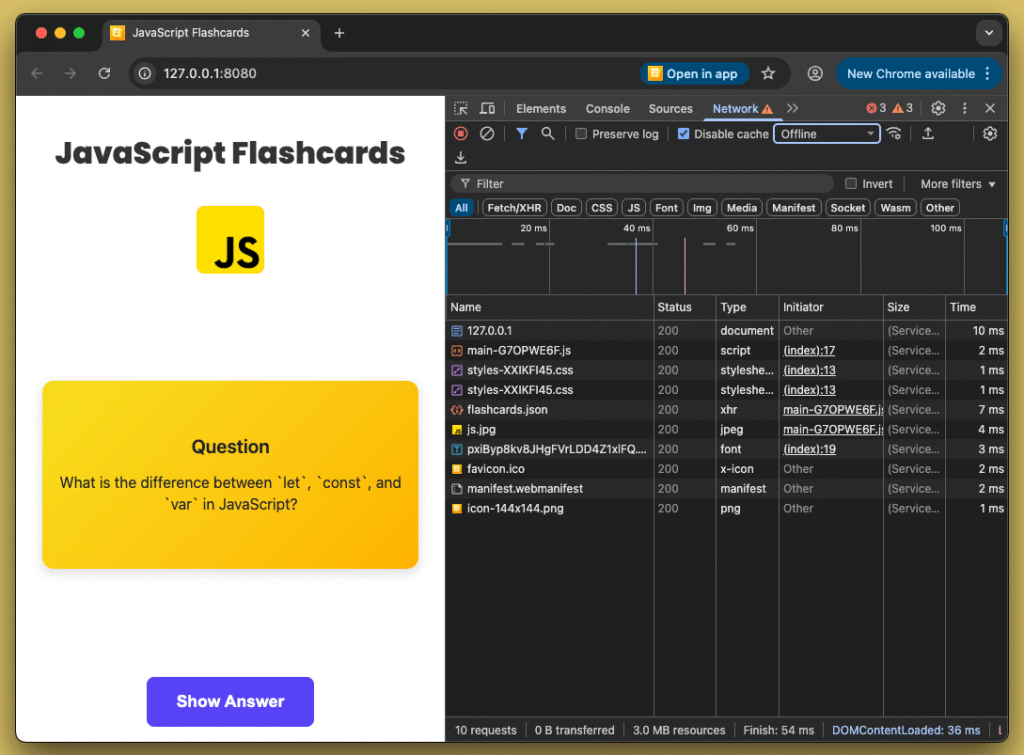
That's it — your offline experience is now fully set up! 🎉
Caching HTTP Requests
Depending on a static JSON file isn't the most scalable approach for a production app. What if you'd rather retrieve your flashcards from an API, so that new content appears without redeploying the app?
You might wonder — how would the service worker handle API data that changes over time?
The answer lies in dataGroups within ngsw-config.json. These groups let you cache GET requests and their corresponding responses in a well-structured way.
Putting together a functional data group requires a few configuration properties. First, name — it uniquely identifies the group, which becomes crucial when you have multiple groups with distinct caching strategies. Then comes urls — an array of URL patterns that should be intercepted and cached. Finally, cacheConfig provides a set of detailed settings:
- maxSize: limits the number of cached responses for the defined URL patterns.
- maxAge: sets the retention period for cached responses. Duration can be specified using these suffixes:
- d – days
- h – hours
- m – minutes
- s – seconds
- u – milliseconds
Combine them when needed — for instance, 5d6h translates to 5 days and 6 hours.
- timeout: the time the service worker waits for a network response before falling back to cached data. Suffixes are identical to maxAge.
- refreshAhead: specifies a pre-expiration window during which the service worker attempts to fetch updated data from the network, anticipating cache expiration. Suffixes are identical to maxAge.
- strategy: defines the fetch pattern:
- performance: cache is checked before the network, so as long as data is valid per maxAge, the network is never contacted. This is known as cache-first.
- freshness: the network is checked first, and the cache serves as a fallback only in case of failure or offline scenarios. This is network-first.
The flashcards data isn't expected to change frequently, so performance is a great fit to maximize speed under weak or nonexistent connections. We'll configure a 3-day cache lifetime for this data.
// ngsw-config.json
...
"dataGroups": [
    {
      "name": "api-performance",
      "urls": ["https://pwa-backend-mockup.vercel.app/**/flashcards"],
      "cacheConfig": {
        "maxSize": 100,
        "maxAge": "3d",
        "strategy": "performance"
      }
    }
  ]
With the config in place, rebuild the app, open it in the browser, refresh the page, and you'll notice the request being cached successfully:
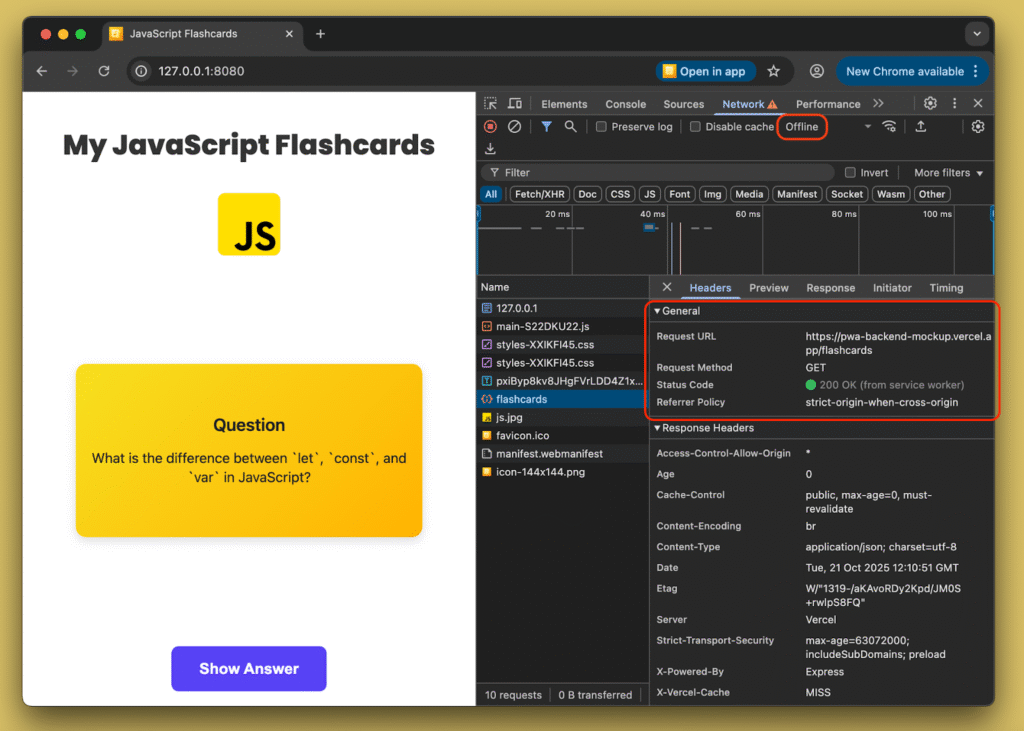
From this point on, the cached response is served regardless of network availability. Had we opted for the freshness strategy, the cached response would only be used when the network is completely unavailable.
Final Thoughts
Great job getting to this point! 🎉
You've successfully enabled service worker support and transformed your Angular application into a full-fledged PWA. You understand the mechanics behind the scenes, how to interact with the service worker, and how to cache both static assets and dynamic HTTP requests.
And to wrap up, look at this beautiful PWA experience on a mobile device — it feels truly native!