
In this article, we’ll take a hands-on walkthrough of Service Workers, concentrating on one of their most critical roles: downloading and installing an application, complete with versioning support.
As a practical exercise, I encourage you to follow along and convert your app into a PWA by enabling download and installation. We’ll apply the same process to a demo app, which you can find in this repository.
If you’ve previously attempted to master Service Workers, you may have observed that many of their features and the Service Worker Lifecycle appear quite counterintuitive at first glance.
Why is a separate daemon instance needed to intercept our own application’s HTTP requests, especially when it cannot perform extensive computations or interact with the DOM?
Nevertheless, Service Workers underpin every Progressive Web App; they act as the central glue connecting all other PWA APIs and unlock native-like functionality, including:
- Offline Support
- Application Download, Installation, and Versioning
- Background Sync
- Notifications
- Physical device interaction (Web Bluetooth)
- Payments (via the Payment Request API)
Are PWAs gaining real traction?
Given these native-like features, PWAs are here for the long haul! A few compelling reasons make now the ideal moment to dive in:
- Chrome already supports PWAs, accounting for more than 50% of browser usage, including mobile
- Apple has committed to bringing Service Workers to Safari
- Microsoft is enabling direct installation of a PWA onto Windows 10 desktops and operating each PWA in a dedicated native window
What we will cover in this article
Let’s start mastering PWAs through practical examples by walking through a complete implementation of a key use case: application download, installation, and version management.
We’ll build this from scratch using native browser APIs and inspect every stage using the Chrome PWA Dev Tools.
This Service Worker is being constructed only for instructional purposes; real-world Service Workers are typically configured and auto-generated by build tools like the Angular CLI or WorkBox.
However, even with these robust tools, grasping the inner workings of Service Workers remains essential for:
- selecting the appropriate PWA tools
- identifying what each tool handles
- interpreting PWA tooling documentation
- resolving error cases
- crafting a comprehensive PWA solution
Table of Contents
This article explores the following subjects:
- What is a Service Worker?
- Application Download, Installation and Versioning in a Nutshell
- Step 1 - Service Worker Registration
- Step 2 - Service Worker Hello World Install Phase
- The Cache Storage API
- Background Application Download
- The Service Worker Lifecycle (Consistency by Default)
- Step 3 - Service Worker Activation Phase
- Step 4 - Intercepting HTTP Requests
- Step 5 - Purging Previous Application versions
- Step 6 - Serving the Application From Cache Using a Cache Then Network Strategy
- Customizing the Service Worker Lifecycle
- Taking over the current page with
clients.claim() - Skipping the Wait Phase (and potential issues it might cause)
- Updating a Service Worker Manually
- Taking over the current page with
- Built-in Browser protection against broken Service Workers
- Precautions with the use of the Browser Cache and Service Workers
- Conclusions
This article is part of the ongoing Angular PWA Series, and here’s the complete list:
- Service Workers - Practical Guided Introduction (several examples)
- Angular App Shell - Boosting Application Startup Performance
- Angular Service Worker - Step-By-Step Guide for turning your Application into a PWA
- Angular Push Notifications - Step-by-Step Guide
Now, let's dive straight into the core of Service Worker Fundamentals!
What is a Service Worker?
Think of a Service Worker as a background daemon that sits between your web app and the network, catching every HTTP request your application issues.
It doesn't have direct DOM access. In fact, the same Service Worker instance is shared across all tabs of your app, and it can intercept requests from every one of those tabs.
Keep in mind that for security, the Service Worker cannot see requests from other web apps in the same browser, and it only operates over HTTPS (except on localhost, which is allowed for development).
In short: a Service Worker is a network proxy living right inside the browser!
Service Workers Overview
The Service Worker's code is fetched from your site periodically, and a full lifecycle management system oversees it.
It's the browser that decides when the Service Worker should run, all to conserve resources, especially on mobile devices.
So if there are no HTTP requests or notifications for a while, the browser might shut the Service Worker down.
When an HTTP request that needs the Service Worker occurs, the browser will wake it up if it wasn't running. Thus, seeing it stopped in Dev Tools doesn't necessarily indicate a problem.
The Service Worker can intercept HTTP requests from all open tabs for a given domain and URL path—this path is known as the Service Worker scope.
However, it can't access the DOM of those tabs, but it does have access to browser APIs like the Cache Storage API.
Service Worker Use Case: Application Download, Installation, and Versioning
At this point, you might wonder how network proxying relates to app download, installation, and offline support.
The Service Worker is a network proxy with an installation lifecycle, but it's our job to leverage it for native-like PWA features—by itself, it doesn't offer those capabilities.
So let's explore how to craft a Service Worker-based solution that handles background download and installation.
Download and Installation Design Breakdown
Here's what our planned design looks like:
- we'll fetch the Service Worker script from the server
- we'll ensure the browser installs and activates the service worker in the background as late as possible during app bootstrap, to avoid harming the initial user experience
- in the background, the service worker will download the entire web app (HTML, CSS, and Javascript), version it, and store it for future use
- only on the next visit will the service worker take action (we'll elaborate on this shortly)
- on that second visit, the app won't fetch HTML, CSS, or Javascript from the network—the Service Worker will serve the cached files it saved earlier
- this second visit will see much faster startup
- the user will always have a working app, even when the network is unavailable
That's how a browser-side network proxy enables installable web apps! This approach is fully compatible with the back and refresh buttons.
Let's move on to implementing this design: first, we'll need a sample application.
Step 1 - Service Worker Registration
Our journey begins with a straightforward Bootstrap page built from plain HTML, CSS, and Javascript, which relies on some widely adopted CSS and Javascript packages.
Our goal is to morph this basic page into a PWA that can be fetched and installed in the background, and the identical principle holds for a single-page application—at its core, it's nothing more than HTML, CSS, and Javascript!
Note: The sample project's source code is hosted here on Github
To kick off the transformation of this typical website into a downloadable PWA, our first action is to introduce a Service Worker through a registration script:
Observe the sw-register.js file—it's responsible for kicking off the setup of our network intermediary, the Service Worker. Now, let's dive into what this registration script does:
Let's examine the registration process step by step, uncovering its implications:
- initially, we verify whether Service Workers are supported by the browser, which involves checking for the
serviceWorkerattribute on the globalnavigatorobject - if the browser lacks SW support, the site functions as usual, though no background installation occurs, so we revert to a traditional web app operation
When is the right moment to register a Service Worker?
Even when the browser confirms its capability for Service Workers, we still avoid an immediate SW registration! In this scenario, we hold off until the page fires the load event.
The load event gets dispatched only after the entire page finishes rendering, covering linked assets such as images, CSS, and Javascript—a process that could be quite slow.
What's behind postponing Service Worker registration?
Several factors compel us to stall the Service Worker's registration: the primary one is safeguarding the initial user experience from any interruption as the app loads for the first time.
Browsers throttle the number of simultaneous HTTP requests, and network bandwidth is finite. The Service Worker may or may not initiate extra network calls, which could compete with those essential for delivering the first-view content.
Consequently, deferring the Service Worker registration ensures it doesn't compromise the first impression. Instead, the Service Worker stays idle until the app starts up, then it gets set up behind the scenes.
For a single-page application, we might push the delay even further, extending it past the load event.
The crucial insight is that when a Service Worker handles download and installation, we should register it as late as humanly possible to keep the user experience intact.
Service Workers and Built-in Consistency
An additional motive for postponing this kind of Service Worker's registration is to ensure predictable app behavior. Don't forget that the Service Worker frequently takes over serving the entire application!
Thus, we want to steer clear of a scenario where:
- a portion of the page's CSS and JS resources originated from the Service worker
- while the rest was fetched from the network
Should any of the page's initial requests be resolved by the network, we insist that all other accompanying bundles equally come from the network, preserving uniformity.
Steering clear of mixed-state app conditions
When it comes to app download and installation, we aim to prevent activating a Service Worker during a page's bootstrap phase.
The rationale is that timing quirks could lead us into a tricky, hard-to-replicate state where the page malfunctions due to an random blend of HTML/CSS/JS fragments—some sourced from the network, others from whatever cache the Service Worker relies on.
On our next visit to this page, the Service Worker will already be operative, and we'll pull all resources from it, sidelining the network entirely.
As a result, we achieve a uniform collection of bundles, all sourced from a cache and tied to a specific app release.
What unfolds at the point of registration?
In the provided example, once the load event fires, we proceed to invoke register(), designating the sw.js file as the Service Worker script.
Once the browser downloads sw.js, it takes a byte-for-byte snapshot of the file to establish its version. From that point forward, even a single altered character signals to the browser that a brand-new Service Worker version has arrived.
What is the service worker scope property?
The scope property dictates which HTTP requests the Service Worker is allowed to intercept, or not. Here, the scope is set to '/', which grants our Service Worker the ability to intercept every HTTP request coming from the application.
Had the scope been defined as /api, a request such as /bundles/app.css would fall outside the Service Worker’s reach. It would, however, still have control over REST API calls like /api/courses.
Multiple Service Workers in the same page? Service Worker ID
It turns out that several Service Workers can coexist on a single page, provided each one operates within its own distinct scope.
A Service Worker’s unique identity is formed by pairing the origin domain with its scope path.
This very combination is what the browser uses to decide whether two scripts are different versions of the same Service Worker, rather than relying on the shared sw.js filename.
When two Service Worker scripts share the same scope path but differ by even a single byte, the browser treats them as two versions of the same worker and quietly installs the more recent one.
Can I place the Service Worker in any folder?
File placement matters: if sw.js were located in a directory like /service-worker/sw.js, it would have no power to intercept URLs such as /bundles/app.css or /api/courses. Its interception ability would instead be capped, covering only requests that begin with /service-worker—the very folder hosting the script.
This opens the door to registering different Service Workers for different areas, say one dedicated to all /bundles traffic and another exclusively for /api requests.
Clearly, the flexibility here is enormous. For our Download and Installation implementation right now, we’ll stick with a single Service Worker using the root / scope.
Step 2 - Service Worker Hello World
When the browser spots a fresh version of the Service Worker for a given scope, it kicks off the install phase, which in turn fires the install Lifecycle event.
Importantly, the Service Worker spec leaves the exact behavior during install undefined. Implementing it is our job—achieved by listening for the install event inside sw.js.
Installation then gives way to activation, after which network interception becomes fully operational. Let’s walk through how these phases really work, using this Hello World sw.js example:
An HTTP Logging Interceptor
What we have here is really a simple logging HTTP interceptor, which we’ll later build upon to support Application Download & Installation.
For now, let’s dissect this initial Hello World and examine what’s happening:
- a reference to
selfis used: it denotes the currently executing global context, which would bewindowif this code ran at the application level - in this instance, though,
selfrefers to the Service Worker’s global context - the
installandactivateevents are subscribed to, with each one being logged to the console - every log message is prefixed with the Service Worker version, which will aid in understanding how multiple versions behave
- both the install and activate steps feed a Promise into
waitUntil()—here it simply demonstrates how async work would be handled in these phases - a successfully resolved Promise passed to
waitUntil()marks the installation or activation phase as complete - conversely, a rejected Promise causes the current phase to fail, and the next phase never gets triggered
- the
fetchevent is subscribed to as well, allowing us to capture every HTTP request made by the app - this fetch event exposes a method named
respondWith(), which also accepts a promise - that promise, when resolved, is expected to deliver the actual response for the intercepted HTTP request
Async operations in the install and activate phases
Notice that, akin to virtually every PWA-centric API, the Service Worker API governing these lifecycle stages is Promise-driven. These stages permit asynchronous tasks, such as pulling assets from the network.
To signal that a stage is finished, we supply a Promise; upon its resolution, the stage is marked as complete. Here, the install and activate stages each return a Promise that resolves successfully, thereby making the app ready to capture network requests.
Using the fetch event to intercept HTTP requests
Next, let's zoom in on the fetch event's callback, which houses the HTTP logging logic.
This fetch callback, as shown, delivers the actual HTTP response via respondWith(), and that response can be computed asynchronously by handing a Promise to respondWith().
Note: the application code won't know the response's origin—be it the network or the Service Worker
The response we supply to respondWith() can originate from any source, such as:
- forwarding the request to the network and relaying the network's response
- pulling the response from Cache Storage
- or even constructing a
Response()object manually
In this instance, our approach involves:
- recording the intercepted request's URL
- subsequently dispatching the HTTP request to the network via the Fetch API
fetch()yields a Promise that, when fulfilled, provides the network's response, or rejects on a fatal network issue- keep in mind that
fetch()errors solely on network outages or other severe conditions, like a DNS failure. An HTTP 500 Internal Server Error, for instance, wouldn't cause the fetch promise to reject - finally, we pass the
fetch()promise, which emits the network response, intorespondWith()
Viewing the Hello World Service Worker in action
The response handed to respondWith() is ultimately forwarded to the app! This Service Worker, as demonstrated, functions as a logging intermediary.
From the app's perspective, the response delivered by the Service Worker is identical to one obtained without the Service Worker present; the only deviation is the console logging.
Now, let's inspect what the console displays:
v1 INSTALLING
v1 INSTALLED
v1 ACTIVATING
v1 ACTIVATED
Service Worker registration completed ...
Here is what our Service Worker looks like in Chrome Dev Tools, under the Application tab:
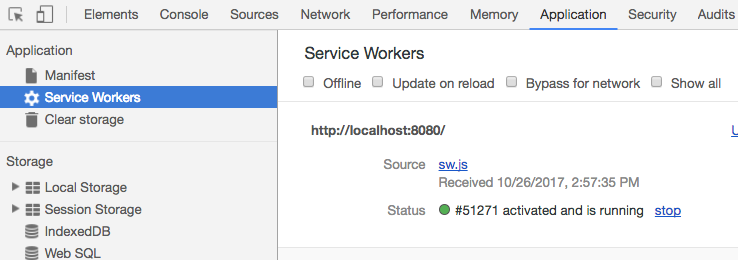
For the best experience while following along, keep the "Update On Reload" checkbox disabled so you can observe the Service Worker Lifecycle more clearly.
This basic logging setup is all we need to dive deep into the Service Worker Lifecycle.
Why doesn't the Service Worker get activated right away?
You may have noticed a peculiar detail: even though we are outputting messages for the installation and activation hooks, no HTTP request is visible in the console. This means the fetch handler is not firing at all!
It feels as if the fetch logging interceptor is absent, despite the Service Worker being in an active state.
However, once you open a separate tab or reload the current one, this is the output you will see:
v1 HTTP call intercepted - getbootstrap.com/dist/css/bootstrap.min.css
v1 HTTP call intercepted - localhost:8080/carousel.css
v1 HTTP call intercepted - code.jquery.com/jquery-3.2.1.slim.min.js
v1 HTTP call intercepted - getbootstrap.com/js/vendor/popper.min.js
v1 HTTP call intercepted - getbootstrap.com/dist/js/bootstrap.min.js
 ... other intercepted CSS/Js bundles
v1 HTTP call intercepted - localhost:8080/sw-register.js
Service Worker registration completed ...
It turns out the Service Worker only began to intercept HTTP requests after a page reload. That may seem odd at first glance, but this is the default behavior, chosen deliberately for the sake of consistency.
The Service Worker Lifecycle, and Consistency by Default
What we’re seeing in the Service Worker’s behavior may look unusual, yet it’s actually a thoughtful and well-designed feature.
Regardless of whether we’re dealing with the initial page load and Service Worker activation, opening a second tab, or refreshing the current one, a unifying pattern emerges in every case:
Every HTTP request made by the page was either fully handled by the Service Worker, or none of them were!
Here’s what took place in our example:
- on the very first page load, no request at all went through the Service Worker
- but as soon as we refreshed once, or spun up a new tab, every single request went through the Service Worker
Such behavior guarantees consistency—one page version plus one Service Worker version. As a result, it eliminates a full category of error scenarios that tend to be very tricky to debug.
How do Service workers interact with Browser tabs?
Next, let’s mimic typical user actions. What happens when additional browser tabs with the same application are opened?
v1 HTTP call intercepted - getbootstrap.com/dist/css/bootstrap.min.css
 ... the same HTTP requests, all served by version 1
Service Worker registration completed ...
In this section, we'll observe that the page is currently served by SW Version 1, which remains consistent across all tabs. One surprising behavior is that console output is shared between tabs.
After refreshing the app several times and then switching to another tab, you'll encounter logged HTTP requests that originated in the different tab.
This outcome is anticipated, as the same Service Worker handles requests from every open tab.
Demonstrating the Service Worker Lifecycle
To gain deeper insight into the Service Worker Lifecycle, let's examine what occurs when we alter the Service Worker code. For instance, we could change the version number to v2.
Importantly, we don't have to rename the sw.js file for the browser to detect a newer Service Worker version.
The browser recognizes that both versions are associated with the / scope, and any single-character difference between them triggers the installation of the updated version.
Now, let's proceed with installing v2 while maintaining multiple open tabs. After updating the version number in the SW script to v2 and launching an additional tab, the Dev Tools will display the following:
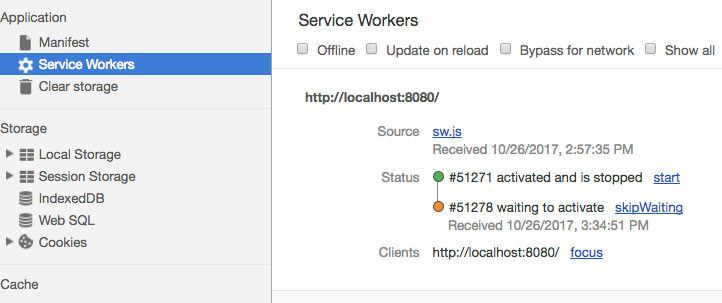
Notice that the updated Service Worker doesn’t take effect right away—it enters a so-called waiting status instead.
Turning to the console, we now see this:
v1 HTTP call intercepted - getbootstrap.com/dist/css/bootstrap.min.css
v1 HTTP call intercepted - localhost:8080/carousel.css
 ... the same requests as before still being intercepted by v1
Service Worker registration completed ...
v2 INSTALLING
v2 INSTALLED
This log contains several highly noteworthy details:
- version v1 did not get installed again, nor was it activated
- throughout the entire refreshing process, version v1 appears to have stayed active, since it kept intercepting HTTP requests
- every request continues to be intercepted by v1
- Version v2 underwent Installation silently in the background, yet it was not Activated!
- Version v2 has now entered the Waiting state
Several pressing questions arise at this point:
What causes the new version v2 to be Installed but not Activated?
One contributing factor is the presence of multiple open tabs, which aims to deliver a seamless and consistent experience to the user. Having two tabs open running different versions of the same app would be highly confusing.
Given that Service workers intercept and alter HTTP requests, having two distinct versions of the service worker could potentially lead to two separate versions of the application itself!
So, what will the browser do with this new Service worker version functioning on the / scope?
The browser will carry out all Installation tasks—such as fetching bundles or an offline page during v2’s install phase—yet it will refrain from Activating v2 as long as multiple tabs remain open, still operating on v1.
This consistency by default serves as a core design principle of the Service Worker Lifecycle!
Before diving further into the Lifecycle, we should mention browser Hard Refresh behavior and Service Workers.
Hard Refresh and Service Workers
If confusion arises while experimenting with Service Workers, hitting hard refresh (Ctrl+Shift+R) will not aid the learning process.
When you trigger hard-refresh, the Service Worker gets completely bypassed, preventing it from controlling the page — this standard browser behavior is unlikely to change.
Ctrl+Shift+R is designed to skip all network caches, and since the Service Worker typically handles caching, it gets skipped as well.
With that key point addressed, let's explore further how the Service Workers Lifecycle operates and facilitates Application Download and Installation.
Let's examine why v1 remains active at this stage with v2 already Installed, and why v2 has not yet reached the Active state.
Why won’t the new SW version become active even with a single tab open?
Despite refreshing the single tab that runs v1, v2 did not get activated — it was Installed in the background but remained not Activated.
The browser still considers the current page active until the refresh finishes, and the page is only swapped out once at least the server’s response headers have arrived.
Since the page was preserved during part of the refresh, the only method to guarantee consistency is to maintain it throughout the entire process.
Once that happens, because we kept Service worker v1 active during the refresh, we prefer by default to continue running it after the refresh completes too, which explains why v1 stays active even once the page refresh finishes.
How can we activate the new Service Worker version V2 then?
A possible approach involves using the skipWaiting option within DevTools, yet let's avoid that route! Instead, let's mimic the typical user experience: close every tab that runs service worker v1, then launch a fresh tab.
Examining the console output, we would see the following:
v2 ACTIVATING
v2 ACTIVATED
v2 HTTP call intercepted - localhost:8080
v2 HTTP call intercepted - getbootstrap.com/dist/css/bootstrap.min.css
... the same list of requests, all intercepted by v2
So in this case, the browser fired up Service Worker v2, which had been quietly installed in the background, and v2 took over every network request coming from the page. That makes v2 the active worker!
At this stage, the Service Worker lifecycle should be pretty clear, so let's wrap it up.
Service Worker Lifecycle Summary
Even though it might look complex initially, the logic behind the Service Worker Lifecycle is quite sensible. Its main goals are:
- serving just one version of the application to the user
- avoiding interruptions to the user experience
- keeping the application startup fast
- preventing, by design, mismatched versions between the page and the Service Worker
That final point plays a crucial role in the Download & Installation Use Case we're diving into next.
Keep in mind that Service Workers are frequently used to cache the complete app, which means every single piece of HTML, CSS, and Javascript!
So where exactly does the Service Worker keep those files?
The Cache Storage API
During installation, the Service Worker grabs all the bundles that form a specific app version from the network and then stashes them in a browser cache called Cache Storage.
Cache Storage, much like the Service Worker API, relies on Promises and is quite straightforward to work with. We'll now put this API to work for the installation phase of the Download and Install use case.
Step 1 - Implementing Background Application Download
Let's take our Hello world logging interceptor example and modify it to support background Installation.
Initially, we will download every Javascript and CSS File in the background while the Install phase runs, and we will put those files straight into Cache Storage:
This example packs in a lot of detail, so let's go through it piece by piece:
- first, we grab a reference to an already-open cache via
caches.open(), which gives back a Promise - we tack a version number onto the cache name, so every new release creates its own unique caches
- next, we issue a bunch of HTTP requests to pull down all the files that belong to a particular app version
- then, those files go directly into the cache storage
- each cache entry is keyed by the Request object that triggered the HTTP call
- the values saved in the cache are the HTTP Response objects themselves, so they can be handed right back to the application
- the
addAll()method returns a Promise that resolves successfully only if each HTTP request for the files completes without an error
Inspecting the contents of Cache Storage
In this scenario, all the files downloaded without a hitch, so the Install phase wrapped up successfully! Let's check what's now sitting in Cache Storage, using the Chrome Dev Tools:
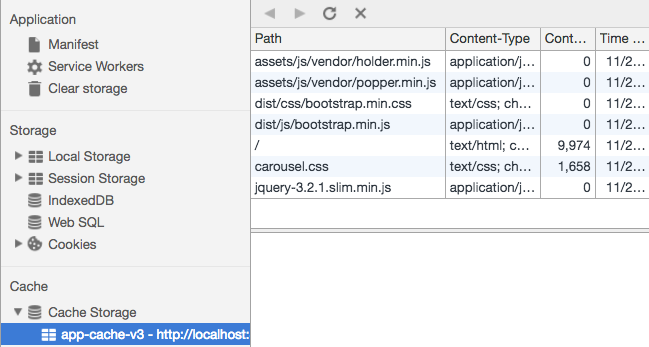
This panel lives on the same Application tab in the Dev Tools, inside the collapsible section labeled Cache Storage.
Note: If you open the menu and the new cache content
is not visible, right-click the Cache Storage node and select Refresh
Notice that every application bundle has been fetched in the background, so the app is now fully prepared to be delivered straight from the cache!
However, before we proceed, let's take a moment to wipe out all older app versions from Cache Storage.
Step 2 - Purging Previous Application versions
The optimal point to remove outdated app versions is during Service Worker Activation, since that's the sole moment we can be certain the user isn't using the previous app version in any open browser tab.
Here's how to purge older app versions during Activation:
As shown, we iterate over every cache name present in Cache Storage and remove all caches that don't match the current app version (which is V3).
A note on the async/await syntax
Observe that caches.keys() returns a Promise, just like most Cache Storage API calls do.
We need to hold off until that Promise settles and then use the resolved value in the subsequent code, so we employ the await syntax, which pauses execution until the Promise resolves.
This approach makes asynchronous Promise-based code far more readable, resembling synchronous code, but it's only valid inside a method marked with the async keyword.
This async/await pattern is already supported across many browsers (see here for details), and Chrome, for instance, lets you run these examples with zero transpilation.
Step 3 - Serving the Application From Cache With a Cache Then Network Strategy
The final piece to complete Application Download and Installation is serving app bundles directly from Cache Storage, with the network as a fallback when needed:
Let's dissect this example to understand how the Cache Then Network strategy works:
- we're catching every HTTP call the app makes, all inside an async function
- that async function always hands a Promise to
respondWith(), whether it's an explicit return or by automatically wrapping the returned value in a Promise - within the async function, we first open the cache tied to the current app version
- then we check the cache for an HTTP Response that matches the HTTP Request the app made
- the
match()method also returns a Promise, so we await its result before moving on - if a match appears, the app's request was found in the cache, so we pass that HTTP Response directly to
respondWith() - there's no need to explicitly return a Promise from the async method—returning a plain value gets wrapped in a Promise automatically by the async/await mechanism
- if no match exists, we let the request hit the network by awaiting the outcome of a
fetch()call - finally, we log the request that went to the network and return the
fetch()result back to the app
With this setup, any request the app makes to retrieve cached bundles comes from Cache Storage, while other requests—like a REST API call to /api/courses—continue to go over the network.
Now that this final step is in place, we have a full solution for downloading and background-installing our web app! Let's put it to the test.
Deploying a new Version of the application
To observe the Download and Install process in action, open a fresh tab in our sample app and check that it's now operating on version V3 of the Service Worker, which enables the Download and Install capability.
Note: you can find the complete version v3 of the Service Worker right here
Here's what the console currently shows:
v3 Serving From Cache: bootstrap.min.css
v3 Serving From Cache: carousel.css
v3 Serving From Cache: jquery-3.2.1.slim.min.js
v3 Serving From Cache: popper.min.js
v3 Serving From Cache: bootstrap.min.js
...
Observe that all CSS and JavaScript bundles are now being served from Cache Storage rather than the network, exactly as intended. But what happens when a new version of the application is introduced?
Picture a scenario where substantial changes were made to the app, such as a redesign or a fresh theme applied.
How can the user obtain that updated version v4 when v3 continues to be delivered straight from the cache every time?
To initiate the installation of version V4, the initial step is to make a minor modification to the Service Worker as well, such as bumping up the version number.
Next, keep only one tab open, close the rest, and reload the page. The console should show the following:
v3 Serving From Cache: bootstrap.min.css
v3 Serving From Cache: carousel.css
....
v4 Service Worker installation started
Looking at the current state, both the Service Worker and the application are operating on version V3, precisely as anticipated. The app running under Service Worker v3 confirms that every bundle served originated from the Cache designated app-cache-v3.
Additionally, we notice that version V4 has been Installed in the background. To inspect this further, check the Service Worker tab:
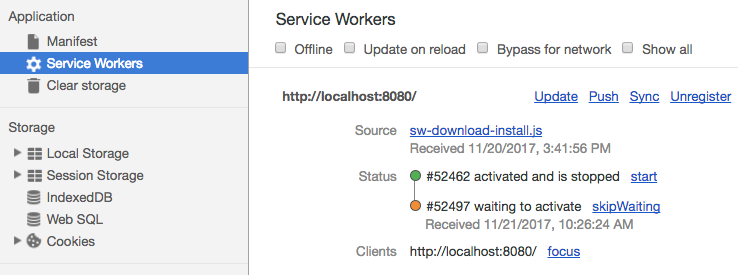
Notice how version V4 is currently pending Activation. Yet the sets of files that make up V4 — potentially representing an entirely different release of the entire web app — are already staged and usable.
To verify this, let's inspect what’s stored in the Cache Storage:
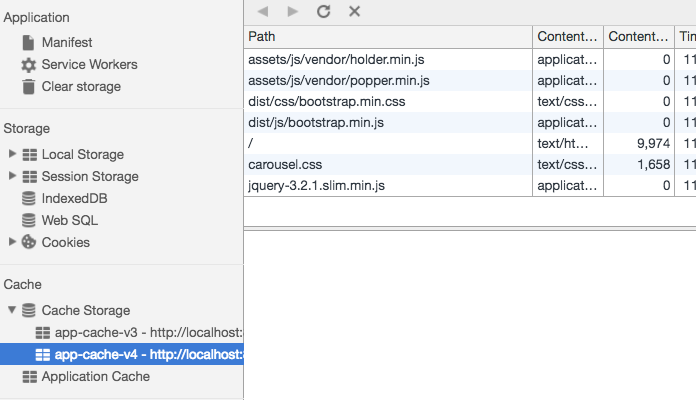
At this point, the Cache Storage holds two app versions:
- v3, which is still actively serving requests
- v4, fetched silently in the background, which will take over once every v3 tab has been closed
To switch over to v4, let's emulate a typical user flow. The user would eventually shut down all tabs that run v3, then return to the app later.
In that moment, the browser activates v4 and delivers its cached assets:
v4 Service Worker activated
v4 Serving From Cache: bootstrap.min.css
v4 Serving From Cache: carousel.css
....
With that, the entire lifecycle wraps up, and the user ends up with a freshly fetched and installed application version in their browser.
This new app version was downloaded and installed silently, without interrupting the user experience. In fact, this even surpasses native mobile installs!
Adjusting Service Worker Lifecycle Behavior
Everything covered so far represents the default Service Worker Lifecycle behavior, which aligns perfectly with the Download and installation scenario.
Now, let’s explore how the Lifecycle can be tailored when necessary to fit other PWA use cases.
It’s worth noting that tweaking the Service Worker Lifecycle, while tempting, is generally discouraged, as we’ll discuss.
Bypassing the Wait Phase (and the risks involved)
For instance, the Waiting Phase could be bypassed entirely by invoking the skipWaiting() API after the Install step:
Here, we wait for the files to download and install, then execute self.skipWaiting(), which returns a Promise.
Doing this skips the Waiting Phase, causing the new Service Worker to activate right away.
Consequently, if the user opens another tab, the fresh version would already be active, leading to possible inter-tab inconsistencies. Typically, it’s wiser to stick with the Waiting Phase to prevent such inconsistent states by design.
However, employing skipWaiting() doesn’t guarantee that the new Service Worker will immediately catch requests from the active tab.
Gaining control over the current page via clients.claim()
We’ve observed that when a page with a Service Worker loads for the first time, the Worker gets Installed and Activated, yet it can’t yet intercept the page’s network requests.
A page refresh would be required for the new Service Worker to start handling requests.
This rule exists for the sake of consistency: if a page’s initial requests weren’t served by a Service Worker, then by default, all subsequent HTTP requests from that page stay outside the Service Worker’s purview.
But this can be overridden by making the Service Worker claim all open tabs during Activation:
Invoking claim() enables the Activated Service Worker to instantly handle requests (including Ajax) from the live page and other open tabs, eliminating the need for a refresh.
This premature activation might trigger an inconsistency: a page from version v4 could have its runtime requests picked up by Service Worker version v5.
Yet, some use cases thrive on this early activation: consider a secondary service worker scoped to /api that stores app data in IndexedDB—activating it promptly would allow data caching to begin without delay.
Manually Trigging a Service Worker Update
Ordinarily, the browser looks for a new Service Worker version on the server during user navigation, ready to install if found.
If an app stays open for an extended period—for example, a PWA pinned to the Home screen—a manual update check is possible using the registration object like this:
When a fresh Service Worker version exists on the server, invoking update() initiates a background install process.
This kind of periodic check is rarely necessary since the browser does it frequently during each navigation or via other triggers like receiving a Push notification.
A fitting scenario for manual checks: what if the running version contains a bug? Let’s examine what occurs when something fails in the application.
Native Browser Safeguards for Faulty Service Workers
As one might suspect, storing the app locally and bypassing the network has risks: what if the downloaded version contains an accidental flaw?
Browsers include several built-in defenses to mitigate this.
Notably, a Service Worker can never intercept its own requests!
The file sw.js we supply to serviceWorker.register('sw.js') is never touched by a fetch event. This behavior, though, doesn't cover the service worker registration script sw-register.js. Consequently, we must guarantee it's never stored in the cache.
That precaution extends only to the registration script. The standard browser cache, governed by the Cache-Control header, is prone to misconfiguration due to its intricate settings. Reading up on common Caching Best Practices is advisable, as these insights apply broadly to any web app, not just progressive web apps.
Mistakes in Cache-Control header setups for our application cause production headaches even without a PWA. Add a Service Worker into the mix, and such errors intensify considerably. A scenario may arise where sw.js ends up in the browser's default cache, served with a Cache-Control header granting it an extended shelf life. Imagine, for instance, that sw.js arrives with a caching period of one month:
Service Workers vs. Conventional Browser Caching
Regular browser caching, driven by the Cache-Control header, is easy to get wrong, given its confusing setup parameters. To sidestep these pitfalls, it's wise to study some widely used Caching Best Practices, which benefit any app beyond just PWAs. If we configure our Cache-Control headers incorrectly, production issues arise even without a PWA, yet introducing a Service Worker exacerbates those problems further. We could face a situation where sw.js gets cached in the typical browser cache, served with a Cache-Control header specifying a lengthy duration. Just consider a case where sw.js is delivered with a cache lifetime of thirty days:
Cache-Control: max-age=2592000
Even though the browser caches the header, the constraint is different for Service Worker files—the cap is 24 hours rather than a month.
That safeguard is smart, but it still leaves the site unusable for an entire day before a fix goes live. The cleanest, most reliable approach is to skip caching the Service Worker altogether, along with its registration script.
Prevent caching of the Service Worker file
The server can enforce this by responding with headers that explicitly flag these files as stale right away:
Cache-Control: max-age=0
Now, regarding the standard browser cache, what heads-up do we have for the CSS and JS bundle caching?
Thoughts regarding interplay of Browser Cache and Service Workers
The CSS or JS bundles residing in Cache Storage will be fetched from the network, and those bundles might be delivered with a Cache-Control header or without one — so theoretically two caches are active, and they could potentially interfere.
A problematic case might occur: when a fresh Service Worker is registered and tries to retrieve a newer JS bundle, the file name stays the same!
However, the old file sits in the regular browser cache, and so that outdated copy still gets delivered to the Service Worker.
Thus the Service Worker installation ends up being successful, but Cache Storage holds the incorrect bundle version — in other words, the app installation is compromised.
How can we protect ourselves from such scenarios? A straightforward answer: implement the same caching rules you’d use with a non-PWA app — each file type warrants a distinct caching strategy.
Cache-Control settings for CSS/JS bundles
For CSS and JS bundles, the easiest approach is to embed a content hash (or a version name) in the file name, for instance, bootstrap.v4.min.css.
With that in place, we can assign a very long max-age, basically marking those files as immutable and leaving them cached indefinitely:
Cache-Control: max-age=31536000
When a newer file version is released, the filename is altered, which may be handled automatically by the build tooling, and then the latest asset is fetched and stored in the cache.
This method sidesteps a range of typical caching pitfalls regardless of whether a given browser supports Service Workers.
Fetching Asset Bundles from External Origins
So far, the bundles in our setup all came from our own server. Still, a scenario might arise where CSS and JavaScript bundles are hosted on external resources, such as a content distribution network, and need to be pulled by the Service Worker.
That approach works, provided those remote servers explicitly permit the cross-origin call, exactly as with any ordinary CORS-backed request.
For that purpose, the bundle file should be delivered using the following response header:
access-control-allow-origin: https://yourdomain.com
When the bundle files are hosted on a CDN such as Amazon Cloudfront, and they need to be fetched through a cross-origin request originating from a domain other than https://yourdomain.com, the following header works as an alternative:
access-control-allow-origin: *
Conclusions
Looking at the broader picture, all the various PWA capabilities and their associated APIs only truly make sense when examined together, within the framework of a particular scenario, rather than on their own.
Beyond what we explored around downloading and installation, there’s far more we can achieve—this example served merely as a launchpad, ideal for grasping why the Service Worker Lifecycle took its specific shape.
At its heart, the Service Worker specification empowers developers with network interception capabilities, allowing us to craft a wide range of PWA patterns and use cases—unlike earlier approaches that only offered fixed offline strategies, such as Application Cache.
It’s my hope that this guide eases your introduction to Service Workers. Thanks for reading through it!
For deeper insights into Angular Progressive Web Applications, we suggest you explore the Angular PWA Course, where these topics are discussed in far greater depth.
Should you wish to dig into the Angular PWA features built on top of Service Workers, check out the other entries in our full Angular PWA series:
- Service Workers - Practical Guided Introduction (several examples)
- Angular App Shell - Boosting Application Startup Performance
- Angular Service Worker - Step-By-Step Guide for turning your Application into a PWA
If you’d like alerts for future articles like this one, feel free to sign up for our newsletter:
Related Links
Other posts on Angular
Don’t miss our other well-received articles that might catch your interest:
- Getting Started With Angular - Best Practices for Setting Up a Dev Environment with Yarn and the Angular CLI, Plus IDE Configuration
- What Makes a Single Page Application, and What Benefits Does It Offer? Understanding SPAs
- Angular Smart vs Presentation Components: Distinguishing Their Roles, Choosing the Right One, and Rationale
- Angular Router - Creating a Navigation Menu with Bootstrap 4 and Nested Routes
- Angular Router - A Comprehensive Walkthrough to Sidestep Typical Mistakes
- Angular Components - Core Concepts: Events, Properties, and Actions
- Building Angular Apps with Observable Data Services - Common Pitfalls and How to Avoid Them
- Angular Forms: A Primer on Template-Driven vs Model-Driven Approaches
- Angular ngFor - Mastering All Its Features, Including trackBy, and Why It Works Beyond Arrays
- Angular Universal - Crafting SEO-Friendly Single Page Apps That Look to the Future
- The Inner Workings of Angular Change Detection - A Closer Look