By 2025, every front-end developer ought to be comfortable with enabling page transitions, animating <dialog>, popover, and <details>, creating animated light and dark gradient text, enforcing type-safe CSS systems, and applying springy easing to their animations.
AI won't hand you this CSS.
This piece continues a yearly tradition; check out the earlier editions from 2023 and 2024.
For this year, the snippets carry more weight and complexity, leaning harder into progressive enhancement to meet the demanding UI/UX needs of 2025.
Springy easing with linear()
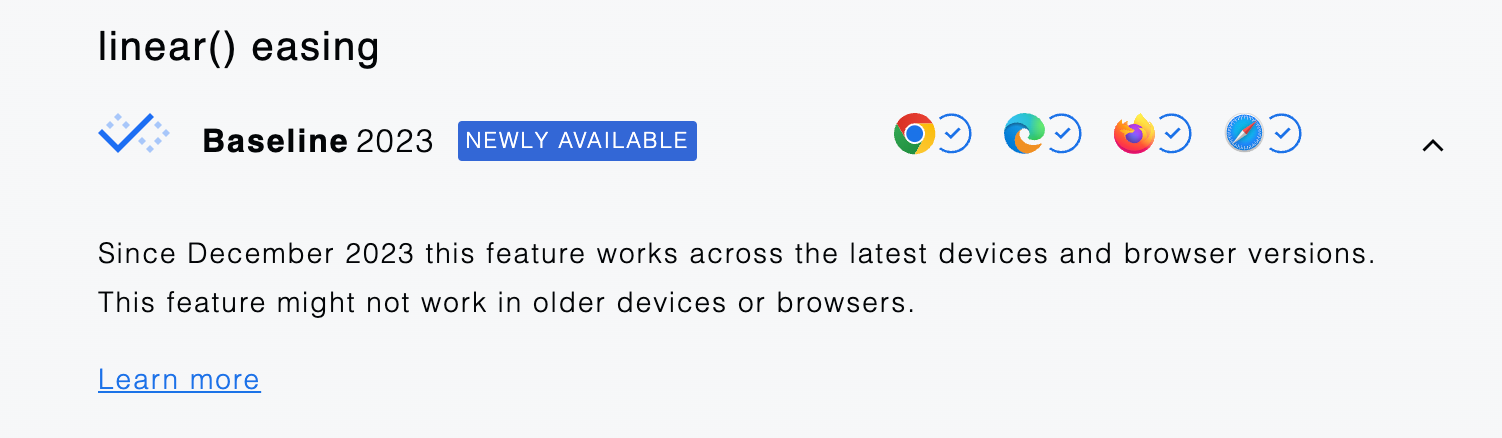
Breathe life into your animations with organic spring and bounce effects using linear().
By stringing together segments of linear lines to mimic curves, you can achieve surprisingly convincing visual physics. Even a subtle touch can significantly boost the appeal and curiosity of the user experience.
In the video below, the first animation relies on ease-out while the second uses linear(). The contrast is stark, and the latter feels significantly better.
Here's what typical linear() easing CSS looks like 😅:
.springy {
  transition: transform 1s
    linear(
      0,
      0.009,
      0.035 2.1%,
      0.141,
      0.281 6.7%,
      0.723 12.9%,
      0.938 16.7%,
      1.017,
      1.077,
      1.121,
      1.149 24.3%,
      1.159,
      1.163,
      1.161,
      1.154 29.9%,
      1.129 32.8%,
      1.051 39.6%,
      1.017 43.1%,
      0.991,
      0.977 51%,
      0.974 53.8%,
      0.975 57.1%,
      0.997 69.8%,
      1.003 76.9%,
      1.004 83.8%,
      1
    );
}
Yes… that's what your formatter will do to it, as if it's helpful in some way lol.
That linear() syntax above isn't exactly pleasant for human eyes, but it's exactly what browsers crave. No worries—there are several tools to generate it:
Tip! 💡
Plan for longer durations when working withlinear(). Since these animations can stretch on, ensuring they can be smoothly and instantly interrupted becomes a nice touch. This makeslinear()an excellent pick for transitions, though a bit tricky when used in keyframes.
An alternative is to grab ready-made CSS variables from a package like Open Props:
@import "<https://unpkg.com/open-props/easings.min.css>";

.springy {
  @media (prefers-reduced-motion: no-preference) {
    transition: transform 1s var(--ease-spring-3);
  }
}
Much more readable CSS, and it ships with 5 different intensities for standard use cases:
Tip💡
Check out the Open Props Springs notebook! <--
Incrementally adopt
Adding this to your current workflow is a breeze.
The simplest route is leaning on the cascade (if that's your thing):
@media (prefers-reduced-motion: no-preference) {
  /* just repeat the shorthand with adjusted easing */
  .thingy {
    transition: transform 0.3s ease;
    transition: transform 0.3s linear(…);
  }

  /* or, target a specific property */
  .thingy {
    animation-timing-function: var(--ease-1);
    animation-timing-function: var(--ease-spring-2);
  }
}
If the browser knows, the browser shows.
Alternatively, you can detect support first and then carefully apply the enhancement:
.thingy {
  transition: transform 0.3s ease;

  @supports (transition-timing-function: linear(0, 0.1, 1)) {
    transition-timing-function: var(--ease-spring-2);
  }
}
Typed custom properties
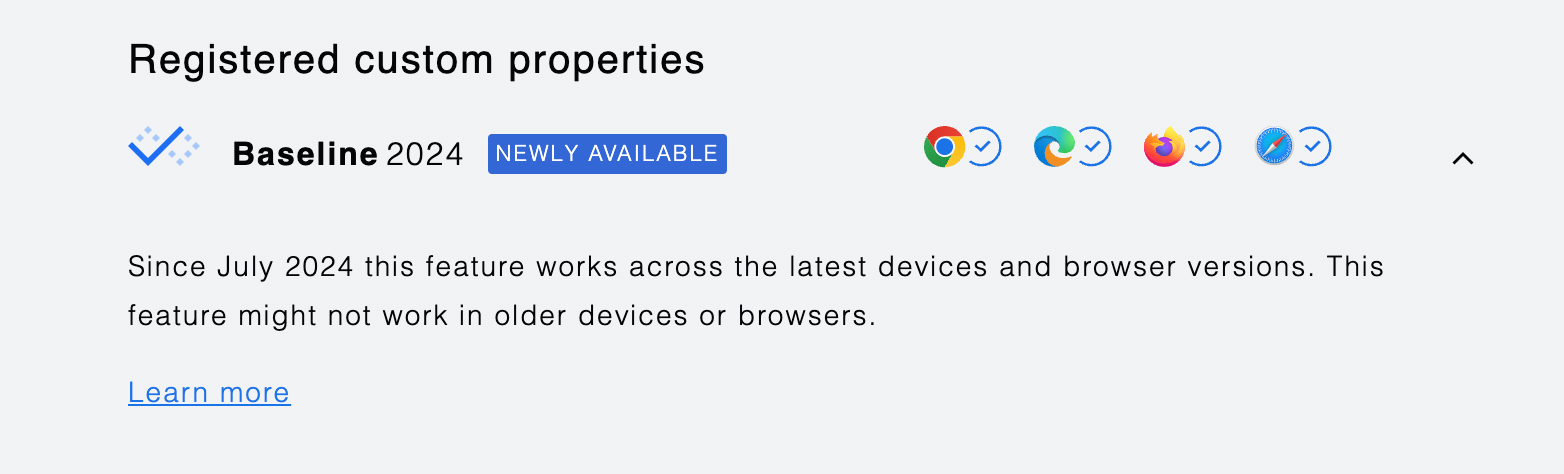
Much like var in JavaScript, CSS custom properties defined with -- are global, unrestricted, and highly adaptable. That's a good thing.
However, there are moments—particularly when you're constructing a design system—where you'll want to enforce constraints on acceptable values to keep things running smoothly and reliably.
In the video above, a variable gets assigned an invalid color. This initially disrupts the entire system. But once @property is introduced, the system holds its ground using the most recent known-valid color.
To create a typed <color> custom property, you'd write:
@property --color-1 {
  syntax: "<color>";
  inherits: false;
  initial-value: rebeccapurple;
}
Typed variables via @property offer more than just safety. They also become animatable since the browser can deduce the necessary interpolation steps from the declared type.
Prior to @property, the browser had no way to derive a type and calculate interpolation steps—it was all too ambiguous. Now, with a mere hint from you, it becomes effortless.
In 2025, front-end developers should start embracing @property because it:
- Defines clear interfaces for CSS systems
- Adds a layer of protection to CSS systems
- Unlocks fresh animation capabilities
- Offers potential performance gains when combined with
inherits: false
Resources
- https://codepen.io/argyleink/pen/vYPdBOO
- https://www.youtube.com/watch?v=tSfSY3Ni3X0&t=3409s
- https://nerdy.dev/cant-break-this-design-system
- https://nerdy.dev/type-guarded-css-systems-with-@property
- https://www.epicweb.dev/talks/lightning-in-a-bottle-with-css-custom-properties
- https://codepen.io/argyleink/pen/MWZMxNN
View transitions for page navigation
You should all be familiar with this compact snippet for crossfading between pages on link clicks:
@view-transition {
  navigation: auto;
}
This is hands down the easiest enhancement to drop into any site, with zero negative side effects.
It simply signals to the browser that you'd welcome page transitions on navigation, with the standard crossfade as the default behavior.
Unsupported browsers will simply ignore it, but those that do support it will let you drizzle some extra flair onto your pages.
The customization possibilities go far deeper, like full-page orchestrated animations. For now, the key takeaway is that one simple snippet and the principle of progressive enhancement.
Incrementally adopt
A whole world of extra animations opens up once you start tweaking the page transition.
An excellent starting point is to spot elements that appear consistently across your pages and assign them a name:
.nav {
  view-transition-name: --nav;
}

.sidenav {
  view-transition-name: --sidenav;
}
These elements become part of the transition journey.
They don't even have to be the same type of element.
a, h1 {
  view-transition-name: --morphy;
}
If you give an <a> on one page and an <h1> on another the same view-transition-name, the browser will glide and transform the first element into the position and dimensions of the second, crafting a fluid morph effect. Naturally, you can also morph between matching elements on either side.
And that's just scratching the surface. Keep assigning names to elements and dive into the incredible demos by Bramus to construct experiences with motion like this one:
https://view-transitions.chrome.dev/off-the-beaten-path/mpa/
I'm a big fan of the Animations DevTools—scrubbing through a full-page view transition is oddly satisfying and perfect for scrutinizing and fine-tuning every nuanced detail.
Resources
- Multi-page application View Transitions are here
- Modern CSS for Sites Workshop
- The CSS Podcast - #89 on View Transitions
- Full page transitions starter
- Bramus with a kit for IE Page-like Transitions
Animating transitions for <dialog> and [popover]
By 2025, working comfortably with <dialog> and [popover] is expected. Otherwise, your competitors will pull ahead, and your fragile z-index hacks will be rendered useless by a simple value of 1.
These aren't obscure APIs — they're common UI patterns that ship with zero JavaScript and fully built-in accessibility. Use them and understand how they differ.
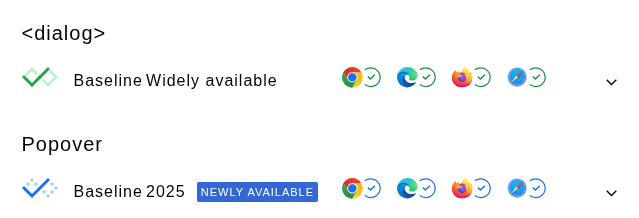
Both elements are rendered into what's called the top layer, a dedicated rendering plane that sits above everything else in the document. The browser automatically promotes these elements, no matter where they live in the markup, to the top once they're shown.
To animate these transitions, you'll need to combine a few newer CSS features for the complete interruptible transition experience: transition-behavior, the @starting-style rule, and overlay.
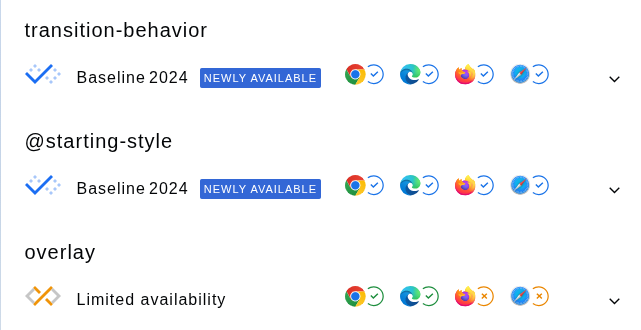
Stringing these together can feel almost like magic, but that's exactly what makes it such a great copy-paste. So here you go! This snippet sets up cross fade transitions for both <dialog> and popover: Try it
/* enable transitions, allow-discrete, define timing */
[popover], dialog, ::backdrop {
  transition: display 1s allow-discrete, overlay 1s allow-discrete, opacity 1s;
  opacity: 0;
}

/* ON STAGE */
:popover-open,
:popover-open::backdrop,
[open],
[open]::backdrop {
  opacity: 1;
}

/* OFF STAGE */
/* starting-style for pre-positioning (enter stage from here) */
@starting-style {
  :popover-open,
  :popover-open::backdrop,
  [open],
  [open]::backdrop {
    opacity: 0;
  }
}
As compact and functional as this is, you might quickly find you want to treat dialogs and popovers differently, or have different animations for opening and closing.
Animating a dialog
Here's a <dialog> element using that baseline snippet. By default they might look a bit plain, but the potential is enormous — you can build some impressive things with them.
First, you obviously need a <dialog> element in your HTML. You control its visibility with buttons: the button for opening it can live anywhere on the page, while the close button needs to be placed inside the dialog itself.
<button onclick="demo.showModal()">…</button>

<dialog id="demo">
  <header>
    <button title="Close" onclick="demo.close()">close</button>
  </header>
</dialog>
There's also the option of enabling light dismiss on a dialog, which means you can skip the close button entirely by using <dialog closedby="any">
Tip💡
You can enable light dismiss on a dialog and skip the close button like <dialog closedby="any">To animate the dialog transition:
- Both the
<dialog>itself and its::backdropneed to be animated. - When a dialog opens, its
displayvalue flips fromnonetoblock, andtransition-behavioris what lets you animate that change. - When shown, the dialog is popped into the top layer; adding that into the transition is also necessary.
- The
[open]attribute signals whether the dialog is currently visible.@starting-styleprovides the styles when it renders for the first time.
dialog {
  /* Exit Stage To */
  transform: translateY(-20px);

  &, &::backdrop {
    transition:
      display 1s allow-discrete,
      overlay 1s allow-discrete,
      opacity 1s ease,
      transform 1s ease;

    /* Exit Stage To */
    opacity: 0;
  }

  /* On Stage */
  &[open] {
    opacity: 1;
    transform: translateY(0px);

    &::backdrop {
      opacity: 0.8;
    }
  }

  /* Enter Stage From */
  @starting-style {
    &[open],
    &[open]::backdrop {
      opacity: 0;
    }

    &[open] {
      transform: translateY(20px);
    }
  }
}
Using this snippet as a foundation, you can explore three popular dialog designs, ready for you to use or adapt, at have-a-dialog.
The video below showcases how good the keyboard handling is. You’ll also see the transitions remain fully interruptible: you can dismiss the dialog any minute and the animation will adapt smoothly.
Resources
- https://developer.mozilla.org/en-US/docs/Web/API/HTMLDialogElement
- https://nerdy.dev/notebook/dialog-starter.html
- https://www.youtube.com/watch?v=yORy1IEHDKk
- https://web.dev/blog/baseline-entry-animations
- Pop n' Lock Dialog Mini Web Machine
Animating a popover
A popover works similarly to a <dialog> element: it appears in the top layer above everything else. Light dismiss is turned on by default, and all the keyboard and focus handling is done for you.
Let's build it.
You'll need some HTML in place first to wire up the UX:
<button popovertarget="pop">?</button>

<p id="pop" popover>An overlay with additional information.</p>
Much like a <dialog>, to animate a popover’s display property and its move into the top layer, you need to work with transition-behavior and @starting-style together.
Pay attention to how the open state works here: a popover doesn't use an attribute, it relies on the CSS pseudo-class :popover-open.
[popover] {
  &, &::backdrop {
    transition:
      display 0.5s allow-discrete,
      overlay 0.5s allow-discrete,
      opacity 0.5s,
      transform 0.5s;

    /* Exit Stage To */
    opacity: 0;
  }

  /* On Stage */
  &:popover-open {
    opacity: 1;

    &::backdrop {
      opacity: 0.5;
    }
  }

  /* Enter Stage From */
  @starting-style {
    &:popover-open,
    &:popover-open::backdrop {
      opacity: 0;
    }

    &:popover-open {
      transform: translateY(10px);
    }
  }
}
Resources
- https://nerdy.dev/steal-this-popover-starter-kit
- https://nerdy.dev/notebook/dialog-starter.html
- https://developer.chrome.com/blog/entry-exit-animations
- https://developer.chrome.com/blog/css-ui-ecommerce-popover
- Over-Easy Anchor + Popover Mini Web Machine
Transition animation for <details>
You'll spot this technique on the CSS Wrapped 2024 showcase site, specifically in its desktop layout.
The disclosure element (<details>) has waited years for the proper CSS primitives that finally allow you to animate it.
<details>
  <summary>Show disclosed content</summary>
  <p>…</p>
</details>
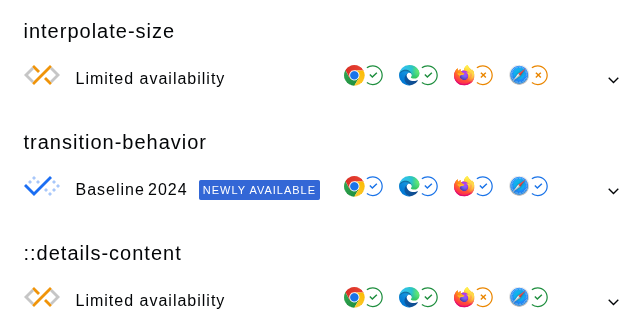
To get the animation going, the details element needs to transition from height: 0px to height: auto, and needs a targeted pseudo-element for its slotted inner content. The newly introduced interpolate-size feature handles animating the height, and ::details-content is the selector you need.
details {
  inline-size: 50ch;

  @media (prefers-reduced-motion: no-preference) {
    interpolate-size: allow-keywords;
  }

  &::details-content {
    opacity: 0;
    block-size: 0;
    overflow-y: clip;
    transition: content-visibility 1s allow-discrete, opacity 1s, block-size 1s;
  }

  &[open]::details-content {
    opacity: 1;
    block-size: auto;
  }
}
Resources
- https://developer.chrome.com/blog/styling-details
- https://nerdy.dev/open-and-close-transitions-for-the-details-element
- https://css-tricks.com/almanac/pseudo-selectors/d/details-content/
Bonus attribute

If you have two or more details elements and want them to close each other, you can give each one the same name attribute to link them. This behaves much like a radio group.
<details name="linked-disclosure">
  <summary>Show disclosed content</summary>
  <p>…</p>
</details>

<!-- name="linked-disclosure" connects these together -->

<details name="linked-disclosure>
  <summary>Show disclosed content</summary>
  <p>…</p>
</details>
Animated adaptive gradient text
A striking headline often gets some extra visual flair from a gradient, adding depth and drawing the eye.
The web has supported gradient text effects since 2015, and over the last decade the technique has gained some major upgrades: animation options, respect for user preferences, and better interpolation.
- You can adapt gradient text to fit both light and dark themes easily thanks to the
prefers-color-schemequery - Modern animation support lets you do much more than slide or rotate a background image — you can shift the actual colors over time
- Upgraded interpolation methods produce richer, more vibrant and engaging color shifts
@property --color-1 {
  syntax: "<color>";
  inherits: false;
  initial-value: #000;
}

@property --color-2 {
  syntax: "<color>";
  inherits: false;
  initial-value: #000;
}

@keyframes color-change {
  to {
    --color-1: var(--_color-1-to);
    --color-2: var(--_color-2-to);
  }
}

.gradient-text {
  --_space: ;

  /* light mode */
  --_color-1-from: yellow;
  --_color-1-to: orange;
  --_color-2-from: purple;
  --_color-2-to: hotpink;

  /* dark mode */
  @media (prefers-color-scheme: dark) {
    --_color-1-from: lime;
    --_color-1-to: cyan;
    --_color-2-from: cyan;
    --_color-2-to: deeppink;
  }

  --color-1: var(--_color-1-from);
  --color-2: var(--_color-2-from);

  animation: color-change 2s linear infinite alternate;

  background: linear-gradient(
    to right var(--_space),
    var(--color-1),
    var(--color-2)
  );

  /* old browser support */
  -webkit-background-clip: text;
  -webkit-text-fill-color: transparent;

  /* modern browser version */
  background-clip: text;
  color: transparent;

  @supports (background: linear-gradient(in oklch, #fff, #fff)) {
    --_space: in oklch;
  }
}
That's quite a snippet 😅 How did we end up here?
For most developers, creating a gradient text effect starts pretty simply:
.gradient-text {
  background: linear-gradient(to right, hotpink, cyan);
  -webkit-background-clip: text;
  -webkit-text-fill-color: transparent;
}
Remove the prefixes
The first key step is dropping the prefixed versions. Just keep the unprefixed declarations after them, so older browsers still get support:
.gradient-text {
  background: linear-gradient(to right, hotpink, cyan);

  /* old browser support */
  -webkit-background-clip: text;
  -webkit-text-fill-color: transparent;

  /* modern browser version */
  background-clip: text;
  color: transparent;
}
Use updated gradient interpolation spaces
Next, boost the gradient quality by gradually introducing the in interpolation syntax, using CSS variables and an @supports guard.
Alternatively, write out the gradient definition again with in oklch — that also works nicely and keeps older browsers working.
.gradient-text {
  --_space: ;

  background: linear-gradient(to right var(--_space), hotpink, cyan);

  /* old browser support */
  -webkit-background-clip: text;
  -webkit-text-fill-color: transparent;

  /* modern browser version */
  background-clip: text;
  color: transparent;

  @supports (background: linear-gradient(in oklch, #fff, #fff)) {
    --_space: in oklch;
  }
}
Create typed <color> properties
To animate your gradient colors, make use of the @property rule as shown in snippet #4. With typed color variables, you can animate colors in places like gradients applied to text.
@property --color-1 {
  syntax: "<color>";
  inherits: false;
  initial-value: #000;
}

@property --color-2 {
  syntax: "<color>";
  inherits: false;
  initial-value: #000;
}
That means --color-1 can now be animated using transition: –color-1 .3s ease or included in keyframes. And anywhere color is allowed, you can use these animatable values — bringing animated gradient text into reach.
@keyframes color-change {
  to {
    --color-1: lime --color-2: orange;
  }
}

.gradient-text {
  animation: color-change 2s linear infinite alternate;
}
Make a few props, Swap em' in a dark MQ
For a declarative setup, I've also added color variables to store the values you want to animate between.
.gradient-text {
  --_color-1-from: yellow;
  --_color-1-to: orange;
  --_color-2-from: purple;
  --_color-2-to: hotpink;

  @media (prefers-color-scheme: dark) {
    --_color-1-from: lime;
    --_color-1-to: cyan;
    --_color-2-from: cyan;
    --_color-2-to: deeppink;
  }

  /* set our typed variables to the "from" values */
  --color-1: var(--_color-1-from);
  --color-2: var(--_color-2-from);
}
Combine those decisions and you arrive at the final snippet:
@property --color-1 {
  syntax: "<color>";
  inherits: false;
  initial-value: #000;
}

@property --color-2 {
  syntax: "<color>";
  inherits: false;
  initial-value: #000;
}

@keyframes color-change {
  to {
    --color-1: var(--_color-1-to);
    --color-2: var(--_color-2-to);
  }
}

.gradient-text {
  --_space: ;

  /* light mode */
  --_color-1-from: yellow;
  --_color-1-to: orange;
  --_color-2-from: purple;
  --_color-2-to: hotpink;

  /* dark mode */
  @media (prefers-color-scheme: dark) {
    --_color-1-from: lime;
    --_color-1-to: cyan;
    --_color-2-from: cyan;
    --_color-2-to: deeppink;
  }

  --color-1: var(--_color-1-from);
  --color-2: var(--_color-2-from);

  animation: color-change 2s linear infinite alternate;

  background: linear-gradient(
    to right var(--_space),
    var(--color-1),
    var(--color-2)
  );

  /* old browser support */
  -webkit-background-clip: text;
  -webkit-text-fill-color: transparent;

  /* modern browser version */
  background-clip: text;
  color: transparent;

  @supports (background: linear-gradient(in oklch, #fff, #fff)) {
    --_space: in oklch;
  }
}
Some years the entries are quick and easy, but not this time. Keep an eye out for next year's edition, who knows what you'll need then!