
Moving an Angular App from CSS to SCSS
When you scaffold a new Angular application with Angular CLI, you have the option to set the stylesheet format. If you missed that flag — or weren't aware of it at the time — you may find yourself with a large, growing codebase that you now want to transition to SCSS.
There are three ways to handle this migration:
- Use an Angular schematics NPM package to complete the migration with a single command.
- Walk through the process manually using the Angular CLI.
- Rename files with the
renamerNPM package.
This piece assumes you're already familiar with what SCSS and Angular Schematics are. In case you'd like to brush up on schematics, there's a solid series published on inDepth.dev.
By default, you'd generate a new project using SCSS with:
ng new my-scss-app --style=scss
If your project is already up and running, however, you'll need to take a few extra steps—or just trust a schematic to do the heavy lifting.
Using the schematics-scss-migrate NPM package
The cleanest approach is the schematic found in the NPM package schematics-scss-migrate. Simply install it, ideally as a dev-dependency, and execute the following inside your project root.
Note: Use --dry-run=true to preview the changes before committing to anything.
ng g schematics-scss-migrate:scss-migrate
Once that finishes, the schematic will have:
- Renamed every stylesheet found under
src— recursively. - Adjusted the
styleUrlsentries in each component so they link to the newly named files. - Updated the default component style schematic inside
angular.json, adding it if missing. - Swapped the
styles.cssreferences to.scssinangular.json.
The Manual Route: Using the Angular CLI
Note: For Angular CLI versions prior to v6 beta, swap ng config with ng set.
With Angular 9, the styleext property was renamed to style. If you're on Angular 9 or later, you'll want to run:
ng config schematics.@schematics/angular:component.style scss
Alternatively, you can edit the schematics directly in angular.json, like this:
  "schematics": {
    "@schematics/angular:component": {
      "style": "scss"
    }
	...
  }
Once that's set, find styles.css in the build and test configuration blocks of angular.json and change the extension to styles.scss:
{
	"projects": {
    	"your-project-name": {
        	...
            "architect": {
            	"build": {
                	"options": {
                    	"styles": [
                           "src/styles.css" // update
                           ...
                        ]
                        ...
                    }
                    ...
                },
               "test": {
                   ...
                     "options": {
                   ...
                       "styles": [
                         "src/styles.css" // update
                       ],
				 }
			  },
            }
        }
    }
}
From there, you'll need to actually rename the files on disk — for that, proceed below.
Renaming Stylesheets with the renamer Package
To handle the file renaming effectively, I used the NPM package renamer. I installed it globally — though npx would work too.
npm i -g renamer
Next, from the terminal, go into the project's src directory.

Above: the project's src folder.
Before running anything that modifies files, be sure to stage and commit your current state. You may also want to work on a fresh branch while you experiment — more details available in the package docs here.
Let's test the tool first. Use the -d flag for a DRY-RUN so you don't actually change anything.

Above: a renamer dry-run.
This will rename every file ending in .css to .scss, inside src — thanks to the trailing * glob. Since the output looks correct, drop the -d flag and run it for real:

Above: the rename was applied successfully.
Before / after:
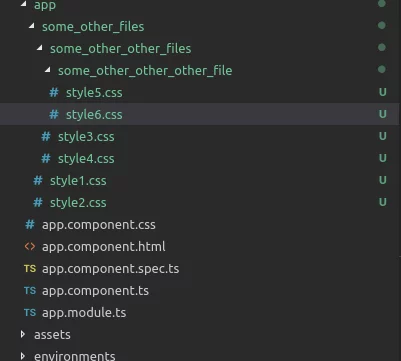
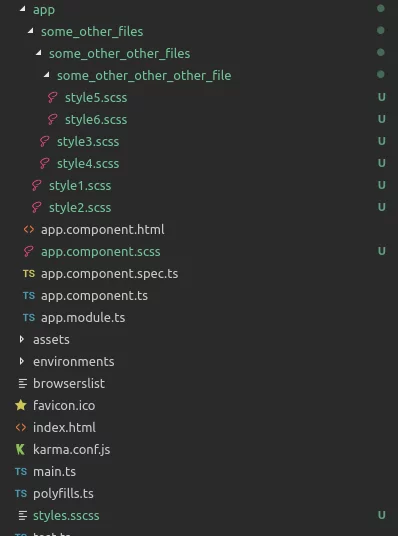
Note: because of the initial dry-run and the actual run, files still named .scss were renamed a second time — so things like styles.scss might now be styles.sscss. Fix those by renaming them back.
With the extensions fixed, the last task is updating references throughout the codebase. Following the Angular convention of naming component stylesheets like *.component.css, I searched globally for .component.css with Ctrl + Shift + f and replaced all matches with Ctrl + Shift + h.
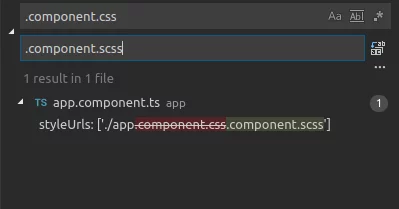
There were quite a few references in my project, but that shortcut — plus consistent naming — made it fast.
The build passed without issues. That's how you migrate an existing Angular app from .css to .scss.
You can pick whichever method fits your workflow, but I found the schematic-scss-migrate package to be the simplest — it also allows a dry-run, so you can validate everything before making changes.