
One tool accompanies you through the entire Angular learning curve: the Angular CLI. It shows up in every tutorial, every project leans on it, and fluency with it makes Angular development noticeably less painful.
A CLI — command-line interface — is a program driven by typed terminal commands rather than buttons and menus. Angular's official CLI comes from the Angular team, and you invoke it through a single command: ng.
Doing without it would mean you'd have to:
- hand-craft dozens of folders and configuration files
- pick a build system, a compiler and a test runner, then connect them yourself
- type out the same boilerplate for each component and service
- migrate all of that by hand every time Angular moves forward
All of the above is handled for you. A short command yields a correct, consistent, current result that follows Angular's recommended conventions. A pleasant side effect: your project structure will look familiar to other Angular developers, which pays off on a team or when you ask questions online.
At a glance, the CLI lets you:
- Scaffold a project you can run right away (ng new)
- Serve it locally with live reloading (ng serve)
- Produce components, services and other building blocks (ng generate)
- Execute your tests (ng test)
- Produce an optimized web build (ng build)
- Pull in libraries and upgrade Angular itself (ng add, ng update)
Now let's actually use it. Over this chapter you'll install the CLI, scaffold a project, open it in the browser, and generate a first component and service. Type the commands into your own terminal as you read — that's how the daily commands become second nature.
Before you start: install Node.js
Because the CLI runs on Node.js, that's your first prerequisite — grab it from Node.js. npm (Node Package Manager) ships alongside it and takes care of fetching and managing the libraries your project needs.
Supported Node.js versions shift over time, and Angular only works with some of them, so verify the current requirements at angular.dev before you install. After installation, open a terminal and make sure both tools respond:
node -v
npm -v
A version number from each command means you're set.
Installing Angular CLI
A global install makes ng reachable from any directory:
npm install -g @angular/cliThen verify it landed correctly:
ng versionThe output shows the Angular ASCII logo plus the CLI, Node.js and operating-system versions.
Prefer to keep your system untouched? Run the CLI on demand through npx instead:
npx @angular/cli new my-appThe CLI gets downloaded for that one run, used, and discarded — nothing global is left behind. Within a project, npx ng serve also picks the version installed in that project rather than whatever is global. That distinction matters once you juggle several projects pinned to different Angular versions.
Creating a project
Navigate to wherever you keep your projects, then run:
ng new hello-angularA handful of prompts follow. Wording varies by version, but the questions are usually along these lines:
- Which stylesheet format would you like? CSS is the easiest starting point. SCSS appeals to anyone already comfortable with Sass. Picking Tailwind CSS takes care of its own setup for you
- Do you want to enable Server-Side Rendering (SSR) and Static Site Generation (SSG/Prerendering)? That's an advanced capability tied to search-engine visibility and initial load performance. While learning, answer "No". You can enable it later.
- Which AI tools do you want to configure with Angular best practices? Determines which AI tools get configuration files generated for them. Those files steer AI tooling toward the best practices.
From here the CLI builds a hello-angular folder, populates it, installs dependencies, and in most cases initializes a Git repository. Expect this to take roughly a minute. Once it's done, step into the project:
cd hello-angularMost CLI commands only function while your terminal sits inside a project like this.
Running your app
Kick off the development server:
ng serveA moment later you'll be told the app is live at http://localhost:4200. Point your browser there and Angular's starter page appears.
And here's what makes the CLI such a pleasure to use: keep the server running while you edit. Each save triggers a rebuild and the browser refreshes on its own — no restart, no manual reload. When you're finished for the day, shut the server down.
A few options worth remembering:
| ng serve –open # opens your browser automatically (short: -o)ng serve –port 4300 # use a different port if 4200 is busyng serve –host 0.0.0.0 # let other devices on your network reach the app |
Open the project in your editor. The sheer number of files can be intimidating, but you'll only ever touch a fraction of them. File names differ a little across Angular versions; a recent project looks approximately like this:
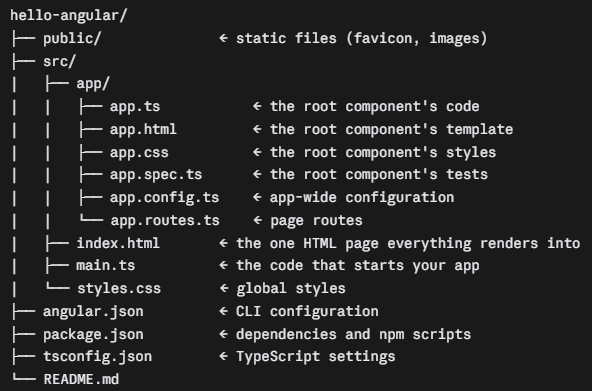
For a beginner, these are the entries that matter:
- src/app/ — where you'll spend virtually all of your time. Components, services and pages are kept here.
- src/index.html — the single genuine web page of an Angular app; Angular injects content into it. It contains a tag called <app-root>, the spot where your root component shows up.
- src/main.ts — the entry point, telling Angular which component to boot.
- angular.json — CLI settings: how your project is built, served and tested.
- package.json — the list of libraries your project depends on, along with shortcut scripts such as npm start, which triggers ng serve.
- node_modules/ — every downloaded library. It's big, you never touch it, and Git ignores it automatically.
In older projects, file names carry a .component segment (think app.component.ts). Newer ones omit it, per the latest Angular styleguide.
Generating code
This is the command that saves you the most time: it stamps out app pieces with the right structure, the right file names and the right boilerplate. Of everything you can generate for an Angular app, the component is the most common:
ng generate component greetingThe abbreviated form is equivalent:
ng g c greetingInside src/app/ you'll now find a greeting folder holding the component's code, template, stylesheet and test file. Including a path places it in a subfolder instead:
ng g c components/greetingOptions worth knowing:
| Option | What it does |
| –dry-run | Shows what would be created without writing any files |
| –skip-tests | Doesn’t create the .spec.ts test file |
| –inline-template | Puts the HTML inside the TypeScript file instead of a separate file |
| –inline-style | Puts the CSS/SCSS inside the TypeScript file |
| –flat | Doesn’t create a folder for the component |
ng generate covers plenty of other artifacts too (run ng generate –help for the complete list in your version):
| Command | What it creates | What it’s for |
| ng g service products | A service | Shared logic or data fetching |
| ng g directive highlight | A directive | Adding behavior to existing elements |
| ng g pipe shorten | A pipe | Transforming values shown in templates |
| ng g guard auth | A route guard | Controlling access to pages |
| ng g interface user | An interface | Describing the shape of your data |
| ng g enum status | An enum | A fixed set of named values |
A beginner tip: for the first few uses of any new generate command, append –dry-run. It costs nothing, previews everything, and teaches you precisely what the CLI is about to do.
Testing your code
Each generated component, service, directive, pipe and guard arrives with a .spec.ts file (you can opt out via the –skip-tests flag) containing a starter test that verifies the piece can be created. Running the tests takes one command:
ng testBecause new projects ship with Vitest and jsdom already installed, testing works right away. ng test builds your app in watch mode and re-executes tests on every save. For a single run that exits afterward — typical in automated pipelines — add –watch=false.
A bit of history: for new projects created with Angular 21 and later, Vitest is the default test runner. Projects from before that use Karma, a different runner that remains supported if your project is set up with it. Either way, the ng test command is unchanged.
Building for production
The development server exists for building your app. When it's time to publish, produce an optimized build:
ng buildTypeScript gets compiled, everything is bundled, dead code is stripped out and the output is shrunk. You'll find the result in the dist/{projectName}/browser folder, and those contents are what you upload to a web host — Firebase Hosting, Netlify, Vercel or GitHub Pages, for instance.
A few variations come in handy:
ng build --configuration development   # faster, unminified build for debugging
ng build --watch                                    # rebuilds whenever you save a file
Since version 20, the default for new projects has been the application build system built on the @angular/build package — no configuration required on your part. It's the reason both ng serve and ng build feel fast. High-performance building isn't entirely new, though: underlying technologies such as esbuild were already available as optional builders from version 17 onward.
Adding libraries
Plain npm install works for libraries, but many Angular libraries demand configuration changes as well. ng add both installs the library and performs its setup:
ng add @angular/materialThe example pulls in Angular Material — a widely used collection of ready-made UI components such as buttons, dialogs and tables — and takes care of theming and fonts. Among other libraries you're likely to encounter is angular-eslint for code linting, which is also how you obtain ng lint, since new projects don't include linting by default.
Keeping Angular up to date
New major Angular versions land on a regular cadence. Upgrading is a CLI job:
ng updateExecuted by itself, this reports which packages have updates waiting. Upgrading Angular itself looks like this:
ng update @angular/core @angular/cliBeyond raising version numbers, the command runs migrations that rewrite portions of your code to fit new conventions automatically. For a large version jump, consult the official Angular Update Guide, which offers step-by-step guidance tailored to your starting and target versions. And commit to Git beforehand, so you can inspect exactly what changed.
Errors are simply part of using the CLI, and most of them have quick, well-documented fixes. Start by reading the error message carefully, making sure you're inside your project folder, and checking versions with ng version.
"ng is not recognized" or "command not found"
Either the global install never finished, or your terminal hasn't picked it up yet. Close the terminal, reopen it and retry. Still failing? Reinstall via npm install -g @angular/cli. Some systems require administrator permissions for this; otherwise, fall back to npx.
"Port 4200 is already in use"
Something else — possibly an old ng serve you never stopped — has claimed the port. Kill the old process, or serve on a different port with ng serve –port 4300.
"This command is not available when running the Angular CLI outside a workspace"
Your terminal is in the wrong place. Change into the project directory — the one holding angular.json — and retry.
Strange build errors that make no sense
Shut down the server, run ng cache clean, then start up again. If the problem persists, remove the node_modules folder and run npm install.
The CLI's core role should now be clear: it takes care of setup, generation, running, testing and building so that your energy goes into the app itself. Far more options exist than we've covered here — see the documentation for the full picture — but memorizing them isn't necessary. Get comfortable with ng new, ng serve and ng generate, and reach for –help whenever curiosity strikes. Happy building!