This guide demonstrates how leveraging Angular Router capabilities can deliver immediate improvements in Accessibility (A11y). It is the third installment in our A11y series. To further sharpen your Angular A11y expertise, be sure to explore the other posts in this collection as well.
Configuring Page Titles
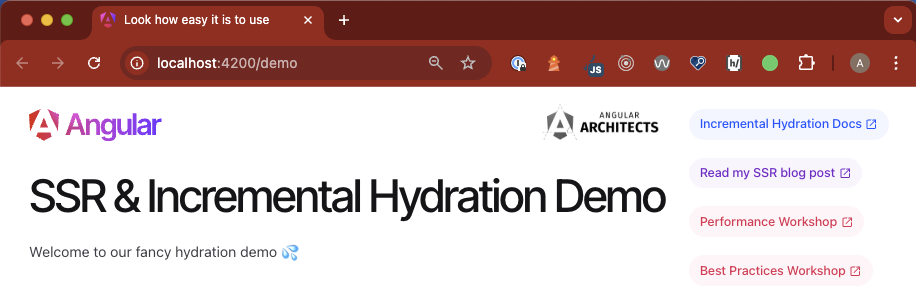
Does your Angular App present a tab bar like this when you have several tabs open?

If so, you should strongly consider assigning distinct page titles to each route. The user-friendly Route.title feature, introduced with Angular v14 back in 2022, remains underutilized by many Angular Developers 😱. It's worth your time to explore and incorporate this into your projects.
Using the Route.title Property
This built-in Router attribute updates the page <title> automatically after every successful navigation, which improves both accessibility and overall user experience. To send the title updates from your main <router-outlet />, all you have to do is define the title property within your routes configuration:
export const routes: Routes = [
  {
    path: 'demo',
    title: 'Look how easy it is to use',
    component: DemoComponent,
  },
];
As a result, the title in the browser tab is refreshed, and screen readers can announce it correctly.
In more extensive Angular Apps, page titles can become irregular because there's no enforced global pattern for adding prefixes or suffixes.
Global Page Title Strategies
To solve this inconsistency, you can subclass Angular's abstract TitleStrategy class and build your own page title strategy:
// [imports]

@Injectable()
export class PageTitleStrategy extends TitleStrategy {
  private readonly title = inject(Title);

  updateTitle(routerState: RouterStateSnapshot): void {
    const pageTitle = this.buildTitle(routerState);
    if (pageTitle) {
      this.title.setTitle(pageTitle + ' – Demo');
    } else {
      this.title.setTitle('Link to Demo below!');
    }
  }
}
Next, register this custom strategy within your app.config.ts:
// [imports]
import { PageTitleStrategy } from "./page-tite-strategy";

export const appConfig: ApplicationConfig = {
  providers: [
    provideClientHydration(withIncrementalHydration()),
    provideExperimentalZonelessChangeDetection(),
    provideRouter(routes),
    { provide: TitleStrategy, useClass: PageTitleStrategy }, // add this line
  ],
};
Generating Titles from Route Parameters
To generate page titles based on Angular Router parameters, take these actions:
- Begin by configuring
withComponentInputBinding()so that route parameters become accessible as component inputs:
// [imports]

export const appConfig: ApplicationConfig = {
  providers: [
    provideClientHydration(withIncrementalHydration()),
    provideExperimentalZonelessChangeDetection(),
    provideRouter(routes, withComponentInputBinding()), // add feature to router
    { provide: TitleStrategy, useClass: PageTitleStrategy },
  ],
};- Afterwards, incorporate the parameter into the route definition:
export const routes: Routes = [
  // [...]
  {
    path: 'demo/:id',
    title: 'Demo #id', // note that this will be ignored and replaced by the dynamic title
    loadComponent: () => import('./demo/demo.component'),
  },
];- Then, define an
inputsignal in your component. It will pick up the route parameter automatically, thanks towithComponentInputBinding():
// [imports & decorator]
export class DemoComponent {
  readonly id = input<number | undefined>();

  // [...]
}

export default DemoComponent;- Finally, apply an
effectto theidinput signal to produce the dynamic title:
// [imports & decorator]
export class DemoComponent {
  readonly id = input<number | undefined>();
  private readonly title = inject(Title);

  constructor() {
    effect(() => this.title.setTitle(this.id() !== undefined ? `Page #${this.id()} - Demo` : 'Page - Demo'));
  }
}

export default DemoComponent;
Navigating to /demo/1 will now yield a page title of Page #1 - Demo.
Integrating Everything
To merge dynamic titles with the global strategy, extend the PageTitleStrategy class with another method and make it available in root:
// page-title-strategy.ts
import { RouterStateSnapshot, TitleStrategy } from '@angular/router';
import { inject, Injectable } from '@angular/core';
import { Title } from '@angular/platform-browser';

@Injectable({
  providedIn: 'root',
})
export class PageTitleStrategy extends TitleStrategy {
  private readonly title = inject(Title);

  updateTitle(routerState: RouterStateSnapshot): void {
    this.setTitle(this.buildTitle(routerState));
  }

  setTitle(pageTitle?: string): void {
    if (pageTitle) {
      this.title.setTitle(`${pageTitle} – Demo`);
    } else {
      this.title.setTitle('Page title like a pro');
    }
  }
}
Shown below is the final effect within the DemoComponent that relies on the injected PageTitleStrategy for its dynamic title updates:
// demo.component.ts
// [imports & decorator]
export class DemoComponent {
  private readonly pageTitleStrategy = inject(PageTitleStrategy);

  readonly id = input<number | undefined>();

  constructor() {
    effect(() => this.pageTitleStrategy.setTitle(this.id() !== undefined ? `Page #${this.id()}` : 'Page'));
  }
}

export default DemoComponent;
This approach lets you tailor the page title based on route parameters while maintaining a uniform suffix across your entire Angular App.

Quite handy, isn't it? For a complete example, refer to the title-strategy branch in my GitHub repo.
Identifying Active Links with RouterLinkActive
The RouterLinkActive directive offers a robust and efficient way to signal the active status of navigation links within your Angular App. By applying CSS classes based on a link's active state, you can build visually appealing and more accessible menus with minimal effort.
<!-- nav.component.html -->
<nav>
  <a [routerLink]="demo" routerLinkActive="active">Demo</a>
  <!-- ... -->
</nav>
<!-- nav.component.scss -->
nav a.active {
color: var(--nav-link--active__color);
text-decoration: none;
}Precise Matching with routerLinkActiveOptions
Starting with Angular v14, the routerLinkActiveOptions input provides precise control over how links are determined to be active. The options value can either conform to IsActiveMatchOptions:
export declare interface IsActiveMatchOptions {
  fragment: 'exact' | 'ignored';
  matrixParams: 'exact' | 'subset' | 'ignored';
  paths: 'exact' | 'subset';
  queryParams: 'exact' | 'subset' | 'ignored';
}
Alternatively, you can just pass a boolean named exact:
{
  exact: boolean
}
To enforce exact matching, simply include the routerLinkActiveOptions attribute on your link:
<!-- nav.component.html -->
<nav>
  <a
    routerLink="/demo"
  routerLinkActive="active"
  [routerLinkActiveOptions]="{ exact: true }"
  >
  Demo
  </a>
  <!-- ... -->
</nav>
Announcing the Current Page with ariaCurrentWhenActive
Another straightforward win for A11y in Angular is flagging the current page link in your navigation for screen reader users through the aria-current property: It's necessary to add the aria-current="page" attribute. This is easily accomplished by leveraging the ariaCurrentWhenActive input on the routerLinkActive directive and setting its value to "page":
<!-- nav.component.html -->
<nav>
  <a
    routerLink="/demo"
    routerLinkActive="active"
    [routerLinkActiveOptions]="{ exact: true }"
    ariaCurrentWhenActive="page"
  >
    Demo
  </a>
  <!-- ... -->
</nav>
Accessibility Training Workshops
If you're interested in expanding your Angular knowledge, we provide a variety of workshops available in both English and German:
- ♿ Accessibility Workshop
- 📈 Best Practices Workshop (featuring accessibility topics)
- 🚀 Performance Workshop
Closing Thoughts
Utilizing the router features built into Angular is a straightforward yet effective method to significantly improve your application's A11y 🚀
With dynamic page titles, a shared title strategy, and refined active link states via RouterLinkActive and ariaCurrentWhenActive, you can build a more welcoming experience for all users—from experienced developers (like myself 😂) to those relying on assistive technologies. These practices not only enhance UX but also help bring consistency to navigation and page management throughout your Angular Apps. Returning to the initial example, here's how the browser tabs now appear:

This serves as a perfect illustration of a quick A11y victory! We encourage you to experiment with these features and browse the other posts in our A11y series for further guidance on creating accessible, high-performance websites.
Stay tuned for the next article in our A11y blog series, where we'll dive into ARIA roles and attributes.
This article was authored by Alexander Thalhammer. Connect with me on Linkedin, X, or GitHub.
References
- GitHub repository for the demo, created by Alexander Thalhammer
- Announcing Angular v14 – official blog post by Emma Twersky
- Tweet on Route titles by Emma Twersky
- A Guide to Page Titles With The Router by Brandon Roberts
- Accessible Features of Router Links by Brian Treese
- Creating Accessible Navigation in Angular by Daniel Marin
- Official docs for ariaCurrentWhenActive