
Angular 7's New Drag and Drop Feature in the CDK
Angular is a TypeScript-based framework for crafting web, mobile, or desktop applications, boasting over 42,000 stars on GitHub. The framework is backed by Google's Angular Team along with numerous community members and organizations. Angular Version 7 hit the scene a few weeks ago, and it brought along a notable addition: the Drag and Drop tool within the Component Development Kit.
Understanding the Component Development Kit (CDK)
The Component Development Kit offers a collection of tools that implement standard behaviors and components with distinct interaction patterns, all while staying agnostic about template design. Think of it as an abstraction layer over the Angular Material Library that avoids Material-specific styling. This approach opens up more creative avenues when you're building your Angular components.
Introducing the Drag and Drop Tool
The Drag and Drop tool falls under the common behaviors provided by the component development kit. It ships with directives that bring high-quality drag-and-drop functionality to your components.
Using the @angular/cdk/drag-drop module, you can declaratively set up drag-and-drop interfaces with ease. It supports free dragging, sorting within a list, moving items between lists, animations, touch devices, custom drag handles, previews, and placeholders—plus horizontal lists and axis locking.
Getting Ready
Before diving into the Drag and Drop tool, there are four prerequisites to have in place in your Angular 7 workspace.
- The newest Angular release (version 7)
// run the command in a terminal
ng version
- An Angular 7 project set up
//cd to a preferred location
// run the command below
ng new dragdrop
- Angular Material added to that project
ng add @angular/material
- Import the Drag Drop module into the app module so it's accessible throughout the application, as shown here:

Creating a List
Since drag and drop often works with lists, let's build a compact list of pop artists and then layer on the drag-and-drop capabilities.
- Head to the app component file and add an array of artists like this:
// hardcode the array of artists below
import { Component } from '@angular/core';

@Component({
  selector: 'app-root',
  templateUrl: './app.component.html',
  styleUrls: ['./app.component.css']
})

export class AppComponent {
  artists = [
    'Artist I - Davido',
    'Artist II - Wizkid',
    'Artist III - Burna Boy',
    'Artist IV - Kiss Daniel',
    'Artist V - Mayorkun',
    'Artist VI - Mr. Eazi',
    'Artist VII - Tiwa Savage',
    'Artist VIII - Blaqbonez',
    'Artist IX - Banky W',
    'Artist X - Yemi Alade',
    'Artist XI - Perruzi',
    'Artist XII - Seyi Shay',
    'Artist XIII - Teni'
  ];


}
- In the app component HTML file, swap out the boilerplate with an
ngForloop to display the list.
// replace the boilerplate code with this
<div  *ngFor="let artist of artists" >{{artist}}</div>
- Add some styling to the app component CSS file as follows:
// add a pop class to the html file first
.pop{
    height: 50px;
    width: 40%;
    margin-left: 20px;
    border: 1px solid saddlebrown;
    display: flex;
    justify-content: center;
    align-items: center;

}
Now our pop artist list is styled and rendered in a way that makes items easy to see when dragged around.
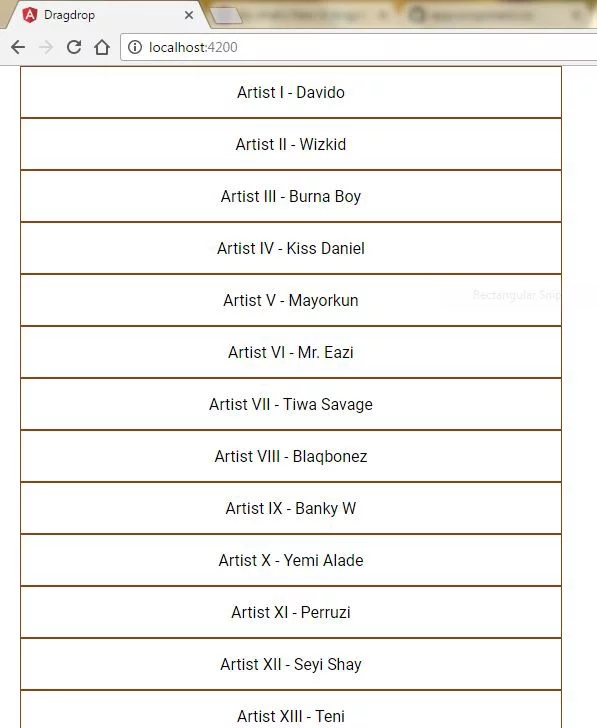
With the list in place, we'll explore the main features of the new drag and drop tool in the component development kit:
- Basic Drag and Drop
- Sorting
- Moving Items between Lists
- Animations
Getting Started with Drag and Drop
Simply adding the cdkDrag directive to a list item renderer makes that item draggable.
<div *ngFor=”let artist of artists” class=”pop” cdkDrag>{{artist}}</div>
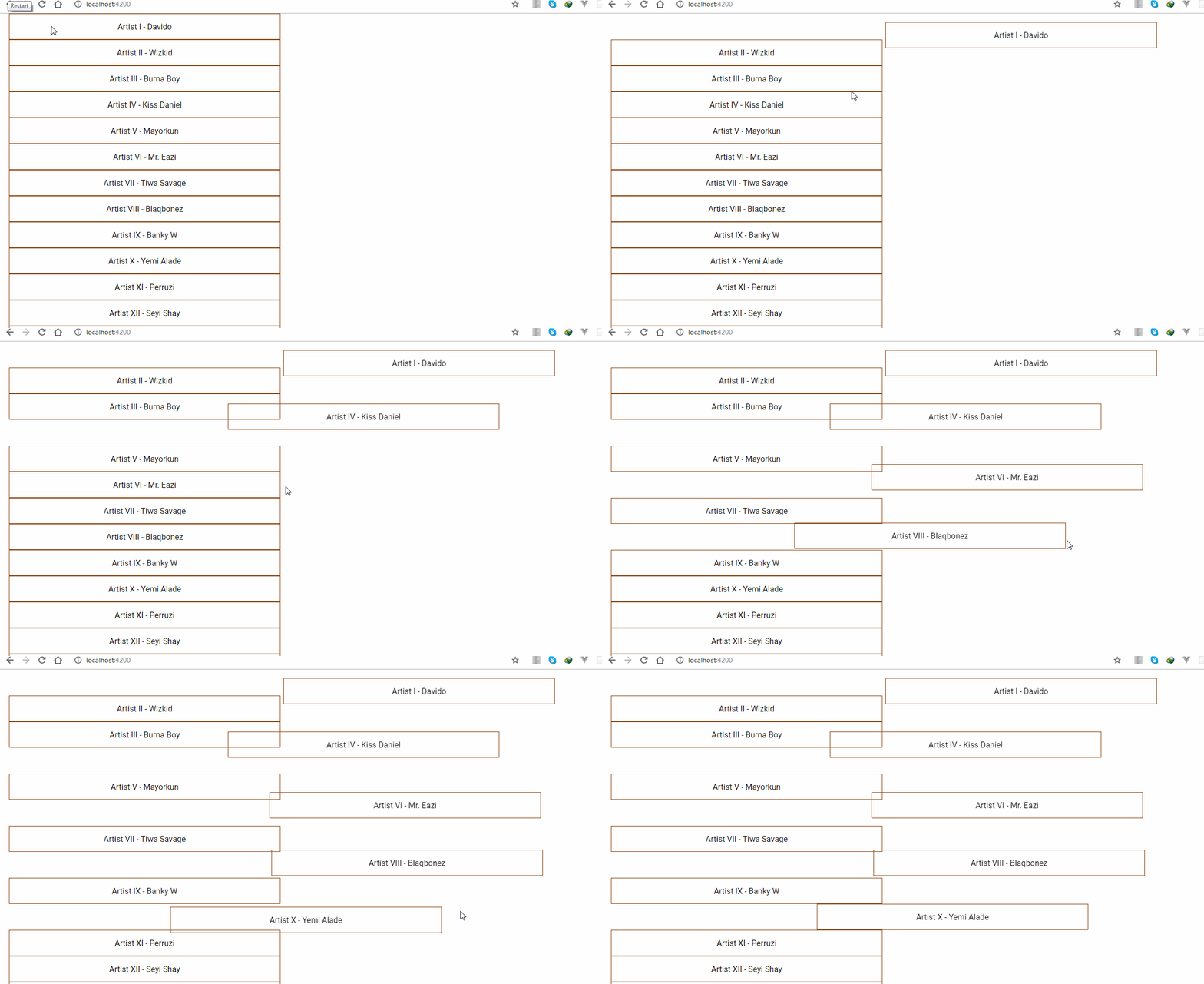
At this point, items can be dragged anywhere in the DOM. To restrict movement to the list area, wrap it inside a cdkDropList div.
<div cdkDropList>
<div *ngFor=”let artist of artists” class=”pop” cdkDrag>{{artist}}</div>
</div>
Implementing Sorting
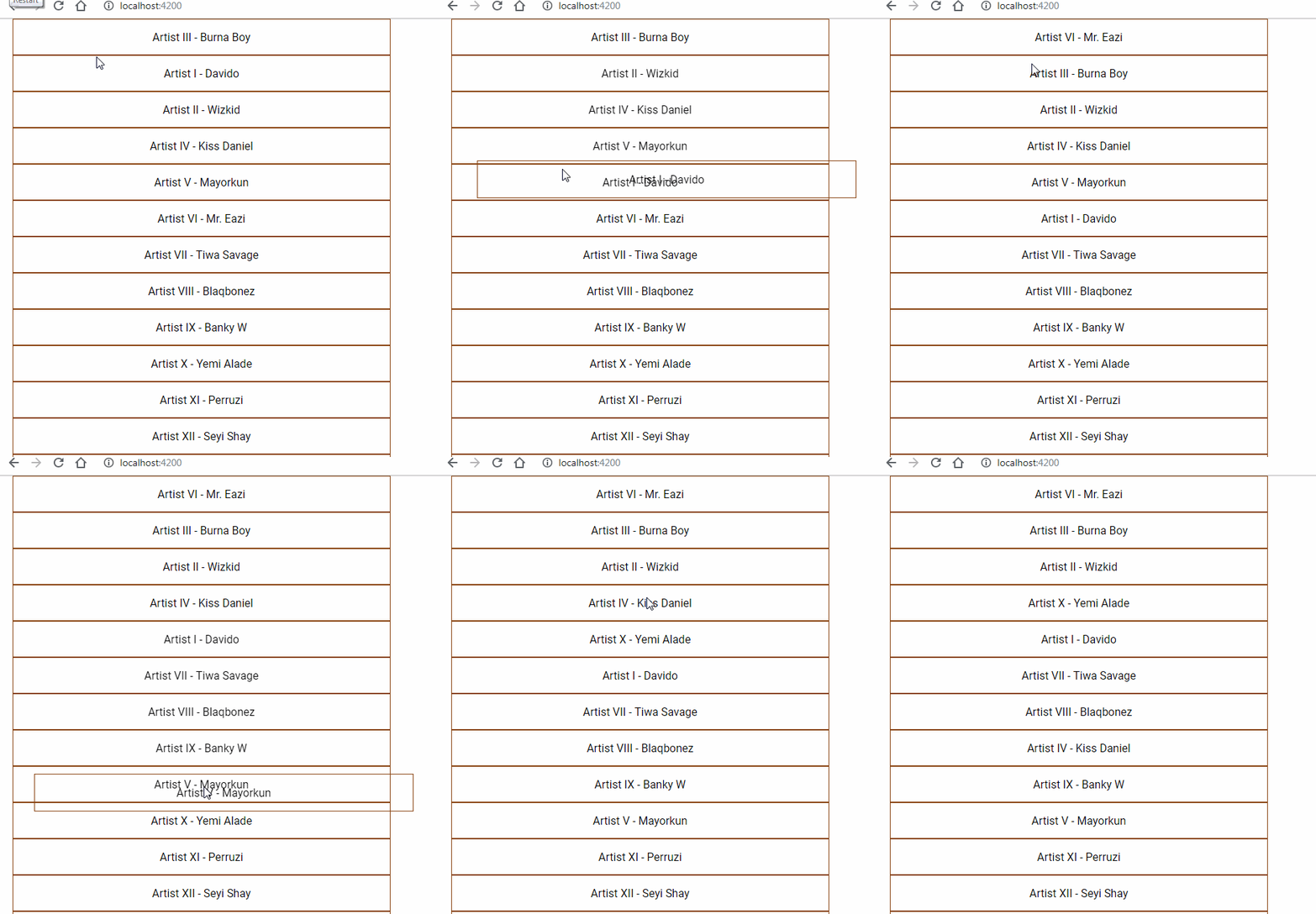
Now that items can be moved around the DOM or within a list, we can take it up a notch by reordering items—essentially moving them up and down the list. This requires listening for the cdkDropListDropped event and using the moveItemInArray method to enable reordering.
- Update the app.component.html file with this:
<div cdkDropList (cdkDropListDropped)=”drop($event)”>
<div *ngFor=”let artist of artists” class=”pop” cdkDrag>{{artist}}</div>
</div>
- Update the app.component.ts file with this:
drop(event: CdkDragDrop<string[]>) {
moveItemInArray(this.artists, event.previousIndex, event.currentIndex);
}
The moveItemInArray method requires three arguments:
- The array where the reordering happens
event.previousIndex—the original index of the dragged itemevent.currentIndex—the new index where the item is dropped, enabling the swap
Make sure to import
CdkDragDropandmoveItemInArrayfrom@angular/cdk/drag-drop
Transferring Items Between Lists
Now for the fun part: we've managed to reorder items within a list using drag and drop. Let's push it further and enable reordering across two separate lists. With the cdkDropList directive, you can link multiple cdkDropList elements (divs) together by wrapping them in a parent with a cdkDropListGroup attribute or by setting the cdkDropListConnectedTo property.
- In app.component.html
<div style=”display: flex”>
<div cdkDropList [cdkDropListData]=”artists”
[cdkDropListConnectedTo]=”secondList” #firstList=”cdkDropList”
(cdkDropListDropped)=”drop($event)” style=”width: 30%”>
<div *ngFor=”let artist of artists” class=”pop” cdkDrag>{{artist}}</div>
</div>
<div cdkDropList [cdkDropListData]=”alteArtists”
[cdkDropListConnectedTo]=”firstList” #secondList=”cdkDropList”
(cdkDropListDropped)=”drop($event)” style=”width: 30%”>
<div *ngFor=”let artist of alteArtists” class=”pop” cdkDrag>{{artist}}</div>
</div>
</div>
What we did here:
- Introduced a new droplist on lines 7–11 to render an additional list
- Wrapped both droplist divs in a flex-styled container so they display separately
- Set the droplist data for each list on lines 2 and 7
- Defined which list each list connects to on lines 3 and 8
- Added IDs to the drop lists so Angular recognizes them as distinct entities
- In app.component.ts
alteArtists = [
‘Artist 1 — Odunsi’,
‘Artist 2 — Nonso’,
‘Artist 3 — Wavy the creator’,
‘Artist 4 — Dwin’,
‘Artist 5 — SDC’,
‘Artist 6 — Teni’
];
drop(event: CdkDragDrop<string[]>) {
if (event.previousContainer !== event.container) {
transferArrayItem(event.previousContainer.data,event.container.data,
event.previousIndex, event.currentIndex)
} else {
moveItemInArray(this.artists, event.previousIndex, event.currentIndex);
}
}
What we did here:
- Created a new
alteArtistsarray with its own data. - Added an if-else structure to adapt the moveItemInArray approach.
- The if branch handles scenarios where an item is dragged into a different drop list
- The else branch retains the previous logic for reordering within the same list
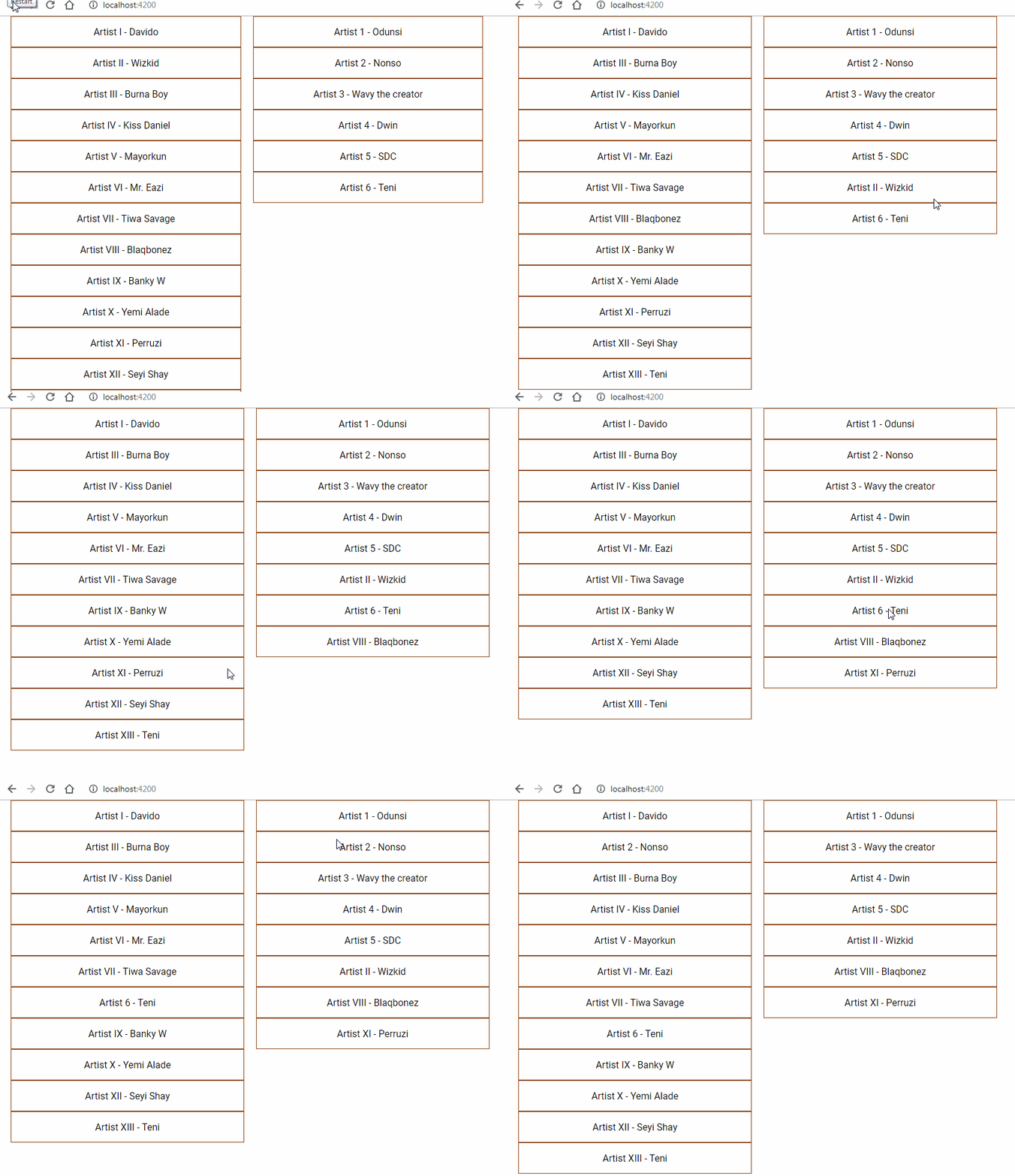
Adding Animations
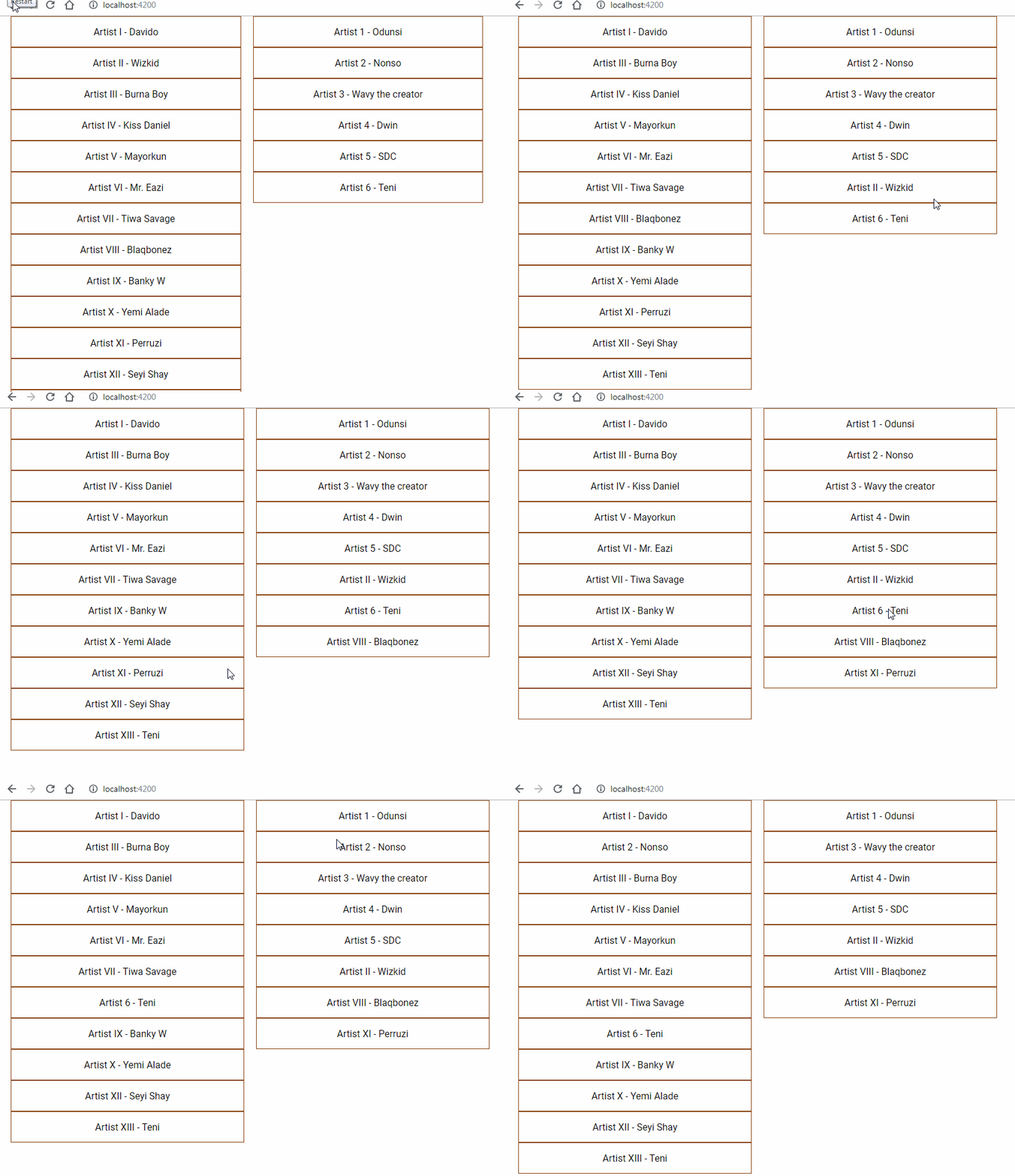
We can optionally enhance the drag-and-drop experience with transition styling. The module supports animations for sorting items within a list and for dropping items into a list. Here's a basic example:
- In app.component.css:
/* Animate items as they’re being sorted. */
.cdk-drop-list-dragging .cdk-drag {
transition: transform 250ms cubic-bezier(0, 0, 0.2, 1);
}
/* Animate an item that has been dropped. */
.cdk-drag-animating {
transition: transform 300ms cubic-bezier(0, 0, 0.2, 1);
}

It might not be buttery smooth just yet, but you'll notice the transition effects versus a version without them. If you've followed along, your final app component folder should look like this:
- app.component.html
<div style="display: flex">
<div cdkDropList  [cdkDropListData]="artists"
[cdkDropListConnectedTo]="secondList" #firstList="cdkDropList"
(cdkDropListDropped)="drop($event)" style="width: 30%">
<div  *ngFor="let artist of artists" class="pop" cdkDrag>{{artist}}</div>
</div>
<div cdkDropList [cdkDropListData]="alteArtists"
[cdkDropListConnectedTo]="firstList" #secondList="cdkDropList"
 (cdkDropListDropped)="drop($event)" style="width: 30%">
<div  *ngFor="let artist of alteArtists" class="pop" cdkDrag>{{artist}}</div>
</div>
</div>
- app.component.ts
import { Component } from '@angular/core';
import { CdkDragDrop, moveItemInArray, transferArrayItem } from '@angular/cdk/drag-drop'

@Component({
  selector: 'app-root',
  templateUrl: './app.component.html',
  styleUrls: ['./app.component.css']
})

export class AppComponent {
  artists = [
    'Artist I - Davido',
    'Artist II - Wizkid',
    'Artist III - Burna Boy',
    'Artist IV - Kiss Daniel',
    'Artist V - Mayorkun',
    'Artist VI - Mr. Eazi',
    'Artist VII - Tiwa Savage',
    'Artist VIII - Blaqbonez',
    'Artist IX - Banky W',
    'Artist X - Yemi Alade',
    'Artist XI - Perruzi',
    'Artist XII - Seyi Shay',
    'Artist XIII - Teni'
  ];

  alteArtists = [
    'Artist 1 - Odunsi',
    'Artist 2 - Nonso',
    'Artist 3 - Wavy the creator',
    'Artist 4 - Dwin',
    'Artist 5 - SDC',
    'Artist 6 - Teni'
  ];

  drop(event: CdkDragDrop<string[]>) {
    if (event.previousContainer !== event.container) {
      transferArrayItem(event.previousContainer.data,event.container.data,
        event.previousIndex, event.currentIndex)
    } else {
      moveItemInArray(this.artists, event.previousIndex, event.currentIndex);
    }
  }
}
- app.component.css
.pop{
    height: 50px;
    margin-left: 20px;
    border: 1px solid saddlebrown;
    display: flex;
    justify-content: center;
    align-items: center;

}
.cdk-drop-list-dragging .cdk-drag {
    transition: transform 250ms cubic-bezier(0, 0, 0.2, 1);
  }

  .cdk-drag-animating {
    transition: transform 300ms cubic-bezier(0, 0, 0.2, 1);
  }
Wrapping Up
This tutorial walked through the new Angular 7 CDK drag and drop tool, showcasing practical uses and the UX possibilities it unlocks. For more details, check the CDK docs here. The source project is available on GitHub here if you want to fork and experiment. Share your drag and drop ideas in the comments, and happy coding!
Follow me here and don't forget to clap if you found this helpful.