Update: This article was written with Angular version 10. For version 13, I have written new article and with more practical scenarios, you can read it at: Angular Material Theming System: Complete Guide | Angular Material Dev (angular-material.dev)
While browsing Stack Overflow some time ago, a query popped into my feed: how to apply the identical theme used for mat-toolbar to mat-sidenav. That discussion is available here.
Restating that answer with a code snippet was only the beginning—I decided to broaden that idea across additional components and organize everything into a clean, structured codebase. This could serve our future development work, both yours and mine.
Once you finish this series, you'll know how to craft a custom theme and apply it to Angular Material components.
Table of Contents
- Create an Angular Project using Angular CLI and add Angular Material
- Understand Angular Material Custom Theme
- Create Base Theme Files
- Update Project Structure with few new modules
- Create basic UI skeleton
1. Create an Angular Project using Angular CLI and add Angular Material
npm i -g @angular/cli
ng new theming-material-components --style=scss --skipTests --routing=false
? With
--style, we decide which stylesheet language the project will lean on — in this case,scss. Meanwhile,--skipTestsprevents the creation of any 'spec.ts' files, and setting--routing=falsemeans no routing module is generated (nor are we prompted for one). For a deeper dive into CLI options, check out the official docs right here.
When that step wraps up…
cd theming-material-components
ng serve -o
Next, we shall bring Angular Material into the project by adhering to the steps outlined in the official guide:
ng add @angular/material
Running ng add sets up Angular Material along with the Component Dev Kit (CDK) and Angular Animations. After installation, you'll be prompted to pick which options to enable:
- Select a theme: either a prebuilt one or Custom for a tailored design
- Apply global Angular Material typography: Yes
- Enable browser animations for Angular Material: Yes
Beyond that, ng add also carries out these extra setup steps:
- Registers dependencies in
package.json - Embeds the Roboto font into your
index.html - Adds the Material Design icon font to your
index.html - Applies several global CSS rules:
- Resets
bodymargins - Sets
height: 100%for bothhtmlandbody - Makes Roboto the app-wide font
That's all there is to it — Angular Material is ready to use.
2. Grasping a Custom Angular Material Theme
Now, take a closer look at the style.scss file:
// src/styles.scss

// Custom Theming for Angular Material

// For more information: https://material.angular.io/guide/theming

@import "~@angular/material/theming";
// Plus imports for other components in your app.

// Include the common styles for Angular Material. We include this here so that you only
// have to load a single css file for Angular Material in your app.
// Be sure that you only ever include this mixin once!

@include mat-core();

// Define the palettes for your theme using the Material Design palettes available in palette.scss
// (imported above). For each palette, you can optionally specify a default, lighter, and darker
// hue. Available color palettes: https://material.io/design/color/

$theming-material-components-primary: mat-palette($mat-indigo);
$theming-material-components-accent: mat-palette($mat-pink, A200, A100, A400);

// The warn palette is optional (defaults to red).

$theming-material-components-warn: mat-palette($mat-red);

// Create the theme object (a Sass map containing all of the palettes).

$theming-material-components-theme: mat-light-theme(
	$theming-material-components-primary,
	$theming-material-components-accent,
	$theming-material-components-warn
);

// Include theme styles for core and each component used in your app.
// Alternatively, you can import and @include the theme mixins for each component
// that you are using.

@include angular-material-theme($theming-material-components-theme);

/* You can add global styles to this file, and also import other style files */

html,
body {
	height: 100%;
}
body {
	margin: 0;
	font-family: Roboto, "Helvetica Neue", sans-serif;
}
Angular CLI provides a default theme out of the box. The essentials it covers include the following:
- If you include the material theme files and the
corefunction - Put together the key values for
$theming-material-components-primary,$theming-material-components-accent, and$theming-material-components-warnby pulling from the Material Color System. - Blend those colors into a lighter theme, referred to as
$theming-material-components-theme, using themat-light-thememixin. - Hand your custom theme over to
angular-material-theme, which is Angular Material’s builder, ensuring every component’s styling matches your custom setup.
Deeper coverage follows in the next segment.
3. Create Base Theme Files
When building the theme file, here is what I intend to achieve:
- Set up a default theme, keeping it identical to what we have in ? styles.scss.
- Establish an alternative dark theme, since a theme-switcher UI will toggle between default and dark modes.
- Define a typography style solely for headings ( e.g.,
h1,h2). I have chosenWork Sansfor this; feel free to pick something else.
Create a new file named ? theme.scss inside the ? src directory:
// src/theme.scss

// ? Importing `Work Sans` font for headings, you can change this if you want
@import url("https://fonts.googleapis.com/css2?family=Work+Sans:wght@300;400;500&display=swap");

// ? 1. Default theme
$theming-material-components-primary: mat-palette($mat-indigo);
$theming-material-components-accent: mat-palette($mat-pink, A200, A100, A400);
$theming-material-components-warn: mat-palette($mat-red);

$theming-material-components-theme: mat-light-theme(
	$theming-material-components-primary,
	$theming-material-components-accent,
	$theming-material-components-warn
);

// ? 2. Define an alternate dark theme.
$dark-primary: mat-palette($mat-blue-grey);
$dark-accent: mat-palette($mat-amber, A200, A100, A400);
$dark-warn: mat-palette($mat-deep-orange);
$dark-theme: mat-dark-theme(
	(
		color: (
			primary: $dark-primary,
			accent: $dark-accent,
			warn: $dark-warn,
		),
	)
);

// ? 3. Define a custom heading typography config
$heading-font-family: "'Work Sans', sans-serif";
$typography: mat-typography-config(
	$display-4: mat-typography-level(112px, $font-family: $heading-font-family),
	$display-3: mat-typography-level(56px, $font-family: $heading-font-family),
	$display-2: mat-typography-level(45px, $font-family: $heading-font-family),
	$display-1: mat-typography-level(34px, $font-family: $heading-font-family),
	$headline: mat-typography-level(24px, $font-family: $heading-font-family),
	$title: mat-typography-level(20px, $font-family: $heading-font-family),
);
? Typography in Angular is applied exclusively when elements are nested inside the
mat-typographyclass. Verify this in your ? index.html — themat-typographyclass is placed on the<body>element, which happens automatically following the execution ofng add @angular/material.
Here, I’ll add another file designated as ? custom-component-themes.scss, structured as follows:
// src/custom-component-themes.scss

// import custom components themes

// you only have to add additional components here (instead of in every theme class)
@mixin custom-components-theme($theme) {
}
All the theming for our components will live in this one file.
We’re going to pull in both theme.scss and custom-component-themes.scss into the main styles.scss, then invoke their mixins — here’s what the modified file should look like after that:
// src\styles.scss

// Custom Theming for Angular Material
// For more information: https://material.angular.io/guide/theming

@import "~@angular/material/theming";
// Plus imports for other components in your app.

// Include the common styles for Angular Material. We include this here so that you only
// have to load a single css file for Angular Material in your app.
// Be sure that you only ever include this mixin once!

@include mat-core();

// import our custom theme                // ? changed
@import "./theme.scss"; // ? changed
// ? changed
// import custom component themes         // ? changed
@import "./custom-component-themes.scss"; // ? changed

// Include theme styles for core and each component used in your app.
// Alternatively, you can import and @include the theme mixins for each component
// that you are using.

@include angular-material-theme(
	$theming-material-components-theme
); // ? changed
@include custom-components-theme(
	$theming-material-components-theme
); // ? changed

// ? added

// Include the dark color styles inside of a block with a CSS class. You can make this
// CSS class whatever you want. In this example, any component inside of an element with
// `.dark-theme` will be affected by this alternate dark theme instead of the default theme.

.dark-theme {
	@include angular-material-color($dark-theme);
}

// Override typography for all Angular Material, including mat-base-typography and all components.
@include angular-material-typography($typography);

// ? added

/* You can add global styles to this file, and also import other style files */

html,
body {
	height: 100%;
}
body {
	margin: 0;
	font-family: Roboto, "Helvetica Neue", sans-serif;
}
We've introduced a key modification: the dark-theme color values are now enclosed within a .dark-theme class selector. Consequently, any themed component rendered within this wrapper automatically adopts the $dark-theme palette.
For a deeper grasp of Material Colors, refer to this color system guideline.
4. Update Project Structure with few new modules
Currently, our project layout appears like this:
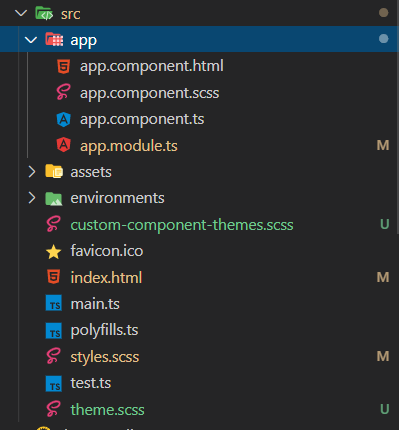
Here’s what the project layout looks like once step 3 is complete.
Now we’ll set up a single module dedicated to importing every Angular Material module we need:
ng g m material
This setup generates a material/material.module.ts file along with its containing directory. Now, let's import a handful of Angular Material modules into this file:
// src/app/material/material.module.ts

import { NgModule } from "@angular/core";
import { MatSidenavModule } from "@angular/material/sidenav";
import { MatSliderModule } from "@angular/material/slider";
import { MatSlideToggleModule } from "@angular/material/slide-toggle";
import { MatToolbarModule } from "@angular/material/toolbar";
import { MatCheckboxModule } from "@angular/material/checkbox";
import { MatIconModule } from "@angular/material/icon";
import { MatButtonModule } from "@angular/material/button";
import { MatTooltipModule } from "@angular/material/tooltip";
import { MatMenuModule } from "@angular/material/menu";
import { MatBadgeModule } from "@angular/material/badge";
import { MatListModule } from "@angular/material/list";

@NgModule({
	exports: [
		MatSidenavModule,
		MatSliderModule,
		MatSlideToggleModule,
		MatToolbarModule,
		MatCheckboxModule,
		MatIconModule,
		MatButtonModule,
		MatTooltipModule,
		MatMenuModule,
		MatBadgeModule,
		MatListModule,
	],
})
export class MaterialModule {}
Time to set up a shared module — this will be where all of our reusable modules, components, directives, pipes, and services can live together.
ng g m shared
? For further insights into shared and core modules, refer to the official Angular style guide.
Next, we include MaterialModule within the imports array of SharedModule:
// src/app/shared/shared.module.ts

import { NgModule } from "@angular/core";
import { CommonModule } from "@angular/common";
import { MaterialModule } from "../material/material.module";

@NgModule({
	declarations: [],
	imports: [CommonModule, MaterialModule], // ? changed
})
export class SharedModule {}
Next, we’ll bring SharedModule into AppModule:
// app/app.module.ts
import { BrowserModule } from "@angular/platform-browser";
import { NgModule } from "@angular/core";

import { AppComponent } from "./app.component";
import { BrowserAnimationsModule } from "@angular/platform-browser/animations";
import { SharedModule } from "./shared/shared.module"; // ? <-- Added

@NgModule({
	declarations: [AppComponent],
	imports: [
		BrowserModule,
		BrowserAnimationsModule,
		SharedModule, // ? <-- Added
	],
	providers: [],
	bootstrap: [AppComponent],
})
export class AppModule {}
5. Create basic UI skeleton
We’ll build a reusable SideNavComponent and plug it into the AppComponent:
ng g c shared/components/sidenav
Here’s what we need to change in ? sidenav.component.html, ? sidenav.component.scss, and ? sidenav.component.ts:
<!-- src\app\shared\components\sidenav\sidenav.component.html -->

<div [class.dark-theme]="isDark">
	<!-- ? we're wrapping whole content in a div, to handle dark/light theme -->
	<mat-toolbar [color]="themeColor">
		<span>Toolbar</span>
		<span class="example-spacer"></span>

		<!-- ? below button will help us change the theme at run-time. -->
		<button
			mat-icon-button
			(click)="toggleTheme()"
			matTooltip="Toggle dark theme"
		>
			<mat-icon> brightness_6 </mat-icon>
		</button>

		<!-- ? below menu will help us change the color at run-time. -->

		<button
			mat-button
			[matMenuTriggerFor]="menu"
			class="menu-button"
			matTooltip="Select a theme color"
		>
			{{ themeColor }}
		</button>

		<ng-template #noRadio> radio_button_unchecked </ng-template>

		<mat-menu #menu="matMenu">
			<button mat-menu-item (click)="themeColor = 'primary'">
				<mat-icon [color]="themeColor === 'primary' ? 'primary' : 'no-color'">
					<ng-container *ngIf="themeColor === 'primary'; else noRadio"
						>radio_button_checked</ng-container
					>
				</mat-icon>
				Primary
			</button>
			<button mat-menu-item (click)="themeColor = 'warn'">
				<mat-icon [color]="themeColor === 'warn' ? 'warn' : 'no-color'">
					<ng-container *ngIf="themeColor === 'warn'; else noRadio"
						>radio_button_checked</ng-container
					>
				</mat-icon>
				Warn
			</button>
			<button mat-menu-item (click)="themeColor = 'accent'">
				<mat-icon [color]="themeColor === 'accent' ? 'accent' : 'no-color'">
					<ng-container *ngIf="themeColor === 'accent'; else noRadio"
						>radio_button_checked</ng-container
					>
				</mat-icon>
				Accent
			</button>
		</mat-menu>
	</mat-toolbar>
	<mat-sidenav-container class="example-container">
		<mat-sidenav #sidenav mode="side" opened>
			<mat-nav-list>
				<h1>Sidenav</h1>
				<a mat-list-item href="#">Link 1</a>
				<a mat-list-item href="#">Link 2</a>
				<a mat-list-item href="#">Link 3</a>
			</mat-nav-list>
		</mat-sidenav>

		<mat-sidenav-content>
			<!-- ? our main content will be loaded here. -->

			<ng-content></ng-content>
		</mat-sidenav-content>
	</mat-sidenav-container>
</div>
The following is a summary of what sidenav.component.html contains:
- A wrapper
divis set up, carrying handler classes for theming. By default, no class is applied (showing the light theme); to switch to dark mode, thedark-themeclass is added here. - A button featuring a theme icon is included, serving solely to flip the dark-theme flag. However, beyond a basic toggle, extra logic is required—this will be detailed in the class file.
- An
MatMenuis added with entries for color selection, enabling changes to themat-toolbar's color. - Placeholder menu items are inserted into the sidenav.
- Lastly, the main page content is injected through
<ng-content>.
// src\app\shared\components\sidenav\sidenav.component.scss

.example-container {
	height: calc(100vh - 64px);
	.mat-sidenav {
		padding: 8px;
		min-width: 300px;
	}
	.mat-sidenav-content {
		height: calc(100vh - 64px);
	}
}
.menu-button {
	text-transform: capitalize;
}

.example-spacer {
	flex: 1 1 auto;
}

.mat-icon-no-color {
	color: rbga(0, 0, 0, 0.54);
}
Here's a quick recap of the sidenav, component.scss: file:
- Set the container to the full viewport height, accounting for the
mat-toolbarheight. Since<div>elements are block-level by default, their width defaults to fill the parent, so we only need to specifyheightexplicitly. - Apply some padding inside the sidenav, giving the content room to breathe and avoid feeling cramped.
- Use
text-transformto display the.meu-buttoncontent in capitals. Since we'll be showing dynamic color names likeprimary,accent, andwarn, this ensures they appear neat and consistent on screen. - Rely on
.example-spacerto push the theme switcher and the menu to the far right side of the toolbar. - When a color is not active, the radio icon inside the color selector menu gets the
.mat-icon-no-colorclass. This replaces the default solid black appearance with a more subtle, neutral look.
// src\app\shared\components\sidenav\sidenav.component.ts

import { Component, OnInit, Input } from "@angular/core";
import { OverlayContainer } from "@angular/cdk/overlay";

@Component({
	selector: "app-sidenav",
	templateUrl: "./sidenav.component.html",
	styleUrls: ["./sidenav.component.scss"],
})
export class SidenavComponent implements OnInit {
	themeColor: "primary" | "accent" | "warn" = "primary"; // ? notice this
	isDark = false; // ? notice this
	constructor(private overlayContainer: OverlayContainer) {}

	ngOnInit(): void {}

	// ? notice below
	toggleTheme(): void {
		this.isDark = !this.isDark;
		if (this.isDark) {
			this.overlayContainer.getContainerElement().classList.add("dark-theme");
		} else {
			this.overlayContainer
				.getContainerElement()
				.classList.remove("dark-theme");
		}
	}
}
Here’s a breakdown of what sidenav.component.ts does:
themeColor: Determines the color applied to certain components, likeMatToolbarin this context. The value changes whenever a user picks a color from the toolbar menu.isDark: Controls the overall light or dark appearance of the application, as seen in the opening line of sidenav.component.html in the provided code samples.toggleTheme: Handles the following two tasks –
- Switches between dark and light mode.
- Because some components (such as menu, select, dialog, etc.) reside in a global overlay container, they need extra handling to get the theme's CSS class selector applied to them.
Now, include SidenavComponent in the exports list of SharedModule:
// src/app/shared/shared.module.ts

import { NgModule } from "@angular/core";
import { CommonModule } from "@angular/common";
import { CustomMaterialModule } from "../custom-material/custom-material.module";
import { SidenavComponent } from "./components/sidenav/sidenav.component";

@NgModule({
	declarations: [SidenavComponent],
	imports: [CommonModule, CustomMaterialModule],
	exports: [SidenavComponent], // ? added
})
export class SharedModule {}
? Make sure you export from
SharedModuleevery component, pipe, and directive that we’ll create.
Next, clear out the existing content in app.component.html entirely, then insert the following markup:
<!-- src\app\app.component.html -->

<app-sidenav>
	<div class="container">
		<h1 class="mat-display-3">Main Content</h1>
		<p>
			Lorem ipsum dolor sit amet consectetur adipisicing elit. Reiciendis nobis
			illum animi temporibus omnis. Consequatur qui fugit facilis reiciendis
			deserunt, debitis beatae! Illo dolorem asperiores nisi excepturi eum
			veritatis cupiditate.
		</p>
	</div>
</app-sidenav>
Padding will be added as well, so the result doesn’t look off:
// src\app\app.component.scss

.container {
	padding: 8px;
}
Head over to the toolbar, tweak the theme or color, and the changes will show up right away in the browser.
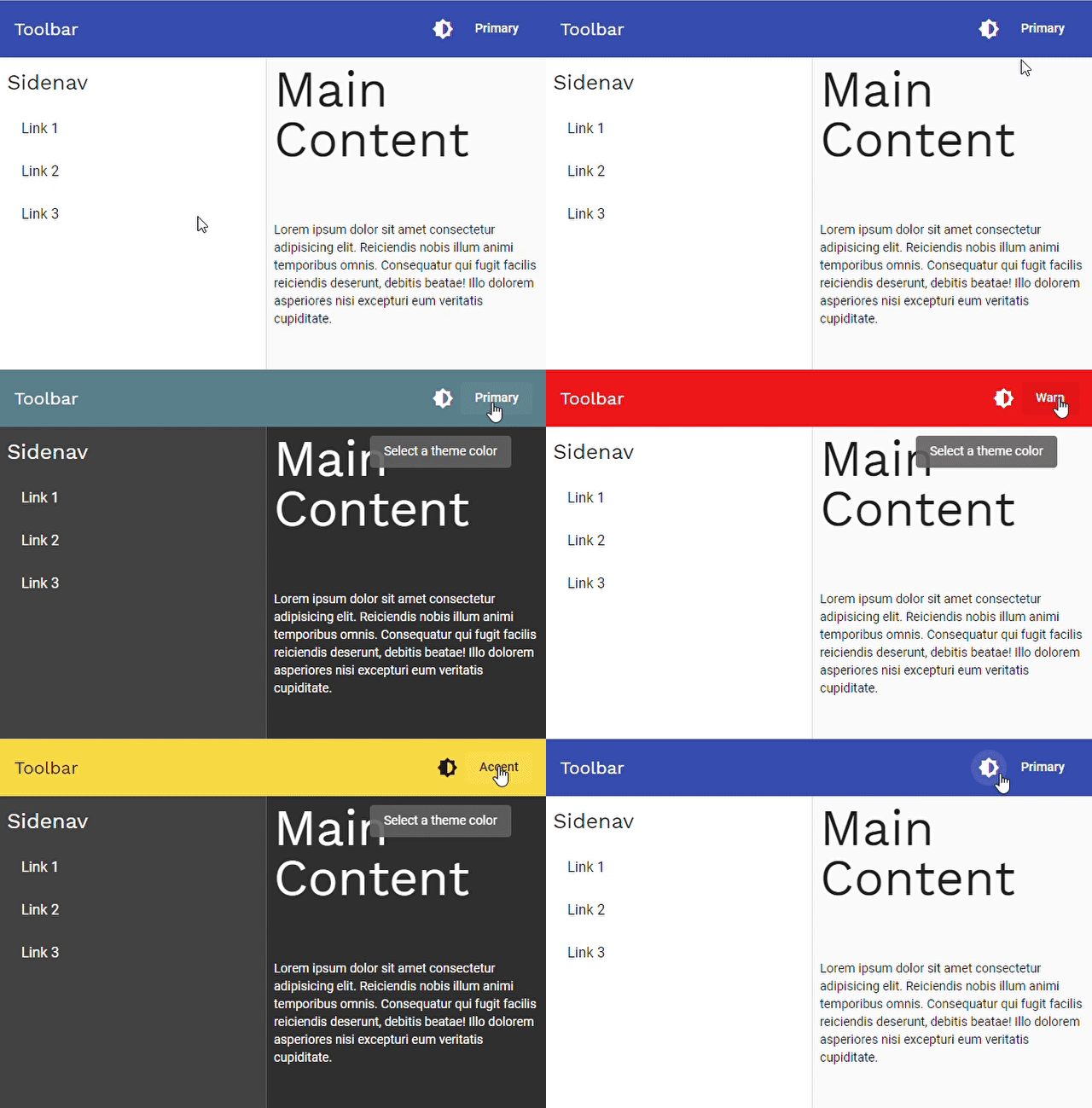
Here’s what the browser renders for the theme and its colors.
At this point, the project layout looks as follows:
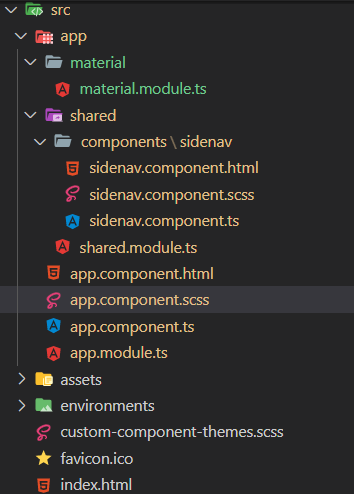
The directory layout you end up with once step 5 is finished looks like the snapshot above.
All of the following tasks are now complete:
✔️ Scaffold a new Angular project through the Angular CLI, then bring in Angular Material
✔️ Get a handle on how Angular Material’s theming mechanism works
✔️ Set up the foundational theme files
✔️ Rework the project structure by adding several new modules
✔️ Build a rough layout for the UI
A Note of Thanks
I appreciate you taking the time to read this piece — it’s my debut submission to indepth.dev. Feel free to share your thoughts in the comments.
Everything we walked through here has been packaged into an Angular project, which I’ve made public on GitHub at shhdharmen/indepth-theming-material-components:
That wraps up the initial installment of this series. Here’s what lies ahead:
Part 2
Dive into Angular Material’s source code to see how its theming mechanism works. Find out more by clicking this link.
Part 3
- Explore the theming details of
MatToolbar - Reuse the
MatToolbartheme forMatSidenavandMatDialog - Create alternate themes for
MatSnackbarand craft separate styles for various alert types: default, info, success, warning, and error
The full guide is available here.
That’s all for now—catch you soon. And always remember: you’ve got this.

Photo by Andy Montes de Oca / Unsplash