Applying a custom theme to Angular Material and its various components.
Update: This post was originally created with Angular version 10. For version 13, I’ve published a new article that includes more real-world examples. You can access it here: Angular Material Theming System: Complete Guide | Angular Material Dev (angular-material.dev)
Summary
This installment is the third in the Custom Theme for Angular Material Components Series. In the first part and the second part, we explored how theming works for both Angular Material itself and its child components.
Here, we will shift focus to altering the default theme applied to those components. These are the concrete tasks ahead:
- Examine how
MatToolbarimplements its theme - Reuse
MatToolbar's theme logic forMatSidenavandMatDialog - Design a bespoke theme for
MatSnackbar, along with tailored styles for each notification type—default, info, success, warning, and error
1. Understand theme of MatToolbar
Given your understanding of how every component’s theme integrates into the overall application, it’s time to inspect the specifics of MatToolbar's theme, which can be found in this file: src/material/toolbar/_toolbar-theme.scss:
...

@mixin mat-toolbar-color($config-or-theme) {
  $config: mat-get-color-config($config-or-theme);
  $primary: map-get($config, primary);
  $accent: map-get($config, accent);
  $warn: map-get($config, warn);
  $background: map-get($config, background);
  $foreground: map-get($config, foreground);

  .mat-toolbar {
    background: mat-color($background, app-bar);
    color: mat-color($foreground, text);

    &.mat-primary {
      @include _mat-toolbar-color($primary);
    }

    &.mat-accent {
      @include _mat-toolbar-color($accent);
    }

    &.mat-warn {
      @include _mat-toolbar-color($warn);
    }

    @include _mat-toolbar-form-field-overrides;
  }
}

@mixin mat-toolbar-typography($config-or-theme) {
  $config: mat-get-typography-config($config-or-theme);
  .mat-toolbar,
  .mat-toolbar h1,
  .mat-toolbar h2,
  .mat-toolbar h3,
  .mat-toolbar h4,
  .mat-toolbar h5,
  .mat-toolbar h6 {
    @include mat-typography-level-to-styles($config, title);
    margin: 0;
  }
}

...

@mixin mat-toolbar-theme($theme-or-color-config) {
  ...
      @include mat-toolbar-color($color);
      ...
      @include _mat-toolbar-density($density);
      ...
      @include mat-toolbar-typography($typography);
  ...
}
mat-toolbar-theme: This serves as the primary mixin that handles theming forMatToolbar. It incorporates three distinct mixins:mat-toolbar-color: Within this mixin, palette functions are used to retrieve all theme colors first. Following that, default background and font colors get set. For every themed toolbar, classes.mat-primary,.mat-accent, and.mat-warnare generated._mat-toolbar-density: This mixin controls the assignment of responsive scaling and height.mat-toolbar-typography: As its name implies, this is the source forMatToolbartypography.
Now, we'll apply MatToolbar's theme to both MatSidenav and MatDialog.
2. Applying MatToolbar's Theme to MatSidenav and MatDialog
MatSidenav
The presence of a color attribute/property on MatToolbar is why using color="primary" directly (or [color]="themeColor" in our scenario) triggers the appropriate theme. However, MatSidenav lacks this color attribute, necessitating manual handling.
To verify whether MatSidenav supports the color attribute, try adding color="primary" to the mat-sidenav tag. The output will show no difference.
To view the actual error, switch it to [color]="themeColor". The browser console will display: Error: Template parse errors: Can't bind to 'color' since it isn't a known property of 'mat-sidenav'.
To bind themeColor to the color attribute of MatSidenav, Attribute Binding is the solution. Add [attr.color]="themeColor" to <mat-sidenav> while keeping the rest unchanged:
<mat-sidenav #sidenav mode="side" opened [attr.color]="themeColor">
    ...
</mat-sidnav>
? Attribute binding is the go-to approach when a direct assignment to an element property isn’t possible. For a deeper look, refer to the Attribute Binding Guide on angular.io.
Using attribute binding here won’t trigger errors, yet since no styling logic has been added, the rendered result stays unchanged—so let’s address that now.
Our naming scheme for component-level themes follows this pattern: <component-name>.scss-theme.scss.
A new stylesheet goes in at src/app/shared/components/sidenav/sidenav.component.scss-theme.scss:
// src\app\shared\components\sidenav\sidenav.component.scss-theme.scss

@import "~@angular/material/theming";
@mixin sidenav-component-theme($config-or-theme) {
  // retrieve variables from theme
  // (all possible variables, use only what you really need)
  $config: mat-get-color-config($config-or-theme);
  $primary: map-get($config, primary);
  $accent: map-get($config, accent);
  $warn: map-get($config, warn);
  $foreground: map-get($config, foreground);
  $background: map-get($config, background);

  .mat-drawer {
    // let's take mat-toolbar's default theme
    background-color: mat-color($background, app-bar);
    color: mat-color($foreground, text);

    $color-list: (
      "primary": $primary,
      "accent": $accent,
      "warn": $warn,
    );

    // now, mat-toolbar's colored themes
    @each $key, $val in $color-list {
      &[color="#{$key}"] {
        @include _mat-toolbar-color($val);
        .mat-list-base {
          .mat-list-item {
            color: mat-color($val, default-contrast);
          }
        }
      }
    }
  }
}
Our import statement brings in ~@angular/material/theming, enabling the use of core Material mixins such as mat-color and the MatToolbar-specific _mat-toolbar-color mixin. Within sidenav-component-theme, which we've defined to style SidenavComponent, the initial step retrieves all theme colors via map-get. Next, we target the .mat-sidenav class—attached to the <mat-sidenav> element—applying the standard MatToolbar theme alongside colored themes assigned to various color attributes.
The sidenav-component-theme mixin must then be referenced inside src/custom-component-themes.scss:
// custom-component-themes.scss

// import custom components themes

// you only have to add additional components here (instead of in every theme class)

@import "./app/shared/components/sidenav/sidenav.component.scss-theme.scss";

@mixin custom-components-theme($theme) {
  @include sidenav-component-theme($theme);
}
To enable the dark theme within our custom-components-theme, we’ll also have to update our src/styles.scss file.
...
.dark-theme {
  @include angular-material-color($dark-theme);
  @include custom-components-theme($dark-theme); // ? added
}
...
Go ahead and start the app with ng serve -o — the result should appear as shown here:
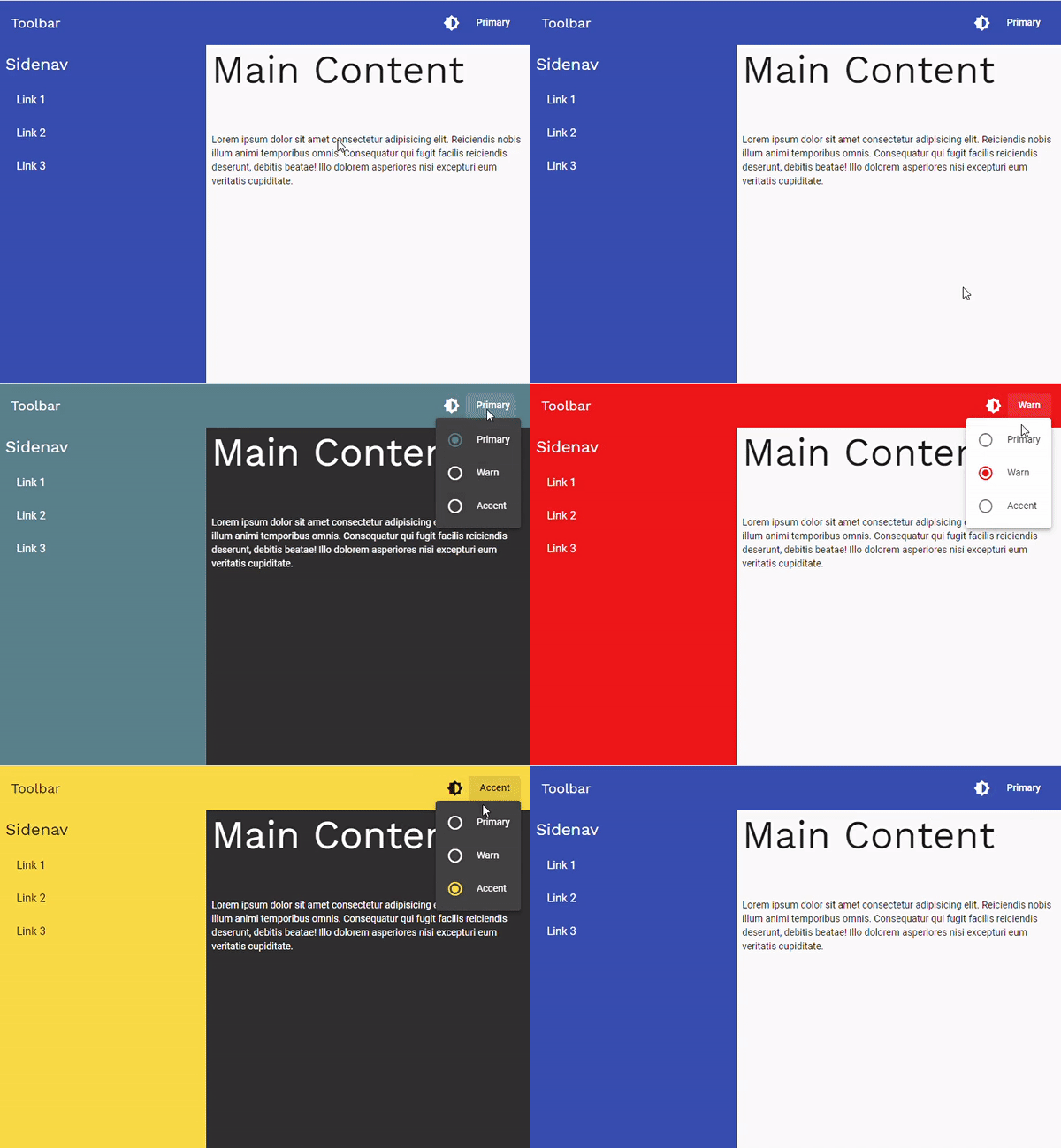
The result of using MatToolbar's theme on MatSidenav is shown below.
MatDialog
To begin, bring MatDialogModule into MaterialModule via an import:
// src/app/material/material.module.ts

...
import { MatDialogModule } from '@angular/material/dialog';

@NgModule({
  exports: [
    ...,
    MatDialogModule
  ]
})
Now, generate a component by running the following command in your terminal:
ng g c shared/components/dialog
<!-- src\app\shared\components\dialog\dialog.component.html -->

<h2 mat-dialog-title [attr.color]="data.themeColor">Dialog Header</h2>
<mat-dialog-content class="mat-typography">
  <div class="mat-dialog-content-body">
    <h3>Sub Header</h3>
    <p>
      Lorem ipsum dolor sit amet consectetur adipisicing elit. Eveniet sunt ratione eligendi ab esse dolorum delectus
      aliquid, doloribus perferendis dolores impedit laudantium voluptatum cum ad odit eius harum saepe commodi.
    </p>
  </div>
</mat-dialog-content>
<mat-dialog-actions align="end">
  <button mat-button mat-dialog-close>Close</button>
</mat-dialog-actions>
It is worth noting the [attr.color]="data.themeColor" attribute binding placed inside h2[mat-dialog-title]. This enables the header to receive a theme that changes at runtime.
// src\app\shared\components\dialog\dialog.component.ts

import { Component, Inject, OnInit } from '@angular/core';
import { MAT_DIALOG_DATA } from '@angular/material/dialog';

@Component({
  selector: 'app-dialog',
  templateUrl: './dialog.component.html',
  styleUrls: ['./dialog.component.scss'],
})
export class DialogComponent implements OnInit {
  constructor(@Inject(MAT_DIALOG_DATA) public data: DialogData) {}

  ngOnInit(): void {}
}
export interface DialogData {
  themeColor: string;
}
Our data is passed through via MAT_DIALOG_DATA, sourced from the function that triggers the dialog’s opening.
In addition, we’re setting up a dedicated theme file for the dialog, located at src/app/shared/components/dialog/dialog.component.scss-theme.scss:
// src\app\shared\components\dialog\dialog.component.scss-theme.scss

@import "~@angular/material/theming";
@mixin dialog-component-theme($config-or-theme) {
  // retrieve variables from theme
  // (all possible variables, use only what you really need)
  $config: mat-get-color-config($config-or-theme);
  $primary: map-get($config, primary);
  $accent: map-get($config, accent);
  $warn: map-get($config, warn);
  $foreground: map-get($config, foreground);
  $background: map-get($config, background);
  .custom-dialog {
    .mat-dialog-container {
      padding-top: 0px;
      .mat-dialog-title {

        // below is to make header take some space
        padding: 12px 24px;
        margin-bottom: 0;
        margin-left: -24px;
        margin-right: -24px;

        // let's take mat-toolbar's default theme
        background-color: mat-color($background, app-bar);
        color: mat-color($foreground, text);

        // now, mat-toolbar's colored themes
        $color-list: (
          "primary": $primary,
          "accent": $accent,
          "warn": $warn,
        );
        @each $key, $val in $color-list {
          &[color="#{$key}"] {
            @include _mat-toolbar-color($val);
          }
        }
      }
    }
  }
}
To ensure the background color is clearly visible, we need to modify mat-dialog-title by adding some spacing. Additionally, remember that we've defined a class called .custom-dialog, which will be referenced when we instantiate the dialog.
Now, we add this theme to src/custom-component-themes.scss:
// custom-component-themes.scss

// import custom components themes

// you only have to add additional components here (instead of in every theme class)

@import "./app/shared/components/sidenav/sidenav.component.scss-theme.scss";
@import "./app/shared/components/dialog/dialog.component.scss-theme.scss"; // ? Added

@mixin custom-components-theme($theme) {
  @include sidenav-component-theme($theme);
  @include dialog-component-theme($theme); // ? Added
}
AppComponent
We’ll now trigger MatDialog using app.component.html. Simply swap the markup for the following:
<!-- src\app\app.component.html -->

<app-sidenav #sidenav>
  <div class="container">
    <h1 class="mat-display-3">Main Content</h1>
    <p>
      Lorem ipsum dolor sit amet consectetur adipisicing elit. Reiciendis nobis illum animi temporibus omnis.
      Consequatur qui fugit facilis reiciendis deserunt, debitis beatae! Illo dolorem asperiores nisi excepturi eum
      veritatis cupiditate.
    </p>
    <button mat-raised-button [color]="sidenav.themeColor" (click)="openDialog(sidenav.themeColor)">Open Dialog</button>
  </div>
</app-sidenav>
In addition to the dialog-opening button, we’ve attached a TemplateRef to <app-sidenav>, enabling us to retrieve the themeColor property from SidnavComponent and forward it to MatDialog.
Furthermore, an openDialog function must be declared in app.component.ts:
// src\app\app.component.ts

import { Component } from '@angular/core';
import { MatDialog } from '@angular/material/dialog';
import { DialogComponent } from './shared/components/dialog/dialog.component';

@Component({
  selector: 'app-root',
  templateUrl: './app.component.html',
  styleUrls: ['./app.component.scss'],
})
export class AppComponent {
  title = 'theming-material-components';

  constructor(private dialog: MatDialog) {}

  openDialog(themeColor: 'primary' | 'accent' | 'warn'): void {
    const dialogRef = this.dialog.open(DialogComponent, {
      panelClass: 'custom-dialog',
      data: {
        themeColor,
      },
    });
  }
}
Let's look at the output now:
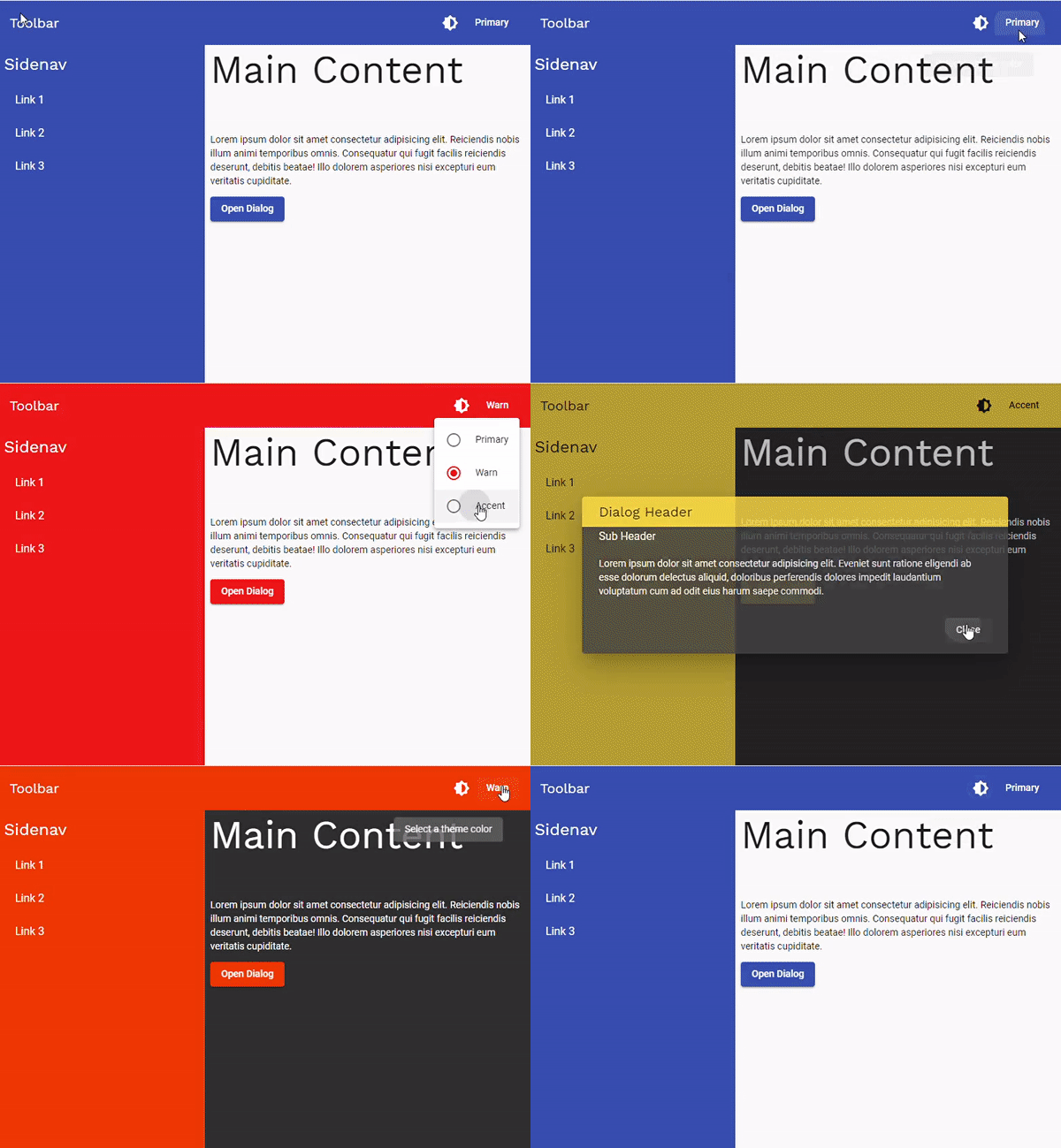
Here’s what you get on screen when MatDialog adopts the theme defined for MatToolbar.
3. Craft a separate theme for MatSnackbar and design appealing visuals for each notification type (default, info, success, warning, error)
To start, bring MatSnackBarModule into MaterialModule:
// src/app/material/material.module.ts

...
import { MatSnackBarModule } from '@angular/material/snack-bar';

@NgModule({
  exports: [
    ..,
    MatSnackBarModule
  ],
})
export class MaterialModule {}
Next, we’ll set up a notification service that lets us trigger alerts from any part of the app:
ng g s shared/services/notification
Here is what we'll now set the service's content to:
// src\app\shared\services\notification.service.ts

import { Injectable } from '@angular/core';
import { MatSnackBar, MatSnackBarConfig } from '@angular/material/snack-bar';

@Injectable({
  providedIn: 'root',
})
export class NotificationService {
  constructor(private readonly snackBar: MatSnackBar) {}

  default(message: string, isHandset?: boolean): void {
    this.show(
      message,
      {
        duration: 2000,
        panelClass: 'default-notification-overlay',
      },
      isHandset
    );
  }

  info(message: string, isHandset?: boolean): void {
    this.show(
      message,
      {
        duration: 2000,
        panelClass: 'info-notification-overlay',
      },
      isHandset
    );
  }

  success(message: string, isHandset?: boolean): void {
    this.show(
      message,
      {
        duration: 2000,
        panelClass: 'success-notification-overlay',
      },
      isHandset
    );
  }

  warn(message: string, isHandset?: boolean): void {
    this.show(
      message,
      {
        duration: 2500,
        panelClass: 'warning-notification-overlay',
      },
      isHandset
    );
  }

  error(message: string, isHandset?: boolean): void {
    this.show(
      message,
      {
        duration: 3000,
        panelClass: 'error-notification-overlay',
      },
      isHandset
    );
  }

  private show(message: string, configuration: MatSnackBarConfig, isHandset?: boolean): void {
    // If desktop, move it to top-right
    if (!isHandset) {
      configuration.horizontalPosition = 'right';
      configuration.verticalPosition = 'top';
    }

    this.snackBar.open(message, null, configuration);
  }
}
The panelClass attribute is key here—each notification variant gets its own distinct panelClass, and that’s what enables targeted styling.
Now, generate a dedicated theme stylesheet at src\app\shared\services\notification.scss-theme.scss:
// src\app\shared\services\notification.scss-theme.scss

@mixin notification-theme($notifications-theme) {
  $default-color: map-get($notifications-theme, default);
  $info-color: map-get($notifications-theme, info);
  $success-color: map-get($notifications-theme, success);
  $warn-color: map-get($notifications-theme, warning);
  $error-color: map-get($notifications-theme, error);
  .default-notification-overlay,
  .info-notification-overlay,
  .success-notification-overlay,
  .warning-notification-overlay,
  .error-notification-overlay {
    border-left: 4px solid;
    &::before {
      font-family: "Material Icons";
      float: left;
      font-size: 24px;
      // because we want spaces to be considered in content
      // https://stackoverflow.com/questions/5467605/add-a-space-after-an-element-using-after
      white-space: pre;
    }
  }
  .default-notification-overlay {
    border-left-color: $default-color;
    &::before {
      color: #fff;
    }
  }
  .info-notification-overlay {
    border-left-color: $info-color;
    &::before {
      content: "\e88e  ";
      color: $info-color;
    }
  }
  .success-notification-overlay {
    border-left-color: $success-color;
    &::before {
      content: "\e86c  ";
      color: $success-color;
    }
  }
  .warning-notification-overlay {
    border-left-color: $warn-color;
    &::before {
      content: "\e002  ";
      color: $warn-color;
    }
  }
  .error-notification-overlay {
    border-left-color: $error-color;
    &::before {
      content: "\e000  ";
      color: $error-color;
    }
  }
}
The $notifications-theme variable holds a map of colors that style the left borders of notifications, along with an icon indicating their severity, as demonstrated in the theme file.
These icons originate from Material Icons' Codepoints; feel free to swap them out as needed.
Now, define that color map by placing the following code in src/theme.scss:
// src/theme.scss

...
// Theme for notifications / snackbar
$notifications-theme: (
  default: #fff,
  info: mat-color(mat-palette($mat-blue), 400),
  success: mat-color(mat-palette($mat-green), 400),
  warning: mat-color(mat-palette($mat-yellow), 400),
  error: mat-color(mat-palette($mat-red), 400),
);
Naturally, the palette is entirely up to you. This theme must be surfaced in styles.scss, and later brought into custom-component-theme.scss plus notification.scss-theme.scss. Time to make that happen.
To start, extend custom-components-theme with a parameter for the notifications theme, and pull in notification-theme from src/app/shared/services/notification.scss-theme.scss:
// custom-component-themes.scss

// import custom components themes

// you only have to add additional components here (instead of in every theme class)

@import "./app/shared/components/sidenav/sidenav.component.scss-theme.scss";
@import "./app/shared/components/dialog/dialog.component.scss-theme.scss";
@import "./app/shared/services/notification.scss-theme.scss"; // ? Added

@mixin custom-components-theme($theme, $notifications-theme) {
  @include sidenav-component-theme($theme);
  @include dialog-component-theme($theme);
  @include notification-theme($notifications-theme); // ? Added
}
Moving on to styles.scss, we now register the custom theme inside custom-component-theme:
// src\styles.scss
...
@include custom-components-theme($theming-material-components-theme, $notifications-theme); // ? changed

...

.dark-theme {
  @include angular-material-color($dark-theme);
  @include custom-components-theme($dark-theme, $notifications-theme); // ? changed
}

...
We’ll trigger a notification by clicking a button in app.component.html:
<!-- src\app\app.component.html -->

<app-sidenav #sidenav>
  <div class="container">
    <h1 class="mat-display-3">Main Content</h1>
    <p>
      Lorem ipsum dolor sit amet consectetur adipisicing elit. Reiciendis nobis illum animi temporibus omnis.
      Consequatur qui fugit facilis reiciendis deserunt, debitis beatae! Illo dolorem asperiores nisi excepturi eum
      veritatis cupiditate.
    </p>
    <button mat-raised-button [color]="sidenav.themeColor" (click)="openDialog(sidenav.themeColor)">Open Dialog</button>

    <!-- ? A button to show notification -->
    <button mat-raised-button [color]="sidenav.themeColor" (click)="openNotification()">
      Open Notification
    </button>
  </div>
</app-sidenav>
The app.component.ts file also needs to be updated:
// src\app\app.component.ts

import { Component } from '@angular/core';
import { MatDialog } from '@angular/material/dialog';
import { DialogComponent } from './shared/components/dialog/dialog.component';
import { NotificationService } from './shared/services/notification.service';

@Component({
  selector: 'app-root',
  templateUrl: './app.component.html',
  styleUrls: ['./app.component.scss'],
})
export class AppComponent {
  title = 'theming-material-components';

  // ? - NotificationService is injected
  constructor(private dialog: MatDialog, private notification: NotificationService) {}

  openDialog(themeColor: 'primary' | 'accent' | 'warn'): void {
    const dialogRef = this.dialog.open(DialogComponent, {
      panelClass: 'custom-dialog',
      data: {
        themeColor,
      },
    });
  }

  // ? - Simple function to show notifications
  openNotification(): void {
    this.notification.default('Default Notification');
  }
}
Swapping this.notification.default(…) for info(…), success(…), warn(…), or error(…) yields the matching results.
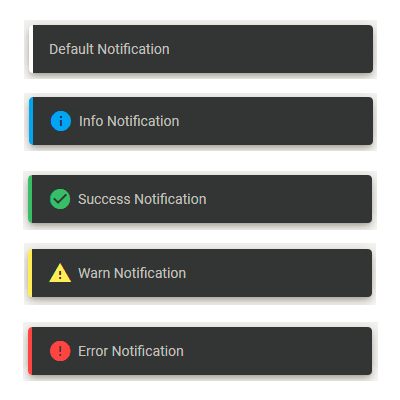
Here is the notification output.
Excellent! With that, everything we set out to do is complete.
Conclusion
Now, let’s take a quick look back at the key points covered throughout this series:
Part 1 – Create Theme
✔️ Set up a new Angular project via Angular CLI and integrate Angular Material
✔️ Grasp the concept of a custom theme in Angular Material
✔️ Establish the fundamental theme files
✔️ Introduce a handful of new modules and adjust the project layout
✔️ Build a rudimentary UI framework
Part 2 – Understand Theme
️️️️✔️ By diving deep into the Angular Material Component's GitHub repository, we explored how theme creation operates
Part 3 – Apply Theme
️️️️✔️ Examine the theming for MatToolbar
️️️️✔️ Transfer MatToolbar's styling to MatSidenav and MatDialog
️️️️✔️ Build a custom theme for MatSnackbar and enhance the look for various notification types (default, info, success, warning, error)
Update Guide
This content was crafted with Angular version 10. For those looking to migrate the code to Angular version 13, follow the update guide available at Angular Material Theming System – Complete Guide – Angular Tutorials | indepth.dev
Thank You,
for taking the time to read this. This concludes the series. I trust it provided you with a solid understanding of Angular Material Theming.
You can find the source code on Github: shhdharmen/indepth-theming-material-components. Feel free to share your thoughts and feedback in the comment section below.