Bringing Firebase and NGXS Together
When Firebase first hit the scene, it transformed how developers approached web applications. Its focus on speed and simplicity meant developers could build and ship apps at a remarkable pace, and countless applications have leveraged it since.
Then NGXS entered the Angular ecosystem, offering a fresh take on reactive state management. By prioritizing clean code and developer experience, it quickly became a go-to solution for teams looking to tame the complexity of managing application state.
What happens when you combine the two? You get a powerful setup that lets you sync your Firestore data directly with your NGXS store, making state management and data flow feel almost effortless.
The @ngxs-labs/firestore-plugin is designed to bridge this gap. It provides a straightforward API for linking an @Action to a Firestore query and piping the results straight into your store. This keeps all your application data in one consistent place, simplifying tasks like merging data from multiple sources or presenting it in your UI components.
Let's dive into how this plugin operates and walk through a few practical examples.
Under the Hood: How It Works
Imagine you have a @State and you need to populate it with documents from a Firestore collection. With the firestore-plugin, the process boils down to two primary steps:
- Associating an
@Actionwith a specific Firestore query. - Handling the
StreamEmittedaction to update your state whenever new data arrives.

Ngxs Firestore Plugin
That's the core concept. But let's dig a little deeper to see exactly how to set this up and what happens behind the scenes.
Linking an Action to a Query
The plugin's NgxsFirestoreConnect service is the key player here. Its job is to manage the relationship between a dispatched Action and an observable Firestore query.
this.ngxsFirestoreConnect.connect(MyAction, {
  to: () => this.firestore.collection$()
})
As you can see, the connect method accepts the Action and a configuration object. In the { to: } property, we provide a function that returns the query results as an observable.
For a more streamlined setup, the plugin also exports the NgxsFirestore<T> abstract class. By extending this, you can establish a service with built-in methods for standard data operations like retrieving, creating, updating, and deleting documents.
You can write your query using AngularFirebase's service directly, or leverage the convenience of the NgxsFirestore<T> utility class.
export abstract class NgxsFirestore<T> {
  protected abstract path: string;

  doc$(id: string): Observable<T>
  collection$(query: queryFn): Observable<T[]>
  create$(value: T): Observable<void>
  upsert$(value: T): Observable<void>
  //...
}
Extending this class is easy. All you need to define is the path to the collection you want to work with. The service then gives you a clean API for CRUD operations, such as doc$, collection$, update$, create$, upsert$, and delete$.
@Injectable({
  providedIn: 'root'
})
export class MyFirestoreService extends NgxsFirestore<Race> {
  protected path = {firestore collection path};
}
One crucial detail is that the query isn't fired until you dispatch the related MyAction. Once triggered, NgxsFirestoreConnect sets up a subscription that stays active until you explicitly call Disconnect. This means any subsequent changes in Firestore will be automatically streamed to your app.
Typically, you'll want to establish this connection in the ngxsOnInit lifecycle hook of your @State.
Here's what a complete setup looks like:
@State({
//...
})
@Injectable()
export class MyState implements NgxsOnInit {
  constructor(
    private ngxsFirestoreConnect: NgxsFirestoreConnect,
    private firestore: AngularFirestore,
  ){ }

  ngxsOnInit(){
    this.ngxsFirestoreConnect.connect(MyAction, {
      to: () => this.firestore.collection$()
    })
  }
}
That covers the first part: defining the link between an Action and a Firestore query.
Now, let's see how we capture those emitted results and use them to refresh our state.
Refreshing the Store with Query Results
After the initial connection is made and your action is dispatched, the plugin takes over. Every time the query emits a new result, it dispatches another special action. We can respond to this by using the StreamEmitted helper.
@Action(StreamEmitted(MyAction))
StreamEmitted is a function that takes your original Action as an argument. It returns a new action constructor you can use in your state to listen for each emission.
When you set up your @Action handler for it, you'll have access to the StateContext and the payload, which is of type Emitted. This payload contains both the original Action and the data from the query.
To learn more about defining actions in NGXS, have a look at the official documentation.
type Emitted<A, T> = {
  action: A,
  payload: T
}
Since the Emitted type is generic, you can specify the exact types involved. For instance, Emitted<MyAction, Item[]> provides full type safety for your action handler.
The final code for the state would look like this:
@Action(StreamEmitted(MyAction))
myActionEmmited(ctx: StateContext<MyStateModel>, emitted :Emitted<MyAction, Item[]>){
  ctx.patchState({ items: emmited.payload })
}
A Practical Example
Now that we have a solid grasp of the mechanics, let's build a small application to see the plugin in action.
Before getting started, make sure you have
@ngxs/storeand@angular/fireset up in your project. That setup is beyond the scope of this tutorial.
Our demo app will use Firestore as its backend and support standard operations: reading, creating, updating, and deleting items. We'll go step by step, implementing each feature as we discuss it.
You can find the complete code on StackBlitz.
Start by installing the library:
npm install @ngxs-labs/firestore-plugin
Then, register it in your AppModule.
@NgModule({
    //...
    imports: [
        //...
        // here goes all other Ngxs and AngularFire imports
        NgxsFirestoreModule.forRoot()
    ]
})
export class AppModule {
}
Next up, let's create our @State.
import {
  NgxsFirestoreConnect,
  Emitted,
  StreamEmitted,
} from '@ngxs-labs/firestore-plugin';
//..

export interface Race {
  id: string;
  title: string;
  description: string;
  name: string;
}

export interface RacesStateModel {
  races: Race[];
}

@State<RacesStateModel>({
  name: 'races',
  defaults: {
    races: []
  }
})
@Injectable()
export class RacesState implements NgxsOnInit {
  @Selector() static races(state: RacesStateModel) {
    return state.races;
  }

  constructor(private racesFS: RacesFirestore, private ngxsFirestoreConnect: NgxsFirestoreConnect) {}

  ngxsOnInit(ctx: StateContext<RacesStateModel>) {
    this.ngxsFirestoreConnect.connect(RacesActions.GetAll, {
      to: () => this.racesFS.collection$()
    });
  }

  @Action(StreamEmitted(RacesActions.GetAll))
  getAllEmitted(ctx: StateContext<RacesStateModel>, { action, payload }: Emitted<RacesActions.Get, Race[]>) {
    ctx.setState(patch({ races: payload }));
  }
}
Now, let's define the Firestore service.
import { NgxsFirestore } from '@ngxs-labs/firestore-plugin';
//...

@Injectable({
  providedIn: 'root'
})
export class RacesFirestore extends NgxsFirestore<Race> {
  protected path = 'races';
}
And, of course, the component that ties it all together.
//...
<button class="btn btn-primary"
        (click)="getAll()">Get All</button>
//...
<div *ngFor="let race of races$ | async"
     class="card mr-1 mb-1 d-inline-flex"
     style="width: 12rem;">
  <div class="card-body">
    <h5 class="card-title">{{ race.id }}</h5>
    <p class="card-text">{{ race.name }}</p>
    <p class="card-text">{{ race.description }}</p>

    <button (click)="update(race)"
            class="mr-1">Update</button>
    <button (click)="delete(race.id)">Delete</button>
  </div>
</div>
@Component({
  //...
})
export class ListComponent implements OnInit, OnDestroy {
  races$ = this.store.select(RacesState.races);
  constructor(private store: Store) {}

  getAll() {
    this.store.dispatch(new RacesActions.GetAll());
  }
}
So far, we've successfully connected a query to fetch all items and display them in a list.
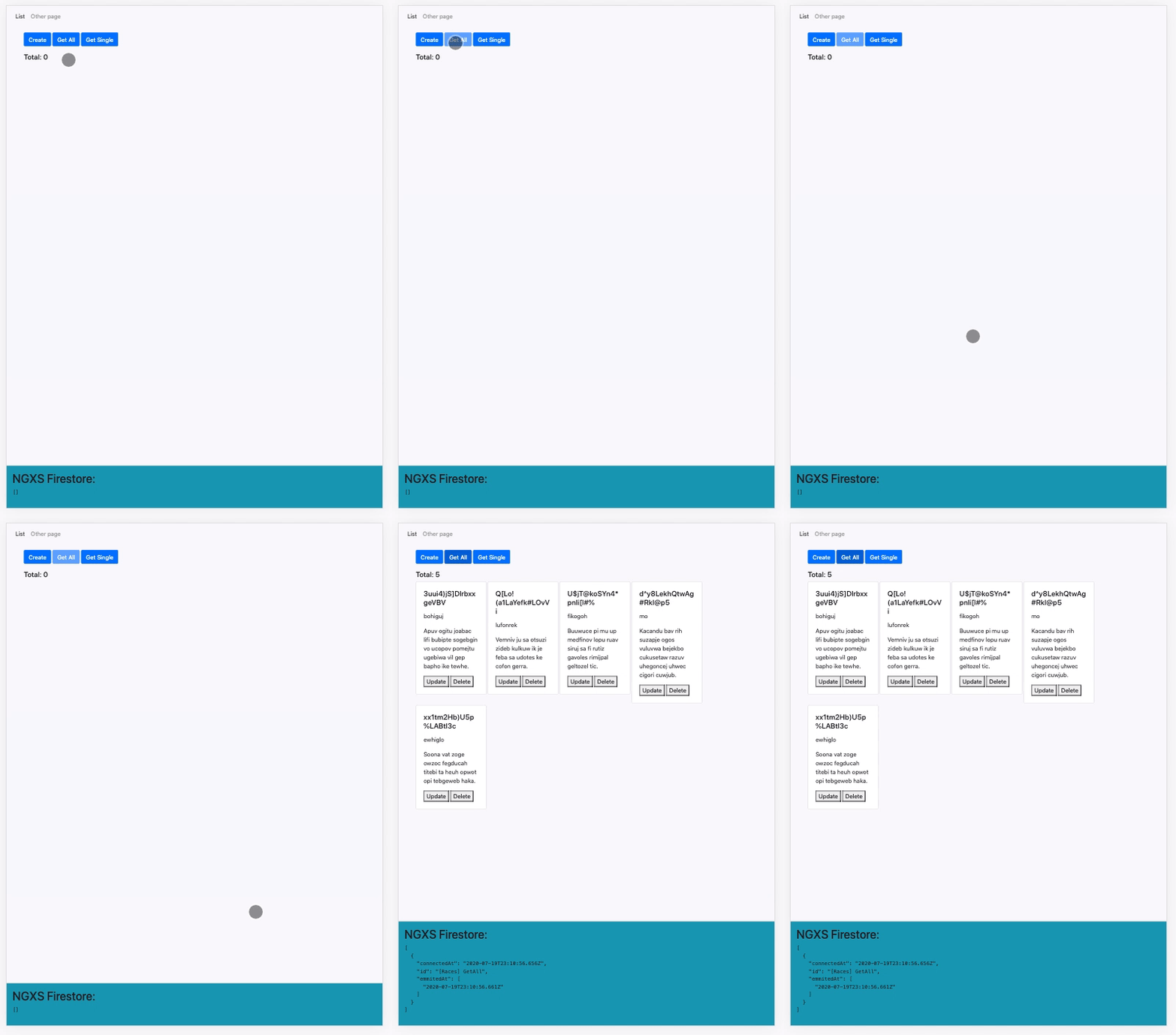
When you click the "Get All" button, the query executes and retrieves all documents in the collection. From that point on, any change in Firestore will be immediately reflected in your component.
Here's what that looks like in practice:
Get All Items
Let's enhance this by adding a "Create" button and a counter to track the total number of items.
//...
<button class="btn btn-primary mr-1"
                (click)="create()">Create</button>
//...
<div>
   <h5>Total: {{ total$ | async }}</h5>
</div>
//...
total$ = this.races$.pipe(map((races) => races.length));
//...
create() {
  this.store.dispatch(new RacesActions.Create({
      id: 'test-id',
      name: 'Test',
      title: 'Test Title',
      description: 'Test description',
  }));
}
We'll need to add the corresponding create action to our state.
export namespace RacesActions {
  // ...
  export class Create {
    public static readonly type = '[Races] Create';
    constructor(public payload: RacesActionsPayloads.Create) {}
  }
}
//...
  @Action(RacesActions.Create)
  create({ patchState, dispatch }: StateContext<RacesStateModel>, { payload }: RacesActions.Create) {
    return this.racesFS.create$(payload.id, payload);
  }
When you hit "Create", you'll notice the item count increases immediately, and the new item is streamed to the UI without any extra work. This is the beauty of the connected query—it keeps everything in sync.
Notice that we didn't have to manually refresh the data. Thanks to the connected query, every update is automatically pushed to the store and then to the component.
Create item
Now, let's explore some of the more advanced features this plugin has to offer.
Monitoring Active Connections
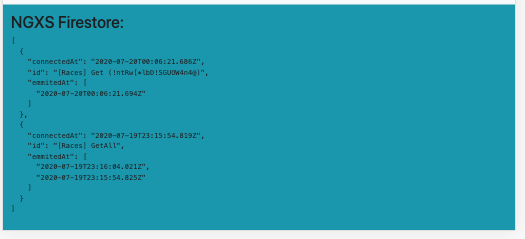
The plugin includes a convenient @Selector that lets you see all the connections your application currently has open. This is incredibly useful for debugging performance issues or simply getting a clear picture of your app's data flow.
import { ngxsFirectoreConnections } from '@ngxs-labs/firestore-plugin';

//...
 ngxsFirestoreState$ = this.store.select(ngxsFirectoreConnections);
This selector provides a list of all active connections and their emissions, which you can visualize in the UI.
ngxsFirectoreConnections
Querying Specific Documents
What if you need to retrieve a few specific documents by their IDs? This is a common scenario, for example, when you have a list of IDs and need to fetch the full data for them. Let's see how to handle that. First, we'll add a button to the UI to trigger this specific fetch.
<button [disabled]="gettingSingle$ | async"
                class="btn btn-primary"
                (click)="get()">Get Single</button>
get() {
const ids = [your ids go here];
    ids.forEach((id) => this.store.dispatch(new RacesActions.Get(id)));
}
Next, we define the new action.
export namespace RacesActions {
  // ...
  export class Get {
    public static readonly type = '[Races] Get';
    constructor(public payload: string) {}
  }
}
Then, we set up the connection in our state.
//...
ngxsOnInit(ctx: StateContext<RacesStateModel>) {
  //...
  this.ngxsFirestoreConnect.connect(RacesActions.Get, {
      to: (action) => this.racesFS.doc$(action.payload),
      trackBy: (action) => action.payload
    });
}

  @Action(StreamEmitted(RacesActions.Get))
  getEmitted(ctx: StateContext<RacesStateModel>, { action, payload }: Emitted<RacesActions.Get, Race>) {
    if (payload) {
      ctx.setState(
        patch<RacesStateModel>({
          races: iif(
            (races) => !!races.find((race) => race.id === payload.id),
            updateItem((race) => race.id === payload.id, patch(payload)),
            insertItem(payload)
          )
        })
      );
    }
  }
Let's break down how this connection is configured.
  this.ngxsFirestoreConnect.connect(RacesActions.Get, {
      to: (action) => this.racesFS.doc$(action.payload),
      trackBy: (action) => action.payload
    });
As before, the to property expects a function that returns an observable Firestore query. In this case, the function receives the action as a parameter. This allows us to extract an id from the action's payload and use it in our query to target that specific document.
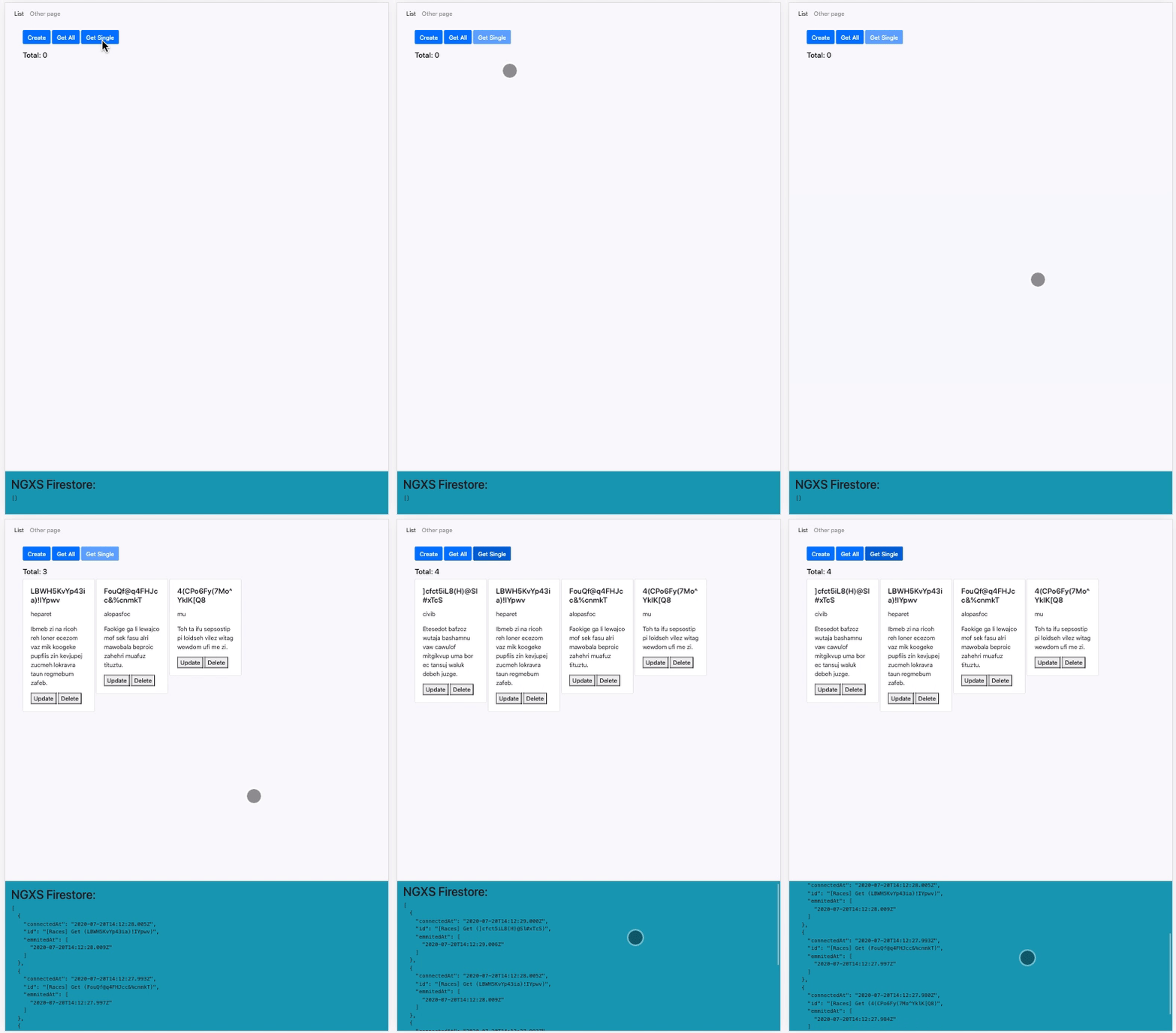
The trackBy option is also important here. It tells the plugin how to identify connections. If a connection with the same trackBy id already exists, the plugin will reuse it rather than creating a new subscription. If not, it will start a new one.
Multiple connection to single documents
Other Lifecycle Hooks: Connected and Disconnected
We've seen how StreamEmitted lets us react to data changes. However, the plugin provides hooks for other states as well.
You can also subscribe to StreamConnected and StreamDisconnected events.
StreamConnectedfires with the first emission from the query.StreamDisconnectedfires when you deliberately disconnect from the stream.
Both of these hooks give you access to the originating action and its payload.
  @Action(StreamConnected(RacesActions.Get))
  getConnected(ctx: StateContext<RacesStateModel>, { action }: Connected<RacesActions.Get>) {
    console.log('[RacesActions.Get]  Connected');
  }
  @Action(StreamDisconnected(RacesActions.Get))
  getDisconnected(ctx: StateContext<RacesStateModel>, { action }: Disconnected<RacesActions.Get>) {
    console.log('[RacesActions.Get] Disconnected');
  }
Controlling Action Completion
There’s another configurable property when setting up connections: connectedActionFinishesOn. This setting determines when the triggering action is considered complete.
As mentioned, the query doesn't start until the action is dispatched. This option lets you decide when that dispatch cycle is considered done. Your choices are FirstEmit or StreamCompleted.
FirstEmit(the default) marks the action as complete as soon as the first result comes in.StreamCompleteddelays completion until the connected stream is shut down.
FirstEmit is perfect for showing loading indicators or disabling buttons while initial data is being fetched.
Here’s a practical example using another useful NGXS plugin, @ngxs-labs/actions-executing.
First, configure the query connection with FirstEmit:
this.ngxsFirestoreConnect.connect(RacesActions.GetAll, {
  to: () => this.racesFS.collection$(),
  connectedActionFinishesOn: 'FirstEmit'
});
In your component, create a loading$ observable by selecting the actionsExecuting state.
import { actionsExecuting } from '@ngxs-labs/actions-executing';

//...
loading$ = this.store.select(actionsExecuting([RacesState.races]))
// we could also use @Select(RacesState.races) races$
races$ = this.store.select(RacesState.races);
this.store.dispatch(new RacesActions.GetAll());
Finally, display a "Loading..." message in your template with the | async pipe.
<div *ngIf="loading$ | async; else loaded">
  //...
</div>
<ng-template #loaded>
  //...
</ng-template>
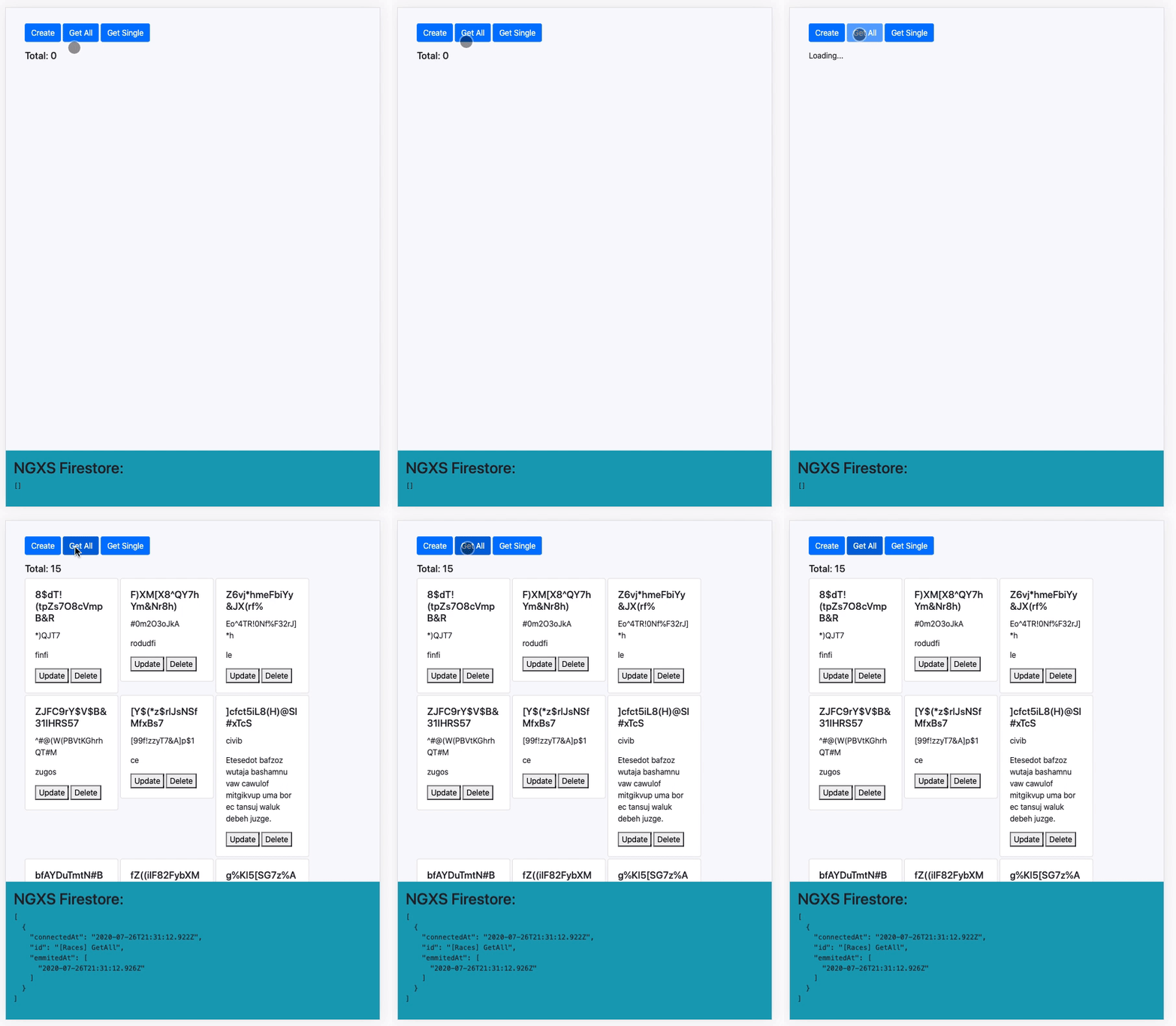
Display Loading… while fetching data
Ending the Stream
We've talked a lot about connecting to a stream, but what about stopping it? The plugin provides a Disconnect action for this purpose.

Update item while action is connected

Disconnected action doesn’t emit new results
// Connect
this.store.dispatch(new RacesActions.Get({id}));

// Disconnect
this.store.dispatch(new Disconnect(new RacesActions.Get({id})));
As you can see in the example, while the action is connected, data flows in and updates the component. Once we dispatch Disconnect, we stop listening to changes, so the component remains static even if the data in Firestore is updated.
A quick note: this specific example uses the
trackByoption. This means we can disconnect by dispatching the action with the sameid. Alternatively, you can keep a reference to the initial action and use that to disconnect.
To reconnect, simply dispatch the original Action once more.
Wrapping Up
We've taken a closer look at how to integrate Firestore with NGXS using the @ngxs-labs/firestore-plugin. We explored the inner workings of the plugin, walked through basic CRUD examples, and covered some more advanced scenarios like tracking connections and using different lifecycle hooks.
Hopefully, this gives you a solid foundation to start using the plugin and see how it can simplify your data management.
If you have ideas or run into issues, please share your feedback on the GitHub project or join the conversation on the NGXS Slack.
A special shout-out to Mark Whitfeld for his review and help with this piece.