
Step 1: Assess Your Bundle Size
The time it takes for your application to initially load is directly influenced by the size of the JavaScript bundles your browser has to download and parse.
Executing ng build --prod in your project will output the compiled file sizes that the browser will fetch from your web server.
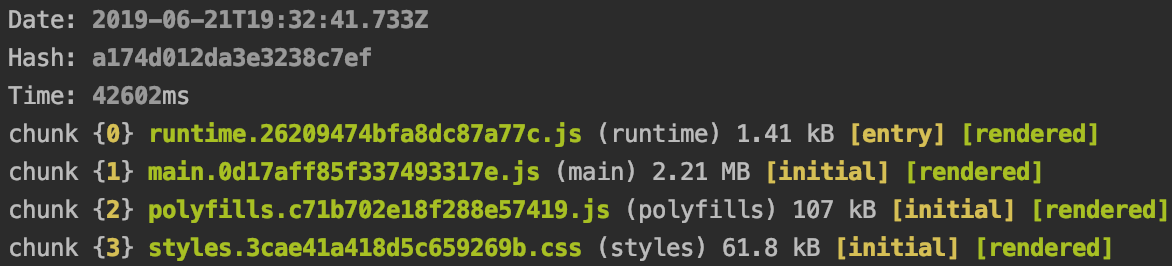
Defining a Healthy Bundle Size
In the output you see, the main.*.js file is the one that typically grows the largest. After reviewing a number of Angular applications, it seems most mid-sized enterprise apps keep main.*.js below 500 KB, often landing around 250 KB. If your file substantially surpasses this range, it is a signal to pay attention. Even if your numbers are within this range, further optimization might still be worthwhile.
Step 2: Verify Gzip Compression
Using gzip can shrink your transfer size to roughly one-fifth of its original weight, which significantly speeds up the initial load.
To confirm compression is active, open the browser's developer tools and look at the "Network" tab. In the "Response Headers" section for your main files, you should find Content-Encoding: gzip. If that header is present, you are all set.
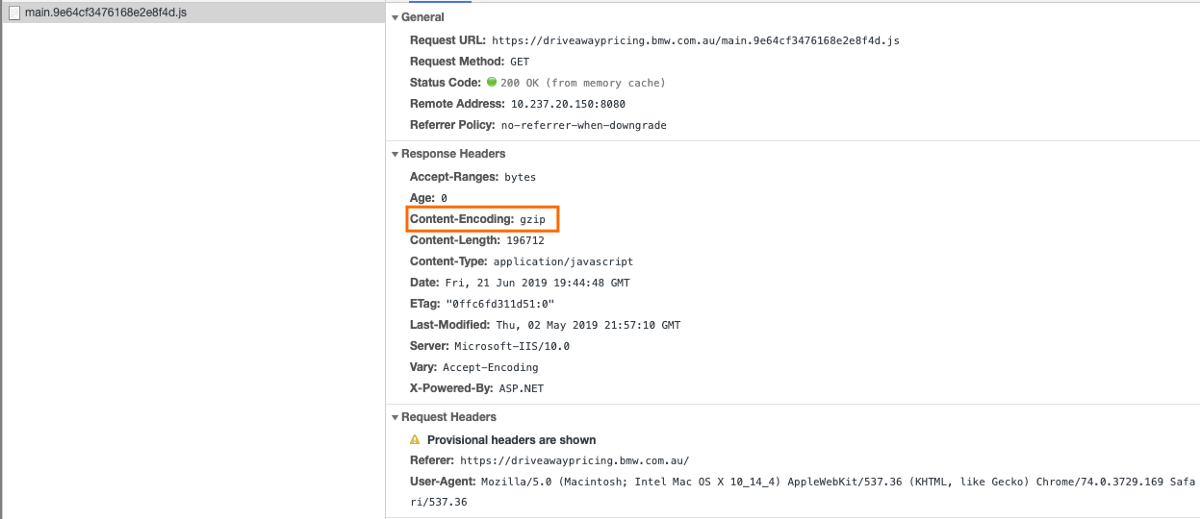
Without this header, you are downloading uncompressed assets. For instance, take the bundle shown below: the browser needs to fetch main.0d17aff85f337483317e.js which costs 2.21MB of data. With gzip enabled, this drops to just 495.13KB. This reduction in payload can dramatically cut load times, particularly for users with slower network connections.
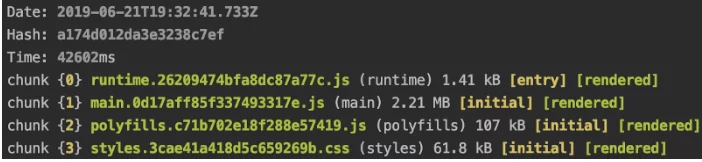
Enabling Gzip
If you are hosting your project on a major cloud platform or CDN, compression is often already handled for you. But if you run your own server—such as a NodeJS + expressJS setup—you should verify it directly.
The snippet below illustrates how to enable gzip for your static files in a NodeJS + expressJS environment. Using the simple "compression" middleware can reduce a bundle from 2.21MB to 495.13KB with almost no effort.
const compression = require('compression')
const express = require('express')
const app = express()
app.use(compression())
Keep in mind that gzip is not the only compression method; Brotli is another solid option available today.
Step 3: Profile Your Angular Bundle
If your bundle has grown too large, digging deeper into its composition is the logical next step. Often the culprit is an oversized third-party library or a package that is no longer used and was never removed. Webpack offers a handy tool to visually inspect which modules are taking up space.
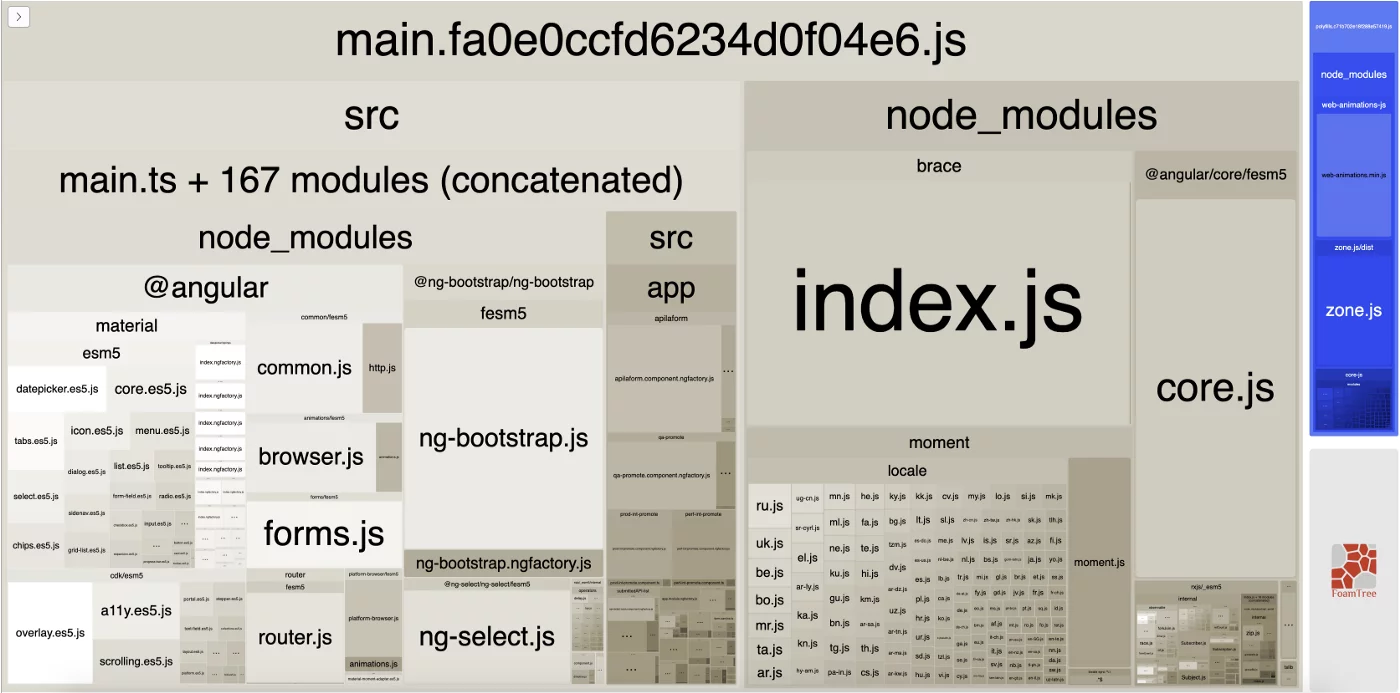
Generating this visualization is straightforward:
- Install the analyzer globally with
npm install -g webpack-bundle-analyzer. - In your Angular workspace, run
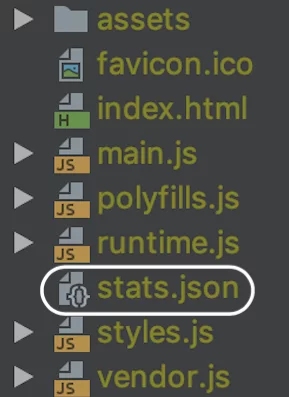
ng build --stats-json. Note that you should omit the--prodflag here. This triggers generation of astats.jsonfile. - Now run
webpack-bundle-analyzer path/to/your/stats.json. Your default browser will open the report atlocalhost:8888.
Viewing the graph may be revealing:
a) You might notice an unused package still lingering in your dependencies,
b) Some modules may be far heavier than expected, suggesting a lighter alternative could be swapped in,
c) You may spot an improperly loaded library—for instance, a significant percentage of moment.js consists of locale information you probably don't need—which will point you toward the right fix.
Step 4: Track Your Bundle Size
Starting with Angular 7, a fresh project created via ng new includes a budget configuration in angular.json that looks like this:
"budgets": [
  {
    "type": "initial",
    "maximumWarning": "2mb",
    "maximumError": "5mb"
  }
]
This setup will produce a warning during the build if the bundle exceeds 2MB, and it will fail the build entirely if the size reaches 5MB. You can change these values according to your project's tolerance.
Use this feature as a safety check in your CI/CD pipeline. If a warning or error pops up, treat it as a prompt to analyze what has changed.
Additional Strategies for Shrinking the Bundle
If your bundle is large because the application itself is massive, consider implementing lazy-loading. This topic has been thoroughly discussed in the Angular community, so we will not go into detail here.
Acknowledgments
Special thanks to Tsung-Ting Chen for the inspiration behind this piece and for contributing to the solution outlined here.