Pre-rendering Angular Applications
 •
•
Why should we pre-render Angular applications?
As of this writing, multiple strategies exist for optimizing Angular applications. One option is to leverage ahead-of-time (AOT) compilation. Another is employing service workers to boost caching efficiency. Beyond that, numerous PWA (progressive web app) capabilities can elevate the overall quality and performance of our Angular apps.
Still, some challenges remain beyond what these optimizations address:
- SEO (search engine optimization): Currently, SPAs (single-page applications) pose indexing challenges for search engines because their content is missing during initial load. As a result, these apps often fall short on several SEO criteria.
- Initial page load has room for improvement: Since the app must bootstrap itself only after the page loads, users face a delay before interacting with it. This negatively impacts the user experience.
Both issues are resolvable through SSR (server-side rendering). With SSR, the Angular app runs on the server, which then delivers fully compiled content that search engine crawlers can parse. This approach offers a dual advantage: the app is server-rendered initially, but once the JavaScript bundle arrives, it seamlessly transforms into a SPA. Thus, the app is both feature-rich and highly responsive!
To enhance our StrongBrew site, we adopted SSR. Running it locally felt snappy. Yet, the site is hosted on Firebase, with the SSR layer depending on Firebase Functions.
Firebase is a platform we genuinely appreciate, but for our needs, SSR on Firebase Functions proved too sluggish. In some cases, serving content took 4 seconds. Given that page speed is critical to retaining visitors, we had to explore an alternative delivery method.
Here’s how SSR typically operates: a user hits a URL, and the server compiles the app on the fly before serving it. But what if we ran the SSR logic for each route ahead of time, during the build process, rather than on every request? That would definitely solve our dilemma.
That way we would run generated static HTML files, which is insanely fast, and when the JavaScript bundles are loaded, the browser would take over.
This also uses the best of both worlds: Ultra fast loading time + we don’t need to give up our rich SPA experience.
The result went from several seconds to 30 milliseconds.
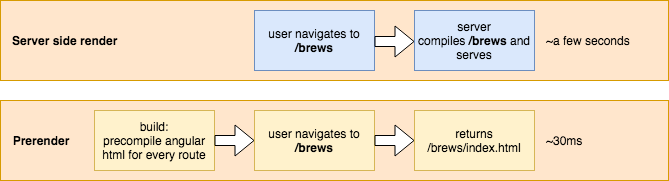
This improvement brings massive performance gains, but it has a critical catch. Dynamic content cannot be prerendered. The StrongBrew website’s indexable data doesn’t rely on AJAX calls; it depends on straightforward webpack imports of JSON files, which get baked in during the build process.
That’s not to say dynamic content loading is impossible — it simply won’t receive the prerendering treatment.
Diving into the implementation
Alright, let’s stop the small talk and get hands-on.
I’ve set up this GitHub repository specifically for this tutorial! It consists of a basic multi-page site, but the current build pipeline lacks any prerendering capabilities.
Switch to the runtime branch with git checkout runtime. Executing npm i && npm run start will install all NPM dependencies and serve the app at http://localhost:4200, exactly like any standard Angular CLI project.
Setting up the necessary packages
Now we have a functional website, but it's still fully client-rendered.
Our first move is to add @angular/platform-server using
npm i @angular/platform-server -D. This package serves as the backbone for SSR, providing all the core utilities needed to execute your Angular app on a Node.js server.
Introducing the server transition
Now, we must modify app.module.ts to activate server transition. This configuration ensures Angular seamlessly takes over the client-side once the JavaScript bundles finish loading.
// src/app/app.module.ts
@NgModule({
  ...
  imports: [
    BrowserModule.withServerTransition(
        // this is just the name of our application
        // configured in angular-cli.json
        { appId: 'prerender-angular-example' }
    ),
    ...
  ],
  ...
})
export class AppModule { }
Creating the prerender module
Next, a dedicated prerender module must be set up, which will rely on the updated AppModule. In a file named app.prerender.module.ts, we specify the component that this module is supposed to launch.
// src/app/app.prerender.module.ts
import { NgModule } from '@angular/core';
import { ServerModule, ServerTransferStateModule } from '@angular/platform-server';

import { AppModule } from './app.module';
import { AppComponent } from './app.component';

@NgModule({
  imports: [
    AppModule,
    ServerModule,
    ServerTransferStateModule
  ],
  bootstrap: [AppComponent]
})
export class AppPrerenderModule {
}
Setting up a prerender entrypoint
A dedicated bundle is required to leverage the SSR logic during the build process. Because main.ts handles browser-side bootstrap, a separate main.prerender.ts must be introduced to generate the prerender bundle.
Time to create that file!
// src/app/main.prerender.ts
import { enableProdMode } from '@angular/core';
export { AppPrerenderModule } from './app/app.prerender.module';

enableProdMode();
A prerender tsconfig.json
We're close to the finish line, trust me, but a couple of additional pieces are required.
First, we must create a dedicated tsconfig file that produces a bundle legible to the node server.
The compiler must output a commonjs package, since node.js defaults to that module format.
With that in mind, we create the tsconfig.prerender.json file:
/* src/tsconfig.prerender.json */
{
  "extends": "./tsconfig.app.json",
  "compilerOptions": {
    "outDir": "../out-tsc/prerender",
    /* node only understands commonjs for now*/
    "module": "commonjs"
  },
  "exclude": [
    "test.ts",
    "**/*.spec.ts"
  ],
  /* Additional informations to bootstrap Angular */
  "angularCompilerOptions": {
    "entryModule": "app/app.prerender.module#AppPrerenderModule"
  }
}
Registering the setup with Angular CLI and building the output
Inside the apps entry in angular-cli.json, an additional app must be declared to point at main.prerender.ts and use tsconfig.prerender.json. This is how that app section is configured:
{
      "name": "prerender",
      "platform": "server",
      "root": "src",
      "outDir": "dist-prerender",
      "main": "main.prerender.ts",
      "tsconfig": "tsconfig.prerender.json",
      "environmentSource": "environments/environment.ts",
      "environments": {
        "dev": "environments/environment.ts",
        "prod": "environments/environment.prod.ts"
      }
    }
Modify the package JSON to compile both the standard package and the server counterpart. Disable output-hashing so the build produces an un-hashed main.bundle.js file.
"build": "ng build --prod && ng build --prod --app prerender --output-hashing=none",
After executing npm run build, you should see these outputs:
- dist (containing the standard application build)
dist-prerender/main.bundle.js
From this main.bundle.js, a module named AppPrerenderModuleNgFactory is exported. This is the entry point to pre-render the entire application.
Generating the static files
We have now produced the main.bundle.js, essential for server-side rendering. But in this scenario, our goal is not SSR; we aim to pre-render the HTML during the build process. For that, a script must be created to carry out the following steps.
- Define an array of route strings (this could be automated if needed)
- Iterate over the array and, for each route:
- make a new directory under the dist folder named after the route
- invoke the
main.bundle.jsto produce the HTML, then save it as anindex.htmlinside that newly created folder. - Replace the existing
dist/index.htmlwith the new output.
We’ll name this script prerender.ts. Being a TypeScript advocate, I prefer to author the prerender script in TypeScript and execute it via ts-node.
Let’s begin by creating an empty prerender.ts at the project root, then install ts-node using npm i -D ts-node
Next, we can adjust the scripts block in package.json to trigger the render function once the build finishes:
 "scripts": {
    "ng": "ng",
    "start": "ng serve",
    "build": "ng build --prod && ng build --prod --app prerender --output-hashing=none",
    "postbuild": "npm run render",
    "render": "ts-node prerender.ts",
    ...
  },
The final missing piece is writing the prerender.ts file.
Finishing the prerender.ts file
What follows requires little further explanation:
import 'zone.js/dist/zone-node';
import * as path from 'path';
import * as fs from 'fs';
import { enableProdMode } from '@angular/core';
import { renderModuleFactory } from '@angular/platform-server';
import { AppPrerenderModuleNgFactory } from './dist-prerender/main.bundle';

const distFolder = './dist';
const index = fs
    .readFileSync(path.resolve(__dirname, `${distFolder}/index.html`), 'utf8')
    .toString();

// we could automate this based on the app.routes.ts file but
// to keep it simple let's just create an array with the routes we want
// to prerender
const paths = [
    '/about',
    '/brews',
    '/consultancy'];
enableProdMode();

// for every route render the html and save it in the correct folder
paths.forEach(p => renderToHtml(p, distFolder + p));

// don't forget to overwrite the index.html as well
renderToHtml('/index.html', distFolder);

function renderToHtml(url: string, folderPath: string): void {
  // Render the module with the correct url just
  // as the server would do
  renderModuleFactory(AppPrerenderModuleNgFactory, {
    url,
    document: index
  }).then(html => {
    // create the route directory
    if (url !== '/index.html') {
    fs.mkdirSync(folderPath);
    }
    fs.writeFile(folderPath + '/index.html', html,  (err =>  {
      if (err) {
        throw err;
      }
      console.log(`success`);
    });
  });
}
Testing the pre-rendered application
For testing the site, execute npm run build to compile the project. The http-server package can then be used for serving; install it globally via npm i -g http-server. After that, switch into the dist folder and run http-server, which will make the app available on port 8080.
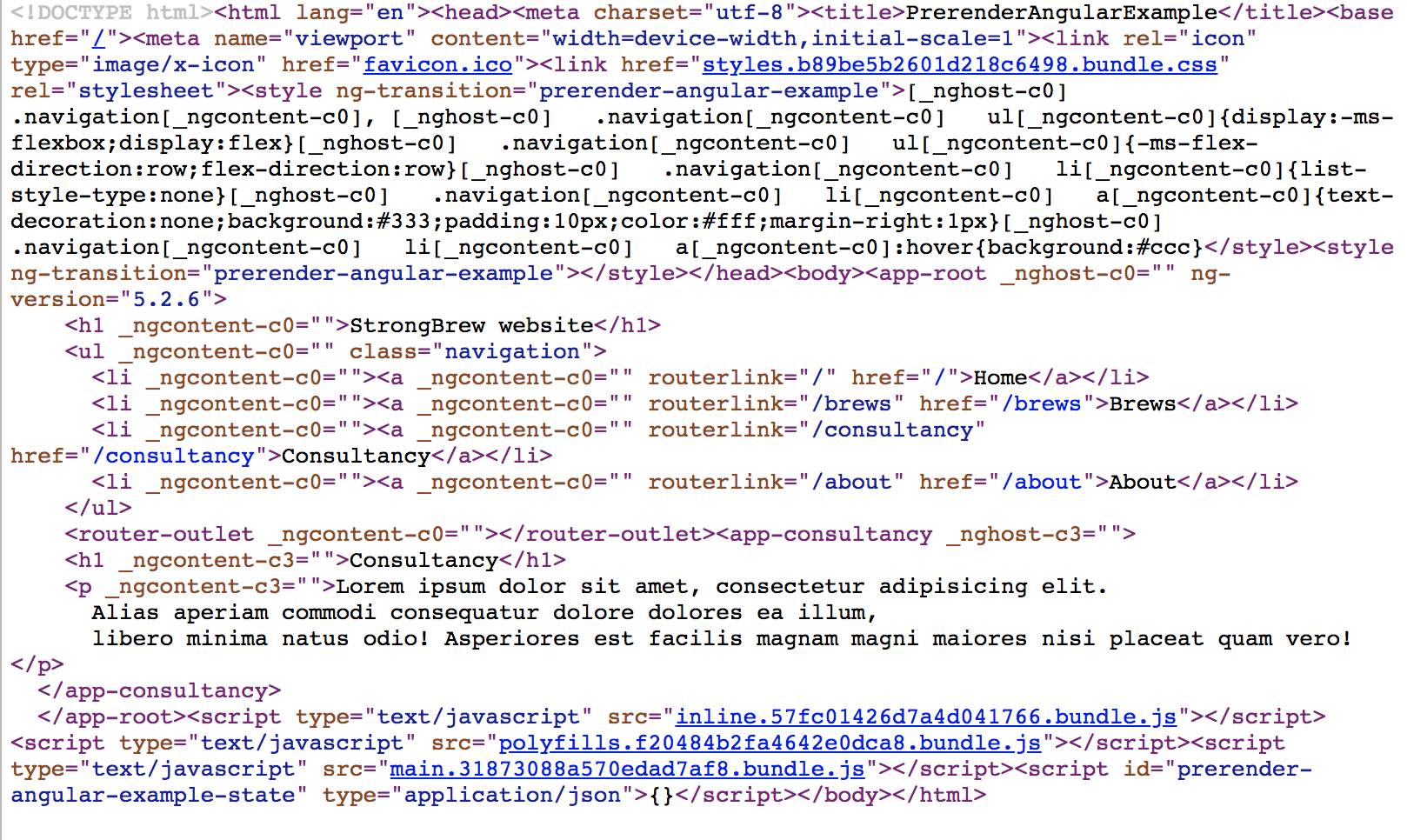
Opening http://localhost:8080 in a browser displays the pre-rendered version. While moving between routes verifies the single-page app behavior, inspecting the page source confirms the pre-rendered output.
Wrapping Up
If you found this piece valuable, I appreciate it. You can review the complete pre-rendered implementation on the prerendered branch by executing git checkout prerendered. To try it out, return to the prior section.
A further refinement: a minifier such as this one could trim whitespace and reduce the generated HTML size. A possible result might appear as:
const minify = require('html-minifier').minify;
function renderToHtml(url: string, folderPath: string): void {
    // Render the module with the correct url just
    // as the server would do
    renderModuleFactory(AppPrerenderModuleNgFactory, {
        url,
        document: index
    }).then(html => {
        ...
        // minify the html
        fs.writeFile(folderPath + '/index.html', minify(html),  (err =>  {
          ...
        });
    });
}
Special thanks
I owe a big thank you to the fantastic people who contributed their feedback and reviews:
- Laurant Duveau @laurentduveau
- Dominic Elm @elmd_
- Sam Vloeberghs @samvloeberghs
- Ana Cidre @AnaCidre_
- Ruben Vermeulen @CrushTheButton
- Klaas Cuvelier @klaascuvelier
Sources
deploy angular universal with firebase