
Git as a folder
Running git init inside a directory causes Git to create the .git folder. Let’s fire up a terminal, make a fresh directory for our experiments, and initialize an empty repository there:
$ mkdir git-playground && cd git-playground

$ git init
Initialized empty Git repository in path/to/git-playground/.git/

$ ls .git
HEAD config description hooks info objects refs
All commits and the metadata required to manipulate them live inside this directory.
When you clone a repository, Git does the following:
- Copies that
.gitdirectory straight into your working folder - Sets up remote-tracking branches for every branch present in the cloned repo
- Creates and checks out an initial branch determined by the HEAD file
We’ll revisit the role of the HEAD file shortly. For now, the key insight is that cloning amounts to nothing more than copying the .git directory from the source location.
Git as a database
At its core, Git is a straightforward key-value store. You feed a value into the repository and receive a key that lets you retrieve that value later.
Writing to the database: hash-object
The tool for inserting values is hash-object, which returns a 40-character checksum hash used as the key. This command stores a plain object in the Git repository known as a blob. Here we store the string f1 content:
$ F1CONTENT_BLOB_HASH=$( \
     echo 'f1 content' | git hash-object -w --stdin )

$ echo $F1CONTENT_BLOB_HASH
a1deaae8f9ac984a5bfd0e8eecfbafaf4a90a3d0
If you’re less comfortable with the shell, the essential line above is:
echo 'f1 content' | git hash-object -w --stdin
The echo command prints the string f1 content. The pipe operator | forwards that output into git hash-object. The -w flag tells the command to actually persist the object; without it, Git would only display the key that would be generated. The --stdin flag makes the command read input from stdin; if omitted, hash-object expects a file path instead. As noted, the command returns a hash, which we capture in the F1CONTENT_BLOB_HASH variable.
Variables
Alternatively, the command execution and variable assignment can be separated:
$ echo 'f1 content' | git hash-object -w --stdin
a1deaae8f9ac984a5bfd0e8eecfbafaf4a90a3d0

$ F1CONTENT_BLOB_HASH=a1deaae8f9ac984a5bfd0e8eecfbafaf4a90a3d0
Notice that the = properly does the assigning:
F1CONTENT_BLOB_HASH=a1deaae8f9ac984a5bfd0e8eecfbafaf4a90a3d0
In the snippets that follow, I’ll stick with the compact form to directly assign outputs to variables. These variables stand in wherever a hash string is needed.
To retrieve a variable’s value, prefix its name with $.
$ echo $F1CONTENT_BLOB_HASH
a1deaae8f9ac984a5bfd0e8eecfbafaf4a90a3d0
Reading from the database: cat-file
To retrieve a value from the database by its key, the cat-file command with the -p option comes into play. This command takes the hash key of the object you want:
$ git cat-file -p $F1CONTENT_BLOB_HASH
f1 content
As stated earlier, .git is a real folder where all saved values and objects reside. If you navigate to .git/objects, you’ll find a directory named a1 — that’s just the first two characters of the hash key:
$ ls -1 .git/objects/
a1/
info/
pack/
This is Git’s standard arrangement: one folder per blob. However, Git can gather multiple blobs into a single file to create pack files, which explains the pack directory you see above. Metadata about these pack files lives in the info directory. Blob hashes are calculated from the blob contents themselves, so objects are immutable — any change in the content would inevitably alter the hash.
Now we add another string, f2 content, to the repository:
$ F2CONTENT_BLOB_HASH=$( \
     echo 'f2 content' | git hash-object -w --stdin )
As you’d expect, the \.git\objects folder now shows two entries, 9b/ and a1/:
$ ls -1 .git/objects/
9b/
a1/
info/
pack/
Tree as an integral part
At this point, our repository holds two blobs:
F1CONTENT_BLOB_HASH -> 'f1 content'
F2CONTENT_BLOB_HASH -> 'f2 content'
We still need a mechanism to group them together and pair each blob with a filename. That’s where trees come in. A tree is created with git mktree using this format for each file-and-blob pair:
[file-mode object-type object-hash file-name]
An explanation of file-mode can be found in this answer. We’ll go with the mode 100644, which marks a blob as a regular file readable and writable by the user. These permissions are applied when files are checked out into the working directory, so they align with what the tree entries specify.
To connect our two blobs to two file names, we run the following:
$ INITIAL_TREE_HASH=$( \
    printf '%s %s %s\t%s\n' \
      100644 blob $F1CONTENT_BLOB_HASH f1.txt \
      100644 blob $F2CONTENT_BLOB_HASH f2.txt |
    git mktree )
Just like hash-object, the mktree command emits a hash key for the tree object that was created:
$ echo $INITIAL_TREE_HASH
e05d9daa03229f7a7f6456d3d091d0e685e6a9db
This is our current state:

Once the command finishes, Git adds a third object of type tree to the repository. Let’s take a look:
$ ls -1 .git/objects
e0   <--- initial tree object  (INITIAL_TREE_HASH)
9b   <--- 'f1 content' blob    (F2CONTENT_BLOB_HASH)
a1   <--- 'f2 content' blob    (F2CONTENT_BLOB_HASH)
With mktree, you have the option to pass another tree object as the parameter rather than a blob. That tree will map to a directory instead of a regular file. For instance, the command below produces a tree containing a sub-tree linked to the nested-folder directory:
printf '%s %s %s\t%s\n' 040000 tree e05d9da nested-folder | git mktree
The file-mode 040000 indicates a directory, and we switch the type from blob to tree. In this way, Git captures nested directories within the project layout.
The index is where trees take shape
Anyone who uses Git should be comfortable with the idea of the index, or staging area. You've likely come across a diagram like this:
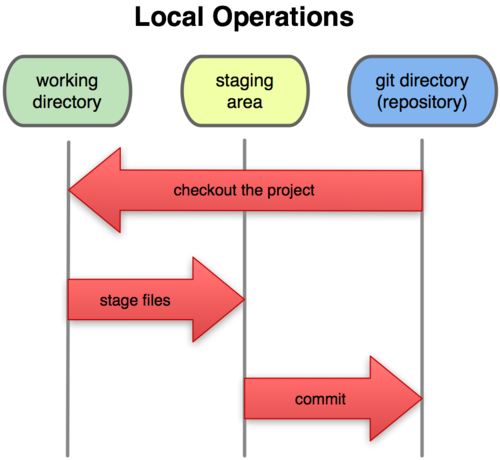
On the right side sits the Git repository, holding Git objects: blobs, trees, commits, and tags. Earlier, we used hash-object and mktree to push blob and tree objects straight into that repository. The working directory on the left is your local file system, where all project files are checked out. This section unpacks the middle component, which we'll call the index file or simply the index. It's a binary file (typically stored at .git/index) that mirrors the layout of a tree object. It keeps a sorted list of path names, each paired with permissions and the SHA1 of a blob or tree object.
It's where Git assembles a tree before it:
- writes that tree into the repository, or
- checks it out into the working directory
We now have one tree in the repository, the one we built in the previous chapter. We can pull that tree into the index file from the repository using the read-tree command:
$ git read-tree $INITIAL_TREE_HASH
At this point, we'd expect the index file to hold two files. We can inspect the current index file structure with git ls-files -s:
$ git ls-files -s
100644 a1deaae8f9ac984a5bfd0e8eecfbafaf4a90a3d0 0 f1.txt
100644 9b96e21cb748285ebec53daec4afb2bdcb9a360a 0 f2.txt
Since we haven't touched the index file, it matches the tree we used to fill it. Now that the index file has the right structure, let's bring it into the working directory with the checkout-index command using the -a flag:
$ git checkout-index -a

$ ls
f1.txt f2.txt

$ cat f1.txt
f1 content

$ cat f2.txt
f2 content
There you go! We've checked out files we added manually to the git repository without any commits. Pretty neat, right?
But the index file doesn't always stay frozen in its initial tree state. You're probably aware it can be tweaked with git add [file path] and git rm --cached [file path] for single files, or git add -A and git reset for a batch of modified or deleted files. Let's put that into action and build a fresh tree in the repository featuring one file blob tied to a new f3.txt text file. The file's content will be the string f3 content. Instead of crafting the tree by hand as we did before, we'll lean on the index file.
Right now, the index file has this structure, based on the initial tree we used to seed it:
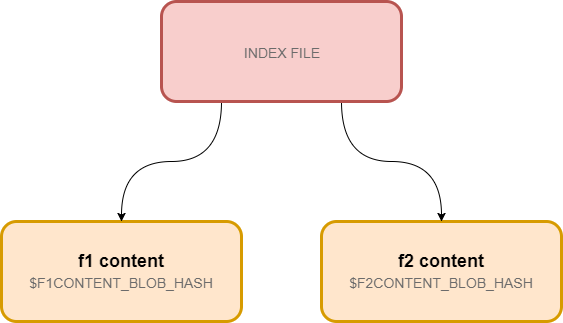
That's our starting point for modifications. Any changes you make to the index file are provisional until you write a tree to the repository. The objects themselves, though, get stored in the git repository right away. If you undo the current tree changes, they'll eventually be cleaned up by garbage collection (GC). That also means if you accidentally discard file changes, they can usually still be recovered until Git runs GC. And Git typically only triggers GC when there's an excess of loose objects that aren't referenced anywhere.
Let's kick off by removing two files from the working directory:
$ rm f1.txt f2.txt
If we then run git status, we'll see this output:
$ git status
On branch master

Initial commit

Changes to be committed:
  (use "git rm --cached <file>..." to unstage)

        new file:   f1.txt
        new file:   f2.txt

Changes not staged for commit:
  (use "git add/rm <file>..." to update what will be committed)
  (use "git checkout -- <file>..." to discard changes in working directory)

        deleted:    f1.txt
        deleted:    f2.txt
That's a hefty chunk of info. It flags two deleted files and two new files, plus a note about Initial commit. Here's the reasoning. When you invoke git status, Git runs two comparisons:
- it compares the index file against the current working directory — differences show up as Changes not staged for commit
- it compares the index file against the HEAD commit — differences show up as Changes to be committed
So in this situation, Git reports two deleted files under Changes not staged for commit. That comes from lining up the working directory with the index file and spotting two missing files there (because we deleted them).
Under Changes to be committed, Git lists two new files. That's because there are no commits in the repository yet, so the HEAD file (which we'll dig into later) resolves to something called an "empty tree" object with zero files. Git assumes we're starting fresh, which is why it shows Initial commit and treats every entry in the index file as brand new.
Now, if we run git add ., it will adjust the index file by dropping those two files, and a subsequent git status will show nothing, since neither the working tree nor the index file contains any files:
$ git add .

$ git status
On branch master

Initial commit

nothing to commit (create/copy files and use "git add" to track)
Our original goal was to create a tree with one new file, f3.txt. Let's create that file and stage it:
$ echo 'f3 content' > f3.txt
$ git add f3.txt
Running git status at this point:
$ git status
On branch master

Initial commit

Changes to be committed:
  (use "git rm --cached <file>..." to unstage)

        new file:   f3.txt
We see one new file detected. Those changes are listed under Changes to be committed, which tells us Git compared the index file to the "empty tree." So we'd expect the index file to hold that single new file blob. Let's verify:
$ git ls-files -s
100644 5927d85c2470d49403f56ce27afd8f74b1a42589 0       f3.txt

# Save the hash of the f3.txt file blob
$ F3CONTENT_BLOB_HASH=5927d85c2470d49403f56ce27afd8f74b1a42589
Good, the index structure is correct now, and we're set to generate a tree from it in the repository. We'll use the write-tree command:
$ LATEST_TREE_HASH=$( git write-tree )
Nice, we've created a tree with the index's help. We stored the new tree's hash in the LATEST_TREE_HASH variable. We could have done this manually by writing the f3 content blob to the repository and then forming a tree with mktree. But the index approach is far more straightforward.
What's curious is that if you run git status now, Git still believes there's a new f3.txt file:
$ git status
On branch master

Initial commit

Changes to be committed:
  (use "git rm --cached <file>..." to unstage)

  new file:   f3.txt
That's because, even though we created and saved our tree in the repository, we didn't refresh the HEAD file used for comparison. We can only place a commit hash or a branch reference in the HEAD file. Since we have neither right now, we'll keep the HEAD file as is.
So with this freshly built tree, here's what's in the repository:
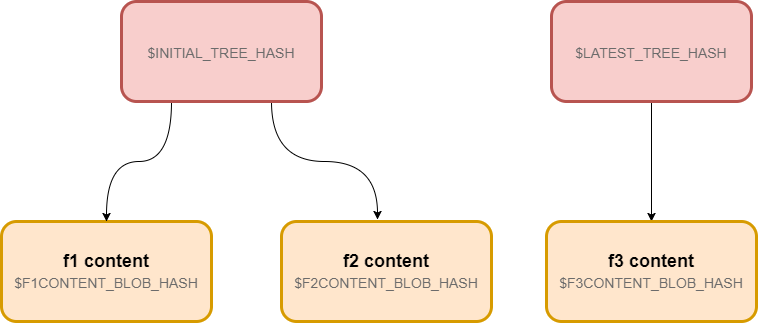
A commit wraps a tree
This section gets more intriguing. In day-to-day Git usage, we rarely deal with trees or blobs directly. Our work revolves around commit objects. So what exactly is a commit in Git? Put simply, it's a wrapper around the tree object that:
- lets you attach a message to a tree (a group of files)
- lets you designate a parent (commit)
We now have two trees in our Git repository — initial tree and latest tree. Let's wrap that first tree in a commit using the commit-tree command, which takes a tree hash to build a commit from:
$ INITIAL_COMMIT_HASH=$( \
    echo 'initial commit' | git commit-tree $INITIAL_TREE_HASH )
After running that command, we'll have this:
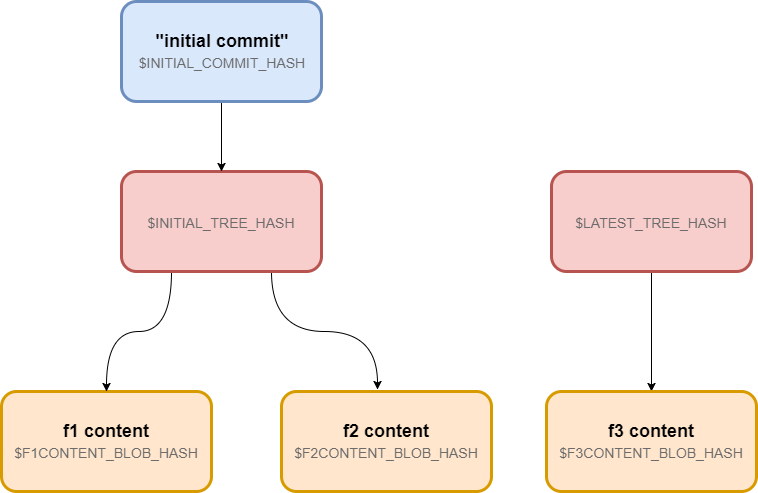
We can now check that commit out into the working directory:
$ git checkout $INITIAL_COMMIT_HASH
A       f3.txt
HEAD is now at a27a75a... initial commit
Now the working directory shows our two files:
$ ls
f1.txt f2.txt

$ cat f1.txt
f1 content

$ cat f2.txt
f2 content
When you run git checkout [commit-hash], Git performs these steps:
- reads the tree the commit points to into the index file
- checks the index file out into the working directory
- updates the HEAD file with the commit hash
These are the same operations we handled manually in the previous section.
Git history links commits together
So a commit is just a wrapper around a tree. I also noted it can have a parent commit. We had two trees initially, wrapped one in a commit earlier, so we still have one orphan tree remaining. Let's wrap that one in a new commit and set the initial commit as its parent. We'll use commit-tree again, this time with the -p flag to indicate the parent:
$ LATEST_COMMIT_HASH=$( \
    echo 'latest commit' |
    git commit-tree $LATEST_TREE_HASH -p $INITIAL_COMMIT_HASH )
And here's what we end up with:
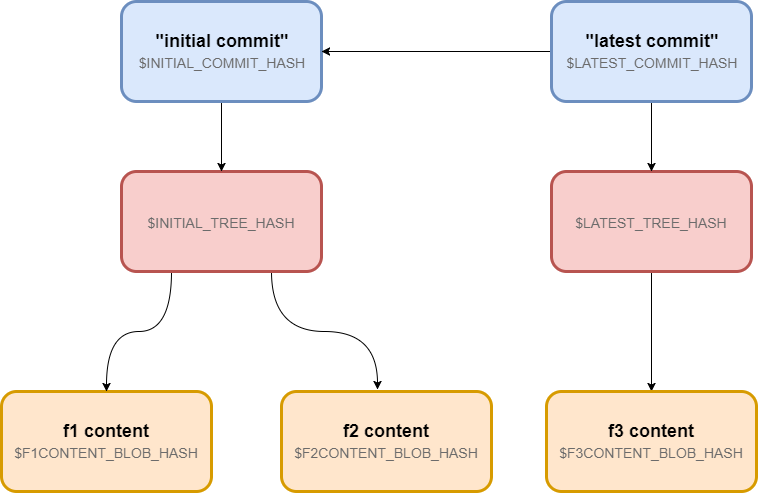
You can now run git log to view the history. Pass the hash of the "latest" commit, and you'll see two commits:
$ git log --pretty=oneline $LATEST_COMMIT_HASH
[some hash] latest commit
[some hash] initial commit
We can switch between them too. Here's the initial commit:
$ git checkout $INITIAL_COMMIT_HASH
$ ls
f1.txt f2.txt f3.txt
Latest commit:
$ git checkout $LATEST_COMMIT_HASH
$ ls
f3.txt
HEAD points to the active commit
HEAD is a simple text file at .git/HEAD that points to the currently checked-out commit. Since we checked out the "latest" commit with hash $LATEST_COMMIT_HASH earlier, that's what the HEAD file holds:
$ cat .git/HEAD
88d3b9901d62fc1de9219f388e700d98bdb97ba9

$ [ $LATEST_COMMIT_HASH == "88d3b9901d62..." ]; echo 'equal'
equal
Typically, though, the HEAD file refers to the current commit via branch references. When it points straight to a commit, that's a detached state. But even when HEAD holds a branch reference like this:
ref: refs/heads/master
it still resolves down to a commit hash.
You already know Git uses the commit referenced by HEAD during git status to compute the differences between the index file and the checked-out tree or commit. Another job for HEAD is to determine the parent for an upcoming commit.
Interestingly, the HEAD file is so central to most operations that if you wipe its contents manually, Git will think the directory isn't a repository and throw an error:
fatal: Not a git repository (or any of the parent directories): .git
A branch is a text file with a commit hash
So we now have two commits forming this history:
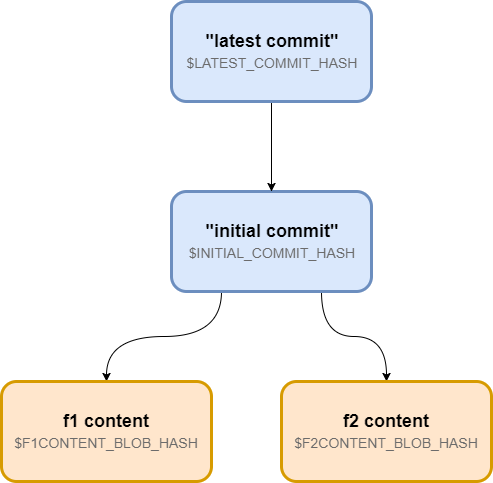
$ git log --pretty=oneline $LATEST_COMMIT_HASH
[some hash] latest commit
[some hash] initial commit
Let's introduce a fork into that history. We'll check out the initial commit, change the contents of f1.txt, then make a new commit with the familiar git commit command:
$ git checkout $INITIAL_COMMIT_HASH
$ echo 'I am modified f1 content' > f1.txt
$ git add f1.txt

$ git commit -m "forked commit"
1 file changed, 1 insertion(+), 1 deletion(-)
That code snippet:
- checks out the
"initial commit", addingf1.txtandf2.txtto the working directory - overwrites
f1.txtwith the stringI am modified f1 content - refreshes the index file with
git add
That final git commit, as we know, handles several tasks under the hood:
- generates a tree from the index file
- stores that tree in the repository
- creates a commit object wrapping that tree
- assigns the
initial commitas the parent, since that's what's in theHEADfile
We also need to save that commit's hash to a variable. Since Git updates HEAD with the current commit file, we can pull it from there:
FORKED_COMMIT_HASH=$( cat .git/HEAD )
Now the repository contains these objects:

That yields the following commit history:

With a fork in place, we have two lines of work. That means we should set up two branches to track each line separately. Let's create a master branch for the linear history starting at latest commit, and a forked branch for the history from the forked commit.
A branch is a text file holding a commit hash. It's part of Git references — a set of objects that point to commits. The other reference type is a lightweight tag. Git keeps all references under .git/refs, with branches in .git/refs/heads. Since a branch is just a text file, we can create one with the commit hash as its content.
This one will point to the main branch at the "latest commit":
$ echo $LATEST_COMMIT_HASH > .git/refs/heads/master
And this one points to the "forked" branch at the "forked commit":
$ echo $FORKED_COMMIT_HASH > .git/refs/heads/forked

Finally, we're back to the routine workflow you're familiar with — we can hop between branches:
$ git checkout master
Switched to branch 'master'

$ git log --pretty=oneline
[some hash] latest commit
[some hash] first commit

$ ls -1
f3.txt
And let's check out the other forked branch:
$ git checkout forked
Switched to branch 'forked'

$ git log --pretty=oneline
f30305a8a23312f70ba985c8c644fcdca19dab95 forked commit
f30305a8a23312f70ba985c8c644fcdca19dab95 initial commit

$ git ls
f1.txt f2.txt

$ cat f1.txt
I am modified f1 content
A tag is a text file with a commit hash
You likely know that instead of tracking a line of work with branches, we can also target individual commits with tags. Tags are commonly used to mark key milestones like releases. Right now, we've got 3 commits in the repository. We can label them with tags. Like a branch, a tag is a text file containing a commit hash and belongs to the Git references group.
As we covered, Git stores references under .git/refs, and tags live in the subfolder .git/refs/tags. Since it's a plain text file, we can create one and drop the commit hash in.
This one points to the latest commit:
$ echo $FORKED_COMMIT_HASH > .git/refs/tags/forked
And this one points to the initial commit:
$ echo $INITIAL_COMMIT_HASH > .git/refs/tags/initial
Once that's done, we can move between commits using tags. Here's the initial commit:
$ git checkout tags/initial
HEAD is now at 285aec7... second commit

$ cat f1.txt
f1 content
And the forked commit:
$ git checkout tags/forked
$ cat f1.txt
I am modified f1 content
There's also an "annotated tag," which differs from this lightweight tag. It's an actual object that can hold a message, much like a commit, and is stored in the repository alongside other objects.
Final Thoughts
This has been a fairly long read, but I aimed to keep it as straightforward and detailed as possible. Once you work through the content and grasp each idea presented here, you'll find yourself using Git with much greater confidence, and you shouldn't worry about unexpected behavior anymore.
For those interested in exploring Git further, I strongly suggest checking out this excellent resource, which is also freely available online. I’m currently drafting the follow-up piece on Git, which will cover merge, rebase, and remote repositories in depth. Be sure to follow along so you don’t miss it!