Dynamic Arguments and Their Consequences
While webpack's import function is often praised for its straightforward static usage, it also accommodates dynamic expressions that still unlock familiar capabilities like lazy loading. A dynamic expression is essentially any argument that isn't a simple, literal string, such as import('./animals/' + 'cat' + '.js') or import('./animals/' + animalName + '.js'), where animalName may be determined either at runtime or compile time. This exploration will focus on the mechanics of such dynamic expressions, aiming to clarify the full spectrum of what webpack can accomplish with them.
No prior knowledge is strictly required beyond understanding that a static import call typically generates a dedicated chunk. A further resource, An in-depth perspective on webpack's bundling process, can provide context on concepts like Modules and Chunks, though it's not essential for following along.
This discussion will rely on practical, live examples presented as StackBlitz applications alongside explanatory diagrams.
Understanding Dynamic Argument Implications
Even when the precise value isn't known at build time, employing the import() function with dynamic arguments still enables lazy loading. Unlike tools such as SystemJS, webpack cannot fetch arbitrary modules at runtime. Therefore, when the final value is only available at runtime, webpack is forced to systematically account for every possible value that the argument could potentially resolve to. The following sections will clarify this behavior by examining the configurable options available to the import function.
Our focus now shifts to the import argument itself. The upcoming sections will all refer to a scenario featuring an animals directory containing files for various creatures:
├── animals
│   ├── cat.js
│   ├── dog.js
│   ├── fish.js
│   └── lion.js
├── index.js
In each example, the import function is used like so: import('./animals/${fileName}.js'). For the ./animals/${fileName}.js segment, each ${fileName} acts as a dynamic segment, which webpack will, by default, replace with the pattern /.*/ (conceptually similar to a glob). Your expression may include multiple dynamic parts. The supplied argument is ultimately transformed into a RegExp object, which is then used to filter the files to be considered. The resolution process begins from the first static directory in the path (in this case, ./animals). At each step, it lists the files in the current directory and tests the generated RegExp object against them. The traversal will also explore nested directories by default. Once the candidate files are identified, webpack proceeds according to the configured mode. In our example, the **resulting RegExp** object would be /^\\.\\/.*\\.js$/, tested against every file inside the animals/ directory (for instance, regExp.test('./cat.js')).
It's crucial to understand that this discovery and traversal of files occurs during the compilation phase.
As an aside, the default replacement pattern for dynamic parts and the decision to traverse nested directories are both configurable through webpack's configuration:
// wepback.config.js
module: {
    parser: {
      javascript: {
        wrappedContextRegExp: /.*/,
				wrappedContextRecursive: true
      }
    }
  }
Here, wrappedContextRecursive controls whether nested directories (e.g., files under animals/aquatic/) are included in the search, and wrappedContextRegExp lets you define what webpack uses to replace the dynamic segments of your expression.
With the default settings, our initial expression ./animals/${fileName}.js is effectively treated as ./animals/.*.js.
The subsequent sections will delve into what happens after these files have been identified.
Let's proceed.
The lazy mode
The example for this section is available here ( remember to start the server ).
This is the built-in default mode, so there's no need to specify it explicitly. Consider a project with the following directory layout:
├── animals
│   ├── cat.js
│   ├── dog.js
│   ├── fish.js
│   └── lion.js
└── index.js
When you employ the import function in your application:
// index.js

// In this example, the page shows an `input` tag and a button.
// The user is supposed to type an animal name and when the button is pressed,
// the chunk whose name corresponds to the animal name will be loaded.

let fileName;

// Here the animal name is written by the user.
document.querySelector('input').addEventListener('input', ev => {
  fileName = ev.target.value;
});

// And here the chunk is loaded. Notice how the chunk depends on the animal name
// written by the user.
document.getElementById('demo').addEventListener('click', () => {
  import(/* webpackChunkName: 'animal' */ `./animals/${fileName}.js`)
    .then(m => {
      console.warn('CHUNK LOADED!', m);
      m.default();
    })
    .catch(console.warn);
});
webpack will produce a separate chunk for each file located within the animals directory. This is the hallmark of the lazy mode. In this specific demo, the user enters an animal's name into the input field. Upon clicking the button, the chunk corresponding to that name is fetched. Trying to load a name that doesn't correspond to any file in the animals directory will lead to an error. One might question the efficiency here: Isn't it wasteful for webpack to generate many chunks when only one might be used? In practice, it's not, because these chunks are simply static files on the server. They aren't transmitted to the browser unless the client makes a request for them (which happens when the import() path matches a real file).
Just like the static import scenario (e.g., import('./animals/cat.js)) where a single chunk is created, the chunks loaded via dynamic paths are also cached. This prevents the wastage of resources if the same chunk is required more than once.
Technically, webpack keeps track of loaded chunks in a map. When a requested chunk is already present in this map, it can be retrieved directly. The map's keys are chunk IDs, and the values reflect the chunk's state: 0 indicates the chunk is fully loaded, a Promise signifies an in-progress loading operation, and undefined means the chunk hasn't been requested yet.
The following diagram illustrates this process:
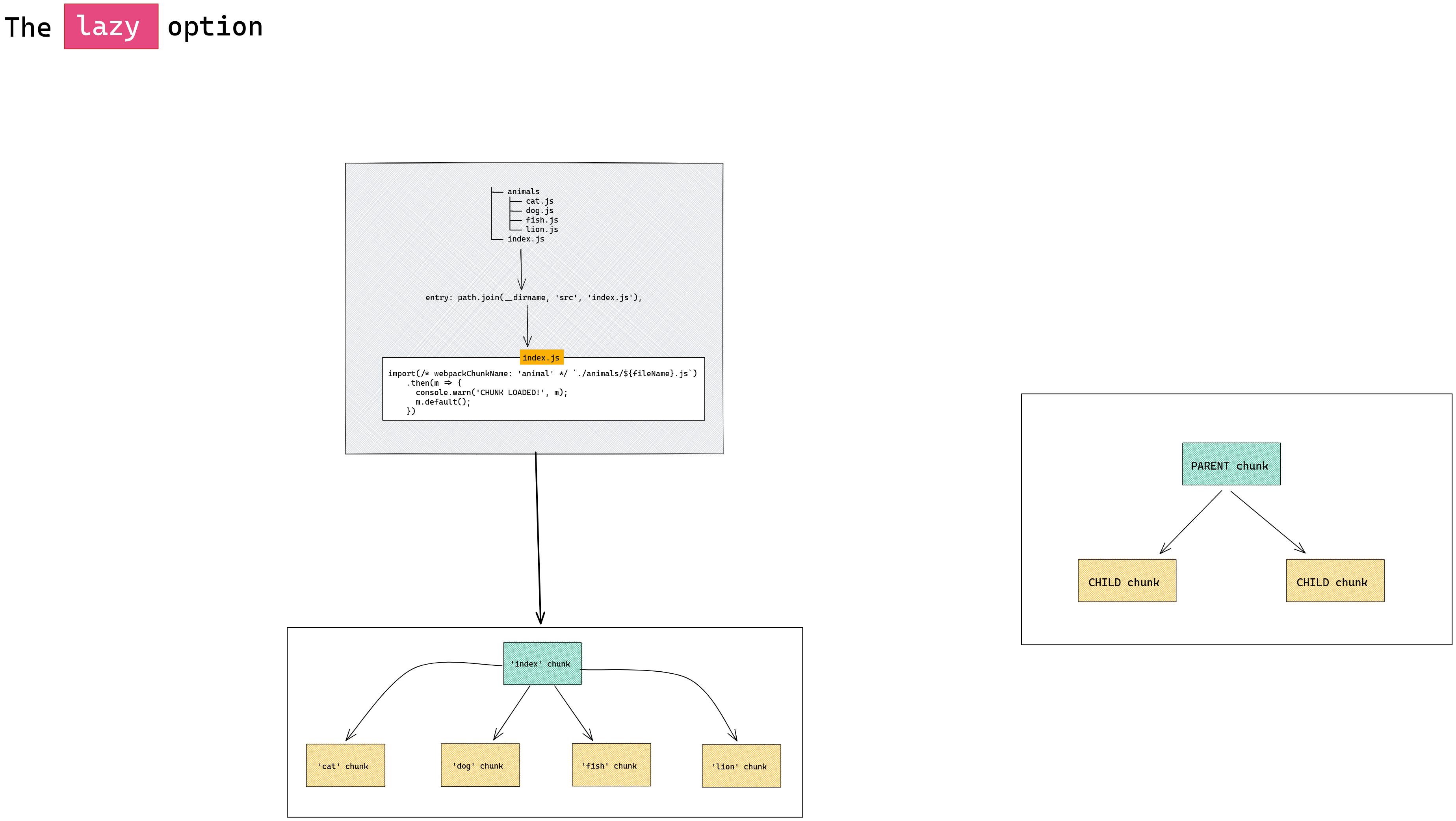
You can view a larger version of this diagram here.
The diagram shows four generated chunks (one for each file in animals), alongside a single parent chunk called index. Having this root-level parent chunk is critical because it contains the logic needed to fetch and integrate the other, smaller chunks into the running application.
Internally, webpack manages this behavior through a mapping. This map's keys are filenames (from the animals directory), and its values are arrays (the structure is { filename: [moduleId, chunkId] }). These arrays are packed with vital info: the chunk id (used in the HTTP request for that file), the module id (which module to require after the chunk loads), and also the module's export type (which helps webpack maintain interoperability when dealing with different module systems, not just ES modules). This pattern of a map for tracking modules and their metadata is used consistently across all modes.
To see a concrete example of this array, you can build the provided StackBlitz demo located at the beginning of this section (or here) by running npm run build. Once done, inspecting the dist/main.js file will reveal the map:
var map = {
	"./cat.js": [
		2,
		0
	],
	"./dog.js": [
		3,
		1
	],
	"./fish.js": [
		4,
		2
	],
	"./lion.js": [
		5,
		3
	]
};
Following the pattern { filename: [moduleId, chunkId] }, if the user inputs cat, webpack will load chunk 2, and upon its arrival, it will access module with ID 0.
Let's also consider a variant where the array includes the module's export type. In this case, cat.js is written as a CommonJS module, whereas the others are ES modules:
// cat.js
module.exports = () => console.log('CAT');
The StackBlitz application for this scenario can be found here.
After executing npm run build and opening dist/main.js, the map will appear differently:
var map = {
	"./cat.js": [
		2,
		7,
		0
	],
	"./dog.js": [
		3,
		9,
		1
	],
	"./fish.js": [
		4,
		9,
		2
	],
	"./lion.js": [
		5,
		9,
		3
	]
};
Now the pattern is { filename: [moduleId, moduleExportsMode, chunkId] }. With this information, webpack determines the correct strategy to import the module post-chunk-load. A value of 9 indicates a standard ES module, in which case the module with the moduleId is required directly. A value of 7 points to a CommonJS module, requiring webpack to construct a shim (a fake ES module) around it.
To observe this in action, launch the server for the last example. When I request the cat module by clicking the button, a network request for the chunk containing it should appear:
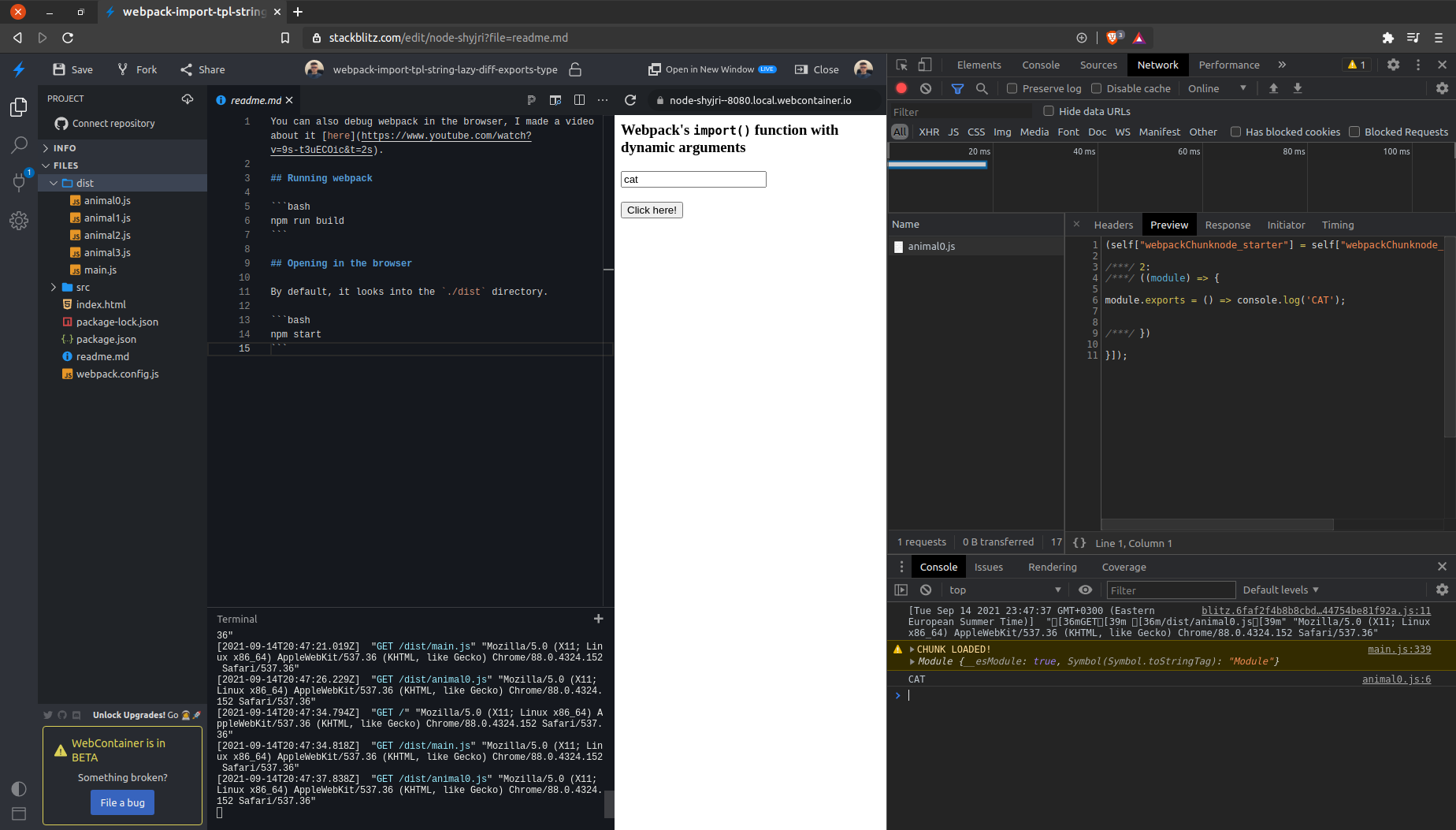
As shown in the console, webpack logs that the chunk is loaded and identifies the cat module within it. The same sequence occurs for another module, like fish:
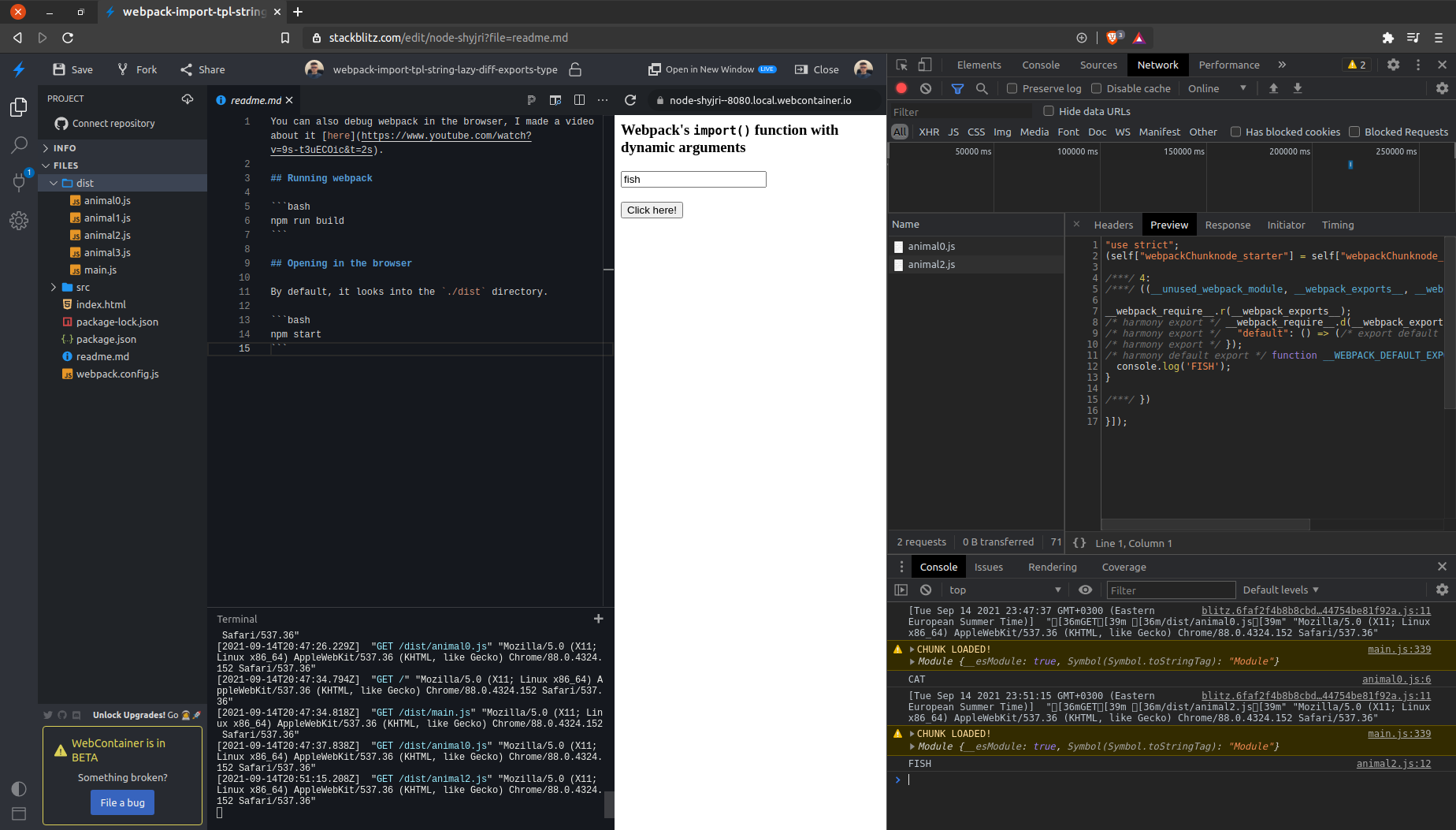
This behavior will be repeated for any file that matches the pattern derived from our import argument.
The eager mode
A corresponding StackBlitz example is available here, and it's safe to run npm run build first.
Let's start with the example used throughout this section:
let fileName;

// Here the animal name is written by the user.
document.querySelector('input').addEventListener('input', ev => {
  fileName = ev.target.value;
});

// Here the chunk that depends on `fileName` is loaded.
document.getElementById('demo').addEventListener('click', () => {
  import(/* webpackChunkName: 'animal', webpackMode: 'eager' */ `./animals/${fileName}.js`)
    .then(m => {
      console.warn('FILE LOADED!', m);
      m.default();
    })
    .catch(console.warn);
});
Notice that the webpackMode: 'eager' magic comment is how you activate this mode.
With eager mode, webpack does not create any new separate chunks. Instead, all modules that fit the import pattern are bundled into the main chunk. To illustrate with the same file structure,
├── animals
│   ├── cat.js
│   ├── dog.js
│   ├── fish.js
│   └── lion.js
└── index.js
it behaves as if the current module were directly requiring the modules inside the animals directory. The key difference is that none of these modules are immediately executed. They are just placed into a collection (object or array) of modules. When you click the button, webpack retrieves and executes that module on the spot—without triggering any additional network requests or asynchronous tasks.
After running npm run build and inspecting the dist/main.js file, you'll find a map similar to this:
var map = {
	"./cat.js": 2,
	"./dog.js": 3,
	"./fish.js": 4,
	"./lion.js": 5
};
Each value corresponds to a module's ID. Scrolling down will reveal the actual modules:
/* 2 */ // -> The `cat.js` file
/***/ ((__unused_webpack_module, __webpack_exports__, __webpack_require__) => {},
/* 3 */ // -> The `dog.js` file
/***/ ((__unused_webpack_module, __webpack_exports__, __webpack_require__) => {}
The primary benefit here is speed and immediacy. When a module is needed, it is retrieved instantly from the already-loaded bundle, unlike the lazy mode, which incurs an extra HTTP round-trip for each module.
We can confirm this in our demo: with the server running, attempt to use any module from the animals directory. You should observe no new requests in the Network panel, and each requested module will execute as expected, as shown in the screenshot:

To wrap up, here's a diagram summarizing how this mode functions:
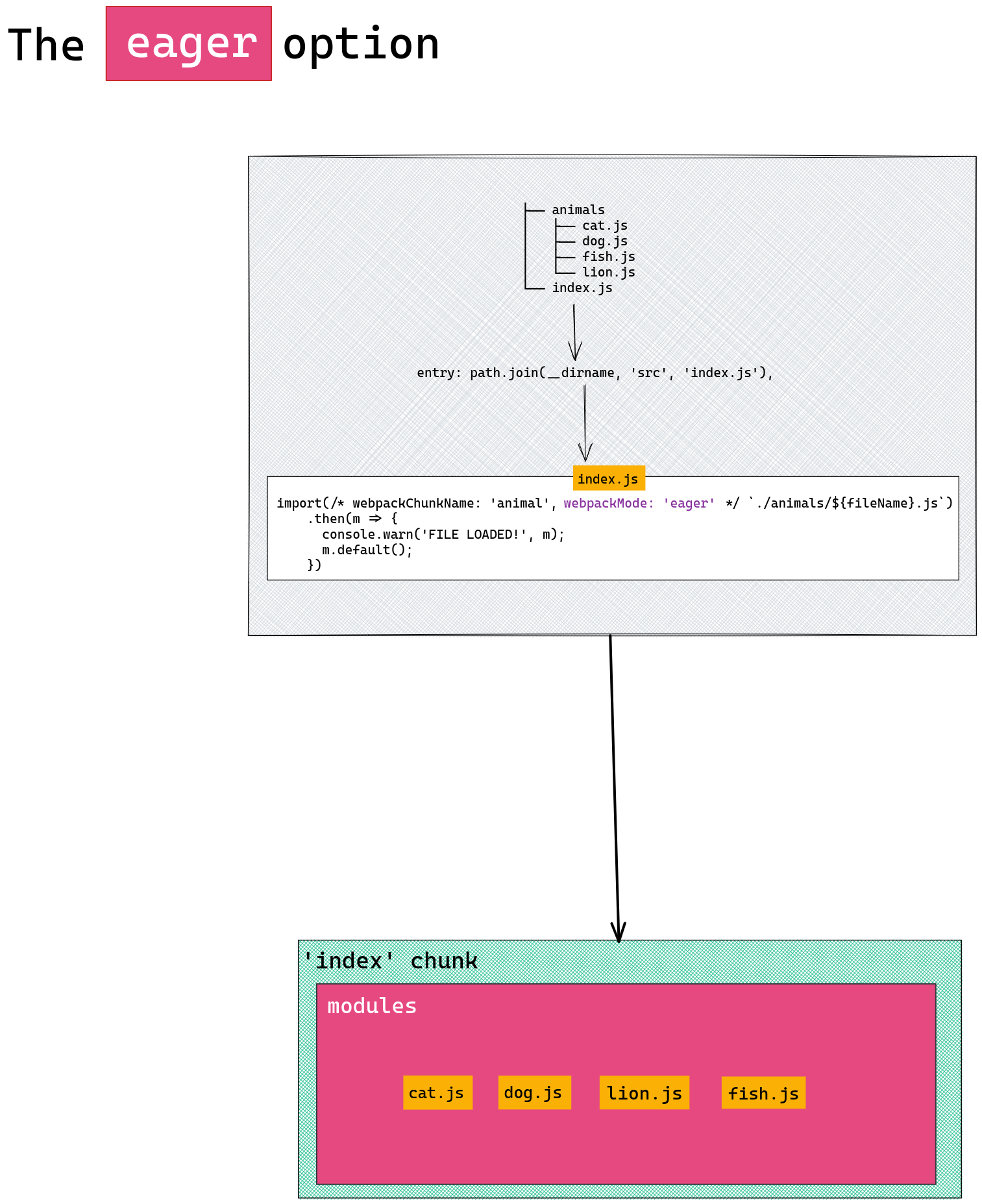
A link to the diagram is available here.
Embracing the lazy-once mode
You can explore the StackBlitz demo for this section here.
Given the previous discussion on manual mode specification, indicating the lazy-once mode to webpack follows the same pattern:
/*
The same file structure is assumed:

├── animals
│   ├── cat.js
│   ├── dog.js
│   ├── fish.js
│   └── lion.js
└── index.js
*/
let fileName;

// Here the user chooses the name of the module.
document.querySelector('input').addEventListener('input', ev => {
  fileName = ev.target.value;
});

// When clicked, the chunk will be loaded and the module that matches with the `fileName`
// variable will be executed and retrieved.
document.getElementById('demo').addEventListener('click', () => {
  import(/* webpackChunkName: 'animal', webpackMode: 'lazy-once' */ `./animals/${fileName}.js`)
    .then(m => {
      console.warn('FILE LOADED!', m);
      m.default();
    })
    .catch(console.warn);
});
This mode shares similarities with the previous one, but with a key distinction: all modules that match the import's expression are grouped into a single child chunk, not the main one. In this regard, it also aligns with the lazy mode concerning the lazy-loaded chunk.
After executing npm run build, the dist folder should contain two files: main.js as the primary chunk, and animal.js, which houses all modules corresponding to the files in the animals/ directory. This loading strategy prevents the main chunk from being bloated with every possible module that could match the import's expression. Instead, these modules reside in a separate, lazily-loadable chunk. When a user triggers a module load, the entire chunk is fetched from the network; once complete, the requested module is executed and returned. Furthermore, webpack registers all modules contained within this newly loaded chunk. The noteworthy aspect is that if the user subsequently requests another module from that same chunk, no additional network requests are made. The chunk is served from webpack's internal cache, and the module is retrieved from its stored module registry.
Let's test this with our example. I'll enter cat and click the button. In the Network tab, we should see a request for the animal chunk, which contains all the necessary modules:
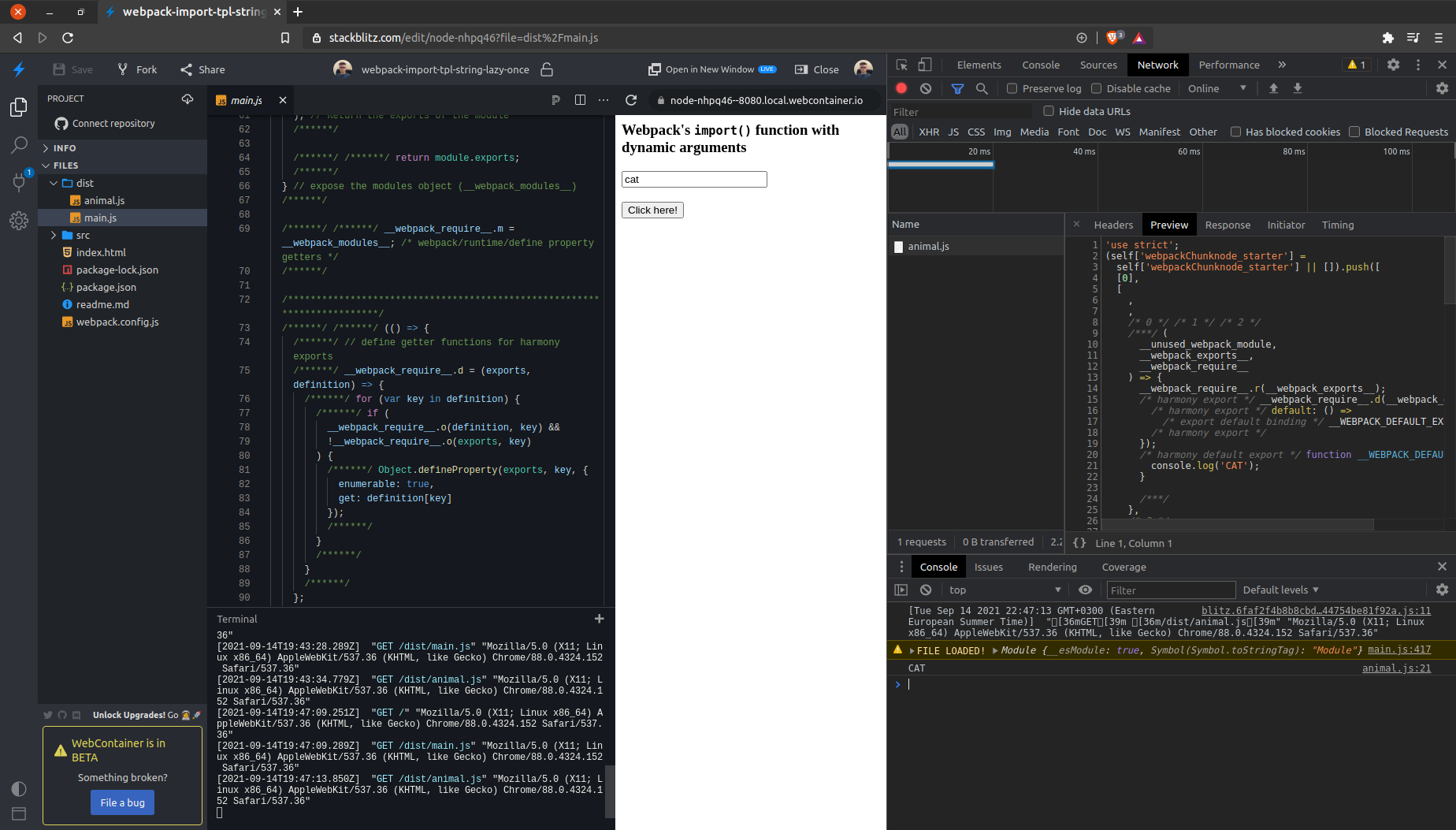
Notice that the cat module has indeed been executed.
Next, if we want to use the lion module, no new request should appear—only a log confirming the lion module's execution:
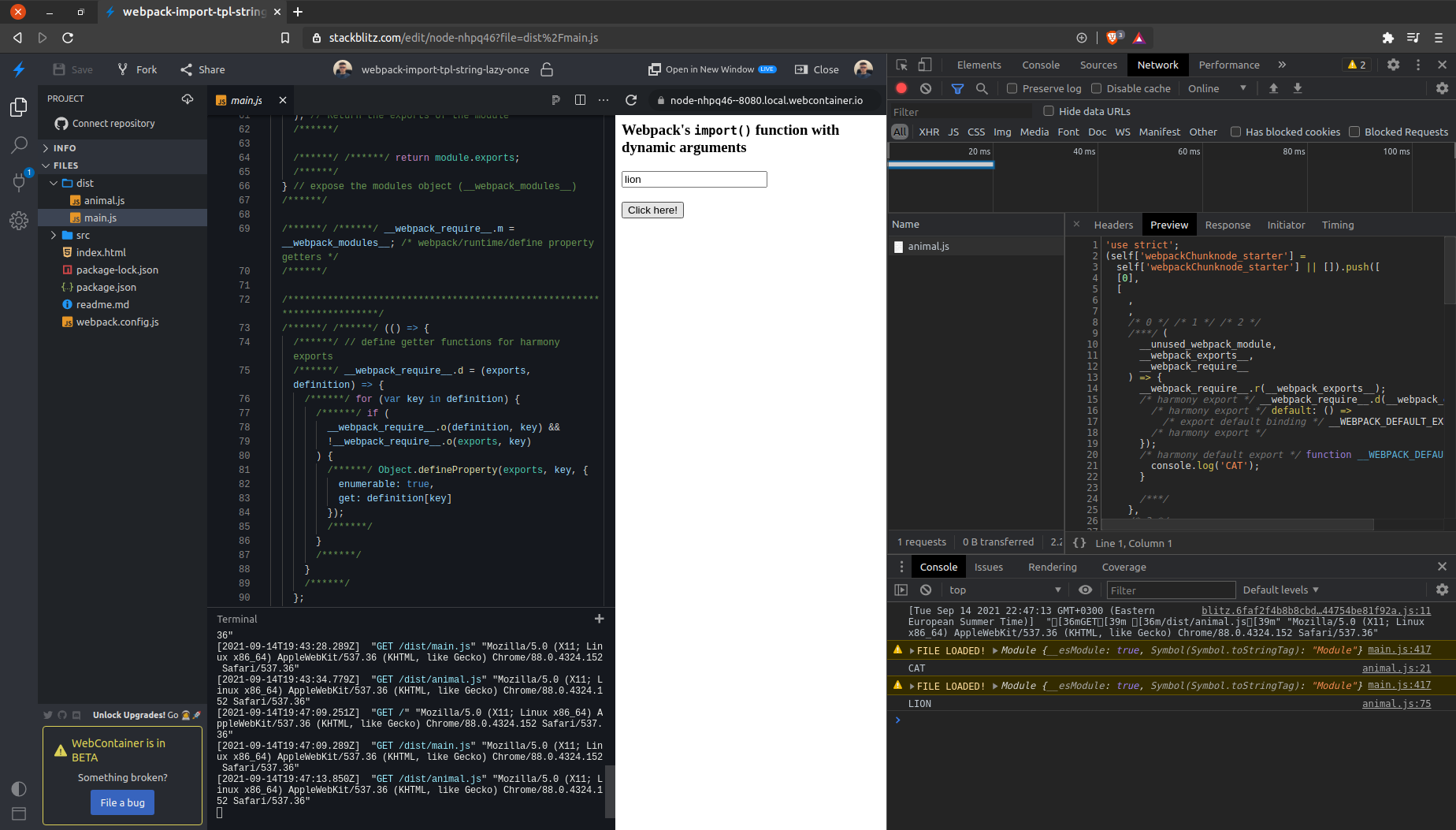
Here's a visual summary of what we've covered:

A direct link to the diagram is available here.
Exploring the weak mode
We've deferred this mode to the end due to its unique characteristics. Using weak imports signals to webpack that the resources we intend to use should already be available. Simply put, these resources must have been loaded (i.e., required and used) from elsewhere earlier. This means that when a weak import is triggered, no fetching mechanisms are initiated (such as loading a chunk over the network); the module is simply retrieved from webpack's internal module registry.
We'll start with a basic example that will initially produce an error, then refine it to gain a clearer understanding of the weak mode's purpose:
let fileName;

// Here the user types the name of the module
document.querySelector('input').addEventListener('input', ev => {
  fileName = ev.target.value;
});

// Here that module is retrieved directly if possible, otherwise
// an error will be thrown.
document.getElementById('demo').addEventListener('click', () => {
  import(/* webpackChunkName: 'animal', webpackMode: 'weak' */ `./animals/${fileName}.js`)
    .then(m => {
      console.warn('FILE LOADED!', m);
      m.default();
    })
    .catch(console.warn);
});
You can find the StackBlitz app for this example here (remember to run npm run build and npm run start to launch the server).
Nothing complex so far—this is just the standard way of specifying the mode for the import function, which here is weak.
Typing cat into the input and clicking the button will result in a console error:

This is expected because, as noted, a weak import requires the resource to be pre-loaded; it doesn't prompt webpack to fetch it. In our current setup, the cat module isn't loaded from anywhere else, hence the error.
To resolve this, we can add an import * as c from './animals/cat'; statement at the top of the file:
// index.js

import * as c from './animals/cat';

let fileName;
/* ... */
Running npm run build and npm run start again and repeating the steps should show the cat module executing successfully. However, trying any other module besides cat will still trigger the same error:
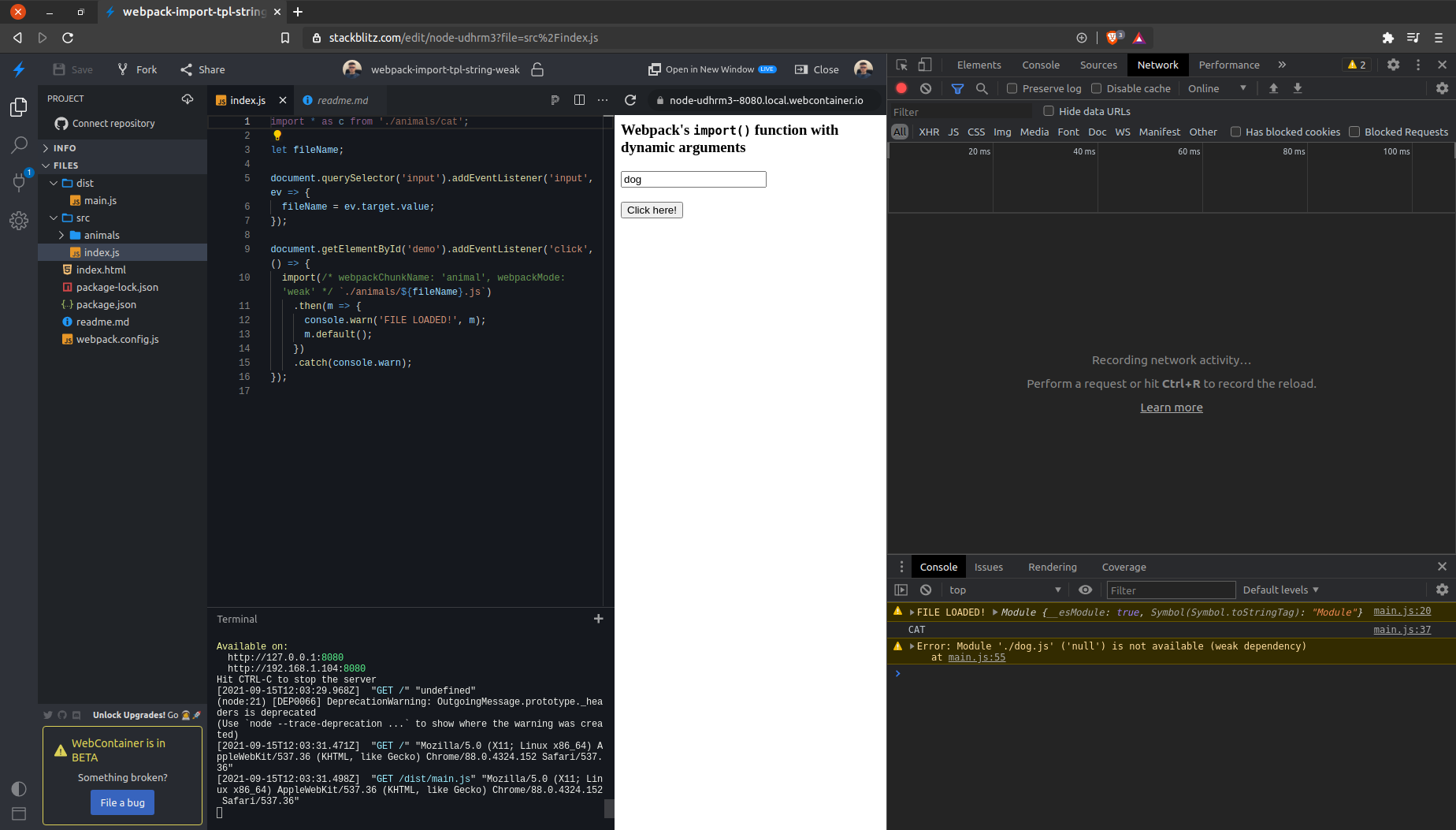
This feature can be leveraged to enforce that certain modules are loaded upfront, ensuring their availability at specific points. Otherwise, an error is raised.
Unlike the other modes, modules here are not added to the current chunk, a child chunk, or their own individual chunks. Instead, webpack tracks whether modules matching the import's expression exist and, if necessary, their export types (e.g., skipping this if they're all ES modules). For example:
var map = {
	"./cat.js": 1,
	"./dog.js": null,
	"./fish.js": null,
	"./lion.js": null
};
In the map above (found in the dist/main.js file—the sole generated file), it's certain that the cat module is used within the application. However, this doesn't necessarily mean the cat module is readily available. The purpose of this map object is to monitor which modules are relevant (i.e., used at all). It tracks module existence. Other modules with null values are termed orphan modules.
There are scenarios where a module exists but isn't available. Consider this example:
let fileName;

// Here the user chooses the name of the file.
document.querySelector('input').addEventListener('input', ev => {
  fileName = ev.target.value;
});

// Requesting the module that should already be available.
document.getElementById('demo').addEventListener('click', () => {
  import(/* webpackChunkName: 'animal', webpackMode: 'weak' */ `./animals/${fileName}.js`)
    .then(m => {
      console.warn('FILE LOADED!', m);
      m.default();
    })
    .catch(console.warn);
});

// Dynamically loading the `cat.js` module.
document.getElementById('load-cat').addEventListener('click', () => {
  import('./animals/cat.js').then(m => {
    console.warn('CAT CHUNK LOADED');
  });
});
The StackBlitz app for this scenario is available here.
The import('./animals/cat.js') statement confirms the module's existence, but for it to be available, the #load-cat button must be clicked first. Clicking it fetches the chunk, making the cat module accessible—since loading a chunk brings all its modules into scope for the entire app.
Attempting to directly require the cat module (without first clicking Load cat chunk) results in an error indicating the module is not available:
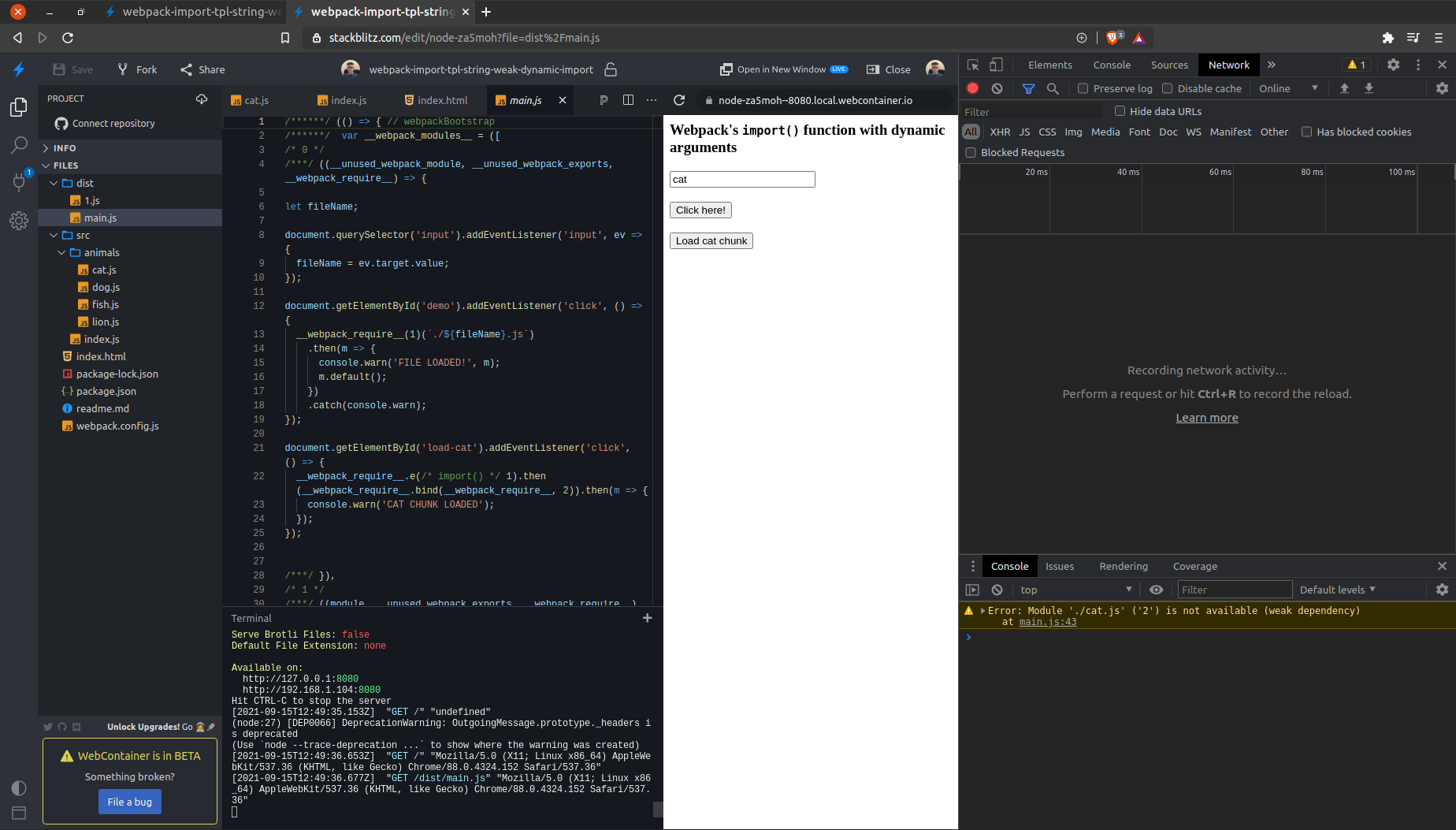
Conversely, loading the cat chunk first and then requiring the module works seamlessly:
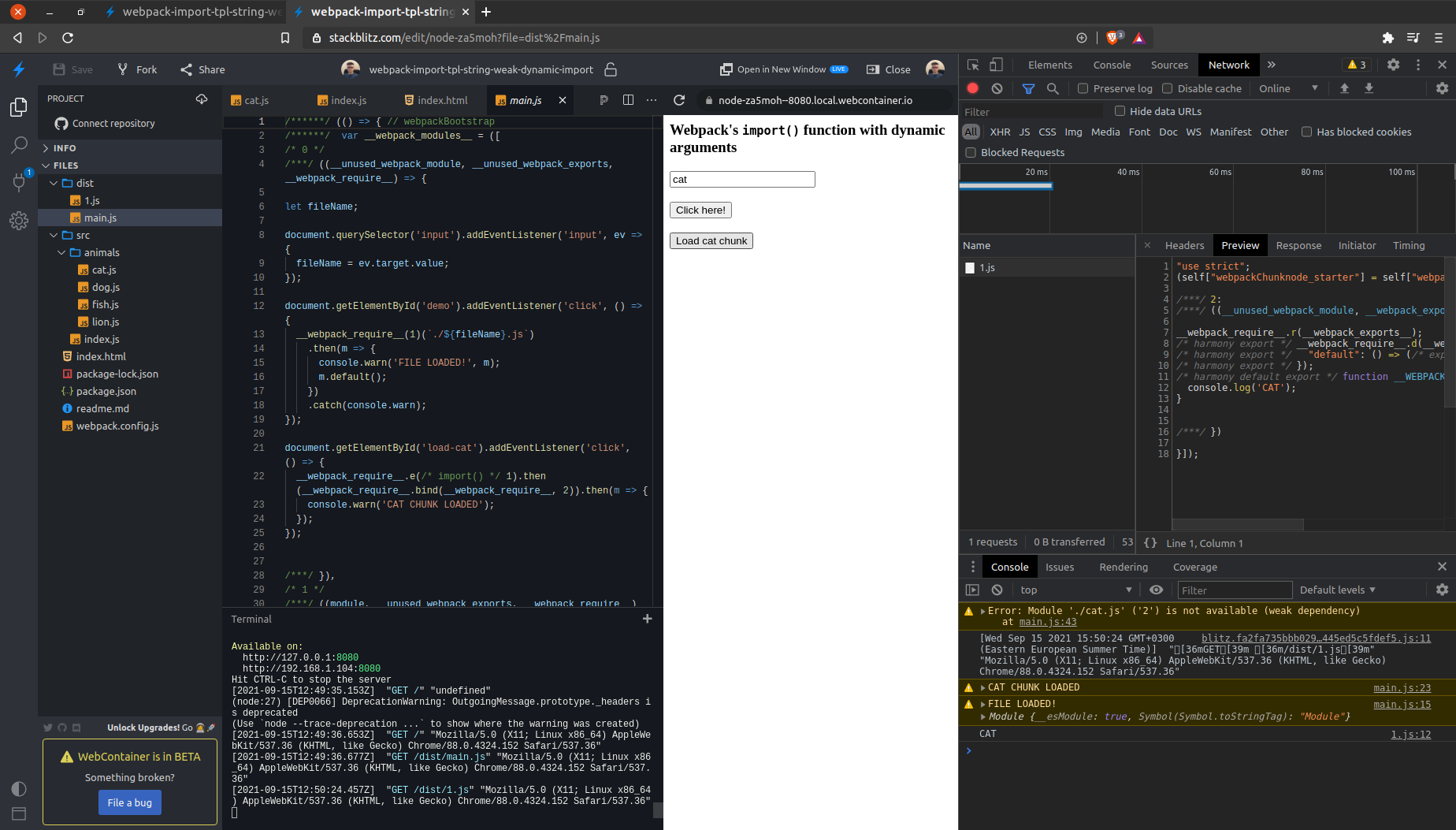
The key insight from this section is that with the weak mode, the resource is expected to be ready beforehand. Thus, a module must pass three checks: it must match the import's expression, be referenced elsewhere in the app (e.g., imported directly or via a chunk), and be available (i.e., already loaded).
Wrapping up
We've determined that the import function is capable of much more than merely creating chunks. Hopefully, the use of dynamic arguments with import is now clearer.
Thank you for reading!
Diagrams were created using Excalidraw.
Special thanks go to Max Koretskyi for reviewing this piece and offering invaluable feedback.