
Understanding the Virtual DOM
If you have spent any time learning React — which is arguably a never-ending journey — you have likely encountered the phrase virtual DOM. The goal of this piece is to shed light on how React actually builds and uses the virtual DOM, laying the groundwork for future posts that will dive deeper into specific behaviors like element removal, state and prop updates, list rendering, and more.
Before we proceed, I want to encourage you to pause and consider: what do you think the virtual DOM implementation actually looks like under the hood? You may have read numerous tutorials about it, so reflecting on what you already know and then comparing it with the real mechanisms can greatly enhance your understanding.
To follow along comfortably, you should have some basic React experience and a solid grasp of JavaScript. Now let’s dive in.
What Is the Virtual DOM?
The DOM, as you know, is a tree structure representing a web page. It provides an API for developers to interact with the page — reading information, modifying content, or changing layout. But touching the DOM directly is something you want to minimize, because it is slow. Even simple operations, like reading a property such as offsetHeight, can trigger a browser reflow, which can be computationally expensive.
So, DOM manipulations should be both necessary and efficient. That is exactly where the virtual DOM steps in. It is a second, in-memory tree structure that mirrors your page’s elements. Working with this in-memory tree is far cheaper and faster than touching the real DOM. The virtual DOM takes on the job of figuring out what has changed — in terms of both content and structure — and then applies all those changes to the real DOM in a single batch.
Fundamentally, the virtual DOM is just a tree of FiberNode objects (we’ll call it the FiberTree). Each node is essentially a plain JavaScript object that carries some cleverly chosen properties.
In the next section, we’ll take a quick look at what a FiberNode actually is.
Getting Acquainted with FiberNode
Since the FiberTree is generated from compiled JSX, it’s reasonable to say that each React element maps to a FiberNode. That’s not always strictly true — some elements might generate multiple FiberNodes — but for now, that simplification is fine and won’t mislead us.
Given this JSX:
function App () {
  return (
    <article>
      <h2>Title</h2>

      <p>Some content</p>
    </article>
  )
}
we would end up with four FiberNodes: one for the App function component, one for the <article> tag, one for the <h2> tag, and one for the <p> tag. There is also a root FiberNode, but we don’t need to worry about it here.
Just like the elements they represent, the FiberNodes have relationships. For example, the App node is the parent of the <article> node. Meanwhile, the <h2> and <p> nodes are not parent and child; they are siblings.
From the previous paragraph, we can already list a few key properties of a FiberNode:
child:AppFiberNode.child === ArticleFiberNodesibling:H2FiberNode.sibling === PFiberNodereturn: this one can be a bit confusing at first, but essentially it points to the parentFiberNode—H2FiberNode.return === ArticleFiberNodeandPFiberNode.return === ArticleFiberNode(so every sibling reference its parent). The reason it’s calledreturnrather thanparentis explained in this document by Andrew Clark. For the rest of this article, I’ll use the two terms interchangeably.
Here is a simple visual representation of the FiberTree we just described:
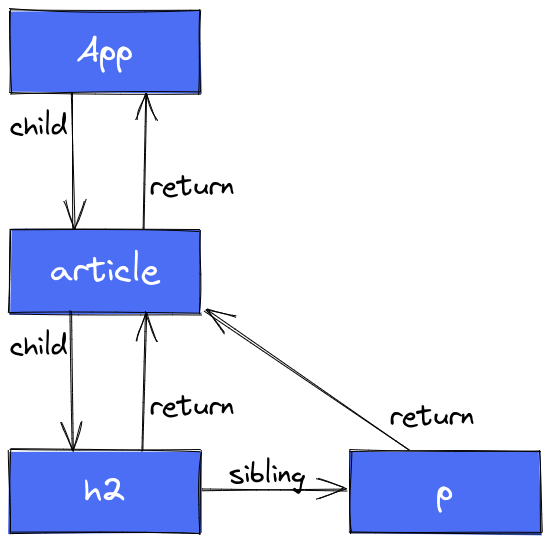
The diagram link can be accessed here.
But remember, the virtual DOM does more than just mirror the element structure — it is also responsible for detecting differences and gathering the relevant updates so they can be applied to the browser in one go. Up to this point, we have only established a connection between FiberNodes through their relationships, which is insufficient for identifying what has changed. We need a way to determine whether a FiberNode has changed at all. This brings us to another critical property, essential for the render phase: alternate.
Let’s restate the fundamental problem: how can we tell that a FiberNode has changed? Consider a React element that displays a counter’s value:
<p>{counter}</p>
We need a mechanism that does not miss any updates to the counter. That requires us to traverse the entire FiberTree. While we’re visiting that particular node, how do we know that it’s different from before?
The answer lies in having something to compare it against. This is where alternate becomes essential. When we’re looking for recent changes, alternate points to a previous version of the same FiberNode. That means alternate is, essentially, another FiberNode. Think of it as having two versions of the same node: one contains the state currently visible in the browser, and the other contains the new updates that need to be displayed. By comparing these two, we can determine if anything needs to be committed.
A more formal way to evaluate the purpose of alternate is through the two states of a FiberNode: current (what is shown right now) and workInProgress (what will be shown soon). We’ll explore these in detail in the next section.
The current and workInProgress States
Let’s recap the purpose of these two states for a single FiberNode: we need to identify and aggregate all updates in the tree so that the real DOM can be updated in one batch. The way we spot a change is by comparing what’s currently on screen (current) with what’s about to replace it (workInProgress).
In the diagrams below, we’ll represent both current and workInProgress FiberNodes for a given React element. For example, here’s a visual for an <article> tag:
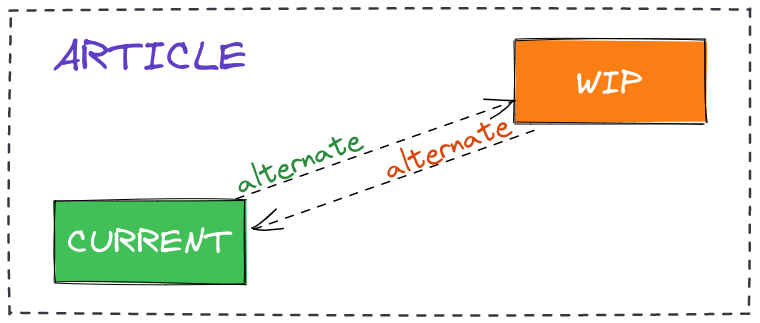
The image above shows two FiberNodes representing an article element: current and workInProgress (abbreviated as WIP). These two nodes are linked via the alternate property:
// `workInProgress === current.alternate` // true
// `workInProgress.alternate === current` // true
current === current.alternate.alternate // true
Now, let’s consider why the property is called alternate. A good guess is based on how these two nodes keep swapping roles across renders. Suppose we have a Counter displaying the value 10. After clicking the Increment button, the two associated FiberNodes will be as follows:
current— holds10, because that’s the value visible right nowworkInProgress— holds11, since it represents the upcoming change
After comparing these two, we see a difference (10 vs. 11), and that change is applied to the real DOM. After the update is done, the newly applied workInProgress becomes current. Why? Because if the user presses the button again, we need current to reflect the state just shown (11), and a fresh workInProgress will take on the next value (12). This back-and-forth is the never-ending cycle: whenever the tree needs changes, current shows what’s there; once changes are committed, workInProgress takes over as the new current.
The following section will make these ideas even clearer using more diagrams.
A practical walkthrough of the FiberTree
All diagrams referenced in this section are available in this Excalidraw workspace.
To better grasp how the virtual DOM(and consequently the FiberTree) functions, let's walk through a minimal application with detailed visuals.
The demo application we'll trace through is here:
// index.tsx
function App() {
  return (
    <div>
      <h2><i>Welcome world!</i></h2>

      <Counter />
    </div>
  );
}

// Counter.tsx
export default function Counter() {
  const [count, setCount] = useState(0);

  return (
    <div className="counter">
      <button onClick={() => setCount(count + 1)}>Increment</button>

      <p>The value is: {count}</p>
    </div>
  );
}
With count set to 7, the corresponding FiberTree appears as follows:
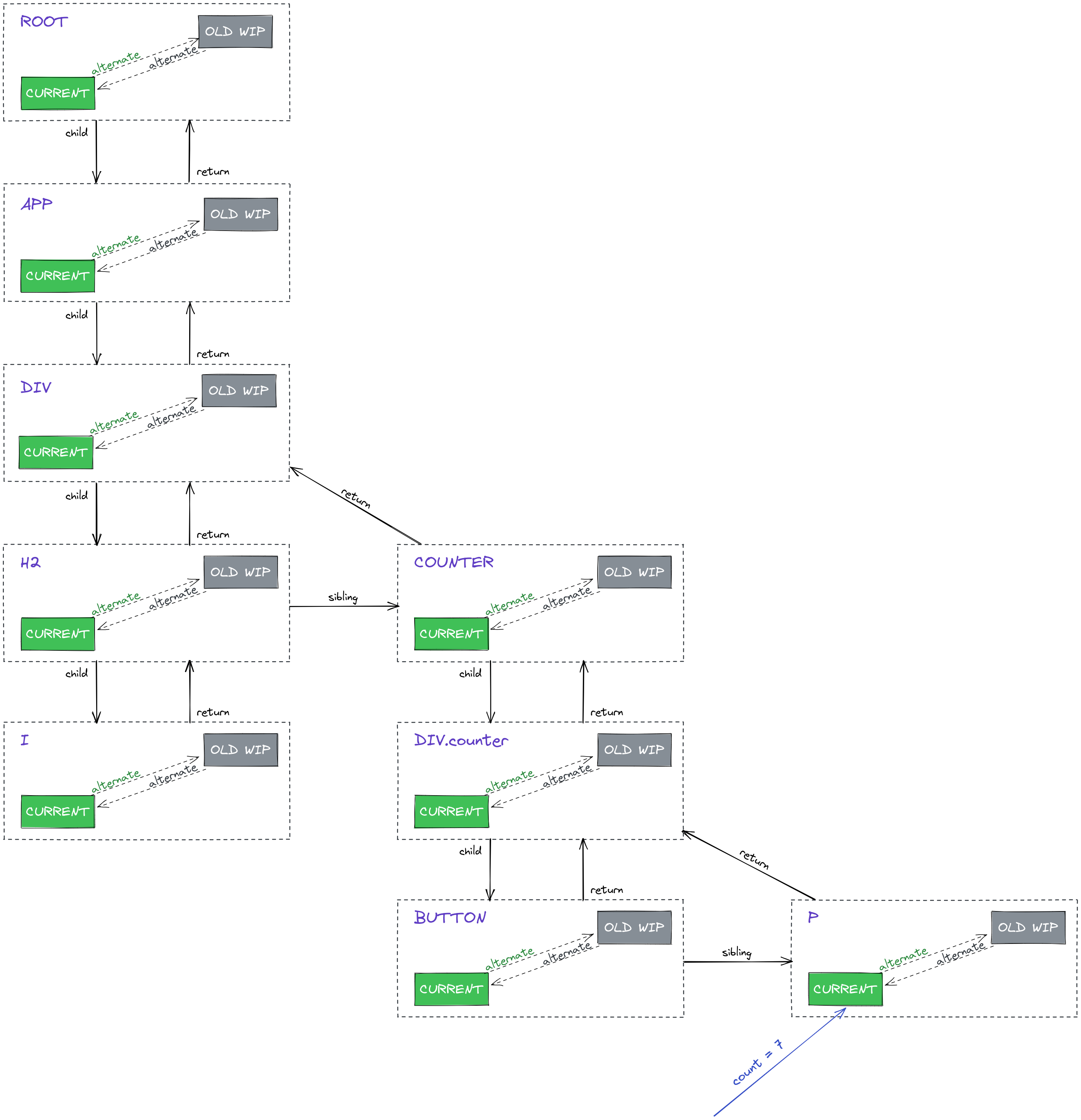
The arrows represent relationships such as child, parent, sibling, and these links always connect FiberNodes of the same type—meaning a current FiberNode points to another current FiberNode, not to a workInProgress one.
Pay attention to the previous workInProgress FiberNodes (shown in grey and denoted as OLD WIP). These indicate that before what's currently visible in the browser, count held a value of 6, and the new workInProgress introduced the value 7. Following this, workInProgress was promoted to become the current tree. Consequently, in the scenario above, current === OLD_WIP evaluates to true. OLD WIP serves no active role itself; it simply stands in as a marker for a future workInProgress FiberNode that may arrive with fresh data.
Now, let's examine the effect of clicking the Increment button. First, a click event fires, which triggers the useState hook's dispatcher—that is, the setCount() function. This event marks that synchronization work is required on the FiberTree. The term synchronization is apt because the current tree must merge the modifications from the workInProgress tree, ultimately making those changes visible in the browser.
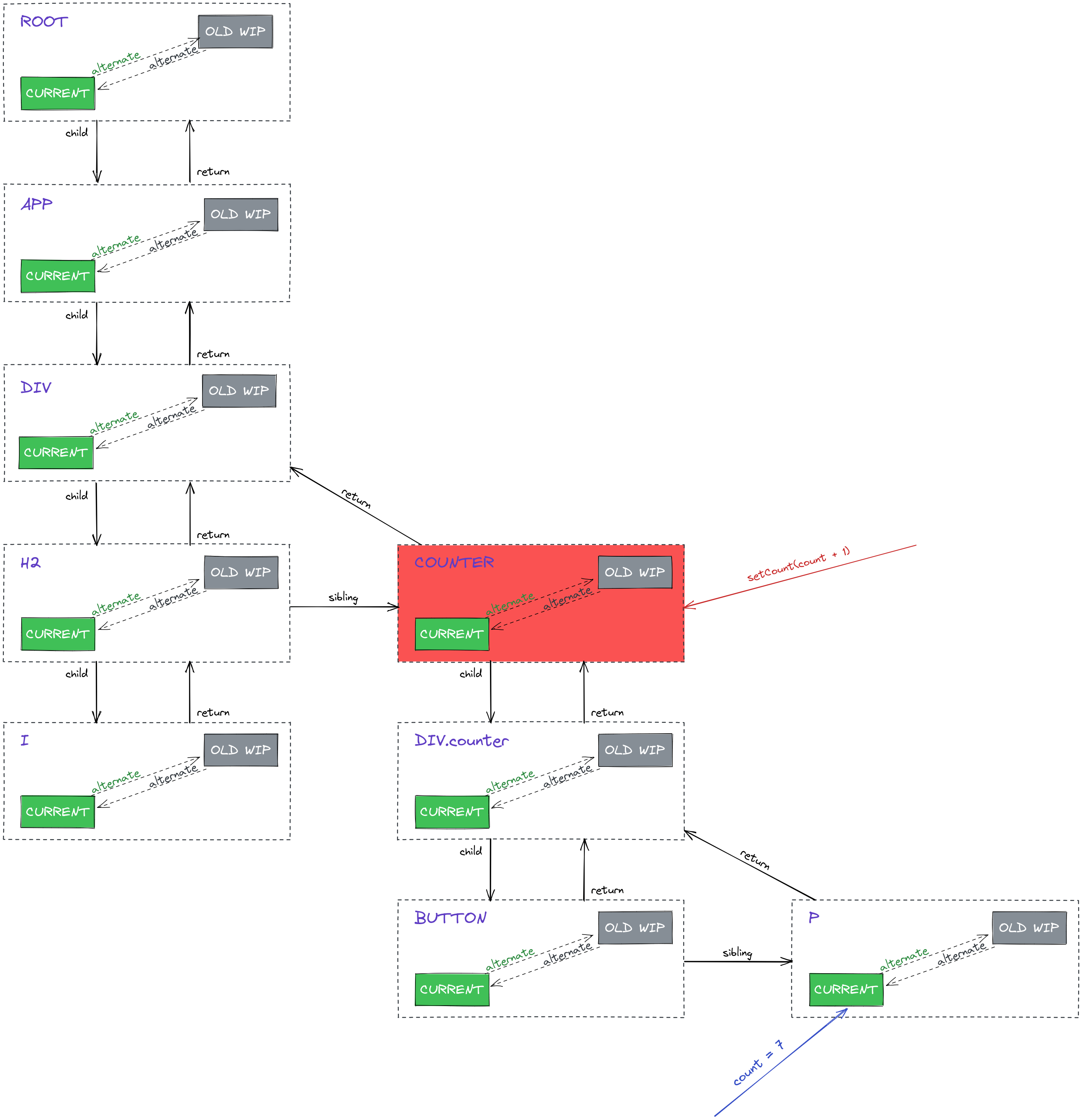
The Counter node is highlighted in red because this is where the useState hook resides. It also happens to be the highest node impacted by a state shift, given that it directly owns the state. Therefore, updates are limited to its descendants, such as the p element displaying the count value. In essence, calling setCount() makes Counter the origin of a FiberTree re-render.
The next step involves marking the branch/subtree—spanning from the root down to Counter's FiberNode—as dirty, indicated by the red hachures:
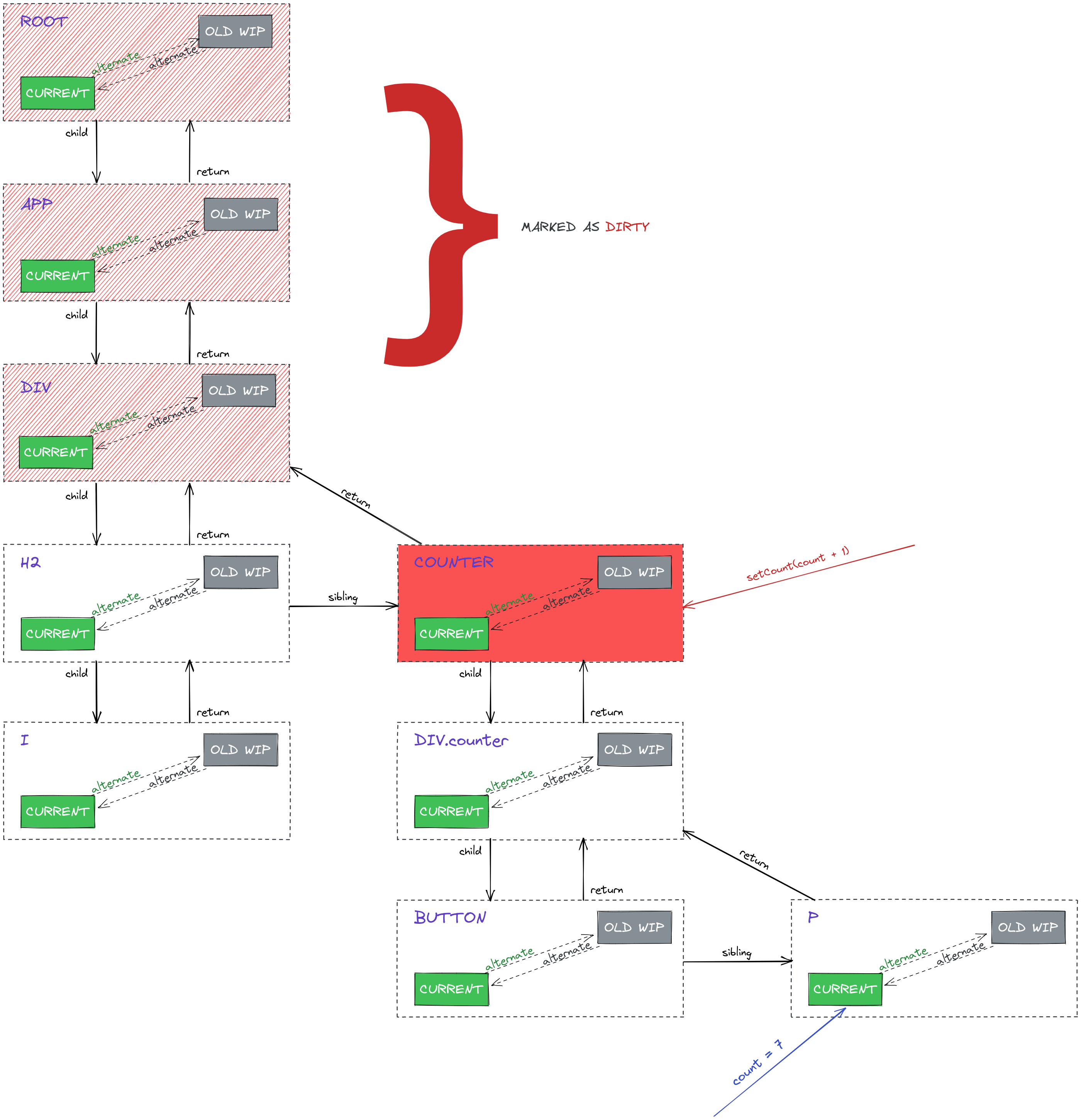
Flagging these ancestor nodes as dirty signals that an update has occurred somewhere further down the hierarchy. This labeling carries practical benefits: by isolating a subtree with modifications, we avoid redundant processing on branches that remain untouched. Take, for instance, the FiberNodes tied to the <i> tag—they won't be affected by Counter's state. The following diagram clarifies how workInProgress nodes fit into this:
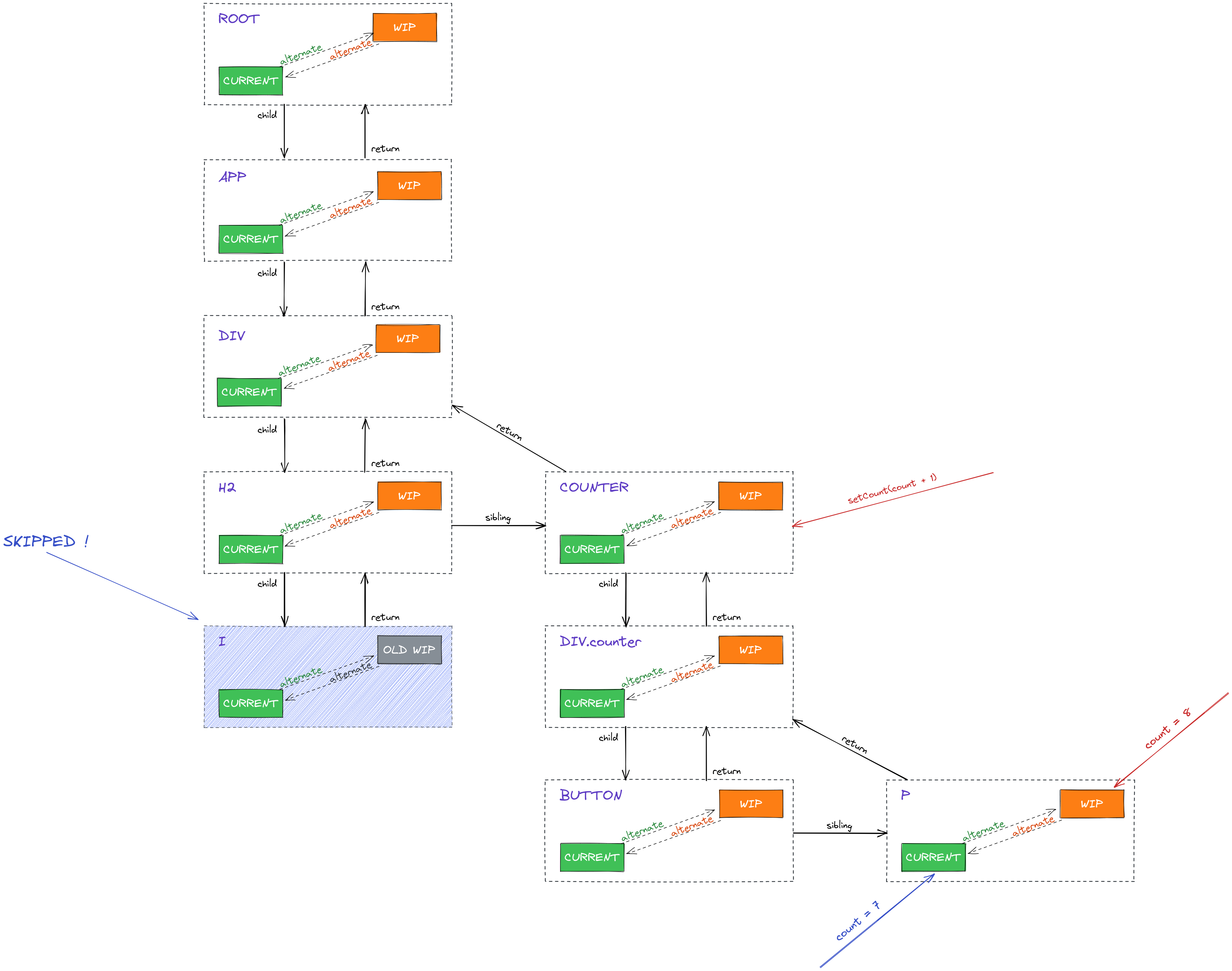
Observe that the FiberNode associated with the <i> tag is skipped, since the state changes don't impact it. Had that FiberNode contained children, its whole subtree would also be bypassed. A workInProgress node is established for every node within the entire modified subtree—including Counter's descendants, allowing for detection of changes. While not all workInProgress nodes necessarily deliver new updates, they're essential for identifying which subtree drove the modifications. This proves particularly valuable during the commit phase, when changes are applied to the actual DOM.
Notably, the p's workInProgress node now holds the most current counter value: 8.
You may question why a workInProgress node appears for h2 as well, given it's clearly independent of Counter's state. The explanation lies in its parent: since the div's FiberNode belongs to the subtree experiencing changes, a parent FiberNode generates workInProgress nodes for each of its children. Concretely, div's FiberNode spawns workInProgress nodes for both h2 and Counter. Another perspective: when div's FiberNode is marked dirty, it signals that some descendant has changed. Since it can't pinpoint the exact location beforehand, all direct children of div receive new workInProgress FiberNodes. This doesn't create problems, as the subtree rooted at h2 is skipped regardless.
Still, merely creating a workInProgress node doesn't guarantee it carries updates; it might only be part of a branch/subtree where modifications took place. This is visible in the diagram below:
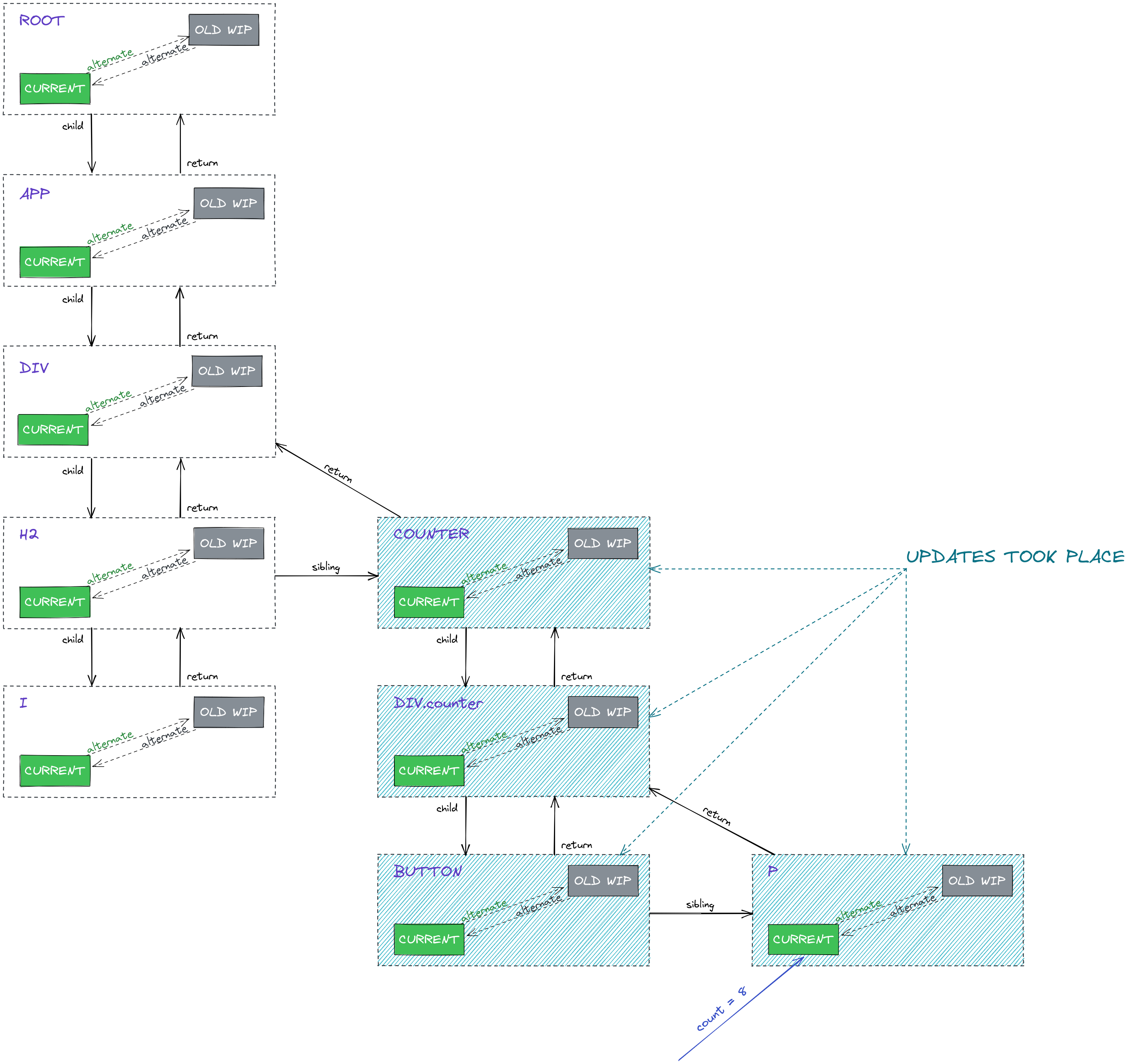
The above snapshot is taken right after the changes are committed to the real DOM.
Let's break down why each blue-coloured node introduced changes:
p– it renders thecount's value, so its displayed content naturally shiftedbutton– our component uses it as<button onClick={() => setCount(count + 1)}>...</button>. This results in a fresh function being generated on everyCounterrender. Given that a state change happened, the component definitely re-rendered, meaning thebuttongot a new propdiv.counter– its parent (i.e.,Counter) re-rendered, and its children differ—previously, itspchild displayed7, now it shows8; this discussion may resolve confusion on this pointCounter– its state, managed viauseState, changed
An interesting aside: if a static element such as
<h3>hello</h3>existed inside theCountercomponent, it would still be different across renders ofCounter. This stems from the fact that React elements are essentially objects produced by invoking[createElement()](https://github.com/facebook/react/blob/v18.0.0/packages/react/src/ReactElement.js#L362). Re-renderingCounterre-invokes thatcreateElement, yielding a new object each time.
Once all modifications are committed, the FiberTree returns to its stable form:

Note that the count value is now 8.
One more intriguing aspect is how the alternate property enables React to manage two separate trees concurrently. The green rectangles delineate the current tree, while the orange ones map the workInProgress tree. These trees need not be symmetrical—one could possess more or fewer nodes than the other (for instance, when elements are introduced or removed). We'll delve into such scenarios in future installments.
Wrapping up
Calling this article merely the tip of the iceberg wouldn't do it justice—we've delved into a substantial portion of React's virtual DOM. Some details were simplified for clarity, yet I trust the insights shared here will deepen your understanding of the internal mechanics and perhaps inspire you to explore the source code independently.
Here's a summary: React's virtual DOM hinges on the FiberNode as its primary building block. Through the alternate property, React detects what's changed within the app, by comparing the current state—what's presently rendered in the browser, housed in the current tree—against the new state—what needs to be displayed, residing in the workInProgress tree. A current FiberNode can reach its workInProgress counterpart (and vice versa) via alternate. After all changes are identified, they're committed atomically to the real DOM, making the results visible in the browser.
Appreciate your read!