
The Background
What does i18n actually mean, and where does the “18” come from? Even after more than a decade in engineering, I had never stopped to think about it until recently. It turns out the number represents the letters between the “i” and the “n” in “internationalization.” So i18n is simply shorthand for internationalization. One of the commonly cited definitions of i18n is:
The design and development of a product, application or document content that enables easy localization for target audiences that vary in culture, region, or language.
Following the same source, we find that i18n spans several distinct areas of development. For this article, however, we focus on one specific aspect:
Separating localizable elements from source code or content, such that localized alternatives can be loaded or selected based on the user’s international preferences as needed.
In other words, content that needs to appear in different languages should be extracted from the core logic so it stays maintainable.
Throughout this article we will look at how to structure translation strings in a way that is easy to maintain, ensure the application only loads what it needs, and have the browser remember the user’s language choice. From there, we will enable Server-Side Rendering (SSR) and work through the problems that arise once SSR is introduced into an Angular project.
The article is divided into the following sections:
Part 1. Setting the Scene
Part 2. Adding SSR to the App
Part 3. Solution 1 — Fix via Providing a Separate I18nModule for the Server
Part 4. Solution 2 — Provide Everything in a Single Module
Part 5. Improve Performance with TransferState
Part 6. Are We There Yet?
The first part walks through the basic steps of creating an Angular app and wiring up i18n. Beginners may want to spend more time here. Those who are more comfortable with the framework can skim the code and jump straight to “Part 2. Adding SSR to the App” to see the issues that SSR introduces and how they can be resolved.
Setting the Scene
For this walkthrough, we start with a minimal Angular application generated via the AngularCLI. Assuming the CLI is installed globally, we create a fresh project with the following command:
ng new ssr-with-i18n
To make the example more meaningful, let’s add a couple of simple components:
ng g c comp-a
ng g c comp-b
Next, we replace the default contents of app.component.html with these two components:
<h1>Welcome to {{ title }}!</h1>

<app-comp-a></app-comp-a>
<app-comp-b></app-comp-b>
*** The code up to this point is available here.
Let’s Add i18n
There are many approaches when it comes to adding internationalization. Initially, I considered using the framework-agnostic library i18next together with the Angular wrapper angular-i18next. Unfortunately, that wrapper currently has a limitation that prevented me from using it: it doesn’t support switching languages at runtime, which was a deal-breaker.
For this article we will use ngx-translate, a widely adopted solution:
Note: The module organization and code structure discussed here are not exclusive to ngx-translate. The same ideas apply if you’re using a newer option like transloco (which was released around the time this article was written, 8/15/2019). In fact, you may be dealing with a problem that has nothing to do with translations at all. So if you’re wrestling with an SSR-related issue, this material should still be useful.
With ngx-translate, translation strings are stored in separate JSON files — one per language. Each entry is simply a key-value pair, where the key is a unique identifier and the value is the translated text.
- Install dependencies
Beyond the core package, we also need the http-loader to fetch translations on demand.
npm install @ngx-translate/core @ngx-translate/http-loader --save
2. Add the code
The ngx-translate docs suggest adding the configuration directly inside the AppModule. I prefer a cleaner approach: isolate all i18n-related logic in its own module.
ng g m i18n --module app
This results in a new file, /i18n/i18n.module.ts, which is then referenced from app.module.ts.
The full contents of i18n.module.ts are shown below, following the official documentation:
import { NgModule } from '@angular/core';
import { HttpClient, HttpClientModule } from '@angular/common/http';
import { TranslateLoader, TranslateModule, TranslateService } from '@ngx-translate/core';
import { TranslateHttpLoader } from '@ngx-translate/http-loader';

@NgModule({
  imports: [
    HttpClientModule,
    TranslateModule.forRoot({
      loader: {
        provide: TranslateLoader,
        useFactory: translateLoaderFactory,
        deps: [HttpClient]
      }
    }),
  ],
  exports: [TranslateModule]
})
export class I18nModule {
  constructor(translate: TranslateService) {
    translate.addLangs(['en', 'ru']);
    const browserLang = translate.getBrowserLang();
    translate.use(browserLang.match(/en|ru/) ? browserLang : 'en');
  }
}

export function translateLoaderFactory(httpClient: HttpClient) {
  return new TranslateHttpLoader(httpClient);
}
There’s nothing complicated happening here. We register the TranslateModule and set up a loader that fetches translation files over HttpClient. We also export TranslateModule so the transform pipe is available throughout the AppModule and in templates. Inside the constructor we specify which languages are supported, then rely on a helper from ngx-translate to detect the browser’s default language.
By default, TranslateHttpLoader looks for files in the /assets/i18n/ directory, so let’s add two translation files there.
{
  "compA": "Component A works",
  "compB": "Component B works"
}
/assets/i18n/en.json
{
  "compA": "Компонент А работает",
  "compB": "Компонент Б работает"
}
/assets/i18n/ru.json
Note: here we use one file per language. In more complex apps you could split things up by locale, e.g. en-US.json or en-Gb.json. From the library’s point of view, those are just separate translations.
With this setup in place, we can update the component templates to use translation keys instead of hard-coded text.
// comp-a.component.html
<p>{{'compA' | translate}}</p>

// comp-b.component.html
<p>{{'compB' | translate}}</p>
If we run the app now, we’ll see it picks up strings from en.json. Next, we add a component that lets us toggle between the two languages.
ng g c select-language --inlineStyle --inlineTemplate
Fill in the contents of select-language.component.ts.
import { Component } from '@angular/core';
import { TranslateService } from '@ngx-translate/core';

@Component({
  selector: 'app-select-language',
  template: `
    <select #langSelect (change)="translate.use(langSelect.value)">
      <option
        *ngFor="let lang of translate.getLangs()"
        [value]="lang"
        [attr.selected]="lang === translate.currentLang ? '' : null"
      >{{lang}}</option>
    </select>
  `,
})
export class SelectLanguageComponent {
  constructor(public translate: TranslateService) { }
}
The ngx-translate library lets us change the current language with a simple translate.use() call. We can also determine what language is active at any time by reading the translate.currentLang property.
Now we place the new component inside app.component.html right after the h1 tag.
<h1>Welcome to {{ title }}!</h1>
<app-select-language></app-select-language>
<app-comp-a></app-comp-a>
<app-comp-b></app-comp-b>
Run the app and the language switching should work instantly. Each time you pick a different language, the corresponding .json file is fetched.
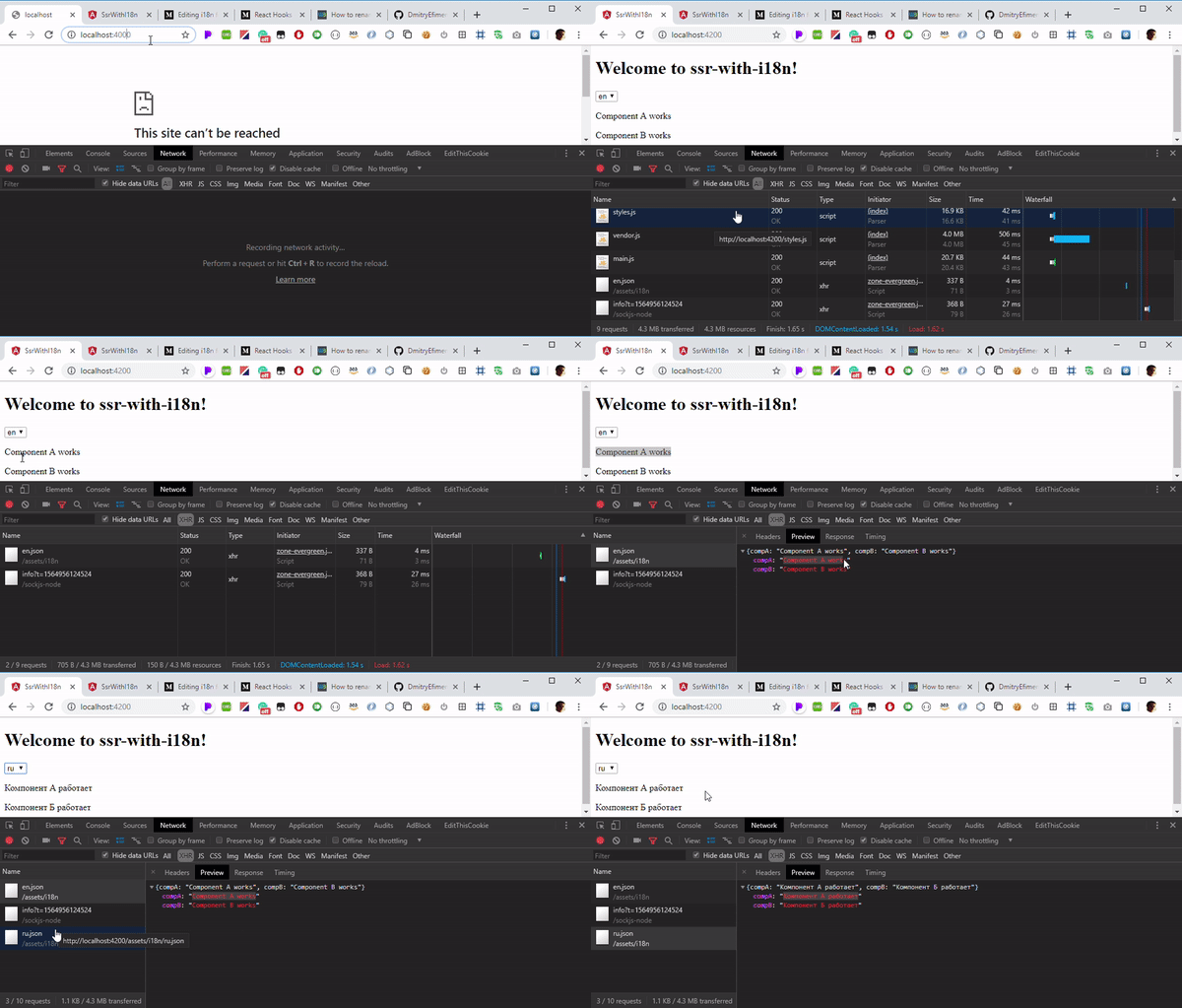
At this point, if we choose ru and then refresh the browser, the page comes back with en selected. There’s no built-in mechanism to remember the language choice. Let’s address that.
Memorizing the Selected Language
The Angular ecosystem offers a number of plugins that extend ngx-translate. One of them does exactly what we need: ngx-translate-cache. Following its readme, we (1) install the package
npm install ngx-translate-cache --save
and (2) wire it up inside the I18nModule.
import { TranslateCacheModule, TranslateCacheSettings, TranslateCacheService } from 'ngx-translate-cache';

@NgModule({
  imports: [
    TranslateModule.forRoot(...), // unchanged
    TranslateCacheModule.forRoot({
      cacheService: {
        provide: TranslateCacheService,
        useFactory: translateCacheFactory,
        deps: [TranslateService, TranslateCacheSettings]
      },
      cacheMechanism: 'Cookie'
    })
  ]
})
export class I18nModule {
  constructor(
    translate: TranslateService,
    translateCacheService: TranslateCacheService
  ) {
    translateCacheService.init();
    translate.addLangs(['en', 'ru']);
    const browserLang = translateCacheService.getCachedLanguage() || translate.getBrowserLang();
    translate.use(browserLang.match(/en|ru/) ? browserLang : 'en');
  }
}

export function translateCacheFactory(
  translateService: TranslateService,
  translateCacheSettings: TranslateCacheSettings
) {
  return new TranslateCacheService(translateService, translateCacheSettings);
}
Now, if we select ru and hit refresh, the app remembers the previous choice. Notice that we explicitly picked 'Cookie' as the storage mechanism. The default is 'LocalStorage' — but LocalStorage is unavailable on the server. Since enabling SSR is a major part of this article, storing the selection in a cookie is a proactive step: the server is able to read that value as well.
So far, nothing in this article is particularly exotic. We followed the instructions from the packages themselves and wrapped the i18n logic in its own module. The tricky parts start when SSR enters the picture.
*** The code up to this point is available here.
Adding SSR to the App
The Angular CLI is truly impressive. Its schematics feature lets us extend an app with a single command. Here, we run the following to add SSR support.
ng add @nguniversal/express-engine --clientProject ssr-with-i18n
The command both updates and creates a number of files.

Looking at package.json, we now see a few new scripts. The important ones are: (1) build:ssr and (2) serve:ssr. Let’s run them and observe the result.
Both commands complete without errors. When we open the page in the browser, though, we get an error.
TypeError: Cannot read property 'match' of undefined
    at new I18nModule (C:\Source\Random\ssr-with-i18n\dist\server\main.js:113153:35)
Digging into it, the culprit is this line:
browserLang.match(/en|ru/)
The browserLang variable ends up undefined, which means the line that should have assigned it never worked:
const browserLang = translateCacheService.getCachedLanguage() || translate.getBrowserLang();
The problem is that we’re touching browser-only APIs during server-side rendering. The function name — getBrowserLang — is a giveaway that it’s not server-safe. We’ll revisit this properly later, but for now let’s patch it by hard-coding the language value:
const browserLang = 'en';
Rebuild and serve again. The error is gone, and the network tab confirms that SSR is working. However, the translation strings are missing.

Why is that? Look at the factory used by the TranslateModule to load translations: translateLoaderFactory. This function relies on HttpClient and knows how to fetch the JSON files in the browser. But it has no idea how to load those same files when running on the server.
This brings us to the two core issues we need to solve:
PROBLEM 1. Detect the correct language to load in both the client and the server (instead of hard-coding it to en).
PROBLEM 2. Based on the current environment, load the translation JSON using the appropriate mechanism.
With these issues clearly defined, let’s look at different ways to resolve them.
Assessing the Current Approaches
Several methods exist for tackling the challenges at hand. A long-standing GitHub thread about server-side rendering in the ngx-translate repository — issue #754 — contains proposed workarounds for PROBLEMS 1 and 2.
Approach 1. Adjusting Requests via HttpInterceptor
In one of the more recent comments on the issue, a technique from the write-up “Angular Universal: How to add multi language support?” is recommended as a fix for PROBLEM 2. PROBLEM 1, however, remains unaddressed in that material. The writer puts forward an HttpInterceptor-based remedy that intercepts and adjusts the URLs of translation JSON files when the application runs on the server.
While the solution functions, crafting an interceptor purely to rewrite request paths seems overly convoluted. Moreover, why issue an additional HTTP call—even if local—when the server can read files directly from disk? Let’s see what other strategies emerge.
Approach 2. Directly Importing JSON Files
Recent feedback on the same issue #754 suggests embedding the JSON translation content directly within the module file. The suggestion is to detect the runtime environment and, accordingly, either rely on the standard TranslateHttpLoader or switch to a bespoke loader that makes use of the embedded JSON. The strategy resolves PROBLEM 2 by inspecting the environment via if (isPlatformBrowser(platform)). A similar environment check will be employed later in this piece.
import { PLATFORM_ID } from "@angular/core";
import { isPlatformBrowser } from '@angular/common';
import * as translationEn from './assets/i18n/en.json';
import * as translationEs from './assets/i18n/es.json';

const TRANSLATIONS = {
  en: translationEn,
  es: translationEs,
};

export class JSONModuleLoader implements TranslateLoader {
  getTranslation(lang: string): Observable<any> {
    return of(TRANSLATIONS[lang]);
  }
}

export function translateLoaderFactory(http: HttpClient, platform: any) {
  if (isPlatformBrowser(platform)) {
    return new TranslateHttpLoader(http);
  } else {
    return new JSONModuleLoader();
  }
}

// module imports:
TranslateModule.forRoot({
  loader: {
    provide: TranslateLoader,
    useFactory: translateLoaderFactory,
    deps: [HttpClient, PLATFORM_ID]
  }
})
Steer clear of this approach! When JSON files are imported this way, they become part of the client-side bundle. The entire rationale behind the HttpLoader is to fetch language resources on demand, thus keeping the browser bundle lean.
Adopting this method means that translations for every supported locale are packaged with the runtime JavaScript, which will degrade performance.
While both existing alternatives offer a remedy for PROBLEM 2, each comes with its own drawbacks — one introduces superfluous network traffic, and the other harms performance. PROBLEM 1 remains unresolved by either.
A More Refined Strategy — Necessary Conditions
In the sections ahead, I’ll detail two distinct remedies for the PROBLEMS identified. Both will be contingent on the following prerequisites.
First, we must install and incorporate a package named cookie-parser.
Second, we need to grasp the Angular REQUEST injection token and how to use it.
Condition 1. The Role of cookie-parser
The ngx-translate-cache library is responsible for writing a cookie to the user's browser once a language preference is chosen. By default — with configuration options available — the cookie’s name is lang. In the solutions proposed here, we must be able to read this cookie on the server. In standard Express request handlers, the relevant data can be reached via req.headers.cookie. The value takes a format similar to this:
lang=en; other-cookie=other-value
While this property contains the needed data, extracting the lang segment requires parsing. Though straightforward, it’s unnecessary to construct this ourselves — cookie-parser is an Express middleware built exactly for this purpose.
Install the necessary dependencies.
npm install cookie-parser
npm install @types/cookie-parser -D
Adjust the server.ts file to incorporate cookie-parser.
import * as cookieParser from 'cookie-parser';
app.use(cookieParser());
In the background, cookie-parser reads the Cookie header and stores its contents as a dictionary under req.cookies.
{
  "lang": "en",
  "other-cookie": "other-value"
}
Condition 2. Angular’s REQUEST Injection Token
With a tidy way to access Cookies from the request, we now need to reach the req object within the Angular application’s context. This is made possible through the REQUEST injection token.
import { REQUEST } from '@nguniversal/express-engine/tokens';
import { Request } from 'express';

export class AnyModule {
  constructor(@Inject(REQUEST) private req: Request) {
    console.log(req.cookies.lang); // 'en' | 'ru'
  }
}
It’s well-established that the REQUEST token originates from @nguniversal/express-engine/tokens. A less obvious point: the type assigned to the req object is the Request interface defined in the express type definitions.
This is a critical detail that may cause confusion. Omitting this import leads TypeScript to fall back on the Request interface from the Fetch API in lib.dom.d.ts. Consequently, the compiler will be unaware of req.cookies and will flag it with an error.
The Solutions Are Now Within Reach
Mark the PART 2 Checkpoint below as our starting point. We’ll refer back to this foundation in the remaining two sections as we address the PROBLEMS outlined earlier.
*** The code up to this point is available here.
Solution 1 — Using a Dedicated I18nModule for the Server
At present, the application’s structure is as follows:
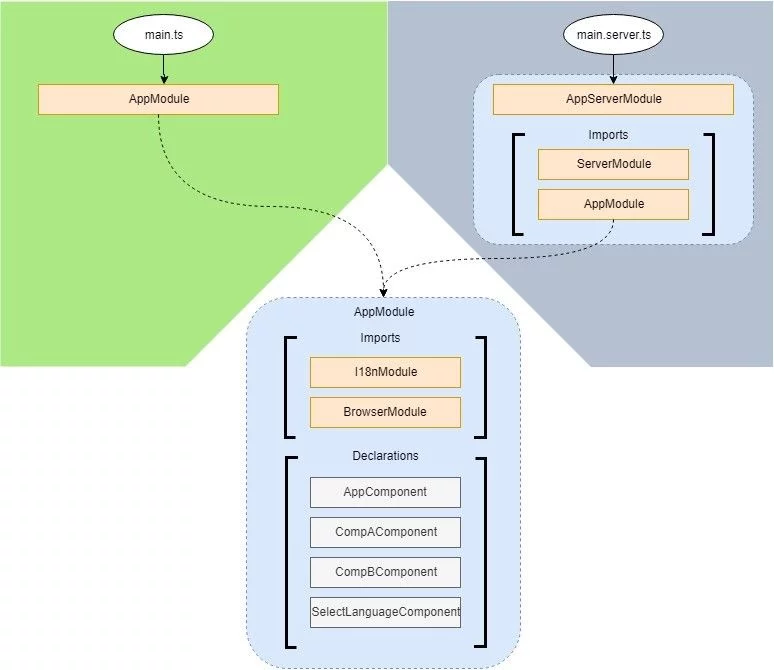
The diagram illustrates the code paths during browser execution (marked in green) and server execution (marked in blue). On the client path, the bootstrapping file (main.ts) imports AppModule directly. On the server path, the entry file imports AppServerModule, which itself imports AppModule. Additionally, note that I18nModule is a dependency of AppModule, meaning its code executes in both environments.
The approach that follows mirrors the server’s structure on the browser side. We’ll add a new module named AppBrowserModule, which will act as the bootstrap target. The existing I18nModule will be rebranded as I18nBrowserModule and be included in the imports of AppBrowserModule. Furthermore, a new I18nServerModule will be created to handle file loading via the filesystem, and it will be imported into AppServerModule. The resulting configuration looks like this:

Here’s the implementation of the new I18nServerModule.
import { Inject, NgModule } from '@angular/core';
import { REQUEST } from '@nguniversal/express-engine/tokens';
import { TranslateLoader, TranslateModule, TranslateService } from '@ngx-translate/core';
import { Request } from 'express';
import { readFileSync } from 'fs';
import { join } from 'path';
import { Observable, of } from 'rxjs';

@NgModule({
  imports: [
    TranslateModule.forRoot({
      loader: {
        provide: TranslateLoader,
        useFactory: translateFSLoaderFactory
      }
    })
  ]
})
export class I18nServerModule {
  constructor(translate: TranslateService, @Inject(REQUEST) req: Request) {
    translate.addLangs(['en', 'ru']);
    const language: 'en' | 'ru' = req.cookies.lang || 'en';
    translate.use(language.match(/en|ru/) ? language : 'en');
  }
}

export class TranslateFSLoader implements TranslateLoader {
  constructor(private prefix = 'i18n', private suffix = '.json') { }
  public getTranslation(lang: string): Observable<any> {
    const path = join(__dirname, '../browser/assets/', this.prefix, `${lang}${this.suffix}`);
    const data = JSON.parse(readFileSync(path, 'utf8'));
    return of(data);
  }
}

export function translateFSLoaderFactory() {
  return new TranslateFSLoader();
}
Two key processes are at work in this code.
First, Angular’s REQUEST injection token provides access to the complete request object. Through this token, we inspect the cookies to identify the user’s preferred language from the header. With that language identified, we invoke the use method on the TranslateService to render the page in the appropriate tongue.
Second, our custom loading logic in the TranslateFsLoader class executes as a result. Within this class, we rely on standard Node.js APIs (fs) to retrieve translation files from disk.
Solution 1 Conclusions
This strategy cleanly divides the server and browser code pipelines. PROBLEM 1 is eliminated since translate.getBrowserLang() resides solely within I18nBrowserModule, which is never executed on the server.
PROBLEM 2 is equally resolved by assigning each module — server or client — its appropriate loading mechanism: TranslateFsLoader for the former and TranslateHttpLoader for the latter.
This particular approach appeals to me due to the clarity it brings by isolating server logic from client logic. Introducing the AppBrowserModule lays the groundwork for situations where server-side and client-side behaviors diverge significantly. This may be the right fit for more substantial applications.
Still, another method deserves attention. Read on!
*** The code up to this point is available here.
Solution 2 — Consolidating Within a Single Module
Having explored Solution 1, we turn our attention to a second approach. This one, in contrast to the first, avoids the creation of any new modules. All pertinent code lives within the existing I18nModule. This is achievable with the help of Angular’s isPlatformBrowser function.
Let’s start from the PART 2 Checkpoint.
git checkout step-2
We’ll now enable I18nModule to recognize which platform it’s on and choose the fitting Loader — the TranslateFsLoader from the earlier section or the TranslateHttpLoader supplied by the ngx-translate package.
Add PLATFORM_ID to the deps array of the translateLoaderFactory, enabling the factory to make its decision based on the current environment.
export function translateLoaderFactory(httpClient: HttpClient, platform: any) {
  return isPlatformBrowser(platform)
    ? new TranslateHttpLoader(httpClient)
    : new TranslateFSLoader();
}
Now, the factory function will select the appropriate Loader based on the platform. The constructor of the I18nModule requires analogous updates.
@NgModule({...})
export class I18nModule {
  constructor(
    translate: TranslateService,
    translateCacheService: TranslateCacheService,
    @Optional() @Inject(REQUEST) private req: Request,
    @Inject(PLATFORM_ID) private platform: any
  ) {
    if (isPlatformBrowser(this.platform)) {
      translateCacheService.init();
    }
    translate.addLangs(['en', 'ru']);
    const browserLang = isPlatformBrowser(this.platform)
      ? translateCacheService.getCachedLanguage() || translate.getBrowserLang() || 'en'
      : this.getLangFromServerSideCookie() || 'en';
    translate.use(browserLang.match(/en|ru/) ? browserLang : 'en');
  }

  getLangFromServerSideCookie() {
    if (this.req) {
      return this.req.cookies.lang;
    }
  }
}
Attempting to build the application now will trigger an error.
Module not found: Error: Can't resolve 'fs' in 'C:\ssr-with-i18n\src\app\i18n'
Module not found: Error: Can't resolve 'path' in 'C:\ssr-with-i18n\src\app\i18n'
This happens because the fs and path dependencies, both strictly Node dependencies, are now referenced in code destined for the client bundle.
As developers, we realize these server-only dependencies are effectively dead code in the browser due to the surrounding if statements, but the compiler and bundler lack that insight.
Fortunately, this issue has a straightforward resolution. We can instruct the build system to exclude those dependencies from the browser output by leveraging the browser field in the package.json file.
Insert the following snippet into package.json.
"browser": {
  "fs": false,
  "path": false
}
This adjustment ensures the build completes and the application behaves identically to the one from Solution 1.
Solution 2 Conclusions
Both PROBLEM 1 and PROBLEM 2 are handled by distinguishing browser-specific code from server-specific code via a platform check:
isPlatformBrowser(this.platform)
With a unified compilation path for both environments, the strictly Node-dependent modules fs and path cause build-time errors during the browser bundle creation. This is addressed by listing these packages in the browser field of package.json and assigning them the value false.
The simplicity of this approach is what I find appealing. From the perspective of the consumer application, there’s no need for extra module files.
*** The code up to this point is available here.
Enhancing Performance with TransferState
When we launch the application as it stands and examine the network tab in the browser's developer tools, we notice that after the initial page load, a request goes out to fetch the JSON file for the active language.
This feels redundant, given that the server has already delivered the appropriate language content.
At first glance, an extra request for translations that are already available might appear trivial. There are likely other areas of the app that offer more significant performance wins. Refer to this guide for a deeper dive on that subject. However, as applications grow, so do their translation files. Consequently, the time required to download and parse them increases, making this a problem worth addressing at scale.
Fortunately, Angular Universal offers a solution with minimal effort: TransferState. When enabled, the server embeds the necessary data directly into the initial HTML payload delivered to the client. The client can then access this data instantly, bypassing any further server round-trips.
How the Workflow Operates
To leverage the TransferState capability, several steps are required:
1. Import the Angular-provided modules for both server and client contexts: ServerTransferStateModule and BrowserTransferStateModule
2. On the server side: assign the data to be carried over using the designated key with the API call: transferState.set(key, value)
3. On the client side: fetch that data with the corresponding API call: transferState.get(key, defaultValue)
Putting It Into Practice
To begin with, we incorporate the TransferState modules into our imports:
import { BrowserTransferStateModule, TransferState } from '@angular/platform-browser';

@NgModule({
  imports: [
    BrowserTransferStateModule, // ADDED
    // ...
  ]
})
export class I18nModule {
  // ...
}
import { ServerTransferStateModule } from '@angular/platform-server';

@NgModule({
  imports: [
    ServerTransferStateModule, // ADDED
    // ...
  ],
  bootstrap: [AppComponent],
})
export class AppServerModule { }
Next, we adjust the I18nModule accordingly. The refreshed code is presented below.
// ADDED needed imports from @angular
import { makeStateKey, TransferState } from '@angular/platform-browser';
@NgModule({
  imports: [
    TranslateModule.forRoot({
      loader: {
        provide: TranslateLoader,
        useFactory: translateLoaderFactory,
        deps: [HttpClient, TransferState, PLATFORM_ID] // ADDED: dependency for the factory func
      }
    })
  ]
})
export class I18nModule {
  // ...
}
Subsequently, the translateLoaderFactory takes on this updated shape:
export function translateLoaderFactory(httpClient: HttpClient, transferState: TransferState, platform: any) {
  return isPlatformBrowser(platform)
    ? new TranslateHttpLoader(httpClient)
    : new TranslateFSLoader(transferState);
}
The TranslateFsLoader now integrates with TransferState:
import { makeStateKey, TransferState } from '@angular/platform-browser';

export class TranslateFsLoader implements TranslateLoader {
  constructor(
    // ADDED: inject the transferState service
    private transferState: TransferState,
    private prefix = 'i18n',
    private suffix = '.json'
  ) { }

  public getTranslation(lang: string): Observable<any> {
    const path = join(__dirname, '../browser/assets/', this.prefix, `${lang}${this.suffix}`);
    const data = JSON.parse(readFileSync(path, 'utf8'));
    // ADDED: store the translations in the transfer state:
    const key = makeStateKey<any>('transfer-translate-' + lang);
    this.transferState.set(key, data);
    return of(data);
  }
}
What's the exact mechanism for transferring the state? During server-side rendering, the framework packs the data into a <script> tag within the generated HTML. This is visible in the illustration below.
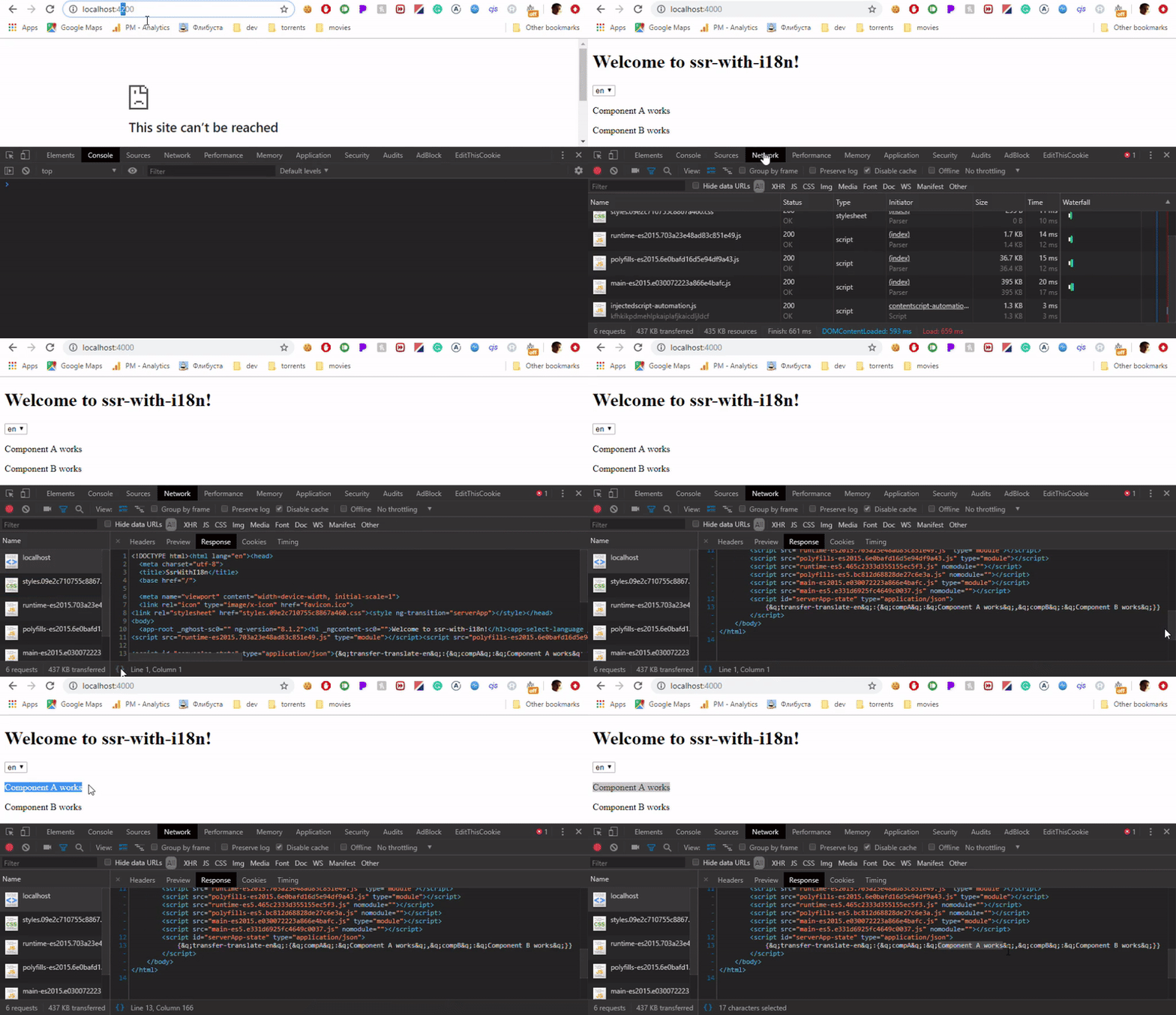
Upon the bootstrap of the client-side bundle, this data becomes readily accessible.
Now we must enable the client-side Loader to utilize the transferred data. Currently, our loader factory just returns the TranslateHttpLoader. A custom loader is needed to manage the transfer state as well.
We'll create a new file housing the custom loader class. Its structure is shown below.
export class TranslateBrowserLoader implements TranslateLoader {
  constructor(
    private transferState: TransferState,
    private http: HttpClient,
    private prefix: string = 'i18n',
    private suffix: string = '.json',
  ) { }

  public getTranslation(lang: string): Observable<any> {
    const key = makeStateKey<any>('transfer-translate-' + lang);
    const data = this.transferState.get(key, null);

    // First we are looking for the translations in transfer-state, if none found, http load as fallback
    return data
      ? of(data)
      : new TranslateHttpLoader(this.http, this.prefix, this.suffix).getTranslation(lang);
  }
}
Modify the translateLoaderFactory to point to this new Loader:
export function translateLoaderFactory(httpClient: HttpClient, transferState: TransferState, platform: any) {
  return isPlatformBrowser(platform)
    ? new TranslateBrowserLoader(transferState, httpClient) // <- Changed
    : new TranslateFSLoader(transferState);
}
Wrapping Up TransferState
Employing TransferState has spared us from re-fetching data in the browser that was already loaded on the server.
After these changes, running the application shows no extraneous request for the current language's JSON file in the network tab.
*** The codebase at this stage is accessible here.
Are We Done Yet?
Depending on whether Solution 1 or 2 was selected, it appears everything is functioning correctly! Let’s shut the developer tools and savor the sense of achievement after all that effort.
To verify, let's modify our JSON files by appending "!!!" to every translation string as a celebratory touch. We then build and start the app. After refreshing the page, we’re puzzled—those "!!!" are nowhere to be found. What went wrong?
This hiccup occurred because, with the developer tools open, the browser cleared its cache on each reload, fetching fresh JSON files every time. Once the tools were closed, caching kicked in for our assets. Despite our changes to the JSON contents, the browser remained unaware of them.
So how does the browser consistently load the newest JavaScript and CSS files? Angular's build process appends a distinct hash to each filename.
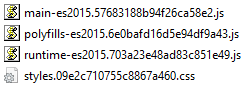
This hash shifts whenever the file content changes. We need to mirror this behavior for our JSON assets.
The solution is quite straightforward. We'll create a /scripts directory and place a new file there: hash-translations.js.
"use strict";
const fs = require('fs');
const path = require('path');
const md5 = require('md5');
const srcPath = 'src/assets/i18n';
const destPath = 'src/assets/i18n/autogen';

cleanDestinationDir();
const map = generateHashedFiles();
saveHashMapFile(map);

function cleanDestinationDir() {
  console.log("Cleaning existing destinaiton directory");
  if (fs.existsSync(destPath) && fs.statSync(destPath).isDirectory()) {
    const destFiles = fs.readdirSync(destPath);
    destFiles.forEach(function(fileName) {
      fs.unlinkSync(path.join(destPath, fileName));
    });
  } else {
    fs.mkdirSync(destPath);
  }
}

function generateHashedFiles() {
  const map = {};
  const srcFiles = fs.readdirSync(srcPath);
  srcFiles.forEach(function(fileName) {
    if (fileName === 'autogen') { return; }
    const srcFile = path.join(srcPath, fileName);
    console.log('Reading source file: ', srcFile);
    const buf = fs.readFileSync(srcFile);
    const hash = md5(buf);
    const lang = fileName.split('.')[0];
    map[lang] = hash;
    const destFile = path.join(destPath, `${lang}.${hash}.json`);
    console.log('Writing new file:', destFile);
    fs.writeFileSync(destFile, buf);
  });
  return map;
}

function saveHashMapFile(map) {
  const mapFile = path.join(destPath, 'map.json');
  console.log('Writing map file: ', mapFile);
  fs.writeFileSync(mapFile, JSON.stringify(map, null, 2));
}
A new dependency is required for this script to function.
npm install md5 -D
Two key variables are defined in this script: the source path and the destination path.
Initially, the script cleans the destination directory if it already has contents. It then scans the specified source, reads the JSON files, and computes hashes with md5 derived from the file data.
Following hash generation, a copy of each file is written to the destination with the hash incorporated into the filename.
Finally, a map.json file is generated and placed in the destination as well. This mapping allows us to pick the right hashed file per locale. Its structure looks something like this:
{
  "en": "[hash-for-file-1]",
  "ru": "[hash-for-file-2]"
}
A script entry should be added under the scripts field in package.json for execution.
Additionally, update the start and build:ssr commands to invoke this fresh script:
"hash:i18n": "node scripts/hash-translations.js",
"start": "npm run hash:i18n && ng serve",
"build:ssr": "npm run hash:i18n && npm run build:client-and-server-bundles && npm run compile:server"
Go ahead and execute the new script to check the output. It's worth noting that these auto-generated files shouldn't be committed to the repository, as they change frequently. Add an entry in the .gitignore file for them.
src/assets/i18n/autogen/*
The final step is to update the Translation Loaders to serve these auto-generated files.
The target path for each file looks like this: ./assets/i18n/autogen/${lang}.${hash}.json. Within this, ./assets/i18n/autogen/ serves as the prefix, while .${hash}.json acts as the suffix. Both parameters require adjustment to utilize the generated files effectively.
We can manage the prefix modifications for both loaders this way.
export function translateLoaderFactory(httpClient: HttpClient, transferState: TransferState, platform: any) {
  const prefix = './assets/i18n/autogen/';
  return isPlatformBrowser(platform)
    ? new TranslateBrowserLoader(transferState, httpClient, prefix)
    : new TranslateFSLoader(transferState, prefix);
}
The suffix needs handling within the getTranslation method of each loader, since we need access to the lang variable there.
First, we must acquire the auto-generated map.json file.
const i18nMap = require('../../assets/i18n/autogen/map.json');
The require syntax is used because this file may only exist during build time.
For the TranslateBrowserLoader, the changes are as follows:
const suffix = `.${i18nMap[lang]}${this.suffix}`;

return data
  ? of(data)
  : new TranslateHttpLoader(this.http, this.prefix, suffix).getTranslation(lang);
For TranslateFsLoader, just a single line needs to be altered.
const path = join(__dirname, '../browser', this.prefix, `${lang}.${i18nMap[lang]}${this.suffix}`);
After compiling and launching, everything runs as expected; the browser now fetches updated translation files whenever necessary.
*** The complete final code is available here.
Key Takeaways
Throughout this article, we developed a robust approach for handling application translation strings through separate JSON files, leveraging the popular ngx-translate library. We examined existing community solutions for integrating this with SSR applications, identified their shortcomings, and implemented superior alternatives. Several advanced features were also integrated, including: (1) storing the chosen language in Cookies for persistence, (2) applying State Transfer to cut down on unnecessary HTTP calls, and (3) ensuring translation files are cache-busted for fresh updates.