A huge thank-you goes out to Zack Jackson, the creator of Module Federation, for his help in steering me clear of a few obstacles.
Heads-up: The instructions here target Angular along with Angular CLI 14 or newer. Double-check that your setup matches before running the demos! For a deeper look at the differences or upgrading to Angular 14, refer to this migration guide.
In the earlier post, I walked through using Module Federation, a feature bundled with webpack starting from version 5, to build microfrontends. In this piece, I bring Angular into the mix and demonstrate how to set up an Angular shell that leverages the router to lazy-load a microfrontend which has been built and deployed separately.
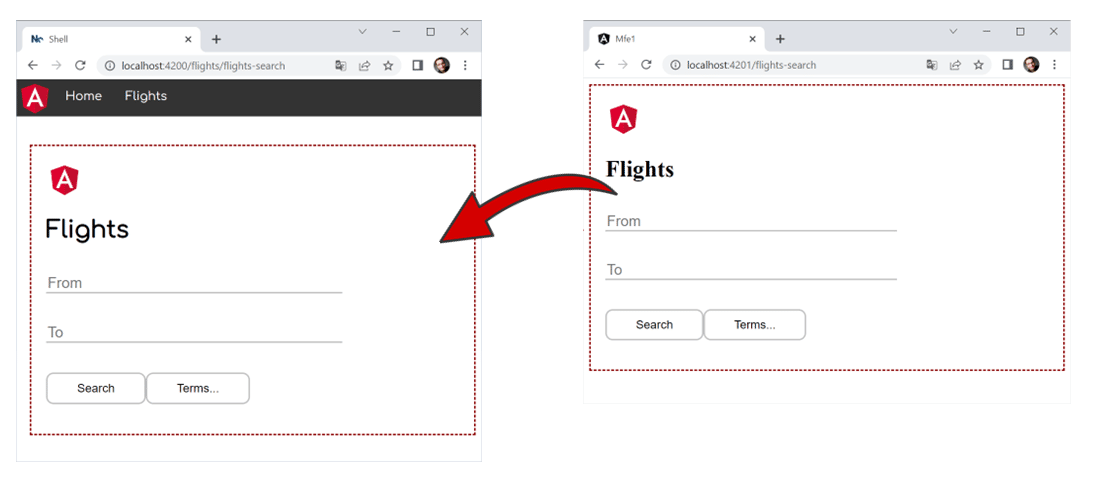
Even though Angular is now involved, the final outcome mirrors what we saw before:
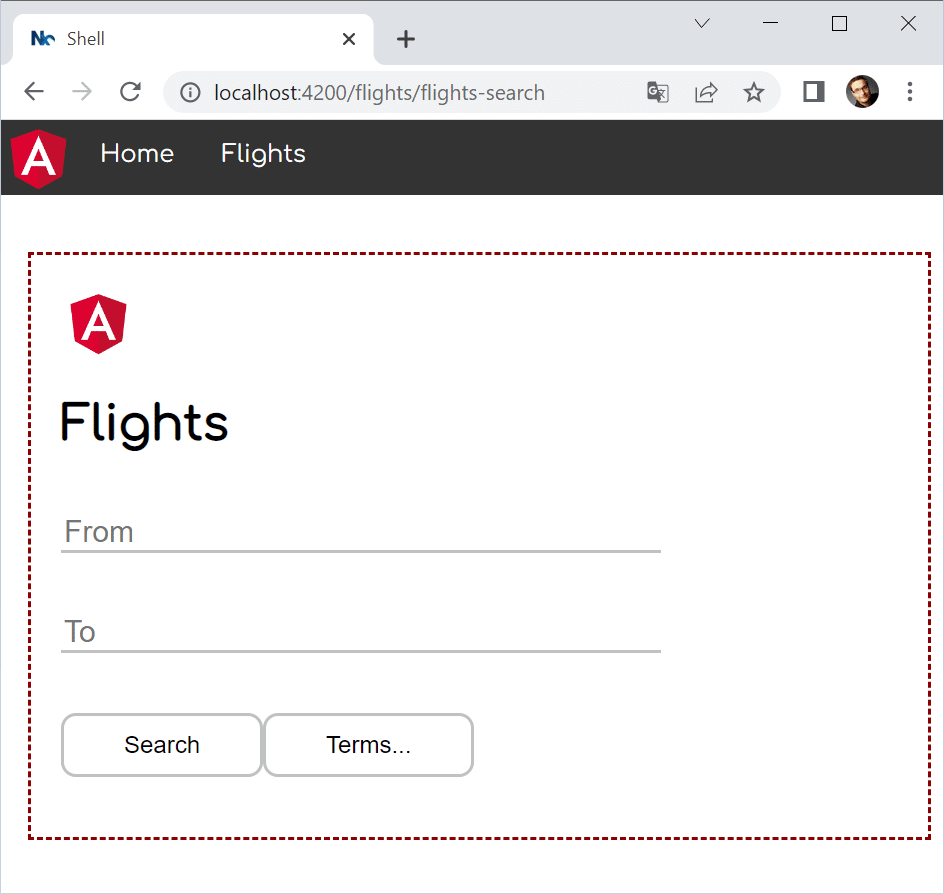
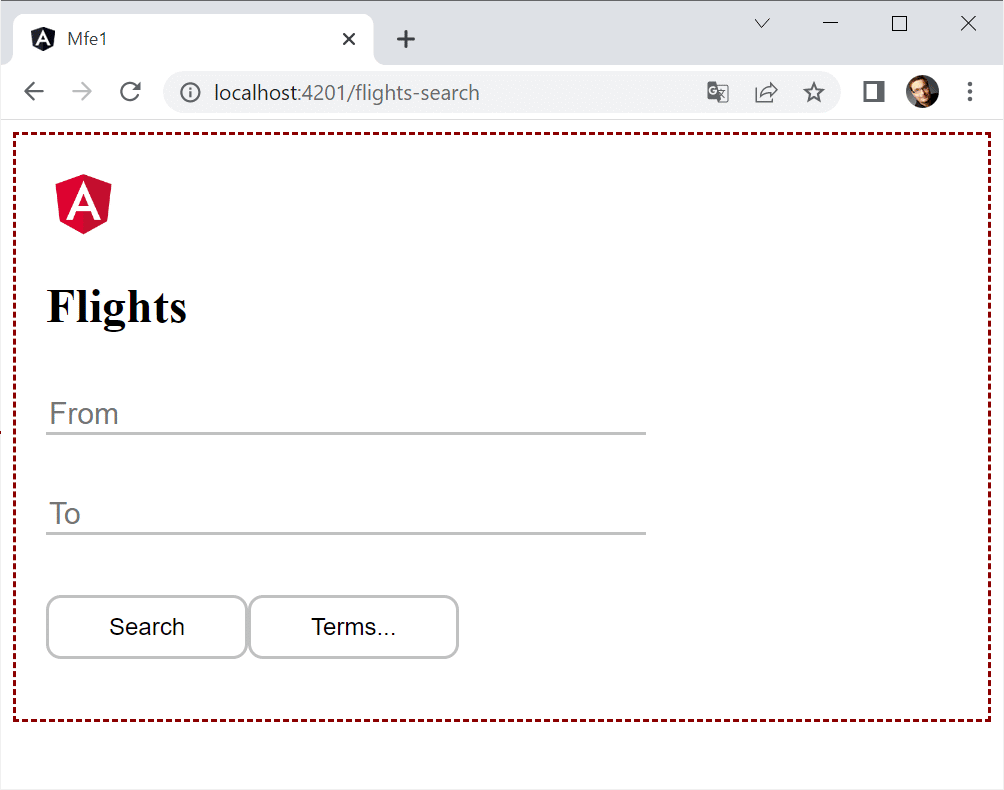
The microfrontend appears inside the red dashed border. Furthermore, it is possible to run the microfrontend independently of the shell:
📂 Source Code (see branch static)
Enabling Module Federation in Angular Apps
In this example, the shell and the microfrontend reside within the same Angular workspace. To leverage module federation during the build, we must instruct the CLI to use it. However, since the CLI abstracts away webpack details, a specialized builder becomes necessary.
The @angular-architects/module-federation package offers exactly this tailored builder. To begin, run "ng add" on your projects:
ng add @angular-architects/module-federation --project shell --port 4200 --type host
 ng add @angular-architects/module-federation --project mfe1 --port 4201 --type remote
When working with Nx, the library has to be pulled in through a separate npm install. Once that’s done, the init schematic becomes available for use:
npm i @angular-architects/module-federation -D

 ng g @angular-architects/module-federation:init --project shell --port 4200 --type host
 ng g @angular-architects/module-federation:init --project mfe1 --port 4201 --type remote
Introduced in version 14.3, the
--typecommand line argument ensures that only the required configuration gets generated.
It is clear that the shell project hosts the shell code, while mfe1 is short for Micro Frontend 1.
This command accomplishes a few tasks:
- It creates the foundation of a
webpack.config.jstailored for module federation - It sets up a custom builder that makes the CLI's webpack use the newly created
webpack.config.js. - It designates a fresh port for
ng serve, allowing multiple projects to run at once.
Keep in mind that webpack.config.js is not a full webpack setup—it's partial. It only covers module federation specifics; everything else is handled by the CLI as normal.
The Shell (a.k.a. Host)
We begin with the shell, also known as the host within module federation. It leverages the router to load a FlightModule lazily:
export const APP_ROUTES: Routes = [
     {
       path: '',
       component: HomeComponent,
       pathMatch: 'full'
     },
     {
       path: 'flights',
       loadChildren: () => import('mfe1/Module').then(m => m.FlightsModule)
     },
 ];
That said, the import path mfe1/Module used in this example has no real counterpart inside the shell. It's merely a fabricated reference that resolves to a different application.
To satisfy TypeScript, we have to provide a type declaration for this path:
// decl.d.ts
 declare module 'mfe1/Module';
On top of that, webpack must be informed that everything under mfe1 belongs to a different application. The generated webpack.config.js allows us to configure this:
const { shareAll, withModuleFederationPlugin } = require('@angular-architects/module-federation/webpack');

 module.exports = withModuleFederationPlugin({

   remotes: {
     "mfe1": "http://localhost:4201/remoteEntry.js",
   },

   shared: {
     ...shareAll({ singleton: true, strictVersion: true, requiredVersion: 'auto' }),
   },

 });
The remotes section maps mfe1 to its remote entry point -- a compact file webpack generates while building the remote. At runtime, webpack fetches this file to gather all data necessary for communicating with the microfrontend.
Hardcoding the remote entry's URL works fine during development, but production calls for a more adaptable solution.
This series' next installment tackles exactly that: Dynamic Federation.
With the shared property, you specify which npm packages get reused by both the shell and the microfrontend(s). The generated snippet employs the shareAll helper -- essentially distributing every dependency found in your package.json. That's handy for a rapid start, yet it can balloon into excessive sharing. A later section dives deeper into this.
Pairing singleton: true with strictVersion: true forces webpack to trigger a runtime error whenever the shell and microfrontend(s) request mismatched versions (say, two distinct major releases). Dropping strictVersion or setting it to false reduces the issue to a mere runtime warning. For deeper insight into resolving such version conflicts, check out this dedicated article in the series.
The requiredVersion: 'auto' flag is a bonus from the @angular-architects/module-federation toolkit. It checks your package.json to determine the actual installed version, which sidesteps a number of potential headaches.
Within this generated configuration, the
sharehelper substitutes the string'auto'with the version documented in yourpackage.json.
The Microfrontend (aka Remote)
The microfrontend -- commonly known as a remote in module federation jargon -- mirrors a typical Angular app, featuring routes registered in the AppModule:
export const APP_ROUTES: Routes = [
     { path: '', component: HomeComponent, pathMatch: 'full'}
 ];
Also, there is a FlightsModule:
@NgModule({
   imports: [
     CommonModule,
     RouterModule.forChild(FLIGHTS_ROUTES)
   ],
   declarations: [
     FlightsSearchComponent
   ]
 })
 export class FlightsModule { }
This module has some routes of its own:
export const FLIGHTS_ROUTES: Routes = [
     {
       path: 'flights-search',
       component: FlightsSearchComponent
     }
 ];
To enable the shell to load FlightsModule, the module must also be exposed through the webpack configuration of the remote:
const { shareAll, withModuleFederationPlugin } = require('@angular-architects/module-federation/webpack');

 module.exports = withModuleFederationPlugin({

   name: 'mfe1',

   exposes: {
     './Module': './projects/mfe1/src/app/flights/flights.module.ts',
   },

   shared: {
     ...shareAll({ singleton: true, strictVersion: true, requiredVersion: 'auto' }),
   },

 });
The setup above publishes the FlightsModule as the externally visible Module. Within shared, we list those packages that the shell will reuse.
Trying it out
All that remains is launching both the shell and the microfrontend to see the result.
ng serve shell -o
 ng serve mfe1 -o
Once the shell triggers a click on Flights, the micro frontend gets fetched and executed.
Hint: Another option is to leverage the npm script run:all, which the plugin sets up automatically through its ng-add and init schematics.
npm run run:all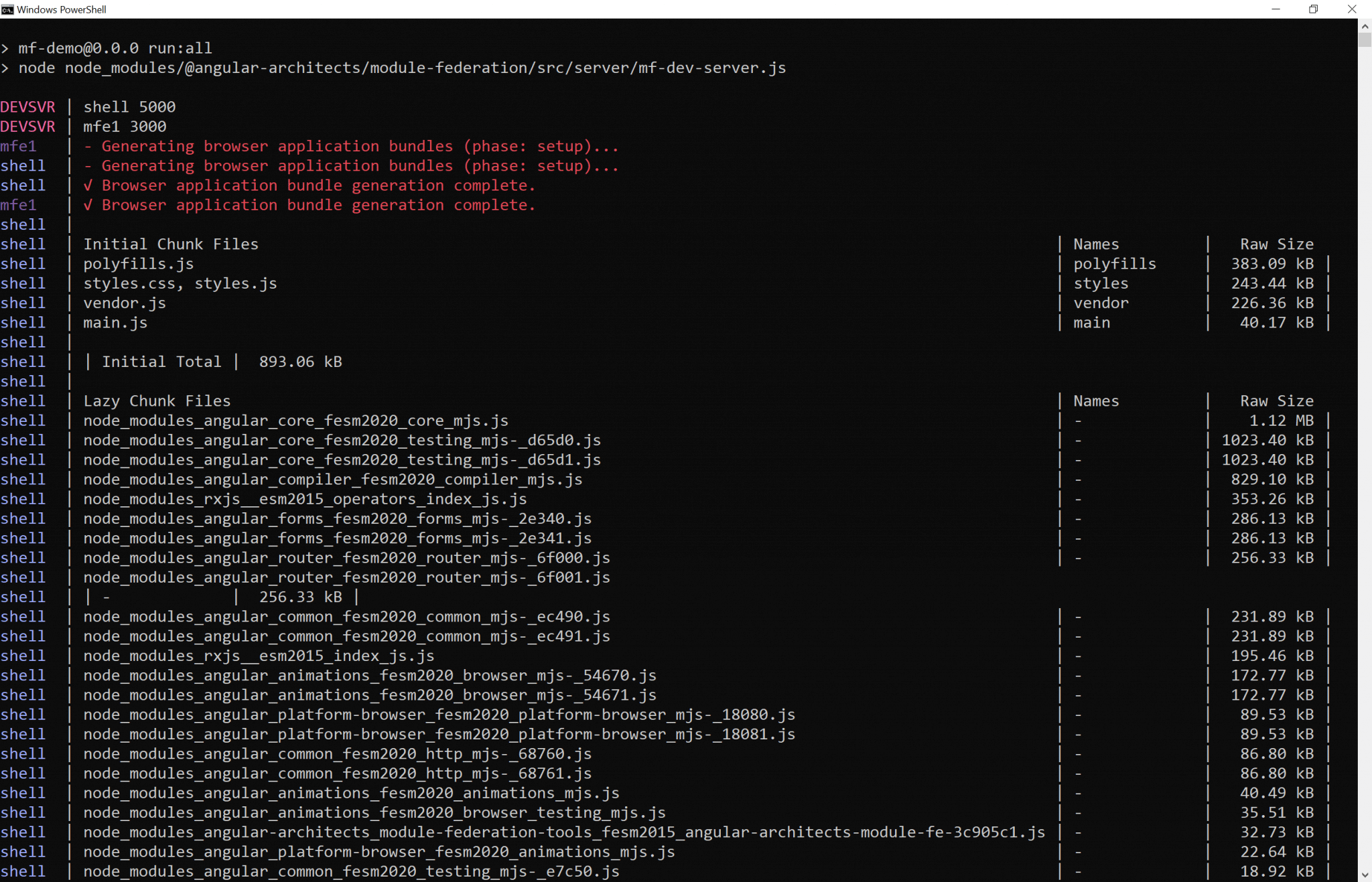
Pass the names of the applications you want to launch as command line arguments:
npm run run:all shell mfe1A Closer Look
So far, so good. But what about your main.ts?
It turns out it’s nothing more than this:
import('./bootstrap')
     .catch(err => console.error(err));
The content that normally lives inside main.ts has been relocated to the bootstrap.ts file that gets loaded in this spot. This restructuring was handled by the @angular-architects/module-federation plugin.
At first glance, this arrangement may appear pointless. In reality, it's a standard approach seen across applications built with Module Federation. The framework must determine which version of a shared library gets loaded. Consider a scenario where the shell relies on version 12.0, yet one micro frontend was compiled against version 12.1. In that case, Module Federation picks the newer release.
To fetch the metadata required for that decision, Module Federation intercepts dynamic imports, such as the one seen here. Unlike the more conventional static imports, dynamic imports operate asynchronously. That gives Module Federation the chance to pick the appropriate versions and then fetch them.
For a deeper dive, consult a previous installment in this series.
More Details: Sharing Dependencies
As noted earlier, relying on shareAll offers a fast path to a configuration that works out of the box. Still, the downside is an overabundance of shared chunks. Since shared dependencies resist tree shaking and, by default, land in separate bundles that must be requested, you might decide to refine this setup—switching from shareAll to the share utility:
// Import share instead of shareAll:
 const { share, withModuleFederationPlugin } = require('@angular-architects/module-federation/webpack');

 module.exports = withModuleFederationPlugin({

     // Explicitly share packages:
     shared: share({
         "@angular/core": { singleton: true, strictVersion: true, requiredVersion: 'auto' },
         "@angular/common": { singleton: true, strictVersion: true, requiredVersion: 'auto' },
         "@angular/common/http": { singleton: true, strictVersion: true, requiredVersion: 'auto' },
         "@angular/router": { singleton: true, strictVersion: true, requiredVersion: 'auto' },
     }),

 });
What lies ahead? Diving Deeper into Architecture!
Up to this point, our exploration has shown that Module Federation offers a straightforward path to building Micro Frontends with Angular. Yet, as you start using it, a host of follow-up considerations naturally arise:
- What rules or standards guide the division of a massive application into micro frontends?
- What kind of access control configurations are appropriate?
- Which established, battle-tested patterns are worth adopting?
- What common mistakes should you be careful to avoid with Module Federation?
- What sort of more sophisticated use cases can be supported?
Our complimentary eBook—roughly 100 pages in length—addresses every one of these topics and beyond:
You can grab a copy right away by downloading it here.
Final Thoughts and Assessment
Up to this point, building microfrontends has demanded a fair amount of clever hacks and patchwork solutions. With Webpack Module Federation, we finally get a straightforward and reliable mechanism for this. Performance can be boosted by sharing libraries and setting up rules to manage mismatched dependencies.
What’s particularly noteworthy is that Webpack handles the microfrontend loading invisibly. Neither the host application’s code nor the remote’s reveals any indication of this process. As a result, employing module federation doesn’t complicate the codebase and eliminates the need for separate microfrontend frameworks.
Yet, this convenience shifts greater responsibility onto the development team. You must verify that components, which are fetched at runtime and weren’t present during the build, still behave as expected.
Version conflicts are another concern. For instance, components bundled with different major Angular releases will likely fail to interoperate at runtime. To mitigate this, you need to rely on agreed-upon conventions or catch such issues early through integration checks.