Background Context
Before diving in, let me share some context about the app I built. It's open source, and you can explore the code on GitHub here.
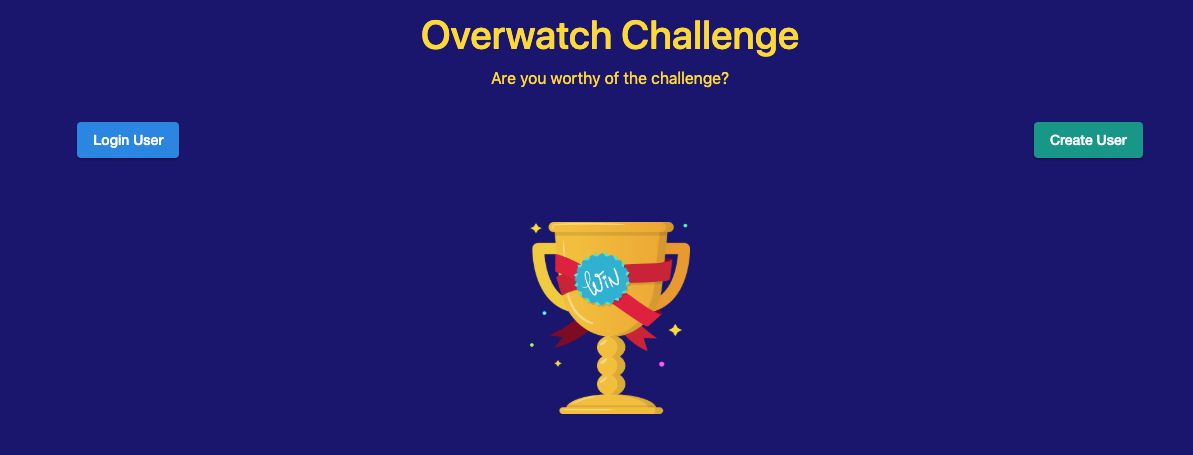
As mentioned in the introduction, this application is designed to encourage knowledge sharing among my colleagues on a weekly basis.
- Users earn points based on the learning activities they log each week.
- At the end of the week, top scorers are acknowledged, followed by an informal session to discuss highlights from their learning.
- The app integrates with Slack and uses Zoom for meetings.
- Each recorded learning activity includes a hyperlink for later review.
Before this project, I had experimented with Cloud Functions and built a few HTTP endpoints. I was curious about how Node Express could be used to construct a full API entirely on Firebase Cloud Functions.
For this app, though, I wanted to take advantage of Cloud Firestore triggers so that functions would execute automatically whenever records were written. With this trigger-based approach, I could focus on building the application while the Cloud Functions handled all notification logic.
The Implementation
I'll assume you're familiar with Firebase basics. For a solid foundation, I recommend checking out the following articles from Angular-In-Depth:
- How the AngularFire Library makes Firebase feel like Magic
- The Angular DevOps Series: Deploying to Firebase with CircleCI
With that background in place, I'll walk through how I set up the triggers and the associated code.
My goal was to use triggers in Cloud Firestore so that my project's Slack channel would receive automatic updates.
Specifically, I wanted triggers for:
- When a new user registers
- When a user records a learning activity
Since Slack was the target, I started by setting up Slack Incoming Webhooks. Slack's documentation makes this straightforward, so I won't repeat the steps here.
Once the webhook URL is ready, you simply need a way to POST to that endpoint.
With Firebase Cloud Functions, this is quite simple. You can use the request library along with the Admin SDK to communicate with your Firebase app and send POST requests. Initial setup instructions are available in the official Firebase documentation.
After setup, you follow the request and response pattern outlined in Firebase's trigger documentation. Here's an example taken from the Firebase Firestore trigger docs:
// this will fire whenever a record is added to the users collection
exports.createUser = functions.firestore
    .document('users/{userId}')
    .onCreate((snap, context) => {
      // Get an object representing the document
      // e.g. {'name': 'Marie', 'age': 66}
      const newValue = snap.data();

      // access a particular field as you would any JS property
      const name = newValue.name;

      // perform desired operations ...
    });
Triggers support a wide range of possibilities—you can find more in the official documentation.
In the end, I ended up with these two functions:
const functions = require('firebase-functions');
const admin = require('firebase-admin');
admin.initializeApp();
const request = require('request');

// when a new user is registered
exports.createUser = functions.firestore
    .document('users/{userId}')
    .onCreate((snap, context) => {
      const newValue = snap.data();
      const firstName = newValue.firstName;
      const lastName = newValue.lastName;
      const slackWebhook = 'OC_slack1';
      const message = "user " + firstName + " " + lastName + " just registered!";

      request.post(
        slackWebhook,
        { json: { text: message } })
        .then(() => {
            return res.status(200).send('slack message sent successfully');
        })
        .catch(() => {
            return res.status(500).semd('error occured whens ending slack message');
        });
    });

// when a new activity is created
exports.createActivity = functions.firestore
    .document('teamActivity/{Id}')
    .onCreate((snap, context) => {
      const newValue = snap.data();
      const firstName = newValue.firstName;
      const lastName = newValue.lastName;
      const activity = newValue.activity;
      const description = newValue.description;
      const link = newValue.link;
      const points = newValue.points;
      const slackWebhook = 'OC_slack2';
      const message = firstName + " " + lastName + " just added the activity " + activity
        + " for " + points + " points with the description \"" + description + ".\"  Here's a the link " + link + ".";

      request.post(
        slackWebhook,
        { json: { text: message } })
        .then(() => {
            return res.status(200).send('slack message sent successfully');
        })
        .catch(() => {
            return res.status(500).semd('error occured whens ending slack message');
        });
    });
As shown, whenever records are added to the users collection or the teamActivity collection, Slack notifications are sent automatically.
A particularly nice aspect is that this all relies on standard Node Express syntax. If you're comfortable sending requests with Node Express, you can apply the same approach here without learning anything new.
The outcome is seamless, automated messaging in the project's Slack channel.
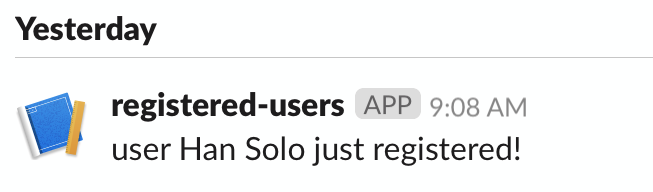
User Registered
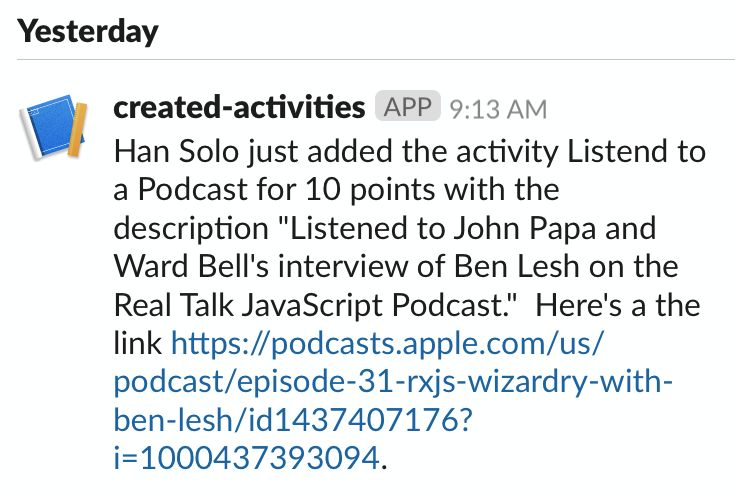
Activity Created
Final Remarks
This experience demonstrates how quickly you can get started with Firebase Cloud Functions. From what I understand, Firebase Cloud Functions are essentially Google Cloud Functions tailored specifically for Firebase. The documentation shows just how many options are available, and the flexibility is impressive. I hope this post gives you a useful starting point—be sure to browse the docs and the application code when you get a chance.