Setting Up
To begin, leverage Angular CLI to scaffold and launch a fresh application:
ng new ie-test
cd ie-test
ng serve
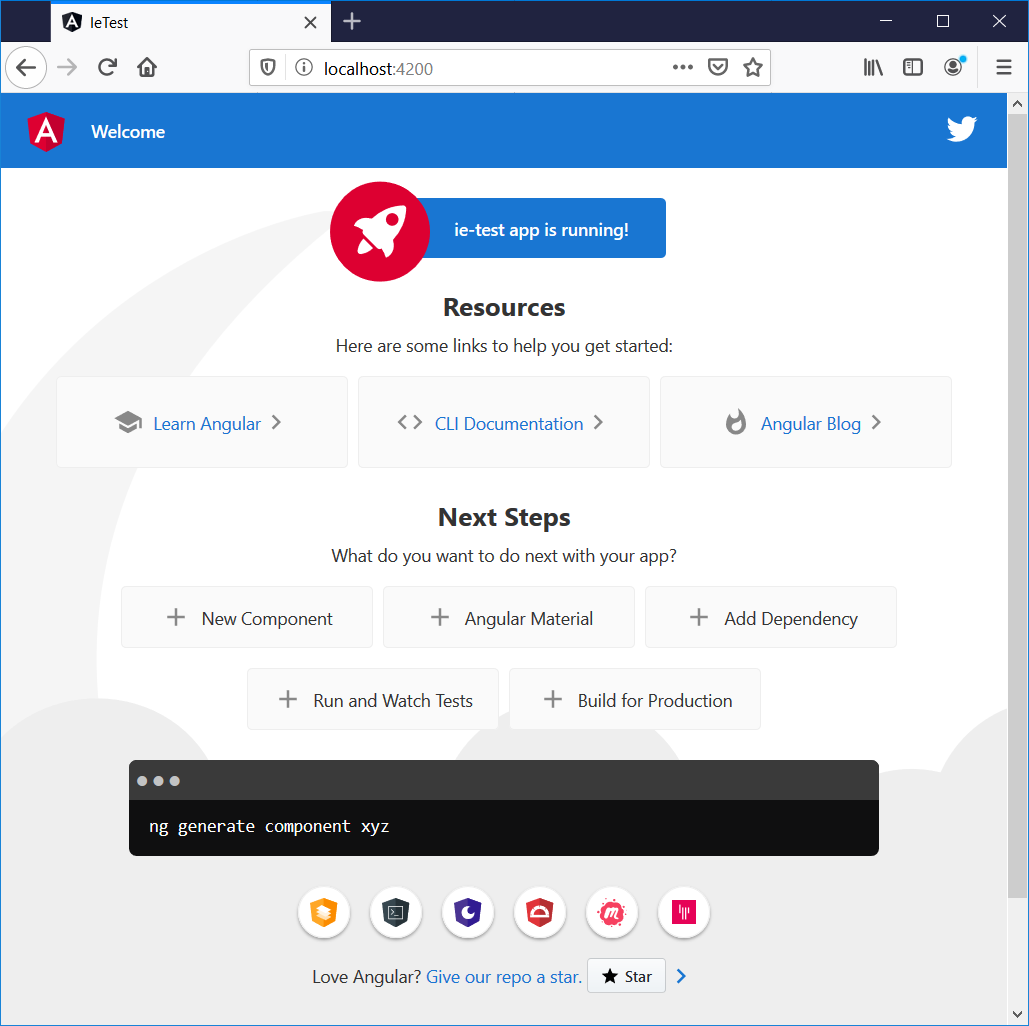
If you direct virtually any browser other than Internet Explorer to http://localhost:4200, you’ll be greeted by the familiar Angular CLI starter page. In Firefox, this is what it renders as:
Observing the Problem
However, the story changes when you open the same URL in Internet Explorer. The result looks like this:
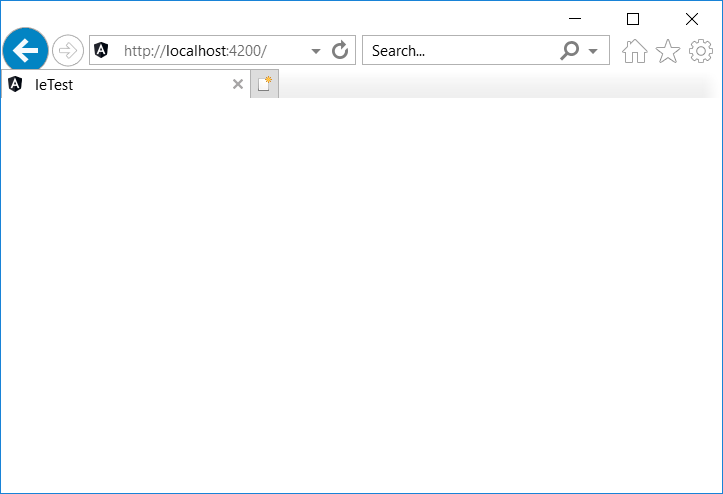
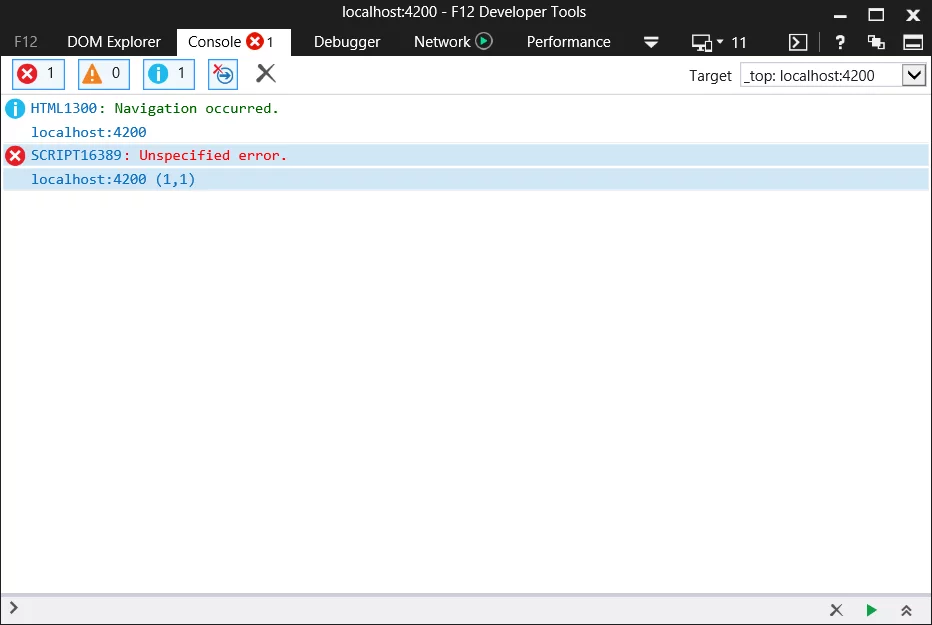
Interestingly, the page title is correctly set, so the application is partially loading. If you open the Browser Console and refresh the page, you’ll encounter the following message:
Unspecified error.
Remediation Steps
To bring Internet Explorer into the fold, you’ll need to complete these actions:
- Enable the commented-out imports in the polyfill.ts file.
- Install two npm packages.
- Adjust the browserslist configuration file.
Here’s a closer look at each step.
Enabling Polyfills
Start by opening the polyfills file:
ie-test\src\polyfills.ts
Inside, you’ll find two commented lines that need to be activated by uncommenting them:
// import 'classlist.js';  // Run `npm install --save classlist.js`.

// import 'web-animations-js';  // Run `npm install --save web-animations-js`.
Installing Required Packages
The comments within the polyfills file also include specific npm install commands. Execute them as follows:
npm install --save classlist.js
npm install --save web-animations-js
Configuring browserslist
Next, locate and open the browserslist file:
ie-test\browserslist
By default, Angular CLI generates a file that resembles this:
# This file is used by the build system to adjust CSS and JS output to support the specified browsers below.
# For additional information regarding the format and rule options, please see:
# https://github.com/browserslist/browserslist#queries

# You can see what browsers were selected by your queries by running:
#   npx browserslist

> 0.5%
last 2 versions
Firefox ESR
not dead
not IE 9-11 # For IE 9-11 support, remove 'not'.
Your task is to edit the final line by removing the "not" and the space before it. Once adjusted, that line should read:
IE 9-11 # For IE 9-11 support, remove 'not'.
Internet Explorer in Production Builds
At this stage, ng serve still won’t function properly with Internet Explorer—additional adjustments are necessary for that.
Nevertheless, if your sole requirement is to support Internet Explorer for production deployments, the steps covered above are sufficient. To verify this, run a production build and serve the resulting dist/ie-test directory with any web server.
ng build --prod
Observe that the build process now outputs ES5 bundles:
$\ie-test> ng build --prod
Generating ES5 bundles for differential loading...
ES5 bundle generation complete.
chunk {0} runtime-es2015.edb2fcf2778e7bf1d426.js (runtime) 1.45 kB [entry] [rendered]
chunk {0} runtime-es5.edb2fcf2778e7bf1d426.js (runtime) 1.45 kB [entry] [rendered]
chunk {2} polyfills-es2015.2987770fde9daa1d8a2e.js (polyfills) 36.4 kB [initial] [rendered]
chunk {3} polyfills-es5.ef4b1e1fc703b3ff76e3.js (polyfills-es5) 123 kB [initial] [rendered]
chunk {1} main-es2015.77c5c44e21b70d1ec41a.js (main) 169 kB [initial] [rendered]
chunk {1} main-es5.77c5c44e21b70d1ec41a.js (main) 190 kB [initial] [rendered]
chunk {4} styles.3ff695c00d717f2d2a11.css (styles) 0 bytes [initial] [rendered]
Date: 2019-12-03T23:28:06.809Z - Hash: 89a94328c69b68370cb8 - Time: 43148ms
You can then test the build with a lightweight server. For instance, I’ll employ local-web-server via npx. If you’re unfamiliar with npx, I recommend reading Kat Marchán’s explanation:
Introducing npx: an npm package runner
After the build completes, execute:
cd .\dist\ie-test\
npx local-web-server
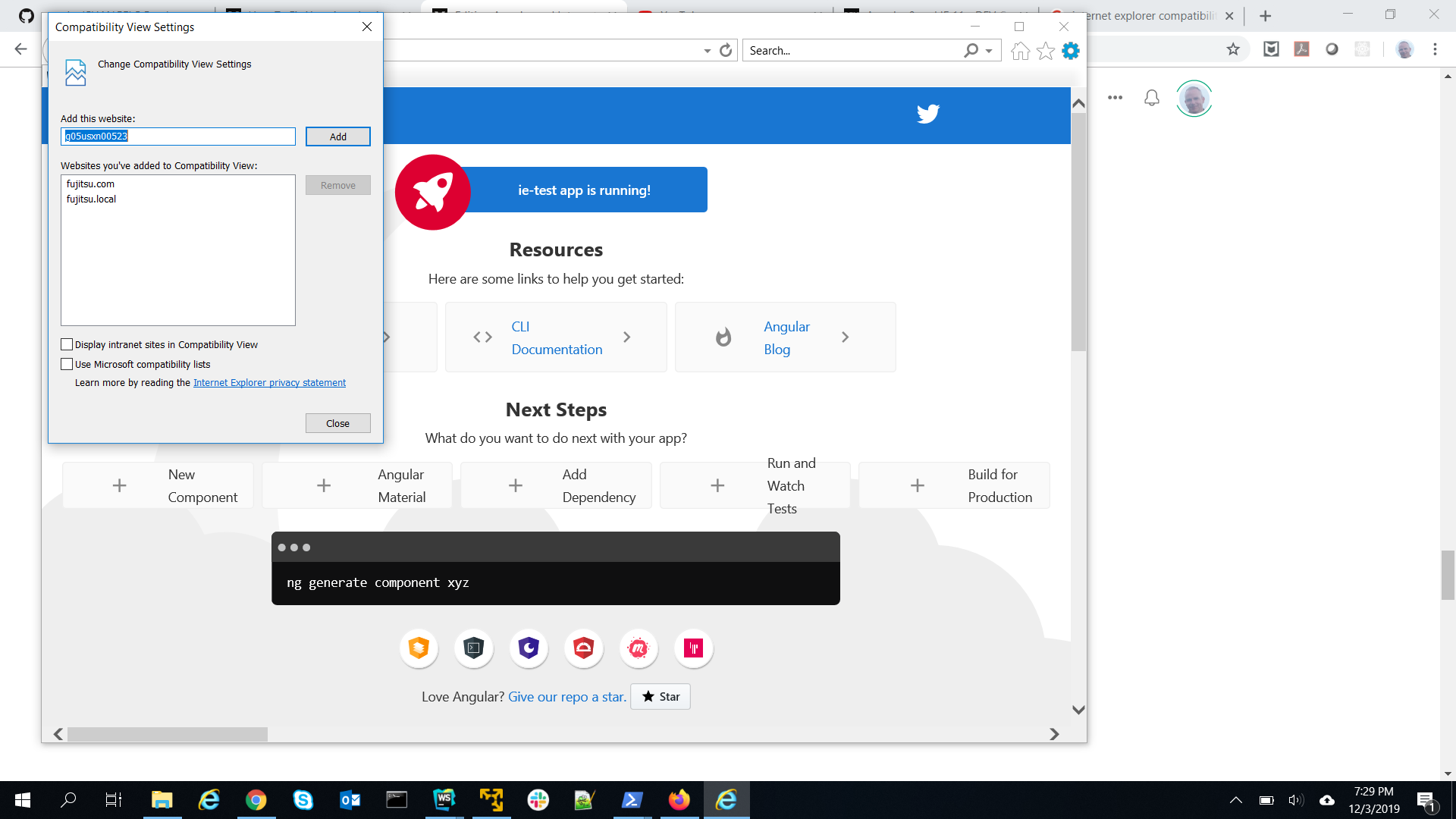
This will host your Angular application. Direct Internet Explorer to the server and you should see:

Heads-up:
If the application remains blank, you might need to disable Display intranet sites in Compatibility View found within the Compatibility View Settings.
Internet Explorer in Development Mode
On the other hand, when using:
ng serve
you’ll still face the empty page in Internet Explorer. This happens because ng serve does not automatically produce the ES5 bundle.
You have two options to address this:
- Adjust the tsconfig.json file directly.
- Set up a separate ES5 configuration.
Adjusting tsconfig.json
Navigate to the tsconfig.json file at the root of your Angular workspace. Open it and you’ll see:
{
  "compileOnSave": false,
  "compilerOptions": {
    "baseUrl": "./",
    "outDir": "./dist/out-tsc",
    "sourceMap": true,
    "declaration": false,
    "downlevelIteration": true,
    "experimentalDecorators": true,
    "module": "esnext",
    "moduleResolution": "node",
    "importHelpers": true,
    "target": "es2015",
    "typeRoots": [
      "node_modules/@types"
    ],
    "lib": [
      "es2018",
      "dom"
    ]
  },
  "angularCompilerOptions": {
    "fullTemplateTypeCheck": true,
    "strictInjectionParameters": true
  }
}
Pay attention to the line target: es2015. Change it to es5, and the file will look like this:
"target": "es5",
Now, run ng serve
Point Internet Explorer to http://localhost:4200, and it should render the application without issues.
Opting for a Dedicated ES5 Configuration
If you prefer not to alter your primary tsconfig.json purely for Internet Explorer development, you can craft a dedicated ES5 configuration.
For a thorough walkthrough of this approach, I’ll defer to Ali Kamalizade, who covered the topic in depth:
How To Fix Your Angular App When It’s Not Working in IE11
Wrapping Up
Ensuring Internet Explorer compatibility in Angular is straightforward once you know the locations of the polyfills.ts and browserslist files.