Getting Firebase Cloud Firestore ready
Steps in the Firebase Console
The first thing to handle is creating a Cloud Firestore instance in the Firebase Console. The process is fairly simple. Go through these steps:
Develop > Database > Create Database(in the Header) > Start in Production Mode > Select a Cloud Firestore Location > Done
Creating a Cloud Firestore database from the Firebase Console
One thing to note: this new database currently blocks all writes. If you head over to the Rules tab, you’ll see the default ruleset looks like this:
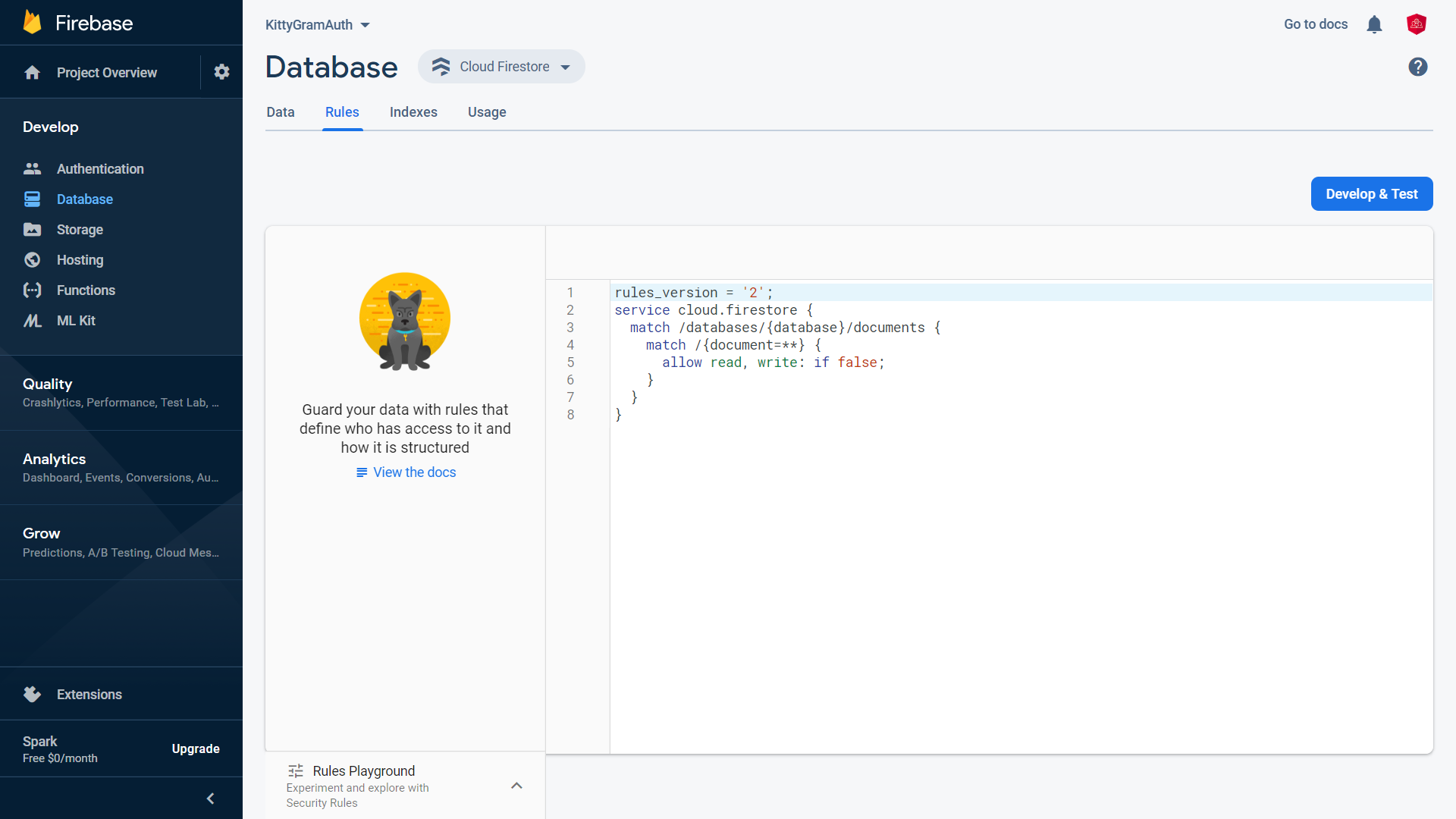
Default Cloud Firestore security rules
rules_version = '2';
service cloud.firestore {
  match /databases/{database}/documents {
    match /{document=**} {
      allow read, write: if false;
    }
  }
}
Default Cloud Firestore security rules
Looking at the rules, allow read, write: if false; translates to:
allow readmeans reads are permitted.write: if false;signals that writes are prohibited.
For our use case, we want reads to be open to everyone, even visitors who aren’t logged in. On the flip side, we only want authenticated users to have write access. So, we can modify the rules to the following:
rules_version = '2';
service cloud.firestore {
  match /databases/{database}/documents {
    match /{document=**} {
      allow read: if true;
      allow write: if request.auth.uid != null;
    }
  }
}
Updated Cloud Firestore security rules
After you save the new rules, the configuration should reflect the changes:
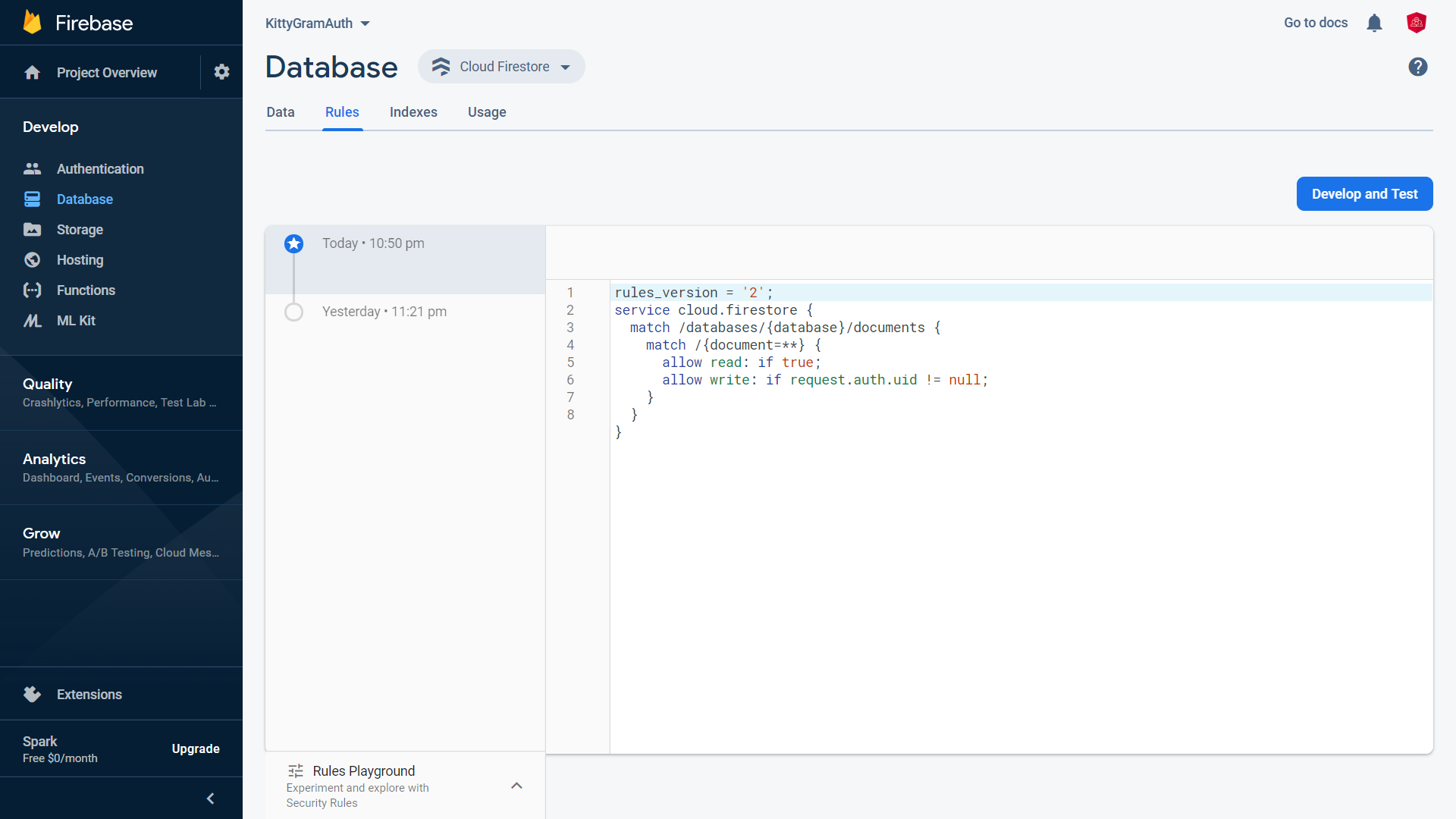
Updated Cloud Firestore security rules
Changes inside our Angular application
To be able to talk to Cloud Firestore, our app needs to work with the APIs included in the @angular/fire package. These are all bundled within the AngularFirestoreModule.
Given that, we have to bring this module into the exports array of our AppFirebaseModule as well.
...
import { AngularFirestoreModule } from '@angular/fire/firestore';
...

@NgModule({
    ...
    exports: [
        ...
        AngularFirestoreModule,
        ...
    ],
})
export class AppFirebaseModule {}
app-firebase.module.ts
With that addition to the exports array, the exposed APIs become available for any declarables (Components, Pipes, and Directives) and services that are registered under AppModule.
Writing post data to the Firestore
Good, with the Firestore groundwork done, let’s start using it to persist data.
For any single post, we probably want to keep track of these key pieces of information:
- The cat photo uploader’s display name and avatar URL.
- The image URL itself along with any description for the post.
- The timestamp for the last update.
- A likes counter (which we’re calling purrs).
- An identifier for the post that Cloud Firestore creates for us.
For type safety, building out an interface as a model is the typical approach. So let’s put one together inside the app/models folder:
export interface UserPost {
  description: string;
  id?: string;
  lastUpdated: number;
  photoUrl: string;
  purrs: number;
  userAvatar: string;
  userName: string;
  doc?: any;
}
user-post.model.ts
It’s worth pointing out that the id field is marked as optional. That’s because at the moment of creating a post, we just don’t have the id yet. We’ll get it later when we’re reading the data.
You might have also observed an optional doc field with a type of any. We’ll come back to this when we talk about lazy loading in our next article.
Now, we need some mechanism to connect to Cloud Firestore and push data to it. That’s where the AngularFirestore service (exposed by the AngularFirestoreModule) comes in. It’s good practice to create a service to hold this data access layer; we’ll name ours DatabaseService.
Once we inject the AngularFirestore service as a dependency in our DatabaseService, we can do a couple of things:
- Make a new collection by invoking the
collectionmethod. This gives us an instance of the typeAngularFirestoreCollection. - Fetch the items in that collection. The collection has a built-in
valueChangesmethod, which we can call. It provides anObservablethat emits the entire collection.
import {
  AngularFirestore,
  AngularFirestoreCollection,
  DocumentReference,
} from '@angular/fire/firestore';
import { Injectable } from '@angular/core';
import { Observable, from } from 'rxjs';

import { UserPost } from './../../models/user-post.model';

@Injectable({
  providedIn: 'root',
})
export class DatabaseService {
  private userPostsCollection: AngularFirestoreCollection<UserPost>;
  userPosts$: Observable<UserPost[]>;

  constructor(private afs: AngularFirestore) {
    this.userPostsCollection = afs.collection<UserPost>('user-posts');
    this.userPosts$ = this.userPostsCollection.valueChanges({ idField: 'id' });
  }
  ...
}
database.service.ts
Note that we’ve defined and exposed a userPosts$ Observable. This is what the FeedComponent will consume for the feed.
Additionally, this service should have:
- A way to introduce a new post into the collection.
- A way to make changes to a post that already exists.
The userPostsCollection has an add method that we can use to insert a new UserPost. The code to do that looks like this:
addUserPost(userPost: UserPost): Observable<DocumentReference> {
  return from(this.userPostsCollection.add(userPost));
}
The addUserPost method
For the update, we need it because users will be clicking the purr button to update the count of likes on a post.
We can get a reference to a specific document by invoking the doc method on the AngularFirestore instance and passing in user-posts/postId. Once we have that document reference, we can call its update method, giving it the partial user post that should be merged. It works the way you’d expect:
updatePost(userPost: UserPost): Observable<void> {
  return from(
      this.afs.doc<UserPost>(`user-posts/${userPost.id}`).update({
        purrs: ++userPost.purrs,
    }),
  );
}
The updatePost method
Excellent! That wraps up our DatabaseService. We can now inject it as a dependency in the CreateComponent for saving a new post. When we have all the pieces for a UserPost, all we have to do is call the addUserPost it.
Since addUserPost produces an Observable<DocumentReference>, we’ll flow our logic by piping through the downloadUrl$ and switching the context with the switchMap operator.
One other change: we’d like to not let the Observable stream disappear. Given that errors are now being caught and managed with the catchError operator, it makes sense to return of(null) rather than EMPTY.
Consequently, we can use the filter operator to only pass values down the stream when they are not null. Everything else in the component is mostly the same. With those updates, our CreateComponent class takes this shape:
...
import { Observable, of, Subject } from 'rxjs';
import { catchError, filter, switchMap, takeUntil } from 'rxjs/operators';
...

import { AuthService } from '../../services/auth/auth.service';
import { DatabaseService } from './../../services/database/database.service';
...
import { UserPost } from './../../models/user-post.model';
...

@Component({ ... })
export class CreateComponent implements OnInit, OnDestroy {

  ...

  constructor(
    ...
    private readonly databaseService: DatabaseService,
    ...
  ) {}

  ...

  postKitty() {

    ...

    downloadUrl$
      .pipe(
        switchMap((photoUrl: string) => {
          const userPost: UserPost = {
            userAvatar: this.user.photoURL,
            userName: this.user.displayName,
            lastUpdated: new Date().getTime(),
            photoUrl,
            description: this.pictureForm.value.description,
            purrs: 0,
          };
          return this.databaseService.addUserPost(userPost);
        }),
        catchError((error) => {
          this.snackBar.open(`${error.message} ?`, 'Close', {
            duration: 4000,
          });
          return of(null);
        }),
        filter((res) => res),
        takeUntil(this.destroy$),
      )
      .subscribe((downloadUrl) => {
        this.submitted = false;
        this.router.navigate([`/${FEED}`]);
      });
  }

  ...
}
create.component.ts
One detail about the UserPost: the purrs start out at 0. But the rest of the properties should be self-explanatory. Feel free to leave a comment below if something is unclear.
Let’s take a moment to verify that our app works as intended so far.
Checking the Storage and Database connection
And it does indeed work. In the beginning, the consoles for both Storage and Database are completely empty. After we upload a post through the app, you’ll see the image appear in the storage bucket, while the corresponding metadata lands in the Firestore.
Great. Now that we have a path for storing a UserPost, let’s zoom in on how to read that data back.
Loading data for the feed from Firestore
Actually, retrieving the data is pretty easy. The userPosts$ Observable we already have (which gives us a collection of user posts) is available to us from the DatabaseService. With our FeedComponent, we inject DatabaseService as a dependency and use this userPosts$ to fill up our feed. Here’s a look at it:
import { Component } from '@angular/core';
import { Observable } from 'rxjs';
import { take } from 'rxjs/operators';

import { DatabaseService } from './../../services/database/database.service';
import { UserPost } from './../../models/user-post.model';

@Component({ ... })
export class FeedComponent {
  userPosts$: Observable<Array<UserPost>> = this.databaseService.userPosts$;

  constructor(private readonly databaseService: DatabaseService) {}

  handlePurrClick(userPost: UserPost) {
    this.databaseService.updatePost(userPost).pipe(take(1)).subscribe();
  }
}
feed.component.ts
The feed also calls for a child presentational/dumb component. This component would take a UserPost as a @Input and bubble up a purr (like) button click as an @Output event. We’ll construct that as FeedItemComponent.
As this its a pure presentational component, we should apply the OnPush ChangeDetectionStrategy.
The component would be as follows:
import { ChangeDetectionStrategy, Component, Input, Output, EventEmitter } from '@angular/core';

import { UserPost } from './../../models/user-post.model';

@Component({
  selector: 'app-feed-item',
  templateUrl: './feed-item.component.html',
  styleUrls: ['./feed-item.component.scss'],
  changeDetection: ChangeDetectionStrategy.OnPush
})
export class FeedItemComponent {
  @Input() userPost: UserPost;
  @Output() purrClick: EventEmitter<UserPost> = new EventEmitter<UserPost>();

  handlePurr() {
    this.purrClick.emit(this.userPost);
  }
}
feed-item.component.ts
For the template, we can make use of a standard card layout:
<mat-card class="feed-item-card">
  <mat-card-header>
    <div mat-card-avatar>
      <img class="avatar" [src]="userPost.userAvatar" />
    </div>
    <mat-card-title>{{ userPost.userName }}</mat-card-title>
    <mat-card-subtitle>{{ userPost.lastUpdated | date }}</mat-card-subtitle>
  </mat-card-header>
  <img
    mat-card-image
    class="preview-image"
    [src]="userPost.photoUrl"
    alt="Photo of a cute Kitty ?"
  />
  <mat-card-content>
    <p>
      {{ userPost.description }}
    </p>
  </mat-card-content>
  <mat-card-actions>
    <button mat-button (click)="handlePurr()">{{ userPost.purrs }} ?</button>
  </mat-card-actions>
</mat-card>
feed-item.component.html
From here, it’s trivial to plug into feed.component.html. We can unwrap the userPosts$ Observable with the async pipe, walk over the list with an *ngFor directive, and render app-feed-item with a single userPost at a time.
<div class="container">
  <ng-container *ngIf="userPosts$ | async as userPosts">
    <app-feed-item
      *ngFor="let userPost of userPosts"
      [userPost]="userPost"
      (purrClick)="handlePurrClick($event)"
    >
    </app-feed-item>
  </ng-container>
</div>
feed.component.html
Additionally, we will bind to the purrClick @Output event from the FeedItemComponent and handle it using the handlePurrClick method.
Alright, with those details taken care of, our feature set is now functionally complete. We can both push new entries to the database, as well as showcase them in the feed, allowing users who are signed in to like a post and have the purr count go up.
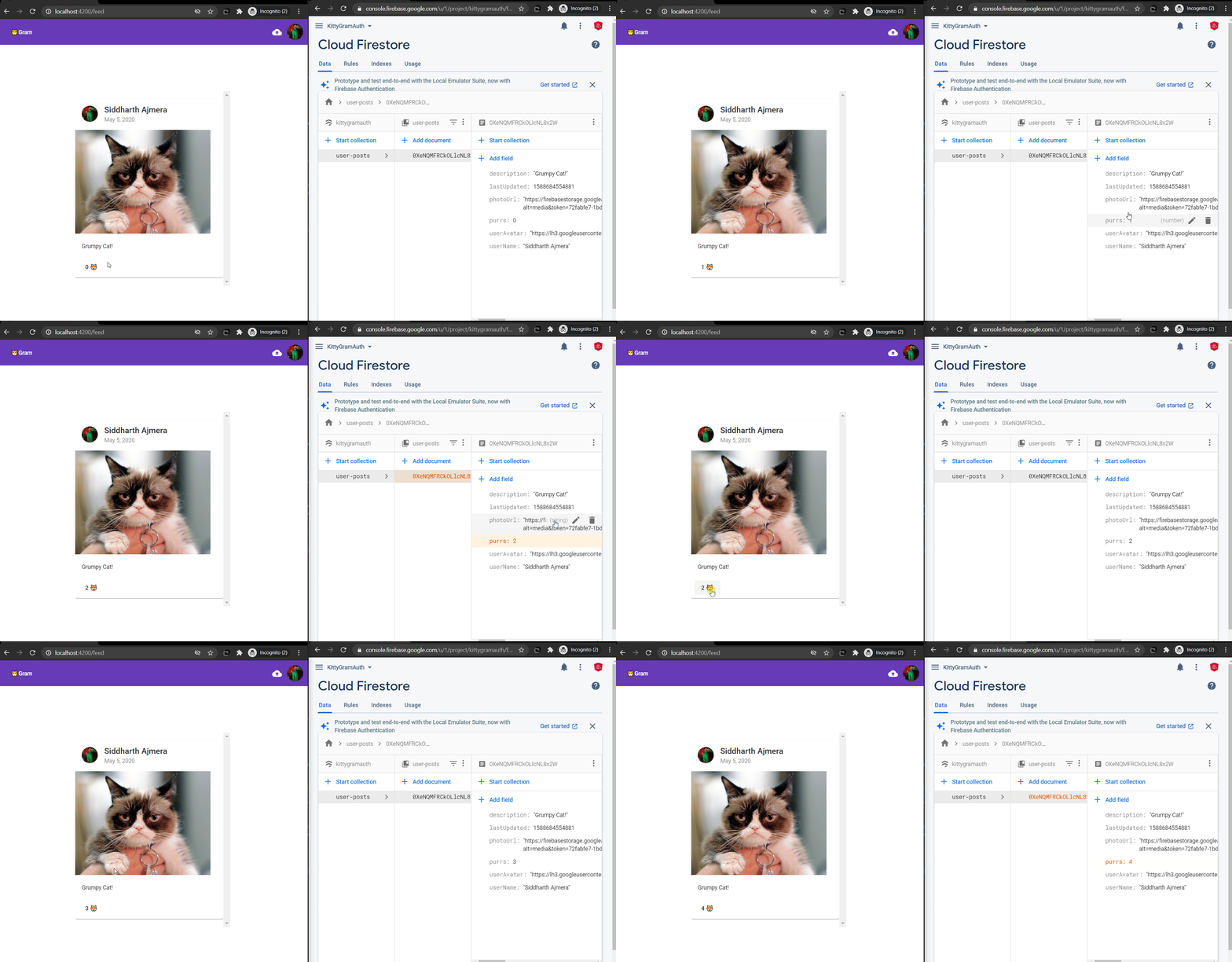
Updating Post info is functional too!
Everything is running smoothly on the surface. However, at this point in time, there’s a big problem lurking underneath.
Since userPosts$ are based on a call to valueChanges on our AngularFirestoreCollection, we end up retrieving all the data stored in our Cloud Firestore on almost any change that happens.
For a database with a couple of documents or maybe ten, it’s fine. But stop and consider the possibility of having 1M records in our Firestore (who knows, maybe it goes viral). As things stand right now, those 1M records would be fetched on the first load of the app. That sounds wild, right? It would absolutely wreck the app’s startup performance, so we need a strategy.
What’s Coming Up
Do you recall that optional doc field of type any we added to our UserPost model? That notion could turn out to be useful for building pagination into the feed; we can trigger fetching more results when the user nears the bottom of the loaded set of data.
That will be the exact focus of the upcoming article. Stay tuned!
Final Remarks
That’s all for this one. I’m glad you followed along, and I hope you enjoyed it.
Special thanks to Martina Kraus for reviewing this writing and working with me on this project.
If reading this helped you pick up some useful tips related to Angular and Firebase, please pass this article along to your friends or colleagues who might find it helpful.
You can access the GitHub repo right here.
If you’ve got questions, feedback, or just want to leave a remark, throw it in the comments below. See you in the next one.